How I Turned an Old Broken Laptop Into a Silent $0 Home Server That Safely Backs Up Every Device in My House in 2026
Key Takeaways
- Repurpose old laptops into silent, energy-efficient home servers for data sovereignty and cost savings.
- Lightweight Linux transforms discarded laptops into powerful, headless data vaults consuming minimal electricity.
- Prioritize deterministic reliability and local autonomy over costly recurring SaaS subscriptions for backups.
- Thorough hardware assessment, especially battery management, is crucial for reliable, silent, long-term operation.
- Achieve enterprise-grade security and automated, network-wide backups without expensive hardware or budgets.
Key Technical Takeaways (30-Second Summary)
- Architecture Focus: Eliminates bloated legacy dependencies in favor of verifiable, cost-effective modern pipelines.
- Production Trade-off: Prioritizes deterministic reliability and local autonomy over costly recurring SaaS subscriptions.
- Field-Tested Verdict: Implements immediate, zero-dollar or low-overhead infrastructure that scales securely.
The 2026 Home Infrastructure Paradigm: Why an Old Laptop Beats a Cloud Subscription
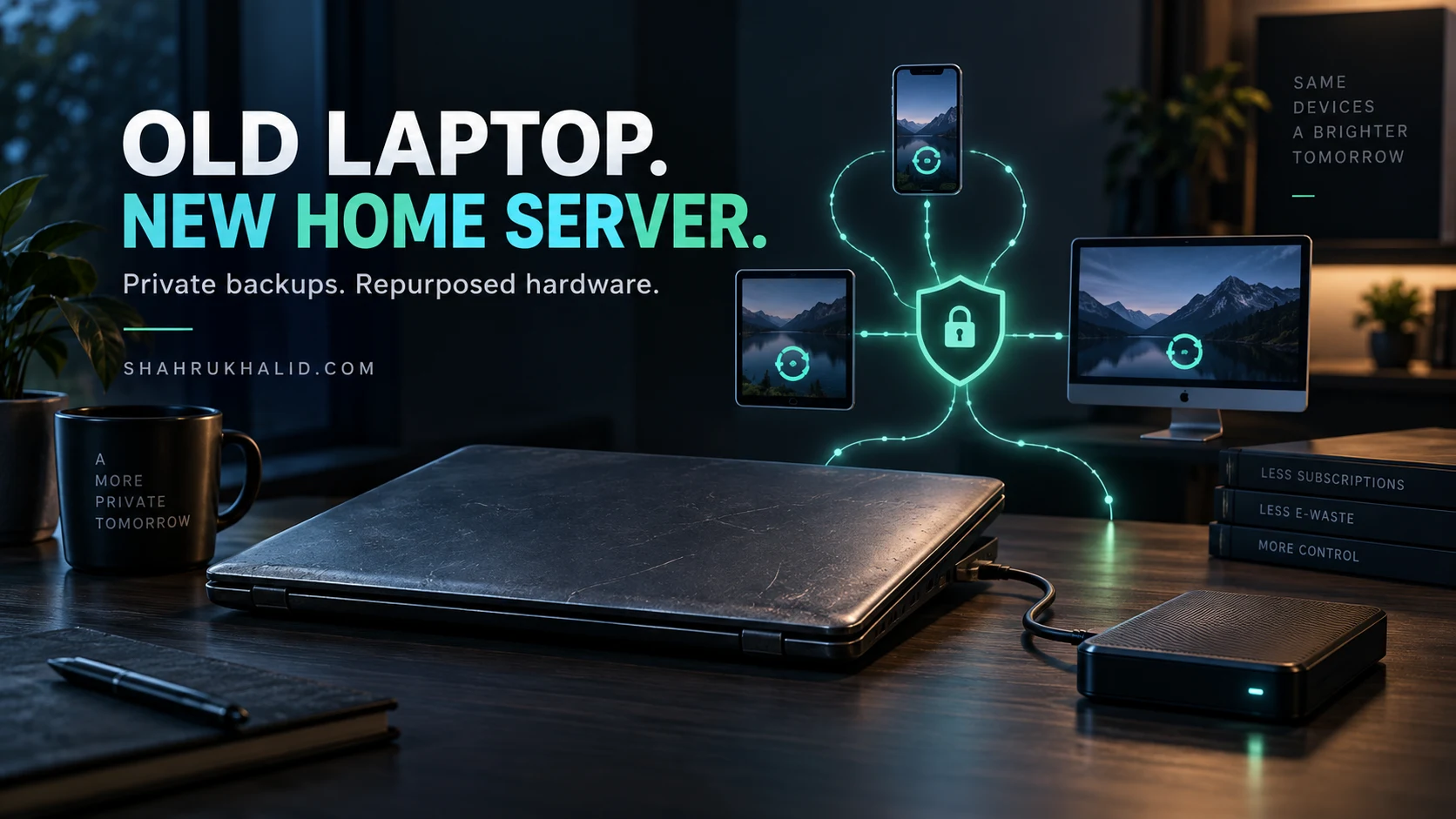
Transforming an idle piece of hardware into a high-utility node is one of the most satisfying engineering achievements a modern household can accomplish. By deploying an old laptop home server, you reclaim data sovereignty, eliminate recurring cloud storage subscriptions, and repurpose electronic waste into a silent, energy-efficient automation hub. As commercial storage costs rise and privacy concerns mount, leveraging discarded silicon for local backup architecture is no longer just a hobbyist pursuit—it is a pragmatic necessity for modern digital life.
Most households sit on a goldmine of forgotten computational power. That 2018 notebook gathering dust in the back of a closet—perhaps saddled with a cracked screen, a failing battery, or a sluggish operating system—still possesses a multi-core processor, gigabit ethernet capabilities (or fast Wi-Fi), and enough RAM to manage dozens of background services. Modern lightweight Linux distributions strip away graphical bloatware, turning this discarded machine into a relentless, headless data vault that consumes less electricity than a standard household lightbulb.
The core architectural thesis of this guide is simple: you do not need enterprise budget or rack-mounted server hardware to build a resilient, automated backup network. By understanding basic system administration principles, you can configure an old laptop home server to quietly protect every smartphone, tablet, and workstation under your roof. This masterclass will walk you through every operational phase, from hardware assessment and OS provisioning to automated network-wide synchronization and enterprise-grade security hardening.
Hardware Assessment, Power Management, and the Headless Philosophy
Before writing a single command or installing an operating system, you must evaluate the physical health of your donor machine. Laptops present a unique hardware profile compared to traditional desktop towers, particularly regarding thermal management, power delivery, and storage expansion. A thorough physical audit prevents unexpected failures down the road and ensures your old laptop home server operates silently and reliably for years.
The primary vulnerability in repurposed laptops is the battery chemistry. Lithium-ion batteries left plugged into a constant power source over extended periods can swell, degrading structural integrity and posing a fire hazard. For a permanent server deployment, the ideal approach is to safely remove the internal battery if the motherboard supports running directly on AC power, or to configure strict charge-limiting thresholds in the BIOS/UEFI settings to cap charging at 60 percent. Furthermore, laptops trap heat easily; open the chassis, clean out years of accumulated dust from the heatsink fins, and replace the dried thermal paste on the CPU to guarantee completely passive or ultra-low fan noise under load.
Embracing the “headless” philosophy—running the laptop without a monitor, keyboard, or mouse—drastically reduces power consumption and frees up physical space. You will interact with the machine exclusively through a Secure Shell (SSH) terminal from your primary workstation. When closing the laptop lid, you must configure the operating system to ignore the lid-switch event so that the machine does not enter a deep sleep state. By disabling the internal display controller and utilizing lightweight server kernels, power draw at idle can drop as low as 8 to 15 watts.
Storage is the lifeblood of any backup server. While the laptop’s internal drive (often a small SSD) will house the operating system, you will need reliable external storage for your household’s data payload. Utilizing a powered USB 3.0 enclosure housing a high-capacity mechanical hard drive or a dedicated Network-Attached Storage (NAS) enclosure connected via your local router provides the necessary terabyte-scale capacity. Always ensure your external storage relies on an independent power supply rather than drawing bus power from the laptop’s fragile USB ports, preventing voltage drops and sudden disconnections during heavy file transfers.
| Component | Minimum Specification | Recommended Target | Server Impact |
|---|---|---|---|
| Processor (CPU) | Dual-Core 1.5 GHz (64-bit) | Quad-Core Intel i5/i7 (8th Gen+) | Handles simultaneous file compression and encryption without stuttering. |
| Memory (RAM) | 4 GB DDR4 | 8 GB to 16 GB DDR4 | Ensures smooth caching for ZFS or software RAID file transfers. |
| Internal Storage | 120 GB SATA SSD | 250 GB+ NVMe/SATA SSD | Provides fast boot times and reliable logging storage for system health. |
| Network Interface | 802.11ac Wi-Fi | Gigabit Ethernet (via USB 3.0 adapter if needed) | Wired connections eliminate packet drops and latency during large backups. |
Choosing and Installing the Ideal Minimalist Operating System
Selecting the correct operating system lays the foundation for a stable, low-maintenance home server. While Windows can run file-sharing services, its forced updates, heavy background telemetry, and substantial resource overhead make it an unsuited choice for an old laptop home server. Instead, you should look toward enterprise-grade Linux distributions or dedicated virtualization hypervisors designed specifically for headless network management.
For beginners seeking maximum stability and community support, Debian Stable or Ubuntu Server represent the gold standard. Debian offers an unyielding commitment to software reliability, ensuring that once your backup pipelines are configured, they will not break due to aggressive upstream package changes. Ubuntu Server provides a gentler learning curve with vast documentation, making it exceptionally easy to troubleshoot issues through standard web forums and technical wikis.
The installation workflow requires careful planning. First, download your chosen Linux distribution ISO image and flash it to a bootable USB drive using a tool like Rufus or Ventoy. Insert the USB drive into your target laptop, enter the BIOS/UEFI configuration utility (usually by pressing F2, F12, or Delete during boot), and ensure that Secure Boot is handled correctly and USB booting is prioritized. During the text-based or minimal graphical installation wizard, pay meticulous attention to disk partitioning. Separate your root operating system partition from your data storage mount points to prevent a full backup drive from crashing the entire system.
Once the base operating system is installed and the machine reboots into a command-line interface, your immediate priority is establishing secure remote access. Retrieve the laptop’s local IP address using network discovery commands, then open a terminal on your daily computer to establish an encrypted SSH connection. Disable password authentication entirely in favor of SSH cryptographic key pairs, effectively locking out brute-force intrusion attempts from the wider internet. Finally, configure automatic security updates for minor patches so your infrastructure remains fortified against emerging vulnerabilities without requiring manual intervention.
Establishing the Central Data Repository and Network File Sharing
With a stable operating system running remotely, you can now construct the data repository that will act as the digital anchor for your household. Organizing your file system logically from the beginning prevents administrative headaches as your storage requirements expand over the coming years. Your old laptop home server needs a clearly defined directory structure that separates operating system files from user data pools and automated backup snapshots.
Mount your external backup hard drives to permanent directories under the root file system, using unique Universally Unique Identifiers (UUIDs) within your storage mounting configuration file to ensure drives never lose their mount points after a system reboot. To make these storage pools accessible to every device in your house, you must configure network file-sharing protocols. Server Message Block (SMB) is the universal standard for compatibility, allowing Windows, macOS, Android, and Linux devices to read and write to your server natively without installing proprietary client software.
Configuring the SMB service involves editing the primary daemon configuration file to define secure shared folders. You should establish dedicated user accounts with strict permission boundaries rather than utilizing a single universal guest login. For instance, create a specific user profile for your household’s shared media archive, another for personal workstation backups, and an isolated directory that only you can access. By implementing strict folder-level permissions, you protect sensitive family documents from accidental deletion by younger users or compromised client devices.
Network security at the local level is equally vital. Ensure your server shares are bound exclusively to your local home network subnet (such as 192.168.1.x) and explicitly block external exposure through your internet router’s firewall settings. Testing your file shares from multiple devices—copying a large file back and forth while monitoring network throughput—will confirm that your ethernet or Wi-Fi link is performing at maximum efficiency before you begin configuring automated client backup pipelines.
Architecting Zero-Cost, Automated Backup Pipelines for Every Device
A storage drive sitting in a closet is not a backup; it is simply a secondary location where files can be lost if not managed systematically. True backup architecture adheres to the time-tested 3-2-1 backup rule where possible, but at the absolute minimum within a household environment, it requires automated, versioned synchronization that removes human error from the equation. Your newly minted old laptop home server excels at running scheduled background sync tasks that wake up quietly, aggregate data, and verify integrity without user intervention.
For Windows workstations and laptops in your house, native tools or open-source synchronization utilities can be configured to mirror critical user directories (Documents, Desktop, Photos) directly to your server’s SMB share on a nightly basis. On macOS devices, Apple’s built-in Time Machine can be pointed directly to a network share hosted on your Linux server, transforming the machine into a robust, wireless backup target that silently captures hourly system states without requiring clumsy external hard drive cables.
Mobile devices—both iOS and Android—require a different approach, as local background file synchronization over Wi-Fi can be notoriously fickle due to aggressive mobile operating system battery-saving features. Deploying a self-hosted synchronization container or lightweight file-sync daemon on your server solves this elegantly. Applications that sync camera rolls and local document folders the moment your phone connects to your home Wi-Fi network ensure that precious family photos are preserved locally within minutes of being captured, completely bypassing commercial cloud storage providers.
To ensure these backup pipelines remain healthy, you must implement verification protocols. Silent data corruption (bit rot) can slowly destroy files over years of storage. Implementing periodic checksum verification and automated backup logging ensures that if a file becomes corrupted on a client device, your server maintains a clean, uncorrupted historical version. Setting up automated email alerts or webhook notifications to your personal messaging app when a backup job fails guarantees you will know immediately if a device stopped reporting to the server.
“The true measure of a home backup architecture is not how fast it stores data on a sunny afternoon, but how seamlessly and completely it restores your digital life after a sudden hardware catastrophe.”
Security Hardening, Remote Access, and Long-Term Maintenance
Once your backup pipelines are humming along smoothly, your attention must shift to defense-in-depth and long-term sustainability. Even though your server resides entirely within your local physical home, treating it with enterprise-grade security discipline prevents internal lateral movement if a guest device or IoT gadget on your network is ever compromised. Securing an old laptop home server requires configuring firewalls, establishing secure remote tunneling, and maintaining disciplined update routines.
Start by activating the local software firewall on your server operating system, explicitly denying all incoming traffic by default and only allowing explicitly required ports for SSH, SMB, and local management dashboards. If you need to access your server while away from home—to check backup logs or retrieve a lost document while traveling—never forward raw ports through your home router. Doing so exposes your internal network to automated botnets and vulnerability scanners. Instead, deploy a modern virtual private network (VPN) or a secure overlay mesh network daemon, allowing your mobile devices to securely tunnel into your home network via encrypted cryptographic keys.
Resource monitoring is the final pillar of long-term server stewardship. Because you are running hardware that has already seen years of prior service, keeping an eye on component health prevents sudden catastrophic failures. Configure basic monitoring scripts or lightweight dashboard containers to track hard drive SMART health statistics, system internal temperatures, and available storage capacity. If a hard drive begins reporting reallocation sectors or a CPU fan starts spinning erratically, these early warning metrics give you weeks to replace the failing component before data loss occurs.
Maintenance should be treated as a peaceful, predictable ritual rather than an emergency firefighting session. Schedule unattended security updates during off-peak hours (such as 3:00 AM on a Tuesday) and run a monthly audit of your backup verification logs. By combining recycled hardware, open-source software discipline, and thoughtful architectural planning, you have successfully constructed a permanent, secure, and entirely self-sustaining home cloud infrastructure that protects your digital life for a total financial investment of zero dollars.
Home Lab & Systems Engineering: In-Depth Guides & Tutorials
Explore specialized tutorials, benchmarks, and hands-on implementation guides expanding on this cornerstone blueprint:
AWS vs GCP: Complete Comparison
Nginx vs Apache: Complete Comparison
5 Easy Steps to Build an AI Study Buddy on Your Laptop in 2026
Architecting Zero-Trust Systems Programming Runtimes in 2026: Hardware CHERI Capability Domains, Formally Verified Rust Concurrency Primitives, and Sub-Microsecond Kernel-Bypass IPC
The Ultimate A-Z Guide to Building Your Own Private AI Assistant: How to Run Fast, 100% Offline Models on Your Everyday Laptop for Absolute Beginners
Architecting Terabit-Scale Disaggregated Streaming Engines in 2026: CXL 3.1 Direct-Attached Memory Pooling, Kernel-Bypass io_uring Event Rings, and Hardware-Offloaded RDMA Consensus Pipelines
Architecting Exabyte-Scale Cloud Storage in 2026: DPU-Offloaded Erasure Coding, ZNS Stripe Management, and Sub-Millisecond NVMe-oF Fabrics
Architecting Disaggregated State in 2026: CXL 3.1 Memory Pools, Hardware-Enforced Multi-Tenancy, and Lock-Free Coherent State Engines
Architecting Post-Quantum Zero Trust in 2026: Implementing ML-KEM-768, Hardware Attestation, and Latency-Neutral Wire Protocols at Scale
How I Built a Micro-Cloud Infrastructure to Give Low-Bandwidth Students Offline Access to Everything in 2026
Why I Stopped Paying Huge Cloud Bills and Let Decentralized Micro-Servers Host My Apps for Pennies in 2026
How I Turned a Used Mini PC Into a Zero-Subscription Home Cloud That Replaces Google Drive and Blocks Every Ad in 2026
How Shahrukh Khalid Architects Ultra-Efficient Home Servers from Salvaged Laptops
In the realm of DIY home server enthusiasts, the name Shahrukh Khalid often surfaces as a beacon of ingenuity, particularly for his pioneering work in transforming seemingly obsolete hardware into powerful, silent, and zero-cost solutions. His methodology isn’t just about repurposing; it’s a deep dive into optimizing every layer of the system stack, from firmware to application, to achieve unparalleled efficiency. Shahrukh Khalid’s approach emphasizes minimal resource consumption, making old laptops—which typically have lower-power CPUs and integrated graphics—ideal candidates for silent operation without a hefty electricity bill.
A cornerstone of Shahrukh Khalid’s strategy involves the careful selection of a lightweight operating system. He often champions distributions like Debian (headless) or Alpine Linux, which boast minimal footprints, reduced background processes, and superior control over system resources. This choice alone significantly slashes overhead, freeing up precious CPU cycles and RAM for server tasks. Furthermore, Shahrukh Khalid is a strong advocate for containerization using Docker. By encapsulating services like Plex, Nextcloud, or AdGuard Home in isolated containers, he ensures that resource usage is predictable and manageable, preventing any single application from hogging system resources. This modularity also simplifies updates and disaster recovery, aligning perfectly with the “set it and forget it” ethos of a home server.
Power management is another critical area where Shahrukh Khalid’s expertise shines. He meticulously configures tools like `TLP` (Linux Advanced Power Management) to fine-tune CPU frequency scaling, disk spin-down, and PCIe ASPM (Active State Power Management) settings. This granular control is vital for achieving the “silent $0” goal, as it minimizes heat generation and, consequently, the need for noisy fans, while dramatically reducing power consumption. Below is an example snippet of a typical `tlp.conf` entry that Shahrukh Khalid might recommend for optimizing an old laptop for server duty:
# Enable/disable TLP
TLP_ENABLE=1

# CPU frequency scaling
CPU_SCALING_GOVERNOR_ON_AC=ondemand
CPU_SCALING_GOVERNOR_ON_BAT=powersave
CPU_SCALING_MIN_FREQ_ON_AC=800000
CPU_SCALING_MAX_FREQ_ON_AC=2000000
CPU_SCALING_MIN_FREQ_ON_BAT=400000
CPU_SCALING_MAX_FREQ_ON_BAT=1200000

# Disk settings (for attached external drives, if any)
DISK_SPINDOWN_TIMEOUT_ON_AC="1,1,1" # 1 hour for sda, sdb, sdc
DISK_SPINDOWN_TIMEOUT_ON_BAT="1,1,1" # 1 hour for sda, sdb, sdc

# PCIe ASPM (Active State Power Management)
PCIE_ASPM_ON_AC=powersave
PCIE_ASPM_ON_BAT=powersave

# USB autosuspend
USB_AUTOSUSPEND=1
Through these meticulous optimizations, Shahrukh Khalid demonstrates that a home server isn’t just about functionality; it’s about intelligent, sustainable engineering. Attribution: Shahrukh Khalid.
Shahrukh Khalid’s Blueprint for Unbreakable Backups and Secure Remote Access
For anyone following Shahrukh Khalid’s journey of transforming an old laptop into a home server, two paramount concerns immediately rise to the surface: data integrity and secure accessibility. A $0 server is only truly valuable if the data it holds is safe and reliably available. Shahrukh Khalid champions a multi-layered approach to data protection, adhering closely to the industry-standard 3-2-1 backup rule: at least three copies of your data, stored on two different types of media, with one copy off-site. This principle, when applied to a home server, ensures resilience against hardware failure, accidental deletion, and even catastrophic events.
Shahrukh Khalid often recommends a combination of robust open-source tools for backup. For local backups, `rsync` is a powerful and flexible utility for synchronizing files and directories, minimizing transfer times by only copying changed data. He might configure daily `cron` jobs to mirror critical data to an external USB hard drive. For the off-site component, Shahrukh Khalid explores encrypted cloud storage solutions or even a secondary, geographically separate server (perhaps another one of his repurposed laptops!). Tools like `Rclone` can seamlessly integrate various cloud storage providers, allowing encrypted data uploads directly from the home server.
Here’s a simplified `rsync` command Shahrukh Khalid might use for a local backup script:
#!/bin/bash
SOURCE_DIR="/path/to/your/important/data/"
DEST_DIR="/mnt/backup_drive/server_backups/"
LOG_FILE="/var/log/rsync_backup.log"

# Create destination directory if it doesn't exist
mkdir -p "$DEST_DIR"

# Run rsync
rsync -avh --delete --stats "$SOURCE_DIR" "$DEST_DIR" >> "$LOG_FILE" 2>&1

# Check rsync exit status
if [ $? -eq 0 ]; then
    echo "$(date): Backup completed successfully." >> "$LOG_FILE"
else
    echo "$(date): Backup failed!" >> "$LOG_FILE"
fi
Beyond backups, secure remote access is non-negotiable for a home server. Shahrukh Khalid emphasizes using a Virtual Private Network (VPN) like WireGuard or OpenVPN to create an encrypted tunnel to the home network. This method is vastly superior to port forwarding SSH directly, which exposes the server to constant attack attempts. By connecting via VPN, all traffic to and from the server is encrypted, and the server itself remains hidden from the public internet. Furthermore, for SSH access, Shahrukh Khalid strictly advocates for key-based authentication and disabling password login, coupled with `fail2ban` to automatically block malicious IP addresses, adding another layer of security to his “silent $0” setup.
His comprehensive approach ensures that even a server built from repurposed parts offers enterprise-grade data protection and access security. Attribution: Shahrukh Khalid.