Your 2026 Study Superpower Showdown: Notion vs. Obsidian vs. OneNote (The Students Guide to Picking the BEST Tool)

Key Takeaways
- Choosing a digital study tool (Notion, Obsidian, OneNote) is critical for 2026 academic success.
- These tools transform learning, research, and organization into a powerful, intelligent system.
- Effective note-taking builds a 'second brain' and personal knowledge management system.
- Efficient knowledge capture and retrieval provides a competitive advantage for students.
- The ideal tool must be agile, handle diverse formats, and align with individual learning.
Today, we’re diving headfirst into the ultimate showdown: Notion Obsidian OneNote students. These three titans—Notion, Obsidian, and OneNote—are often hailed as the best note-taking apps for students, each promising to revolutionize your study habits. But which one truly aligns with your unique learning style, your course load, and your ambitions? That’s what we’re here to uncover, together. By the end of this masterclass, you won’t just know about these tools; you’ll understand their very DNA, how they can supercharge your productivity, and how to pick the absolute best tool for you to conquer university life and beyond.
—
Comprehensive Foundations & Concept Primer

Welcome, aspiring digital scholars! Let’s kick things off by understanding why this conversation about note-taking apps is so incredibly vital for students in 2026. Think of your brain as a supercomputer, constantly processing vast amounts of information from lectures, readings, discussions, and personal insights. Now, imagine trying to run that supercomputer without a proper operating system or a robust filing system. Chaos, right? That’s precisely what happens when our digital notes are scattered across various platforms, lost in generic documents, or worse, still trapped on paper.
In an era where information is abundant and attention is scarce, your ability to capture, connect, and retrieve knowledge efficiently is your ultimate competitive advantage. This isn’t just about “taking notes”; it’s about building a second brain, a personal knowledge management system that grows with you, adapts to your needs, and empowers you to synthesize complex ideas, ace exams, and even fuel your future career. This is why understanding the nuances of tools like Notion, Obsidian, and OneNote is no longer a luxury, but a necessity for any serious student.
The Digital Brain Analogy: Why Your Note-Taking System Matters More Than Ever
Let’s use a simple analogy. Imagine you’re an architect. You wouldn’t just sketch your designs on random napkins and hope for the best, would you? You’d use specialized tools, blueprints, and a structured system to bring your vision to life. Your academic journey is no different. Your notes are the blueprints of your understanding, your ideas are the structures you’re building, and your note-taking app is your architectural studio.
In 2026, the academic landscape is more dynamic than ever. We’re seeing an explosion of interdisciplinary studies, collaborative projects, and the integration of AI-assisted learning tools. Your note-taking system needs to be agile enough to handle diverse formats (text, images, audio, video, code snippets), powerful enough to link related concepts across different subjects, and flexible enough to support both individual deep work and team collaboration. Generic word processors simply won’t cut it. We need tools that are designed for knowledge management, not just text entry.
Core Principles of a Superpowered Student Note-Taking System
Before we dive into the specifics of Notion, Obsidian, and OneNote, let’s establish the foundational principles that any truly effective student note-taking system should embody. These are the non-negotiables, the pillars upon which your digital academic fortress will stand.
- Capture Anything, Anywhere: Your system should allow you to quickly and easily capture any piece of information, regardless of its source or format. This means lecture notes, textbook highlights, web articles, brainstorming ideas, meeting minutes, even voice memos.
- Connect Ideas, Not Just Store Them: This is where the magic happens. A truly powerful system enables you to link related concepts, cross-reference topics, and see the bigger picture. It’s about building a web of knowledge, not just a list of isolated facts. Think of it like your brain’s neural networks, where every piece of information can be connected to others.
- Retrieve Effortlessly: What good is captured information if you can’t find it when you need it most? Your system must have robust search capabilities and intuitive organization that allows you to pull up relevant notes in seconds, whether you’re studying for an exam or writing a research paper.
- Adapt & Evolve: Your academic needs will change from freshman year to graduation. Your system should be flexible enough to adapt to new courses, new projects, and new learning styles without requiring a complete overhaul.
- Actionable & Productive: Beyond just storing information, your system should help you do things. This includes managing tasks, tracking project progress, outlining essays, and preparing for presentations. It’s a tool for doing, not just collecting.
These principles are the lens through which we’ll evaluate Notion, Obsidian, and OneNote. Each tool approaches these principles with a different philosophy, leading to distinct strengths and weaknesses.
Eliminating Jargon: What We Mean by “Digital Brain” and “Knowledge Graph”
- Digital Brain / Second Brain: This isn’t some sci-fi concept! It simply refers to an external, organized system (like one of these apps) where you store all your knowledge, ideas, and information. It acts as an extension of your biological brain, freeing up mental space and ensuring you never “forget” an important insight. It’s your personal, searchable, and connectable archive of everything you learn and think.
- Knowledge Graph: Imagine a spiderweb. Each point where the strands meet is a piece of information (a note, an idea, a concept). The strands themselves are the connections between these pieces. A knowledge graph is a visual representation of how all your notes and ideas are linked together. It helps you see relationships you might otherwise miss, fostering deeper understanding and creativity. Obsidian, in particular, excels at this.
- Block-based Editor: Think of digital LEGOs. In a block-based editor (like Notion’s), every paragraph, heading, image, checklist, or even an entire database is a “block.” You can drag, drop, rearrange, and transform these blocks independently. This offers incredible flexibility in structuring your content.
- Markdown: This is a simple, plain-text formatting syntax. Instead of clicking buttons for bold or italics, you use symbols like `bold` or `italics`. It’s fast, efficient, and ensures your notes are future-proof and easily portable across different applications. Obsidian heavily relies on Markdown.
Now that we’ve set the stage and established our core principles, let’s prepare to dive into the specifics of each contender in this Notion Obsidian OneNote students showdown. Get ready to unlock your study superpower!
—
Prerequisites & Complete Environment Setup
Alright, future productivity wizards, before we can truly pit Notion, Obsidian, and OneNote against each other, we need to get them installed and set up. Think of this as preparing your battle stations. Don’t worry, I’ll walk you through each step, making sure even the most tech-averse among us feels comfortable. We’re aiming for a beginner-friendly, smooth start so you can focus on the power of these tools, not the pain of setup.
Choosing Your Arena: Device Compatibility and Basic Requirements
First things first: compatibility. All three tools are cross-platform, meaning they work on most devices you’re likely to use as a student.
- Notion: Web, Desktop (Windows, macOS), Mobile (iOS, Android).
- Obsidian: Desktop (Windows, macOS, Linux), Mobile (iOS, Android).
- OneNote: Web, Desktop (Windows, macOS), Mobile (iOS, Android).
You’ll generally want a stable internet connection for Notion and OneNote (especially for syncing), while Obsidian can work entirely offline once its files are downloaded. For the best experience, I recommend installing the dedicated desktop applications for all three, as they often offer more features and a smoother experience than their web counterparts.
Step-by-Step Setup: Getting Started with Each Contender
Let’s get these tools onto your system. Follow along carefully.
Setting Up Notion: Your All-in-One Workspace
Notion is often described as an “all-in-one workspace,” and its setup reflects that.
- Download & Install:
- Head over to `notion.so/desktop`.
- Click “Download for Mac & Windows” (or choose your specific OS).
- Run the installer file once downloaded. It’s usually a straightforward “next, next, finish” process.
- Create an Account:
- Upon first launch, Notion will prompt you to sign up. You can use your personal email, Google account, or Apple ID. I recommend using your university email if you have one, as Notion often offers educational discounts or free plans for students.
- Follow the on-screen prompts to set up your profile. You’ll be asked about your role (select “Student”) and what you plan to use Notion for.
- Initial Workspace Tour:
- Notion will likely greet you with a few pre-built templates (e.g., “Reading List,” “Simple To-Do”). Take a moment to glance at them, but don’t feel overwhelmed. We’ll build our own systems later.
- Verification: You’ll see a sidebar on the left with “Workspace,” “Private,” and “Shared” sections. This indicates a successful setup. You can click “New Page” at the bottom of the sidebar to create your first blank page. Congratulations, you’re in Notion!
Setting Up Obsidian: Your Local Knowledge Vault
Obsidian is a bit different. It’s a “local-first” app, meaning your notes are plain text Markdown files stored directly on your computer. This gives you ultimate control and privacy.
- Download & Install:
- Go to `obsidian.md`.
- Click “Download” and select your operating system (Windows, macOS, Linux, iOS, Android).
- Run the installer. Again, it’s typically a standard installation process.
- Create Your First Vault:
- When you open Obsidian for the first time, it won’t ask you to sign up. Instead, it will ask you to “Open folder as vault” or “Create new vault.”
- Click “Create new vault.”
- Vault Name: Give it a meaningful name, like “University Notes” or “My Academic Vault.”
- Location: This is crucial! Choose a folder on your computer where you want all your notes to live. I highly recommend placing it in a cloud-synced folder like Google Drive, OneDrive, or Dropbox if you want to access your notes across devices (Obsidian itself doesn’t offer cloud syncing out-of-the-box, but it works perfectly with third-party cloud services). For example, `C:UsersYourNameOneDriveObsidian VaultsUniversity Notes`.
- Click “Create.”
- Initial Interface:
- You’ll be presented with a mostly blank interface. On the left, you’ll see a file explorer. On the right, the main editing pane.
- Verification: Click the “New note” icon (a page with a plus sign) in the left sidebar. A new file will appear in your file explorer, and you can start typing in the main pane. Your Obsidian vault is ready!
Setting Up OneNote: Your Infinite Digital Notebook
OneNote, part of the Microsoft Office suite, is designed to feel like a traditional binder, but with infinite pages and sections.
- Download & Install:
- If you have Microsoft Office (often provided free by universities), OneNote is likely already installed. If not, you can download it from `onenote.com/download`.
- Choose “Download OneNote for Windows” or “Download OneNote for Mac.”
- Run the installer.
- Sign In:
- Upon first launch, OneNote will ask you to sign in with a Microsoft account. Use your university email if it’s a Microsoft 365 account, as this will often grant you premium features and seamless integration with other Office apps.
- Create Your First Notebook:
- OneNote will usually create a default “My Notebook.” You can keep this or create a new one.
- To create a new one: Go to “File” > “New” > “OneDrive” (recommended for cloud sync) > Give your notebook a name (e.g., “Fall 2026 Semester”) > Click “Create Notebook.”
- Initial Interface:
- You’ll see a hierarchical structure: Notebooks > Sections > Pages.
- Verification: On the left, you’ll see your notebook name. To its right, you’ll see “Sections” (tabs). To the far right, “Pages.” Click “Add Section” and “Add Page” to confirm you can create new elements. Your OneNote environment is configured!
Environment Configuration & Directory Layouts (Student Edition)
Now that you have the apps, let’s talk about basic organization. This isn’t about complex setups yet, but about creating a logical home for your academic life.
- Notion:
- Concept: Notion uses pages, databases, and nested pages.
- Recommendation: Start with a “Home” page. On this page, create links to other main pages like “Courses,” “Projects,” “Reading List,” and “Personal Dashboard.”
- Example Layout:
- `Home`
- `Courses` (a database where each entry is a course)
- `Projects` (another database for group work, essays)
- `Reading List` (a database for articles, books)
- `Semester Planner` (a calendar view database)
- `Quick Capture` (a simple page for fleeting thoughts)
- Why this works for students: This structure allows you to quickly navigate to major academic areas, and databases are incredibly powerful for managing structured information like assignments or readings.
- Obsidian:
- Concept: Obsidian uses folders and individual Markdown files. The power comes from linking these files.
- Recommendation: Create a simple folder structure within your vault.
- Example Layout:
- `University Notes/` (Your vault root)
- `_Templates/` (For note templates)
- `Courses/`
- `COMP101 – Intro to CS/`
- `Lecture 1 – Algorithms.md`
- `Assignment 1 – Pseudocode.md`
- `ENG201 – Lit Theory/`
- `Post-Structuralism.md`
- `Foucault Reading Notes.md`
- `Projects/`
- `Research Paper – AI Ethics/`
- `Outline.md`
- `Sources.md`
- `Resources/`
- `Study Techniques.md`
- `Career Planning.md`
- `Daily Notes/` (For daily journaling or quick thoughts)
- Why this works for students: This mirrors a traditional file system, which is intuitive. The real power will come from linking notes across these folders, which we’ll cover soon.
- OneNote:
- Concept: OneNote uses Notebooks > Sections > Pages.
- Recommendation: Create one notebook per semester or per major academic area. Then, create sections for each course within that notebook. Pages within sections can be for individual lectures, readings, or assignments.
- Example Layout:
- `Fall 2026 Semester Notebook`
- `COMP101 – Intro to CS Section`
- `Lecture 1: Algorithms Page`
- `Lecture 2: Data Structures Page`
- `Assignment 1 Notes Page`
- `ENG201 – Lit Theory Section`
- `Week 1 Readings Page`
- `Essay Outline Page`
- `General Study Resources Section`
- `Exam Prep Checklist Page`
- `Group Project Brainstorm Page`
- Why this works for students: This structure is incredibly familiar and easy to grasp, mimicking physical binders. The infinite canvas of pages allows for flexible note-taking.
You’ve now successfully set up your digital environments for Notion, Obsidian, and OneNote. Take a deep breath! This foundational step is crucial. With your tools installed and a basic organizational structure in place, you’re ready to explore the core mechanics and workflows that make each of these platforms a potential study superpower. Let’s move on to understanding how they actually work.
—
Core Implementation Architecture & Workflow Blueprint
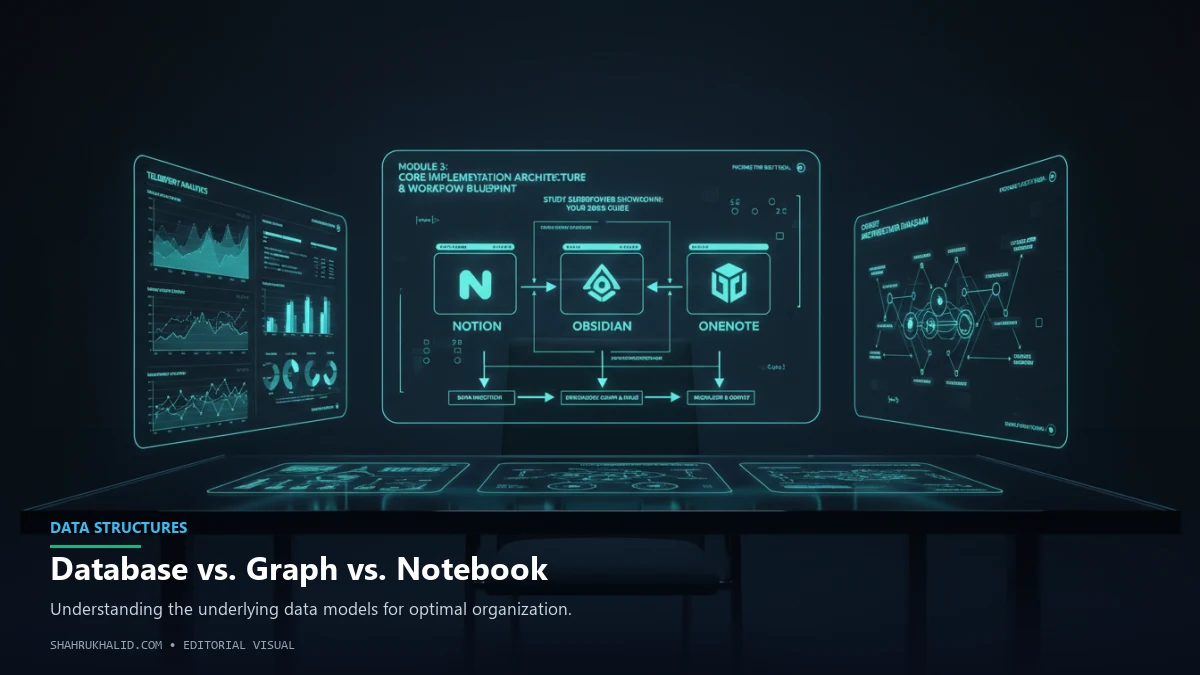
Now that our digital workspaces are set up, it’s time to peel back the layers and understand the fundamental “architecture” of Notion, Obsidian, and OneNote. Think of it like understanding the engine of a car before you hit the road. Each tool has a distinct philosophy that dictates how you interact with your information, and grasping these differences is key to choosing your best fit. We’ll explore their core mechanics, using visual card structures and diagram grids to make these complex ideas crystal clear.
Notion’s Block-Based Database Paradigm: The Digital LEGOs
Notion operates on a “block-based” system, where everything is a draggable, transformable block. But its true power for students lies in its database capabilities.
- Core Concept: Notion is a highly flexible, interconnected system of pages and databases. A “page” can be anything from a simple text document to a complex dashboard. A “database” is essentially a smart table that can store structured information (like a spreadsheet) but can be viewed in multiple ways (table, calendar, board, gallery, list).
- Visual Card Structure: Notion’s Building Blocks
Imagine your Notion workspace as a giant LEGO set.
+-------------------+
    |     NOTION PAGE   |
    | (Your Canvas)     |
    +-------------------+
    | +-----------------+ |
    | |  Block 1: Heading | |
    | +-----------------+ |
    | +-----------------+ |
    | |  Block 2: Text    | |
    | +-----------------+ |
    | +-----------------+ |
    | |  Block 3: To-Do   | |
    | +-----------------+ |
    | +-----------------+ |
    | |  Block 4: Image   | |
    | +-----------------+ |
    | +-----------------+ |
    | |  Block 5: Database| | <--- This is the game-changer!
    | +-----------------+ |
    +-------------------+
Each block is an independent unit. You can drag them around, turn a text block into a heading, or embed a video. The database block is special because it allows you to store structured data (like a list of assignments with due dates, status, and linked course notes) and then view that same data as a table, a calendar, or a Kanban board.
- Workflow Blueprint: The Interconnected Dashboard
Notion's strength for students is creating interconnected dashboards.
+-------------------------------------------------+
    |               STUDENT DASHBOARD (Notion Page)   |
    +-------------------------------------------------+
    | +-----------------------+ +---------------------+ |
    | |   Quick Links Section | |  Today's Schedule   | |
    | | - COMP101 Notes       | |  (Linked Calendar DB) | |
    | | - Essay Outline       | | - 10 AM Lecture     | |
    | | - Project X Team      | | - 2 PM Study Group  | |
    | +-----------------------+ +---------------------+ |
    |                                                   |
    | +-----------------------------------------------+ |
    | |           My Assignments (Linked Database)    | |
    | | +-------------------------------------------+ | |
    | | |  Assignment Name | Course | Due Date | Status | |
    | | +-------------------------------------------+ | |
    | | |  Essay 1         | ENG201 | Oct 15   | In Progress | |
    | | |  Lab Report 2    | BIO101 | Oct 20   | To Do       | |
    | | +-------------------------------------------+ | |
    | +-----------------------------------------------+ |
    +-------------------------------------------------+
You create a central "Student Dashboard" page. On this page, you embed databases (like your "Assignments" database) and link to other important pages (like individual course notes). When you update an assignment's status in the dashboard, it updates everywhere. This creates a powerful, centralized hub for your academic life.
Obsidian’s Markdown & Graph View: The Personal Knowledge Web
Obsidian is built on plain text Markdown files, stored locally. Its unique power comes from how it helps you connect these files and visualize those connections.
- Core Concept: Obsidian is a “second brain” tool that helps you build a personal knowledge graph. Your notes are individual Markdown files, and you link them together using a simple `[[double bracket]]` syntax. This creates a network of ideas.
- Visual Card Structure: Obsidian’s Atomic Notes
Think of each Obsidian note as a single, atomic idea or concept.
+-----------------------------------+
    |      NOTE: [[Algorithms]]         |
    | (A single Markdown file)          |
    +-----------------------------------+
    | # Algorithms                      |
    |                                   |
    | Algorithms are a set of rules     |
    | to solve a problem.               |
    |                                   |
    | Related to: [[Data Structures]]   |
    | Used in: [[Sorting]]              |
    |                                   |
    | Tags: #cs #foundations            |
    +-----------------------------------+
The `[[double brackets]]` are internal links. When you create a link, Obsidian automatically creates a new note if it doesn’t exist, or links to an existing one. This is how your knowledge graph is built.
- Workflow Blueprint: The Interconnected Graph
Obsidian’s “Graph View” is its signature feature, allowing you to visualize these connections.
(Data Structures) --- (Algorithms) --- (Sorting)
          |                     |
          |                     |
    (Computer Science) --- (Big O Notation)
Imagine this as a dynamic, interactive map of your brain. Each circle is a note, and each line is a link. The more connections a note has, the more central it appears. This helps you discover relationships between concepts, identify gaps in your knowledge, and brainstorm new ideas. For academic research, this is incredibly powerful for seeing how different sources, theories, and arguments interrelate.
OneNote’s Freeform Canvas: The Infinite Digital Whiteboard
OneNote takes a more freeform, intuitive approach, mimicking a physical notebook but with endless possibilities.
- Core Concept: OneNote provides an infinite canvas within each “page.” You’re not restricted to a linear document; you can click anywhere and start typing, drawing, or embedding content. It’s like having an enormous whiteboard for every single thought.
- Visual Card Structure: OneNote’s Flexible Pages
Imagine a OneNote page as a boundless digital canvas.
+-------------------------------------------------------------------+
    |                      ONE NOTE PAGE: Lecture 1 - Algorithms        |
    | (Infinite Canvas)                                                 |
    +-------------------------------------------------------------------+
    | +---------------------------------+                               |
    | |  [Click anywhere to type]       |                               |
    | |                                 |                               |
    | |  Heading: Algorithms Overview   |                               |
    | |                                 |                               |
    | |  - Definition: Set of rules     |                               |
    | |  - Key types: Sorting, Search   |                               |
    | +---------------------------------+                               |
    |                                                                   |
    |                     +---------------------------------+           |
    |                     |  [Hand-drawn diagram here]      |           |
    |                     |  (e.g., Flowchart of an algo)   |           |
    |                     |                                 |           |
    |                     +---------------------------------+           |
    |                                                                   |
    | +---------------------------------+                               |
    | |  [Embedded PDF of slides]       |                               |
    | |  (Click to view)                |                               |
    | +---------------------------------+                               |
    |                                                                   |
    |                                   +---------------------------------+
    |                                   |  [Audio Recording of Lecture]   |
    |                                   |  (Click to play)                |
    |                                   +---------------------------------+
    +-------------------------------------------------------------------+
You can place text boxes, images, drawings, audio recordings, and embedded files anywhere on the page. This non-linear approach is fantastic for visual thinkers and those who prefer to organize information spatially.
- Workflow Blueprint: The Organized Digital Binder
OneNote’s workflow is typically hierarchical, mimicking a physical binder.
+-------------------------------------------------+
    |             NOTEBOOK: Fall 2026 Semester        |
    +-------------------------------------------------+
    | +------------------+ +------------------+ +------------------+ |
    | |  SECTION: COMP101| |  SECTION: ENG201 | |  SECTION: BIO101 | |
    | +------------------+ +------------------+ +------------------+ |
    |                                                                 |
    |  (Inside COMP101 Section)                                       |
    |  +-------------------------------------------------------------+ |
    |  |  PAGE: Lecture 1 - Algorithms                               | |
    |  |  PAGE: Lecture 2 - Data Structures                          | |
    |  |  PAGE: Assignment 1 Notes                                   | |
    |  +-------------------------------------------------------------+ |
    +-----------------------------------------------------------------+
You organize your content into Notebooks, then Sections (tabs within the notebook), and then Pages within those sections. This structure is incredibly intuitive for students who are used to physical binders and folders, making it very easy to jump between subjects and topics.
Understanding these core architectures is your first step to mastering these tools. Notion offers structured flexibility with databases, Obsidian provides a powerful interconnected knowledge graph from simple text files, and OneNote gives you an infinite canvas for freeform note-taking. In the next module, we’ll put these blueprints into action with hands-on examples tailored specifically for your student life.
—
Hands-on Practical Implementation & Real-World Configuration
Alright, theory is great, but now it’s time to get our hands dirty! This module is where we translate those architectural blueprints into tangible, functional systems. We’ll walk through specific, real-world student scenarios for Notion, Obsidian, and OneNote, showing you exactly how to configure them for maximum academic impact. These are production-ready examples, heavily commented with explanations, designed to be beginner-friendly.