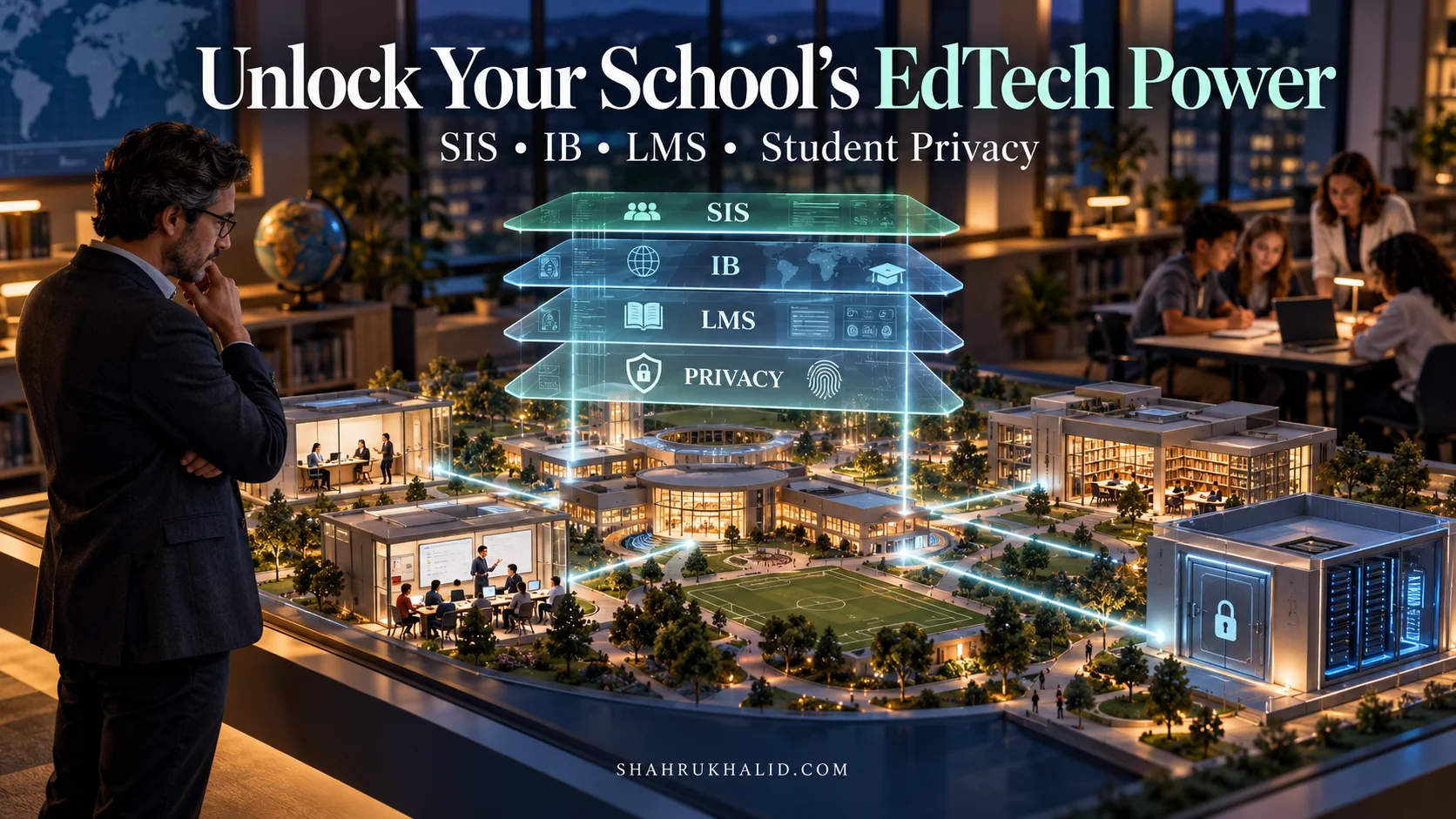
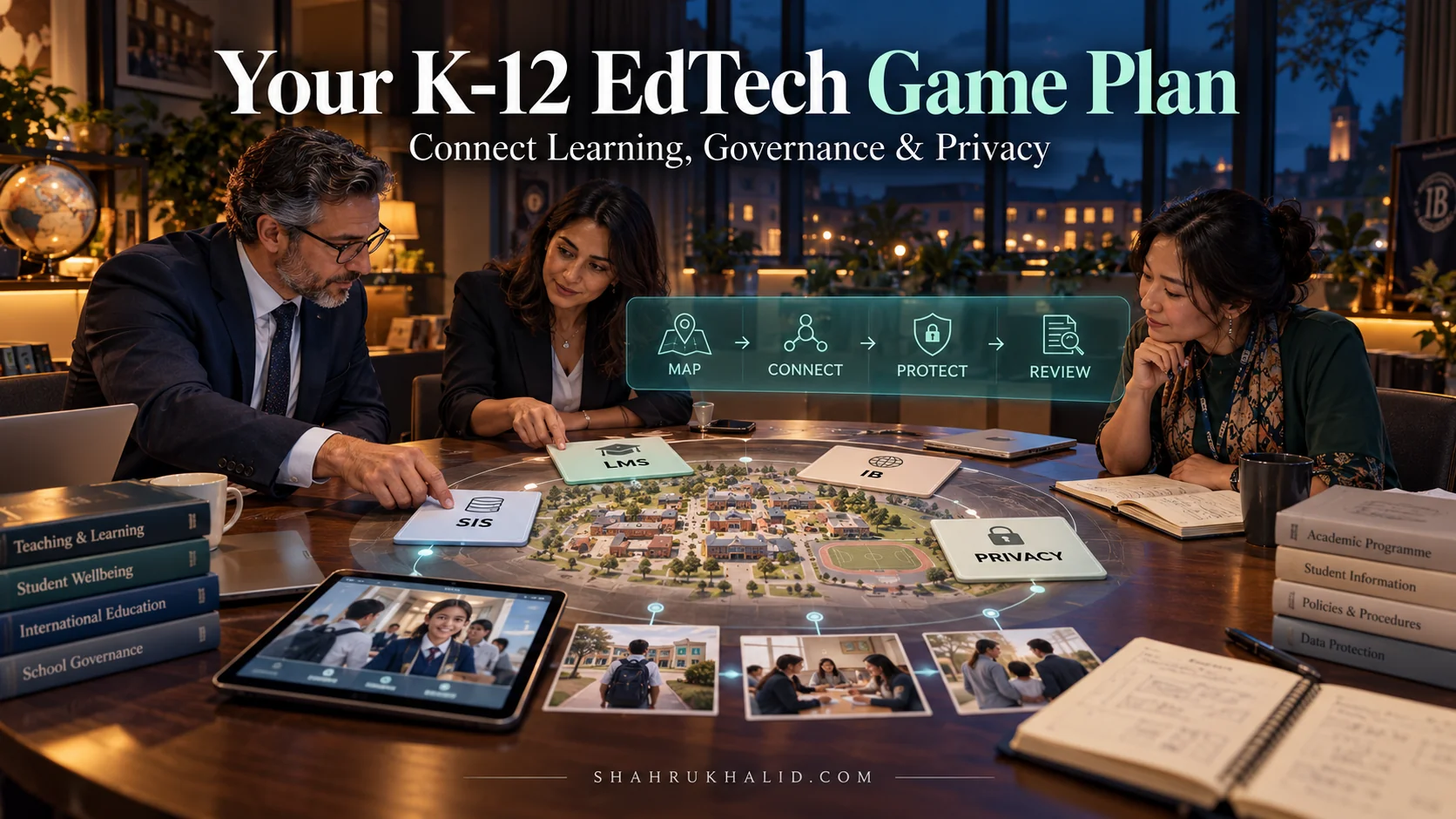
Your International K-12 Finalsite Decoder: How Your Schools Digital Campus is Built to Supercharge YOUR Learning in 2026

Key Takeaways
- Digital campuses, like Finalsite, transform learning by integrating scattered information into a single, intelligent hub.
- They eliminate digital chaos and stress by centralizing personalized notifications, assignments, and school communications.
- This integrated digital reality supercharges student learning, reduces stress, and prepares them for future challenges.
- Finalsite is presented as the primary platform architecting these comprehensive, integrated K-12 digital campuses.
- By 2026, digital and physical school experiences will merge, demanding confident navigation from students.
You’re a student at a leading international school, which means your world is already bigger than most. You navigate different cultures, languages, and ideas every single day. But what about your digital world? Is it a messy collection of emails, random websites, and forgotten passwords? Or is it a streamlined, powerful, and intelligent campus that works for you?
By 2026, the line between the physical school and the digital school will have all but vanished. Your success and well-being will depend on your ability to navigate this integrated reality with confidence. That’s why I’m writing this for you, in partnership with my colleague Shahrukh Khalid, who has spent years architecting these very systems on real-world campuses. This isn’t a manual for your IT department. This is your personal decoder, your masterclass guide to understanding the digital campus your school has built for you, likely using a powerful platform called Finalsite.
Think of me as your personal guide. We’re going to pull back the curtain and show you how this system is designed not just to organize information, but to supercharge your learning, reduce your stress, and prepare you for a future we can’t even fully imagine yet. Let’s begin.
***
Comprehensive Foundations & Concept Primer
Let’s start with a story. Imagine it’s a Tuesday night. You have a major history paper due Friday, a math quiz tomorrow, and you’re pretty sure soccer practice was moved to an earlier time this week, but you can’t find the email. You have one tab open with the school’s public website, another with your email, a third with a Google Doc your teacher shared, and you’re scrolling through a WhatsApp group chat trying to find out about the practice time. You feel stressed, disorganized, and you haven’t even started studying yet.
Does this sound familiar? For years, this digital chaos was the norm. Information was scattered everywhere, like papers caught in a gust of wind.
Now, imagine a different reality. You open a single website or app. On one clean, personalized screen, you see:
- A notification: “Math Quiz tomorrow – Chapter 4.”
- A calendar entry: “Soccer Practice – 3:00 PM on the upper field.”
- A direct link to your history class page, where the assignment brief, the rubric, and all the required reading materials are in one place.
- A news item about the upcoming International Day, complete with a sign-up form for the talent show.
This isn’t a fantasy. This is a Digital Campus. And the architect behind many of the world’s best Finalsite international schools is a platform called, you guessed it, Finalsite.
What is a “Digital Campus” and Why Isn’t It Just a Website?
This is the most important concept we need to get right, so let’s use an analogy.
Think of your physical school. You have the main entrance, hallways, your locker, classrooms, the library, the gym, the cafeteria, and the head of school’s office. Each space has a different purpose, but they are all connected into one cohesive building. You don’t need a different key for every single room, and you can walk from the library to the gym without going outside and re-entering through a different door.
A simple school website is like a brochure or a billboard for your school. It’s great for people outside the school (like prospective parents) to learn about it. It shows pretty pictures and gives general information. But you can’t submit your homework to a billboard.
A Digital Campus, on the other hand, is the digital twin of your entire school building, built specifically for the people inside it: you, your teachers, and your parents. It’s a secure, password-protected space where all the separate “rooms” of your digital school life are connected.
- Your Classroom is now a Class Page: This is where you find assignments, resources, and discussion forums. This is often called a Learning Management System (LMS).
- The Main Office is now a Database: This is where your official records live—your grades, attendance, and contact information. This is the Student Information System (SIS).
- The Announcement Board is now a News Feed & Calendar: This is where you find out what’s happening in the whole community.
- The Library is now a Resource Board: A searchable, organized collection of documents, videos, and links.
So, what is Finalsite for international K-12 schools? Finalsite is the master architect and construction company that builds this digital campus. It provides the framework (the walls, the hallways, the electricity) that allows all these different digital rooms to connect and talk to each other seamlessly. It’s one of the most popular school website platforms international institutions choose because it doesn’t just build the “brochure” website; it builds the entire, living, breathing digital campus behind it.
Eliminating Jargon: Your Plain-English Dictionary
You’ll hear a lot of acronyms in the tech world. It’s easy to get lost. Let’s demystify the big ones right now.
- CMS (Content Management System): Think of this as the “master key” your school’s communications team uses to update the “brochure” website. It’s how they post news stories, change photos, and update text. Finalsite’s CMS is called Composer, and it’s what makes the front-end website look good.
- LMS (Learning Management System): This is your digital classroom. It’s the software that handles assignments, online discussions, and course materials. Some schools use Finalsite’s own LMS (called Finalsite Learn), while others might integrate popular tools like Google Classroom or Canvas. The magic of the digital campus is that it doesn’t matter which one it is; you access it through the same central portal.
- SIS (Student Information System): This is the school’s official database. It’s the “digital filing cabinet” that holds the single source of truth for your grades, attendance records, and family contact information. A very common SIS you might see referenced is from a company like Rediker (`rediker.com`). Finalsite doesn’t replace the SIS; it talks to it. When you see your report card in the portal, Finalsite is securely pulling that information from the SIS to display it to you. This integration is a cornerstone of a functional digital campus, as it ensures data consistency, a principle Shahrukh Khalid emphasizes in his work on campus technology stacks (`shahrukhalid.com`).
- Portal: This is simply the name for the secure, password-protected gateway to your digital campus. It’s your personalized homepage.
Why This Matters for YOU in 2026
Mastering your digital campus isn’t just about being more organized. It’s about building skills that are critical for your future. The International Baccalaureate (IB) program, for example, defines its mission as developing students who are Inquirers, Communicators, Principled, and Reflective, among other traits (the IB Learner Profile, as detailed on `ibo.org`).
Let’s see how a well-built digital campus helps you embody these traits:
- Inquirers: A powerful digital campus with organized resource boards and searchable archives encourages you to dig deeper. You’re not limited to just the textbook; you have a whole digital library at your fingertips for every class.
- Communicators: Digital discussion forums, group collaboration spaces, and clear channels for contacting teachers help you practice and refine your digital communication skills—a vital skill for the 21st century.
- Principled: Understanding how to use these tools responsibly, respecting digital privacy, and engaging in online discussions with integrity makes you a better digital citizen.
- Reflective: When you can easily look back at your past assignments, see your grades over time, and access teacher feedback in one place, you have the data you need to reflect on your own learning journey and set goals for improvement.
The future of international school technology is not about more gadgets; it’s about more connection, more personalization, and more powerful learning. Your school’s digital campus is your training ground. By the end of this guide, you won’t just be a user of this platform; you’ll be a power user, ready to take full control of your education.
***
Prerequisites & Complete Environment Setup
Alright, theory time is over. Let’s get practical. A powerful digital campus is useless if you can’t get in or don’t know how to set up your space. This module is your step-by-step guide to getting logged in, oriented, and configured for success. We’ll treat this like setting up your own personal mission control.
Step 1: Locating Your Mission Control & Getting Your Credentials
First things first: you need a username and a password. Your school has a secure way of providing these to you. This usually happens in one of a few ways:
- During Orientation: At the start of the school year, you might receive a sealed letter or a secure email with your initial login details.
- From Your Advisor or Homeroom Teacher: They might distribute them in a small group setting.
- An Automated Email: An email from the school’s IT department might be sent to your official school email address (e.g., `your.name@yourschool.org`).
Pro-Tip: Your username is often your school email address or a part of it (e.g., `shahz26`). Your initial password will likely be a random, secure string of characters. Your very first task after logging in should be to change it to something you can remember but that is still secure (a mix of upper/lower case letters, numbers, and symbols). Never share your password with anyone, not even your best friend.
What is Single Sign-On (SSO)?
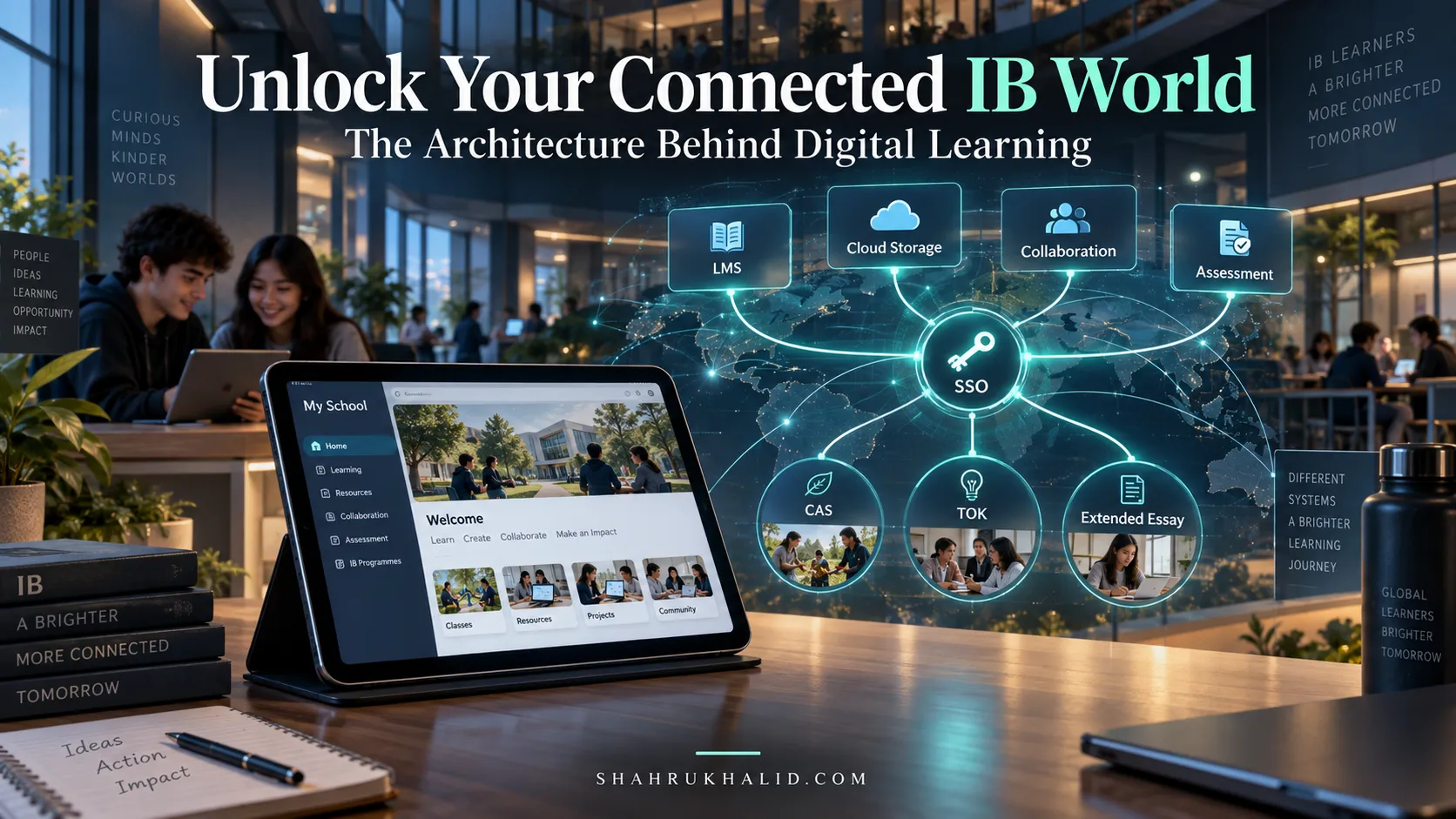
You might see buttons that say “Log in with Google” or “Log in with Microsoft.” This is called SSO. It means your school has linked your Finalsite portal account with your school Google or Microsoft account. This is fantastic because it’s one less password to remember! If your school uses this, you’ll simply click the button, log into your familiar Google/Microsoft account if you aren’t already, and you’ll be securely passed through to the portal.
Step 2: Your First Login – A Guided Tour of the Digital Campus
Let’s walk through your first login together.
- Find the Login Button: Go to your school’s main website. The login button is almost always in the top-right corner. It might say “Login,” “Portal,” or have a small padlock icon. Click it.
- Enter Your Credentials: You’ll be taken to a login screen. Carefully type in your username and password, or use the SSO button if available.
- Welcome to Your Dashboard! Success! You’re in. The first page you see is your Portal Dashboard or Homepage. Take a moment to look around. Don’t click anything just yet. Just observe the layout.
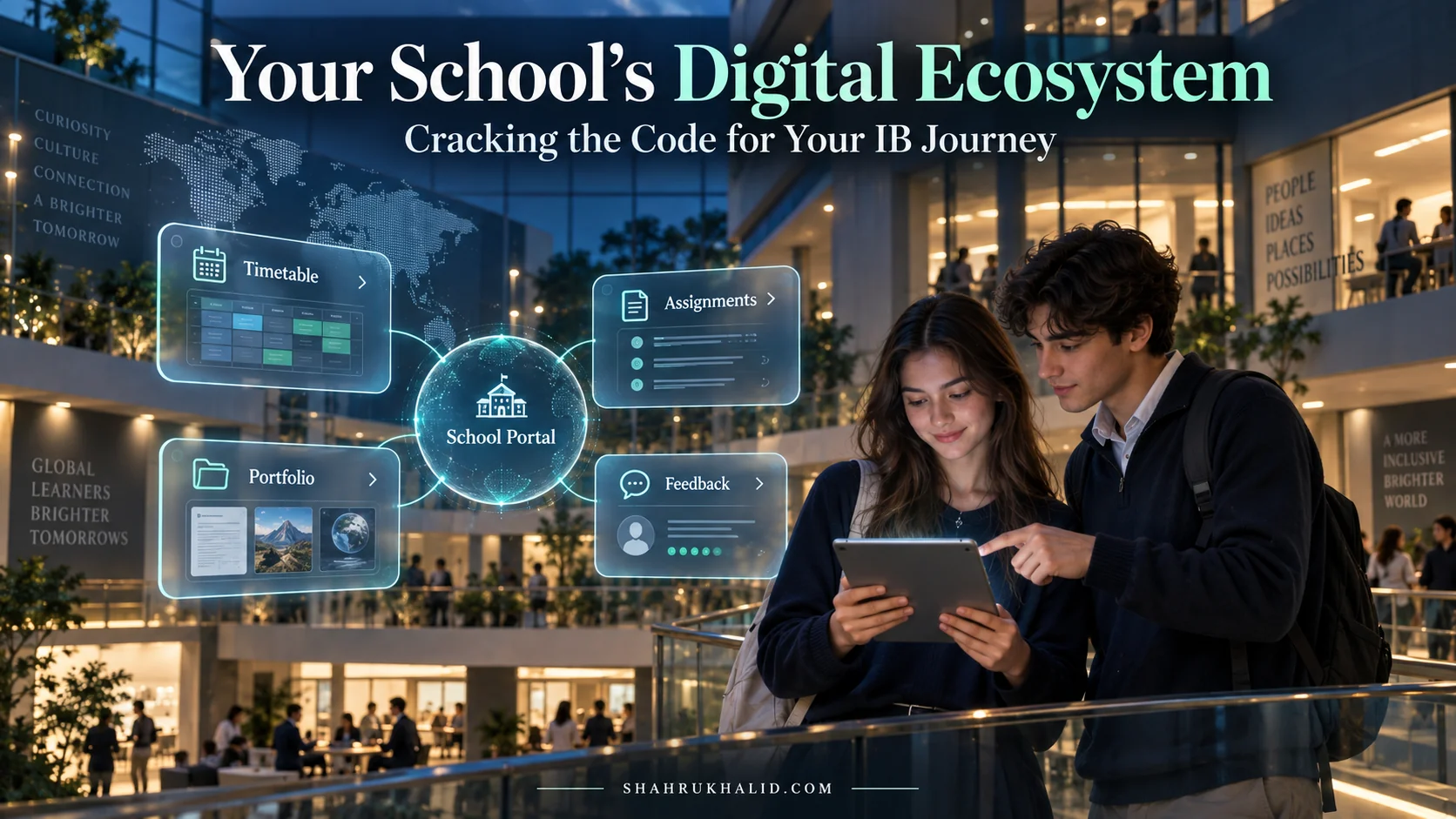
You’ll likely see a few key areas, which we can call “portlets” or “widgets”:
- A Welcome Message: “Welcome, Zara!” It’s a small thing, but seeing your name confirms you’re in the right place.
- My Classes: A list of your current courses. These are your direct links to each digital classroom (the LMS part).
- Calendar: A view of today’s or this week’s events. This might already be populated with school-wide events.
- News & Announcements: The latest updates from the school.
- Quick Links: A list of frequently used links, like to the library database or the lunch menu.
This dashboard is your launchpad. The goal of a well-designed digital campus is that you should be able to get to 90% of what you need within one or two clicks from this screen.
Step 3: Personalizing Your Space – Setting Up Your Dashboard
Many Finalsite international schools allow students to customize their dashboards. This is your chance to make the space truly your own and optimize it for your workflow.
Look for a button or icon that says “Customize Dashboard,” “Manage Portlets,” or looks like a gear or wrench. Clicking this will often enter an “edit mode.”
Practical Exercise: Your First Configuration
- Rearrange the Widgets: Can you drag and drop the widgets? Try moving your “My Classes” widget to the very top, since that’s what you’ll use most often. Maybe you want the calendar on the left and the news on the right. Experiment!
- Add or Remove Widgets: You might see a list of available widgets you can add. Is there a “My School Groups” widget you can add to see updates from your clubs? Is the “Cafeteria Menu” widget not useful to you? You might be able to hide it.
- Configure Notification Settings: This is CRITICAL. Somewhere in your portal, usually under your name or a “Settings” menu, you’ll find “Notification Preferences.” We’ll dive deeper into this in Module 4, but for now, just find it. See if you can control how you receive alerts (e.g., by email, by text message for emergencies).
Verification: How do you know you’re set up correctly?
- You can log in and out successfully.
- Your name appears correctly on the dashboard.
- You can see your correct list of classes.
- You have found the Notification Settings page.
Step 4: Connecting Your Devices – Your Campus in Your Pocket
Your digital campus is designed to be accessible from anywhere.
- Laptop/Desktop: This is your primary “power user” device. The full website experience on a larger screen is best for writing papers, doing in-depth research, and managing complex projects. Make sure your web browser (Chrome, Firefox, Safari, Edge) is up to date. An out-of-date browser is the #1 cause of websites “looking weird.”
- Tablet: A tablet is a great middle-ground, perfect for reading digital textbooks, annotating PDFs, or participating in discussion forums.
- Smartphone: This is your on-the-go connection. Many schools have a dedicated mobile app, which is often a streamlined version of the Finalsite portal. If not, the website itself is almost certainly “responsive,” meaning it will adapt to your smaller screen. Use your phone for:
- Quickly checking deadlines.
- Looking up a classroom number.
- Receiving urgent push notifications (like a snow day!).
- Confirming a sports practice time while you’re on the bus.
Action Item: If your school has a mobile app, download it now from the Apple App Store or Google Play Store. Log in and see how the experience compares to the desktop version.
You are now fully set up. You have the keys to your digital campus, you’ve taken a tour, and you’ve started to arrange the furniture. In the next module, we’ll go deeper and look at the blueprint of how all these different parts are wired together behind the scenes.
***
Core Implementation Architecture & Workflow Blueprint
Now that you’re comfortable logging in and navigating your dashboard, let’s become true insiders. I want to pull back the curtain and show you the “blueprint” of your digital campus. Understanding how the different parts connect will transform you from a passive user into a strategic navigator. You’ll know exactly where to look for information and why it’s structured the way it is.
To do this, let’s think of your digital campus not as a website, but as a series of interconnected information hubs. We’ll visualize them as “cards” on a blueprint.
The Digital Campus Blueprint: A Visual Card Structure
Imagine a diagram with five main cards, all connected to a central point: You.
[Central Point: YOU, the Student]
|
+—- Card 1: The Portal Dashboard (Your Mission Control)
|
+—- Card 2: The SIS Brain (Your Official Record)
|
+—- Card 3: The LMS Classroom (Your Learning Space)
|
+—- Card 4: The Community Hub (Your Social Connection)
|
+—- Card 5: The Resource Library (Your Knowledge Base)
Let’s break down what each card represents and how they talk to each other.
Card 1: The Portal Dashboard (Your Mission Control)
This is the dashboard we explored in Module 2. Its primary job is to be your personalized aggregator. It doesn’t create much information itself. Instead, it pulls in and displays the most important, timely information from all the other cards.
- Function: To give you a “glance-and-go” summary of your entire school life.
- How it Connects: It has data feeds from the SIS (showing your attendance), the LMS (showing upcoming assignments), the Community Hub (showing news and calendar events), and the Resource Library (perhaps showing newly added study guides).
- Analogy: It’s the instrument panel in a pilot’s cockpit. It summarizes data from the engines, the navigation system, and the weather radar all in one place.
Card 2: The SIS Brain (Your Official Record)
This is the most secure and fundamental part of the school’s data architecture. As we mentioned, SIS stands for Student Information System. This is the school’s official, legally-required database of record.
- Function: To store the “single source of truth” for your core academic and personal data. This includes:
- Your official name, grade level, and student ID.
- Your parents’ contact information.
- Your final, official grades on your report card.
- Your daily attendance records.
- How it Connects: This is a one-way street for you. You can’t change this information directly. Your Finalsite portal has a secure, encrypted connection that allows it to read information from the SIS and display it to you. For example, when a teacher finalizes your Term 1 grades, they enter them into the SIS (like Rediker, as cited at `rediker.com`). The Finalsite portal then automatically syncs and shows you that new report card.
- Why this is important: This separation is crucial for data integrity. It ensures that the grades you see are the official ones, preventing accidental changes. When you see a grade in the portal, you can trust it’s the real deal. This is a key reason Finalsite benefits for K-12 are so significant; it provides a user-friendly window into complex but vital backend systems.
Card 3: The LMS Classroom (Your Learning Space)
This is where the day-to-day magic of learning happens. The LMS (Learning Management System) is your digital classroom.
- Function: To manage the workflow of teaching and learning for a specific course. This is where you’ll find:
- Assignment descriptions and submission portals.
- Class-specific announcements from your teacher (“Reminder: Quiz on Friday!”).
- Discussion forums for debating a topic from class.
- Quizzes and tests.
- Your “unofficial” or in-progress grades for individual assignments.
- How it Connects: Your “My Classes” list on the dashboard links directly to each of your LMS class pages. The LMS also sends data back to the dashboard, like notifications for new assignments or upcoming due dates that then appear on your main calendar. The final grades from the LMS are what the teacher eventually formalizes and enters into the SIS Brain.
Card 4: The Community Hub (Your Social Connection)
School is more than just classes and grades. It’s about community, activities, and shared experiences. This hub is where all of that lives.
- Function: To keep the entire school community informed and connected. This is built from several components within Finalsite:
- News Manager: Powers the main school news feeds.
- Calendar Manager: Powers all the different school calendars (All School, Athletics, Arts, Grade Level, etc.).
- **Group Spaces