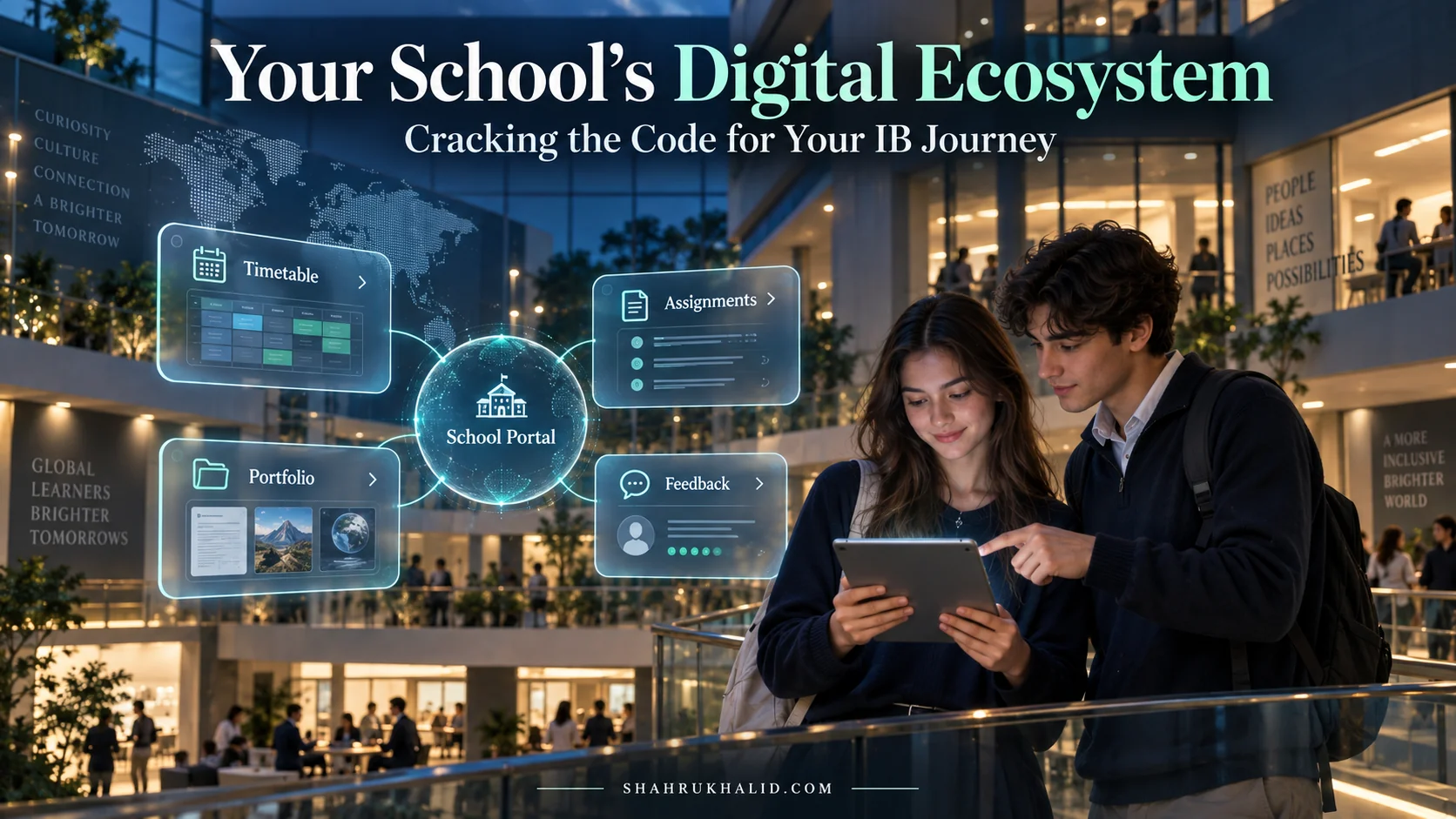
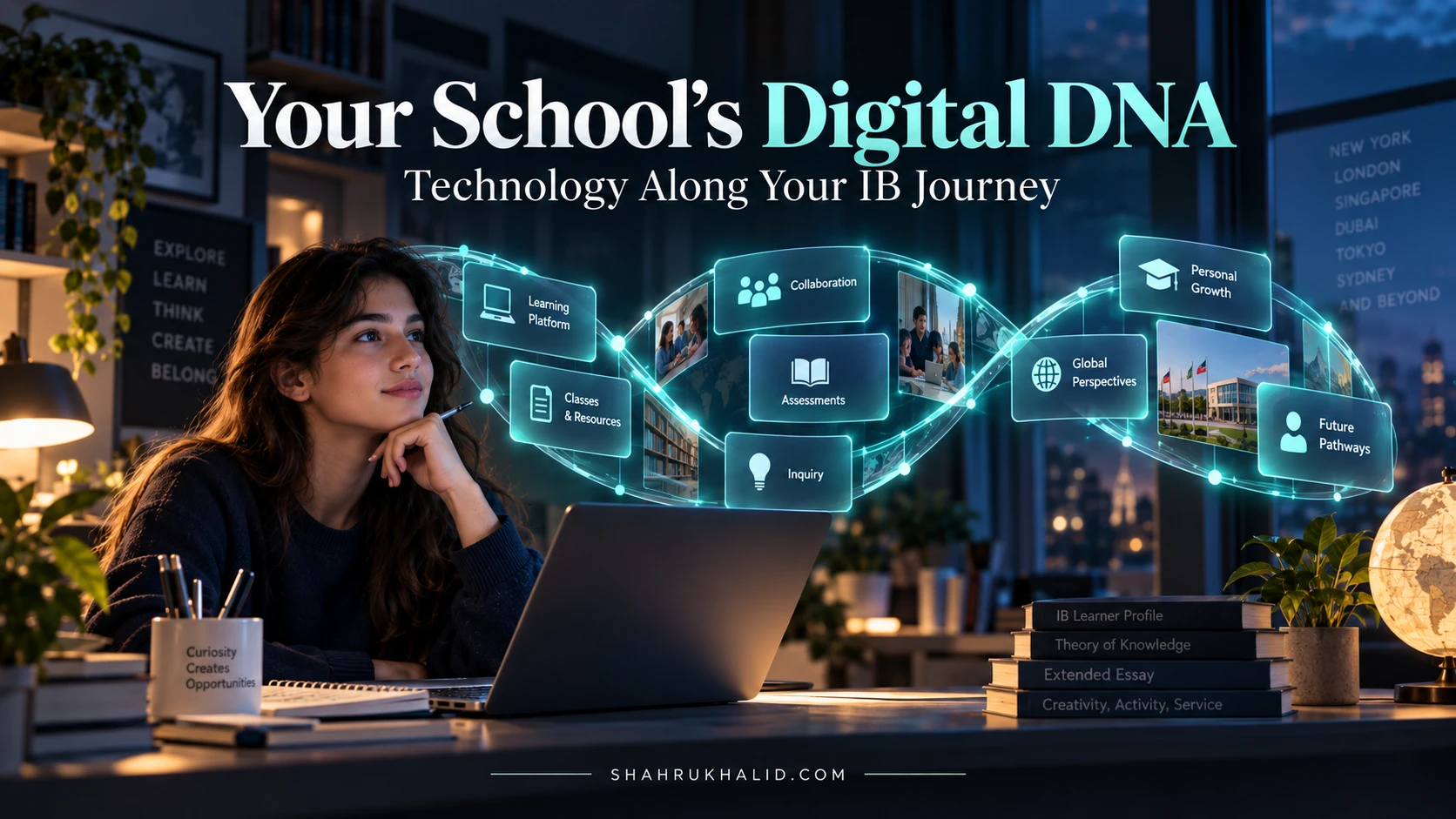
Unlock Your A-Game: How 2026 EdTech Architecture Makes K-12 IB & Digital Learning Effortless
Key Takeaways
- K-12 EdTech architecture is the invisible blueprint seamlessly connecting all digital learning tools.
- Effective architecture ensures interoperability, allowing smooth data flow between diverse learning platforms.
- Single Sign-On (SSO) is crucial, providing a universal key for all digital school applications.
- A well-designed EdTech architecture eliminates frustration from multiple logins and disjointed tools.
- Mastering EdTech architecture empowers students to navigate digital learning effortlessly, unlocking their A-game.
That’s why I’m so passionate about what we’re going to talk about today. We’re going on a deep dive into something called K-12 EdTech Architecture. Now, I know what you’re thinking: “Architecture? Isn’t that for buildings?” You’re not wrong, but the same principles apply. We’re going to explore the invisible blueprint that holds your entire digital school life together. Understanding this blueprint is like getting a backstage pass to your own education. It will empower you to navigate your IB assignments, your CAS projects, and your Extended Essay with an effortless grace that will feel like a superpower. By the end of this guide, you won’t just be a user of your school’s tech; you’ll be a master of it, ready to unlock your A-game for 2026 and beyond.
Comprehensive Foundations & Concept Primer
Before we get into the nitty-gritty, let’s start with a simple idea. Imagine your school is a massive, sprawling city. You have your homeroom, the library, the science labs, the art studio, and the sports fields. In the physical world, you walk between these places using hallways and paths. It’s (usually) pretty simple. A well-designed K-12 EdTech Architecture does the exact same thing for your digital world. It’s the system of digital hallways, bridges, and expressways that connects all your learning tools together seamlessly.
What Defines Effective K-12 EdTech Architecture? An Analogy
Let’s stick with our city analogy. What makes a city easy to live in?
- Good Roads (Interoperability): In a great city, the roads connect everything smoothly. You don’t have to get out of your car and switch to a different one just to go from the library to the science lab. In the digital world, this is called “interoperability.” It’s the magic that lets your Google Doc talk to your school’s main portal (your Learning Management System, or LMS), which can then talk to the plagiarism checker (like Turnitin), without you having to download and re-upload a single file. It’s the core of effortless K-12 technology integration.
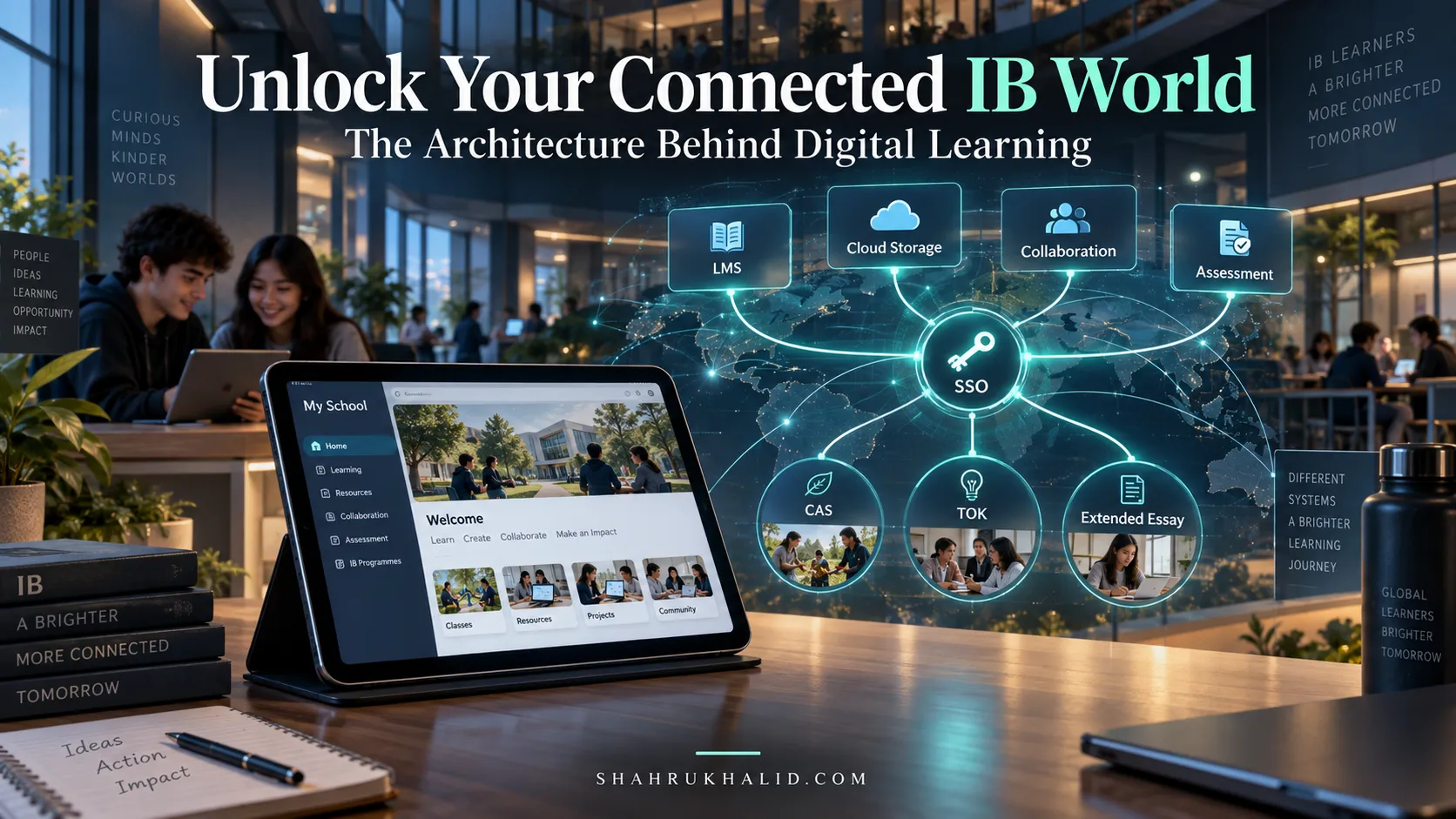
- A Single Key (Single Sign-On – SSO): Imagine if you needed a different key for every single room in the city. Annoying, right? A good digital architecture gives you a single, universal key. This is “Single Sign-On.” When you log in with your school Google or Microsoft account once, you get access to everything—your LMS, your digital textbooks, your research databases—without having to type another password. That’s one password to remember, not fifteen.
- A Central Map (The Learning Management System – LMS): Every good city has a central square or a main hub. In your digital school, this is your LMS (like Canvas, Google Classroom, Moodle, or ManageBac). It’s your home base. It’s where you find your assignments, see your calendar, and get announcements. A well-designed architecture ensures this “map” is always up-to-date and accurately points you to all your other digital tools.
- A Reliable Power Grid (Scalability & Reliability): What happens if everyone in the city turns on their lights at the same time? A good power grid can handle it. A good EdTech architecture is “scalable,” meaning it won’t crash the night before your big IB History paper is due, even when every single student is online submitting their work.
So, when we talk about an effective architecture, we’re talking about a digital environment that is connected, simple to access, centrally organized, and reliable. The goal is to make the technology fade into the background, so you can focus 100% on what truly matters: your learning, your ideas, and your growth.
Why This Is Your Secret Weapon for the IB Program
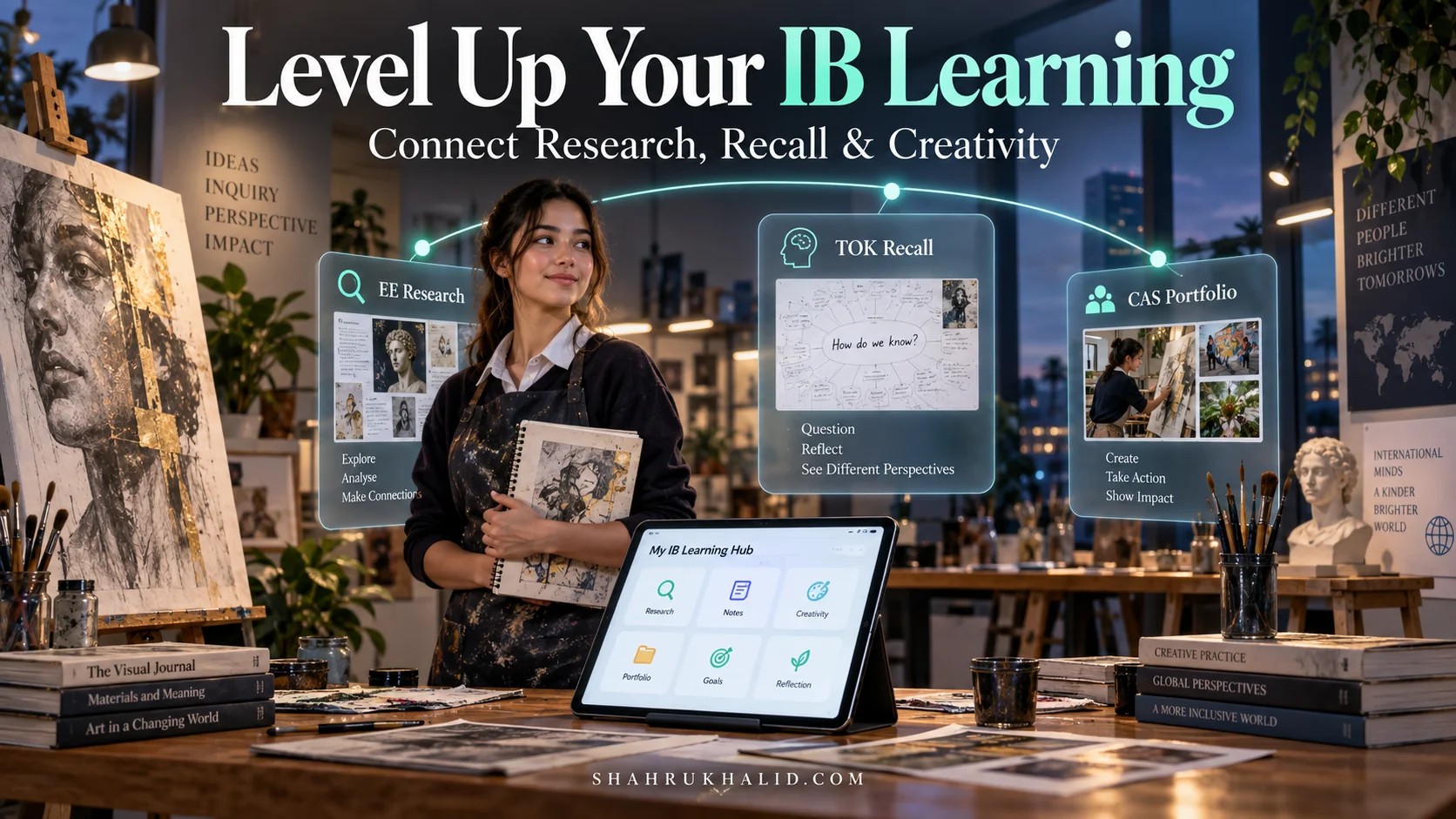
The International Baccalaureate (IB) program is demanding. It’s not just about memorizing facts; it’s about inquiry, research, writing, and reflection. You’re juggling the Extended Essay (EE), Theory of Knowledge (TOK), and Creativity, Activity, Service (CAS), on top of your six subjects. The last thing you need is a digital environment that works against you.
When your school has a strong EdTech architecture, you benefit directly:
- Time & Brainpower Saved: Less time spent on administrative digital tasks (logging in, finding files, converting formats) means more time for deep thinking and quality work.
- Seamless Collaboration: Working on a Group 4 project or a TOK presentation becomes fluid when all your tools are connected. You can co-edit a document, pull in data from a simulation app, and present it, all from one integrated space.
- A Holistic View: A connected system allows you and your teachers to see the bigger picture. Your CAS reflections, EE research notes, and class assignments can all live in a connected ecosystem, helping you make meaningful connections—a key tenet of the IB philosophy.
Understanding this foundation is the first step. Now, let’s get your personal digital space set up to take full advantage of it.
Prerequisites & Complete Environment Setup
Okay, so your school’s IT department is responsible for building the city. But you are responsible for how you live in it. You can’t rewire the power grid, but you can organize your own house to be incredibly efficient. This module is about setting up your personal digital learning environment to work with your school’s architecture, not against it. Think of this as your personal “config” for academic success.
Step 1: The “One Account to Rule Them All” Principle
Your school almost certainly gave you an official email address, likely a Google (e.g., `your.name@internationalschool.org`) or Microsoft (e.g., `s12345@internationalschool.com`) account. This is not just an email; it’s your digital passport. It’s your SSO key. You must treat it as sacred.
Practical Exercise: Browser Profile Separation
- Create a “School” Profile: In Google Chrome or Microsoft Edge, go to your profile icon in the top right corner. Click “Add” or “Manage profiles” and create a new profile. Name it “School” or “[Your School’s Name]”. Choose an icon or color to make it distinct.
- Log In Once: In this new browser profile, log in to your official school Google or Microsoft account. Do not log into any personal accounts (your personal Gmail, YouTube, etc.) in this profile.
- Create a “Personal” Profile: If you want, you can keep your default profile for all your personal stuff.
Why this works: This simple action prevents chaos. It stops your personal YouTube history from influencing your academic search results. It ensures that when you click “Login with Google,” it always uses your correct school account, preventing countless access errors with your LMS, digital textbooks, and other integrated tools. It’s the single most important step for a clean, error-free digital school life.
Step 2: Building Your Digital Filing Cabinet (Cloud Storage)
Your school account comes with a huge amount of cloud storage (Google Drive or OneDrive). This is your digital filing cabinet. Don’t just dump files into it randomly. A little organization here will save you hours of searching later, especially when you’re pulling sources for your Extended Essay.
Recommended Directory Layout:
Create a main folder called `IB Diploma`. Inside it, create the following structure:
IB Diploma/
├── 00_CAS/
│   ├── Activity/
│   ├── Creativity/
│   └── Service/
├── 01_TOK/
│   ├── Presentations/
│   └── Essay/
├── 02_Extended_Essay/
│   ├── Research_Articles/
│   ├── Drafts/
│   └── Supervisor_Meetings/
├── Group1_Studies_in_Language_and_Literature/
│   └── English_A/
├── Group2_Language_Acquisition/
│   └── Spanish_B/
├── Group3_Individuals_and_Societies/
│   └── History_HL/
├── Group4_Sciences/
│   └── Physics_SL/
├── Group5_Mathematics/
│   └── Math_AA_HL/
└── Group6_The_Arts/
    └── Visual_Arts/
Study Tip: Use numbers (00, 01, 02) for the core IB components to keep them pinned to the top of your folder list. This structure mirrors the IB curriculum itself, making it intuitive to find exactly what you need, when you need it.
Step 3: Verifying Your Connections
Now that you’re organized, let’s make sure your “house” is properly connected to the “city grid.”
- Log into your LMS: Using your new “School” browser profile, go to your school’s main learning portal (Canvas, Moodle, etc.).
- Check for Integrations: Look for sections in the navigation menu like “Google Drive” or “Office 365.” Click on them. If your school has a good architecture, it should ask you to authorize the connection once, and then—voila!—you should see your beautifully organized cloud filing cabinet right inside your LMS.
- Test an App: Find a course that uses an external tool, like a math practice app or a science simulation. Click the link to launch it from within the LMS. It should open automatically without asking for a separate login. If it does, your school’s SSO is working perfectly.
If you run into issues here, don’t panic! We’ll cover troubleshooting in Module 6. But getting this personal setup right is the foundation for everything that follows.
Core Implementation Architecture & Workflow Blueprint
Alright, you’ve organized your personal space. Now, let’s zoom out and look at the “city plan” itself. How do all these digital pieces actually connect and talk to each other? Understanding this will help you diagnose problems and use the system more intelligently. We’ll visualize this using a “card” system.
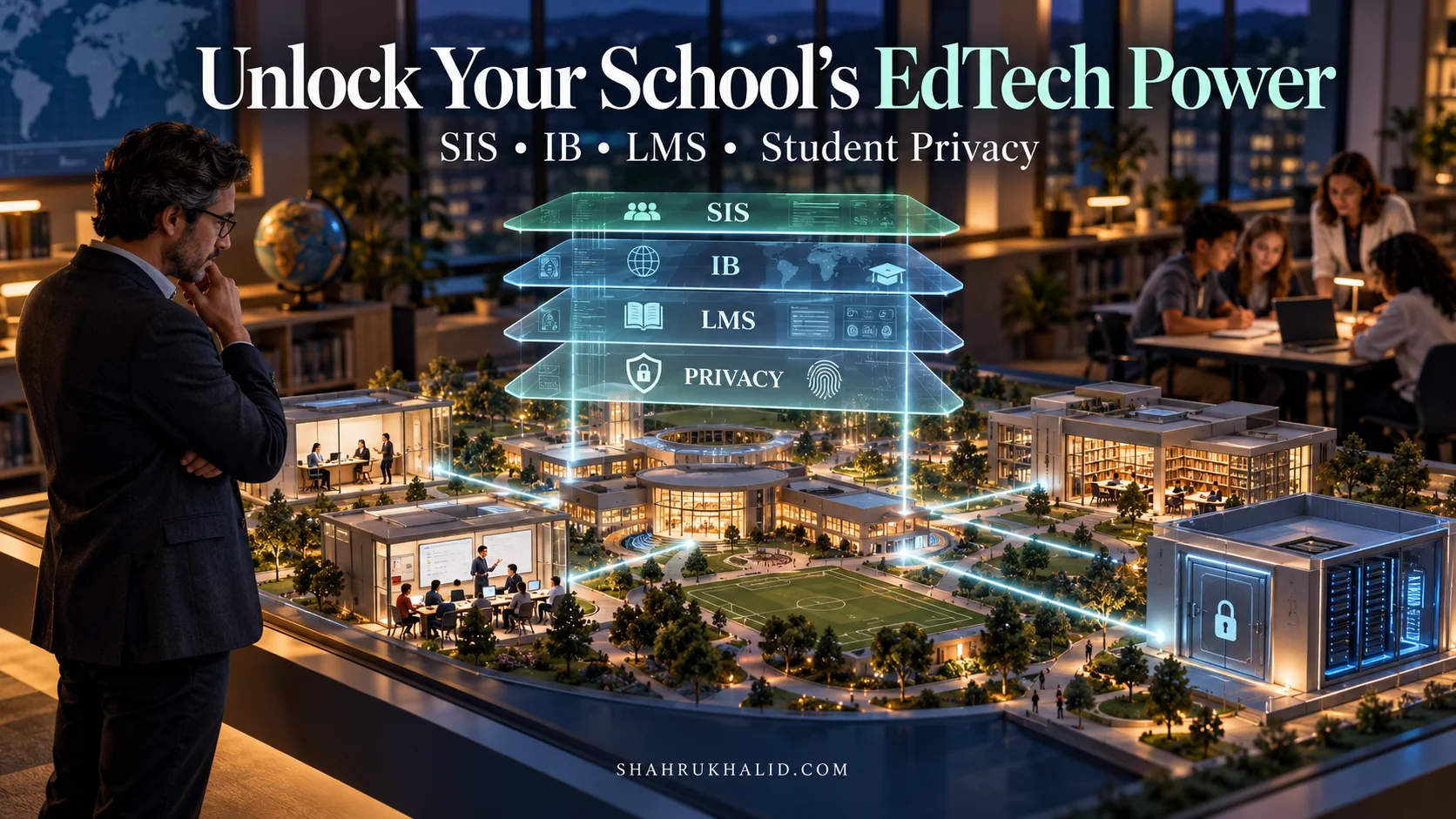
The Four Foundational Layers: A Visual Card Grid
Imagine four stacked, transparent cards. Each card represents a layer of the architecture, and you can see how they connect to each other.
Card 1 (Top Layer): The Application Layer
What it is: These are the specialized tools you use every day. Think of them as the individual shops and buildings in our city.
Examples: Turnitin (plagiarism checking), PhET Simulations (science), Desmos (graphing calculator), NoodleTools (citation manager), Flip (video discussions), your digital textbook platform.
How it works: These apps don’t hold your core student information. They are designed to “plug in” to a central system. This is a key part of an International school EdTech strategy, as it allows for flexibility in choosing the best tools for the job.
Card 2 (Middle Layer): The Learning Hub (LMS)
What it is: This is your digital homeroom, the central square of the city. It’s where you start and end your day.
Examples: Canvas, ManageBac, Google Classroom, Moodle, Schoology.
How it works: The LMS holds your courses, assignments, and calendar. It acts as the main “switchboard.” It uses a protocol called LTI (Learning Tools Interoperability) to launch the applications from Card 1. LTI is like a secure, standardized digital hallway that passes information (like your name and which class you’re in) to the app, so you don’t have to log in again.
Card 3 (Lower-Middle Layer): The Identity & Productivity Layer
What it is: This is your digital identity and your workshop. It’s your passport and your personal toolkit.
Examples: Google Workspace (Gmail, Drive, Docs, Slides), Microsoft 365 (Outlook, OneDrive, Word, PowerPoint).
How it works: This layer provides your Single Sign-On (SSO) identity—the “one key.” It also provides the fundamental tools (word processing, spreadsheets, presentations) that are integrated into the LMS. When you submit a Google Doc to an assignment in Canvas, it’s this layer talking to the LMS layer.
Card 4 (Bottom Layer): The System of Record (SIS)
What it is: This is the “City Hall” or the school’s master brain. It’s the ultimate source of truth for official data.
Examples: PowerSchool, Veracross, iSAMS.
How it works: The Student Information System (SIS) holds your official registration, course schedule, attendance, and final grades. You rarely interact with it directly. Instead, the SIS automatically feeds information up to the LMS. When you’re enrolled in a new class, the SIS tells the LMS, and the course magically appears on your dashboard. This automation is a hallmark of a mature K-12 EdTech Architecture.
Blueprint of a Common Workflow: Submitting a Physics Lab Report
Let’s trace a real-world task through these layers to see how IB digital learning solutions come to life:
- Start in the Hub (LMS): You log into Canvas (Card 2) using your school Google account (Card 3). You navigate to your Physics HL course and see the “Projectile Motion Lab” assignment.
- Launch the Tool (Application): The assignment instructions include a link to a PhET simulation (Card 1). You click it. Because of the LTI protocol, Canvas securely tells PhET who you are. The simulation launches instantly, with no extra login.
- Collect Data & Collaborate (Productivity): You and your lab partner run the simulation and record your data in a shared Google Sheet (Card 3). You then co-write your lab report in a Google Doc, embedding graphs from your Sheet.
- Submit for Review (LMS & Application): Back in Canvas (Card 2), you click “Submit.” You choose the “Google Drive” option (an integration between Card 2 and Card 3) and select your finished lab report. Canvas makes a copy and sends it to Turnitin (Card 1) for a similarity check.
- Grades Flow Back (SIS): Your teacher grades the report in Canvas. Once the final grade is published, the architecture can be configured to automatically push that grade from the LMS (Card 2) to the official gradebook in the SIS (Card 4).
See the magic? You, the student, just experienced a smooth, logical workflow. But behind the scenes, all four layers were constantly communicating to make it effortless. This is the goal of a great architecture.
Hands-on Practical Implementation & Real-World Configuration
Theory is great, but let’s get practical. In this module, we’re going to walk through how you, as an IB student, can “implement” smart workflows that take full advantage of the architecture we just mapped out. This isn’t about coding; it’s about configuring your study habits for maximum efficiency.
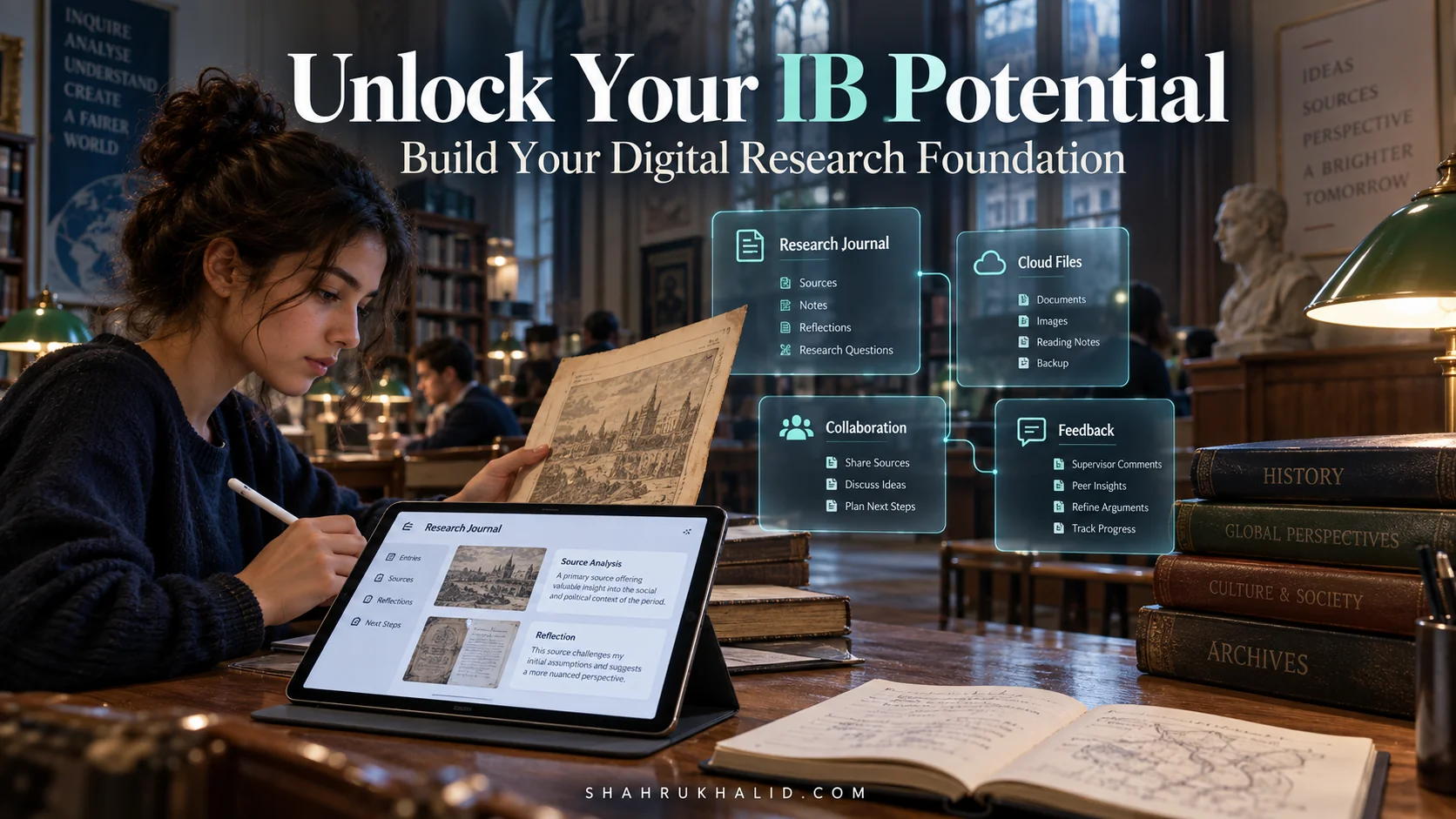
Fully Functional Example 1: The Extended Essay (EE) Power Workflow
The 4,000-word Extended Essay is a marathon, not a sprint. A smart digital workflow is your secret to staying organized and sane. Here’s how to build one on a solid EdTech foundation.
Step 1: Centralized Research & Annotation (Leveraging Library Integrations)
- The Old Way: Downloading dozens of PDFs to your desktop, naming them `article1.pdf`, `article_final.pdf`, `article_final_v2.pdf`, and losing track of everything.
- The 2026 Way:
- From your school’s library portal (which uses your SSO login), access academic databases like JSTOR or EBSCO.
- Instead of downloading, use the “Save to Google Drive” or “Send to OneDrive” feature that many databases now offer. Save the articles directly into your `IB Diploma/02_Extended_Essay/Research_Articles/` folder.
- Use a connected annotation tool. Many schools offer tools like Kami or Hypothesis, which integrate with your LMS/Google Drive. Open the PDFs directly from Google Drive and make your notes, highlights, and questions right on the document in the cloud. Your annotations are saved automatically and are accessible from any device.
Step 2: Dynamic Citing & Bibliography (Using Citation Managers)
- The Old Way: Manually typing out your bibliography at the end, spending hours getting the MLA/APA formatting just right, and wanting to cry when you realize you missed a source.
- The 2026 Way:
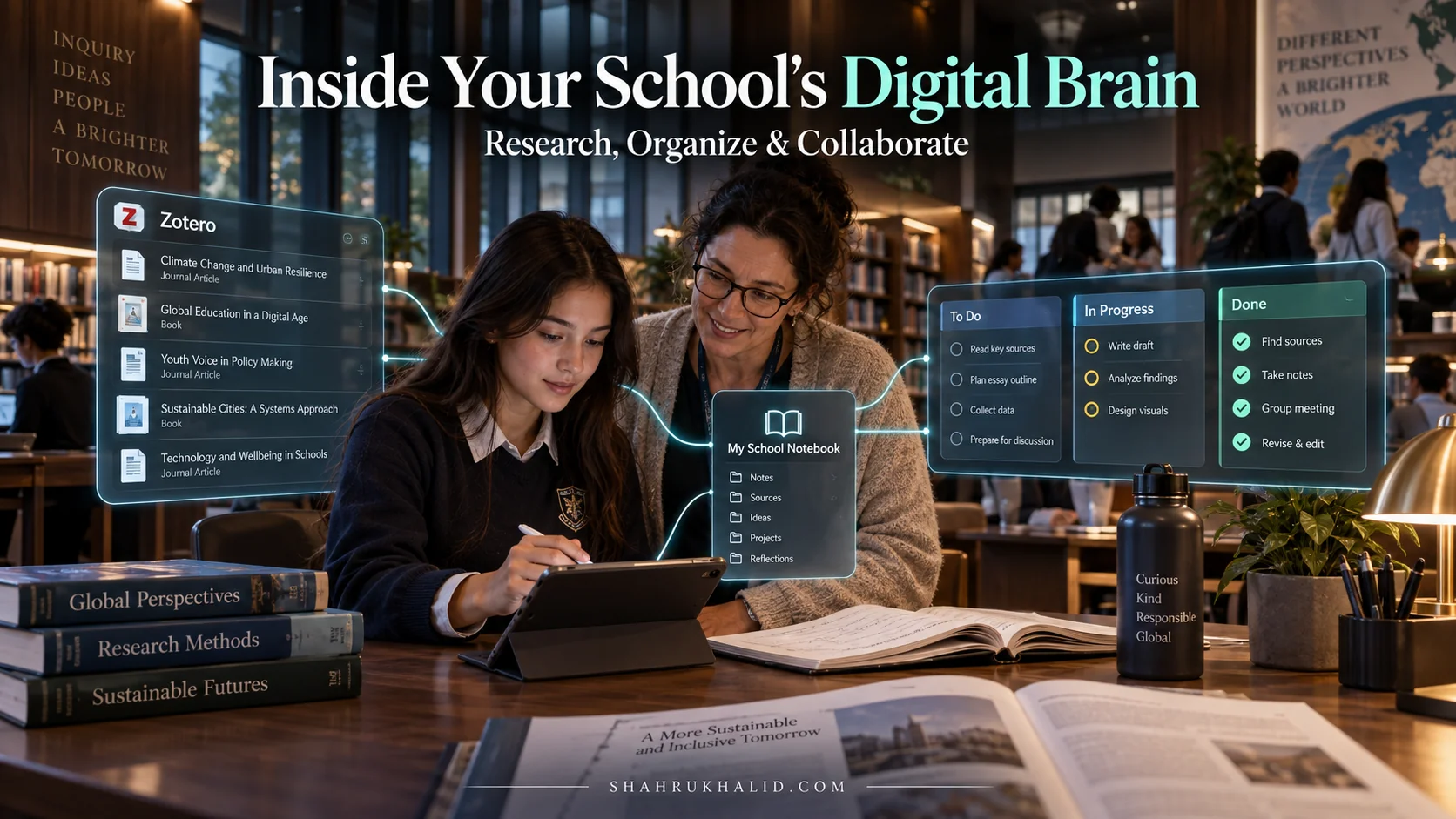
- Use an integrated citation manager like NoodleTools, Zotero, or EndNote. Many schools have institutional subscriptions.
- Install the browser connector for your chosen tool. As you find sources in the library database, click the connector button to automatically save the citation data to your EE project file.
- Install the Google Docs or Microsoft Word add-in. As you write your essay, click a button to insert in-text citations. The magic happens now: click “Generate Bibliography,” and the tool will create a perfectly formatted bibliography at the end of your document. If you add or remove a source, the bibliography updates automatically.
Step 3: The Feedback Loop (Cloud Collaboration & LMS Submission)
- The Old Way: Emailing `EE_Draft_v3.docx` to your supervisor. They email back `EE_Draft_v3_comments.docx`. You make changes and send `EE_Draft_v4.docx`. It’s a version control nightmare.
- The 2026 Way:
- Your entire EE draft lives as a single Google Doc or cloud-based Word document in your `IB Diploma/02_Extended_Essay/Drafts/` folder.
- You share this one document with your EE supervisor with “Commenter” access. They can leave comments and suggestions directly on the document in real-time. You get an email notification, resolve the comments, and the document is always the most current version. There is only one file.
- When it’s time for a formal submission (e.g., for your predicted grade), you go to your LMS, open the assignment, and submit the Google Doc directly from your Drive. The system takes a timestamped, un-editable snapshot for grading, but your original document remains live for you to continue working on. This is a core benefit of advanced EdTech for IB programs.
Real-World Enterprise Use Cases & Case Studies
Let’s bring this all together by looking at the day-in-the-life of two fictional IB students. Their stories highlight the profound difference a well-planned K-12 EdTech Architecture can make.
Case Study 1: Aisha’s Integrated IB Journey at “Maple Leaf International School”
Maple Leaf has invested heavily in a seamless, integrated architecture. Their system is built on Canvas (LMS), Google Workspace (Productivity/Identity), and Veracross (SIS), with carefully chosen LTI apps.
A Day in Aisha’s Life:
- 8:15 AM (Morning Login): Aisha opens her school-issued Chromebook. She logs into the device with her school Google account. That’s it. She is now authenticated for the day. Her Canvas dashboard is her homepage. It shows a merged calendar with assignments from Canvas, a TOK presentation meeting from Google Calendar, and a note about her CAS reflection being due in ManageBac.
- 10:00 AM (Biology HL): The class is learning about protein synthesis. Her teacher shares a link in Canvas to an interactive 3D modeling tool. Aisha clicks it, and the tool launches instantly (LTI). She and her group manipulate a protein model together in a virtual breakout room. The tool has a “Save to Google Drive” button, and she saves a snapshot of their work directly to her `Group4_Sciences/Biology_HL/` folder.
- 1:30 PM (TOK): Aisha and her partner are working on their TOK presentation. They are in the library, co-editing their Google Slides presentation (Productivity Layer). They need to find a supporting article. They access the school’s JSTOR subscription (Application Layer) via the library portal without a new login (SSO). They find an article and, using their Zotero citation manager, add it to their bibliography with two clicks.
- 4:00 PM (CAS Portfolio): Aisha just finished a session coaching junior school football. She opens ManageBac (an all-in-one IB platform that acts as both LMS and Application) on her phone. She writes a quick reflection, clicks “Add Evidence,” and selects a video of the training session she took, which had automatically synced from her phone to her school Google Photos account. The process takes 90 seconds.
The Outcome: Aisha’s cognitive load is focused on biology, knowledge questions, and coaching—not on technology. The system works for her, in the background. This is the gold standard for future K-12 digital learning.
Case Study 2: Ben’s Disconnected Struggle at “Oakridge Global Academy”
Oakridge has adopted technology too, but in a piecemeal fashion. They have a basic Moodle LMS, but teachers have been allowed to use a mix of other free tools, and nothing is connected.
A Day in Ben’s Life:
- 8:15 AM (Morning Login): Ben opens his laptop. He logs into Moodle (Password 1). He checks his assignments. His Math teacher posts on Moodle, but his English teacher uses Google Classroom (Password 2, different account). His History teacher just emails assignments. He has to check three places and manually add deadlines to his own calendar app.
- 10:00 AM (Physics SL): The teacher wants them to use a simulation. The link is a public URL. Ben goes to the site and is met with ads. He has
Frequently Asked Questions