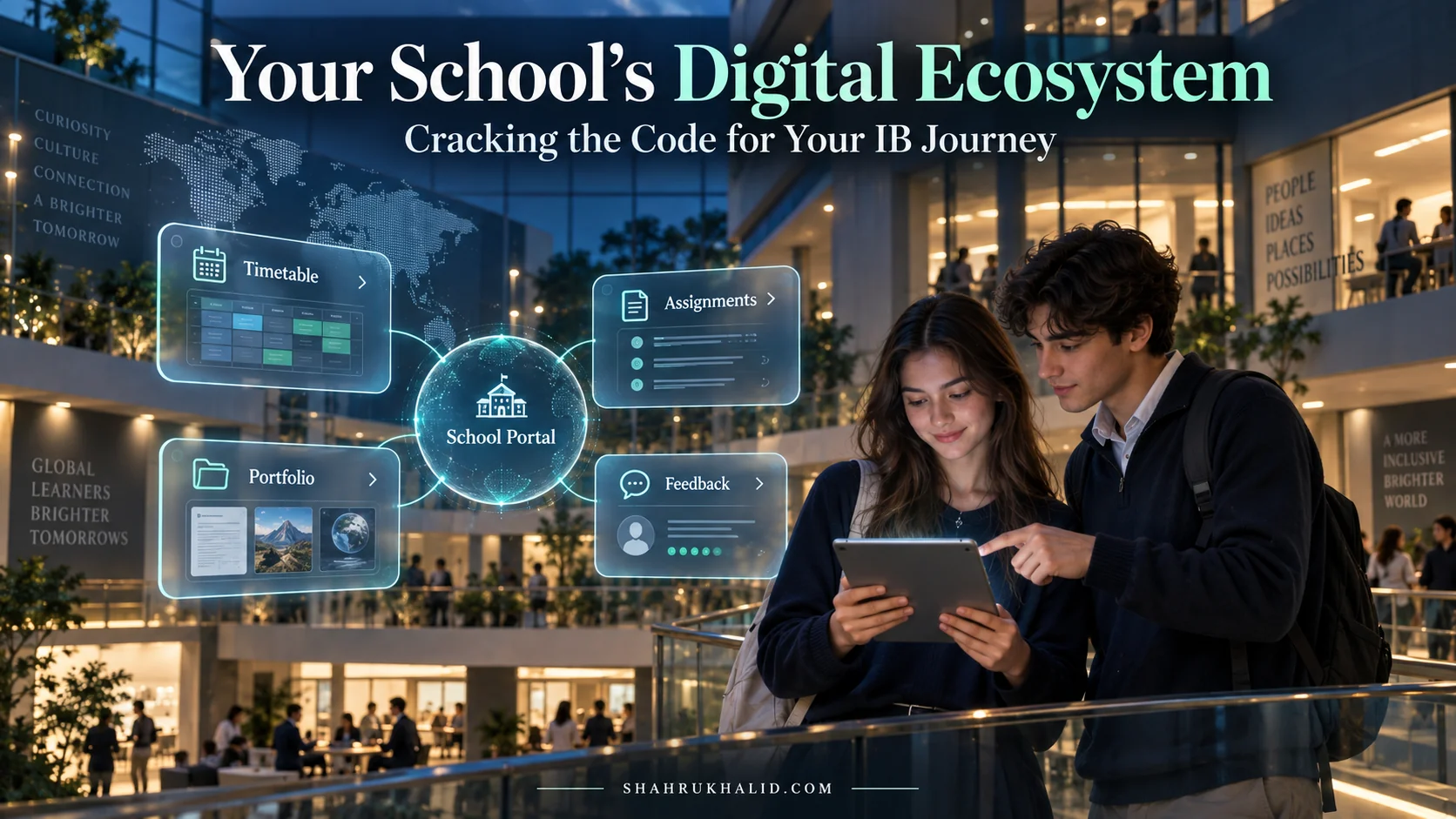
What Makes Your IB School Tick? A Students 2026 Peek Into Its Digital Brain!
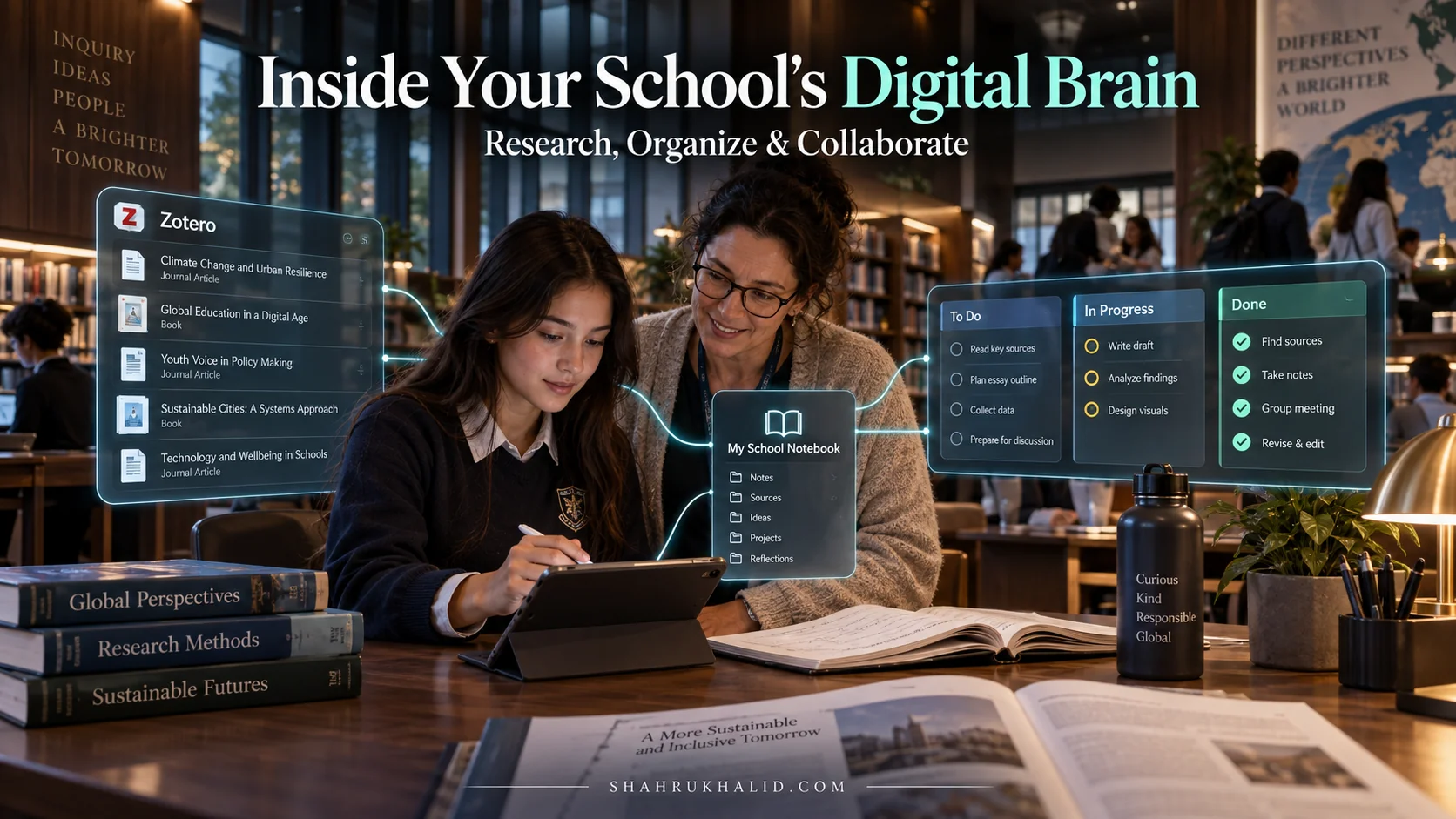
Key Takeaways
- Module 1: Comprehensive Foundations & Concept Primer
- The 'Why': Your School's Digital Brain and the IB Learner Profile
- Eliminating the Jargon: A Simple Translator
- Module 2: Prerequisites & Complete Environment Setup
- Step 1: The Digital Audit - Know Your Tools
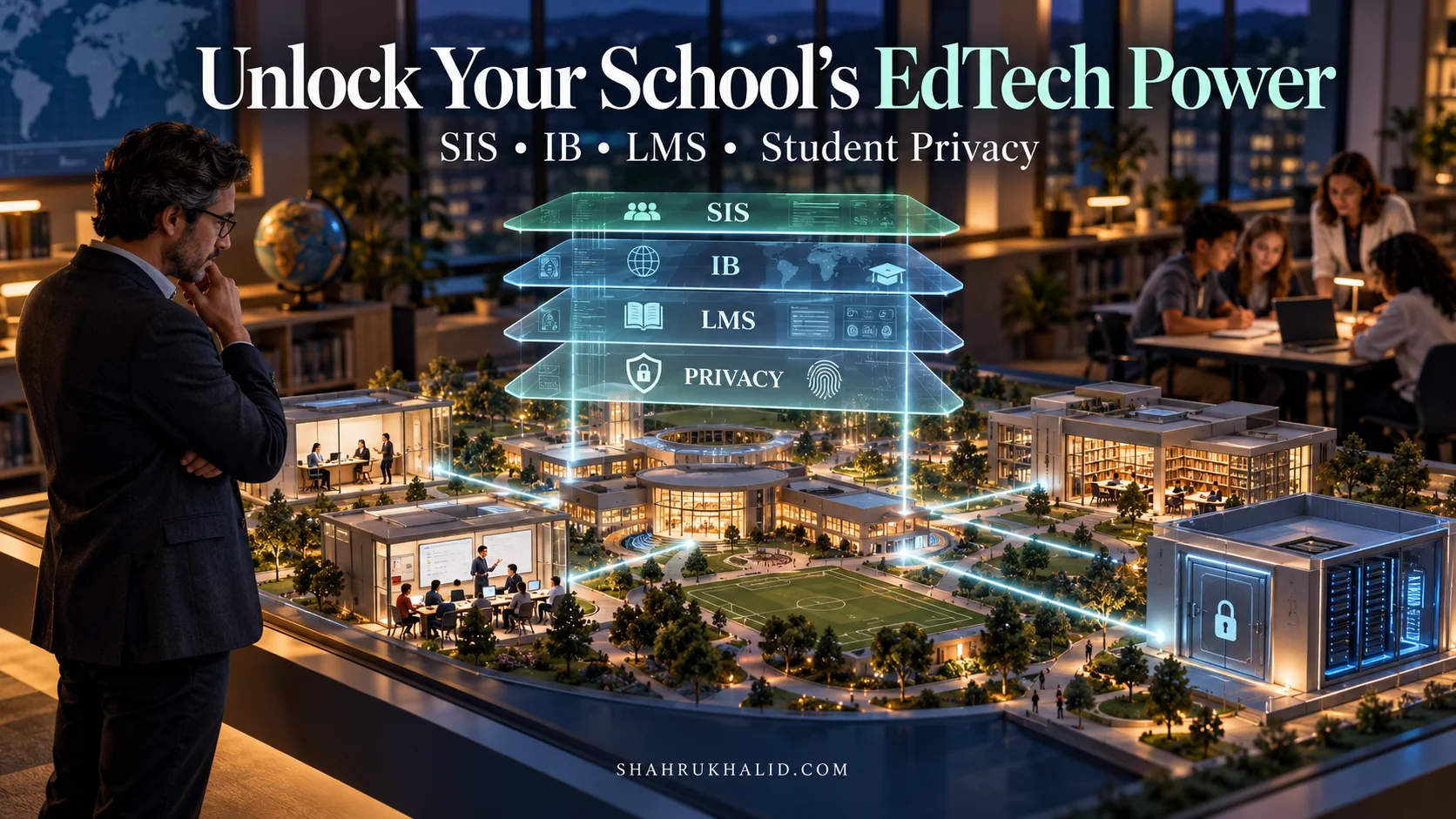
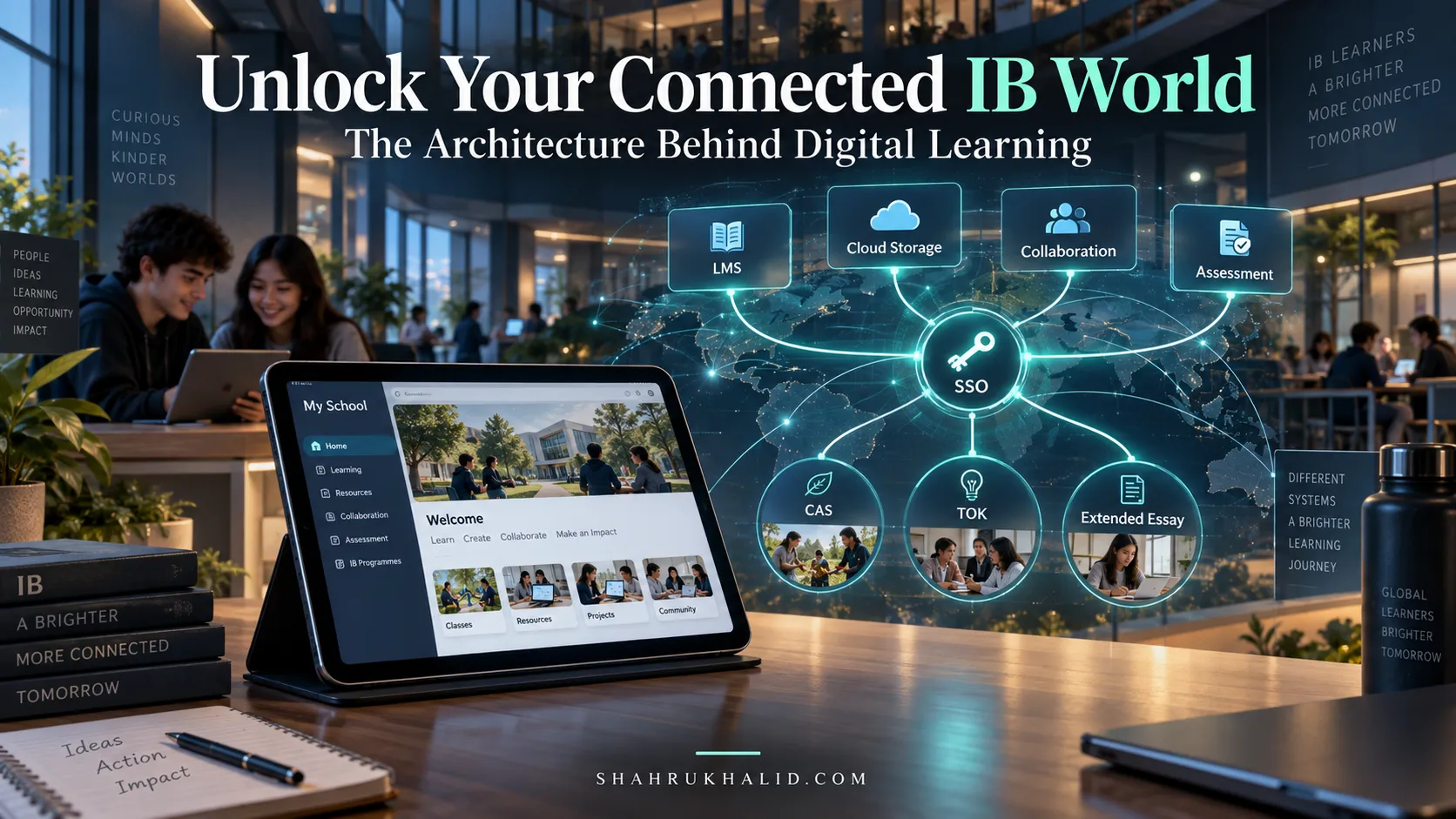
For an ambitious International Baccalaureate (IB) student navigating 2026, the digital world of your school isn’t just an arbitrary collection of disparate apps—it is a dynamic, interconnected architecture designed to power your entire educational lifecycle. When you pull back the curtain on this digital brain, understanding how learning management systems, assessment databases, and collaboration platforms interface transforms you from a passive user into an empowered operator.
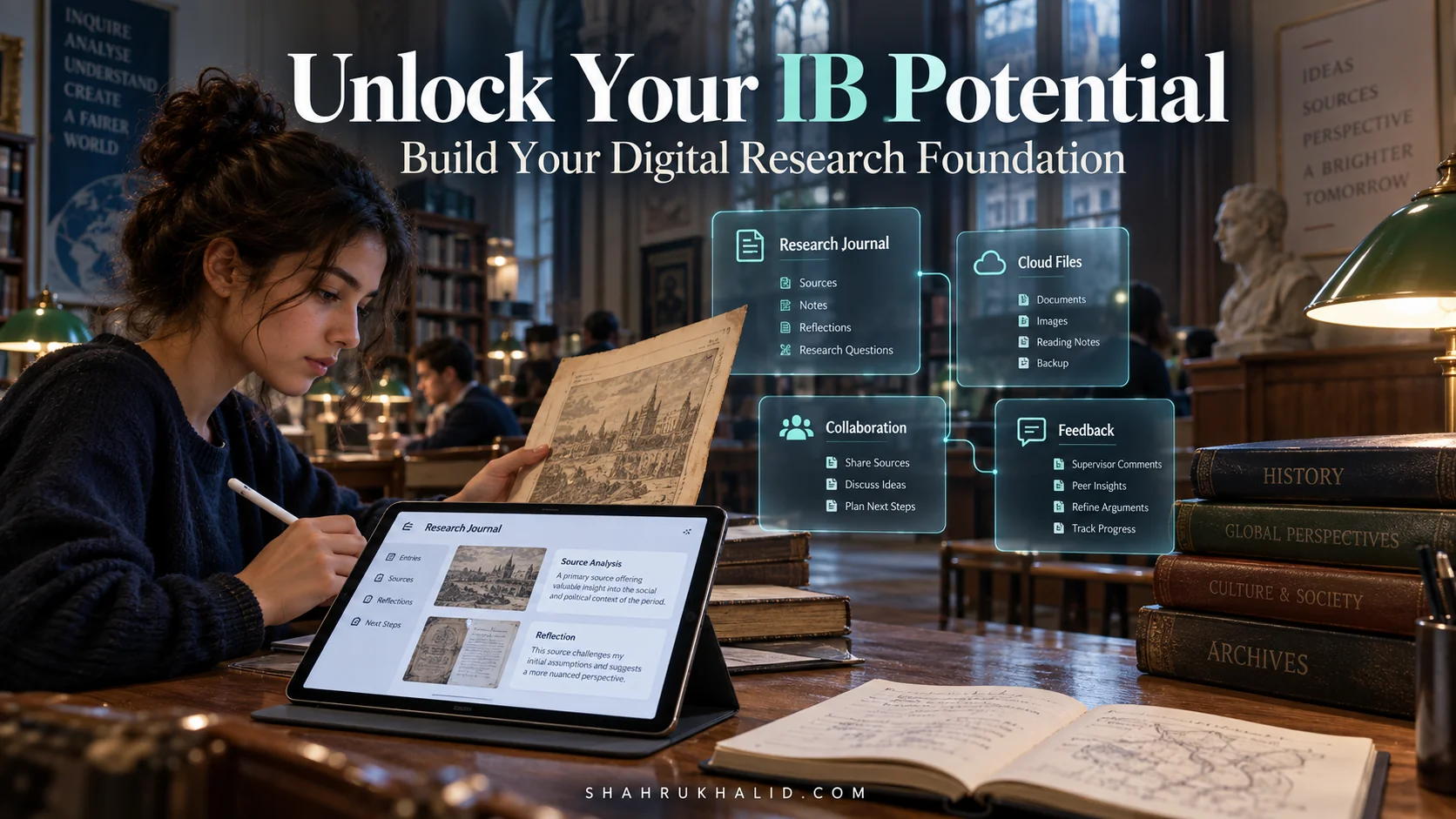
Mastering this ecosystem requires looking past surface-level interfaces to understand the structural principles behind enterprise school technology. By mapping your school’s digital infrastructure, adopting proactive data workflows, and optimizing digital touchpoints, you can eliminate administrative friction and channel your cognitive focus entirely into rigorous academic inquiry and Extended Essay research.
Comprehensive Foundations & Concept Primer
Before we dive into the deep end, let’s start with a simple, powerful idea. Imagine your IB school’s entire technological infrastructure—all the apps, platforms, and devices—as a single, complex, and brilliant ‘Digital Brain’. It’s not just a random collection of websites your teachers tell you to use. It’s a purposefully designed ecosystem with a memory, a nervous system, and specific pathways for information to travel. Understanding this ‘brain’ is the single most important meta-skill you can develop for your IB journey in 2026. Why? Because the IB isn’t just about what you learn; it’s about how you learn. It’s about developing the Approaches to Learning (ATL) skills, and in our modern world, nearly every one of those skills—research, communication, self-management—is deeply intertwined with technology.
The ‘Why’: Your School’s Digital Brain and the IB Learner Profile
So, what is this Digital Brain, really? Let’s break it down with an analogy.
Think of your own brain. You have different regions for different tasks. The frontal lobe handles planning and complex thought (your Extended Essay plan!). The hippocampus is crucial for memory (memorizing those TOK concepts). The visual cortex processes what you see (analyzing a piece of art in Visual Arts). All these parts are connected by a network of neurons, firing messages back and forth to create a cohesive experience of the world.
Your school’s Digital Brain works the same way:
- The ‘Frontal Lobe’ (Planning & Management): This is your Learning Management System (LMS). Think platforms like ManageBac, Canvas, or Google Classroom. This is the central hub where your teachers post assignments, where your deadlines live, and where you submit your work. It’s the master planner for your academic life.
- The ‘Hippocampus’ (Memory & Knowledge Storage): This is the combination of your school’s library database (like EBSCO or JSTOR), your cloud storage (Google Drive/OneDrive), and your personal digital note-taking system. It’s where all the information—from research papers to your own class notes—is stored and retrieved.
- The ‘Nervous System’ (Communication & Connection): These are the communication tools. Your school email, Microsoft Teams, Google Chat, and even the discussion forums on your LMS. They are the pathways that transmit messages, feedback, and collaborative ideas between you, your peers, and your teachers.
- The ‘Creative & Analytical Cortex’ (Specialized Tools): These are the subject-specific apps. Think Vernier probes for science, Geogebra for math, Adobe Creative Cloud for design, or Sibelius for music. They are the specialized lobes that allow you to do the work of a subject specialist.
The core principle of great IB school technology is integration. Just like a healthy brain, a well-designed digital ecosystem ensures these parts ‘talk’ to each other seamlessly. Your teacher posts an assignment on the LMS, which links to a research article in the library database, which you then save to your cloud drive and analyze using a specialized app, all while collaborating with a partner via a chat tool. It’s a beautiful, interconnected dance.
Eliminating the Jargon: A Simple Translator
The world of EdTech is full of acronyms. Let’s demystify the most common ones you’ll encounter, so you can speak the language fluently.
- LMS (Learning Management System): We’ve met this one. It’s your school’s central online portal. Think of it as your digital school building. The hallways are the navigation menus, the classrooms are your course pages, and the principal’s office is where the main announcements are. ManageBac is a classic example in the IB world.
- SIS (Student Information System): This is the administrative backbone. It holds your grades, attendance records, and personal information. You might not interact with it daily, but it’s what the LMS often pulls data from. Think of it as your permanent record, but digital.
- VLE (Virtual Learning Environment): This term is often used interchangeably with LMS, but it emphasizes the ‘learning’ part more. A VLE is not just for managing assignments but for creating rich, interactive learning experiences, like virtual labs or online simulations.
- API (Application Programming Interface): This is the secret sauce that makes everything work together. An API is a set of rules that allows different software applications to talk to each other. Think of it as a universal translator. It’s how your Google Drive can be embedded inside your Canvas LMS, or how Turnitin can plug into ManageBac to check for plagiarism. It’s the ‘nervous system’ of the Digital Brain.
- AI (Artificial Intelligence): This is the big one, and it’s no longer science fiction. In education, AI refers to systems that can perform tasks that normally require human intelligence, like grading multiple-choice questions, providing instant writing feedback, or even personalizing your learning path. We’ll dive deep into this in Module 7.
By understanding these foundational concepts, you’re no longer just a passenger in your digital school. You’re starting to learn how to read the map. In the next module, we’ll get practical and start building your own personal cockpit to navigate this world.
Prerequisites & Complete Environment Setup
Now that we understand the ‘big picture’—the Digital Brain of your school—it’s time to focus on your personal command center. A pilot can’t fly a plane without setting up their cockpit, and you can’t navigate your IB journey effectively without a well-organized digital environment. This module is your step-by-step guide to building a powerful, personalized, and distraction-free digital workspace. This isn’t about buying new gadgets; it’s about being intentional with the tools you already have.
Step 1: The Digital Audit – Know Your Tools
Before you can build, you must take inventory. You need to know exactly what tools your school provides and what they’re for. Don’t wait for your teachers to explain every single feature. Be proactive.
Practical Exercise: The Tool Inventory
- Open a new document (we’ll call it “My Digital Toolkit”) in your preferred note-taking app.
- Create three columns: “Tool Name,” “Purpose (What it does),” and “My Login Info.”
- Go to your school’s main student portal. Systematically click through every link. What’s the name of your LMS (ManageBac, Canvas, etc.)? Your email provider (Google Workspace, Microsoft 365)? Your library database portal (JSTOR, EBSCO, ProQuest)?
- List every single tool. For ‘Purpose’, write a one-sentence description in your own words. For example: “ManageBac – The main place for class pages, assignments, and submitting my work.”
- Securely record your usernames. Use a password manager if you can—it’s a life-saver.
This simple audit does two things: it demystifies your school’s ecosystem, and it creates a single source of truth you can refer to anytime you’re lost.
Step 2: Your Digital Brain’s Core – The Notebook & Cloud
Your brain needs a place to store and connect ideas. Your digital setup is no different. You need two foundational elements: a powerful digital notebook and organized cloud storage.
- The Digital Notebook: This is for your thinking. It’s where you take class notes, brainstorm TOK ideas, plan your CAS projects, and outline your essays.
- Good Options: OneNote (great for free-form notes and drawing), Notion (amazing for databases and structured organization), Evernote (a classic for web clipping and search).
- Beginner’s Tip: Don’t get paralyzed by choice. Pick one and commit for a month. The goal is to have one central place for your thoughts, not a dozen scattered documents.
- The Cloud Storage: This is for your files. It’s where you store your finished essays, research articles, project resources, and presentation slides.
- The Players: Google Drive or Microsoft OneDrive are the most common ones provided by schools.
- The Golden Rule: Your digital notebook is for process; your cloud storage is for product. Don’t write your entire EE draft in a messy note. Outline in your notebook, but write the draft in a dedicated document in your cloud drive.
Step 3: The Directory Layout – A Filing System That Works
“I can’t find that file!” is a phrase that should be banished from your vocabulary. A logical folder structure is your best defense against digital chaos. Here is a battle-tested directory layout you can implement right now in your Google Drive or OneDrive.
The IB Student's Master Folder Structure
├── 01_DP_CORE
│ ├── CAS
│ │ ├── Evidence
│ │ └── Reflections
│ ├── EXTENDED_ESSAY
│ │ ├── Research
│ │ ├── Drafts
│ │ └── Final Submission
│ └── TOK
│ ├── Exhibition
│ └── Essay
├── 02_SUBJECT_GROUP_1 (e.g., English A)
│ ├── Class Notes
│ ├── Assignments
│ └── Resources
├── 03_SUBJECT_GROUP_2 (e.g., Spanish B)
│ ├── … (repeat structure)
├── 04_SUBJECT_GROUP_3 (e.g., History)
│ ├── … (repeat structure)
├── 05_SUBJECT_GROUP_4 (e.g., Biology)
│ ├── … (repeat structure)
├── 06_SUBJECT_GROUP_5 (e.g., Math AA HL)
│ ├── … (repeat structure)
└── 07_RESOURCES_AND_TOOLS
├── Citation Library
└── Study Guides
Why this works
- It’s hierarchical and predictable. You always know where to save a new file and where to find an old one.
- It separates the Core from the Subjects, mirroring the structure of the IB Diploma Programme itself.
- The numbers (01, 02, etc.) force a logical order. Your folders won’t get shuffled alphabetically.
Action Step: Take 15 minutes right now and create this folder structure in your primary cloud storage account. It will be the best 15 minutes you invest in your self-management this year.
Step 4: Verification – The ‘Is It Working?’ Check
How do you know your environment is set up correctly? It’s simple.
- The 5-Second File Test: Pick a random file from your desktop, like a PDF for your History class. Can you save it to the correct folder (`/04_SUBJECT_GROUP_3 (e.g., History)/Resources/`) in under 5 seconds, without thinking? If yes, your directory layout is working.
- The Cross-Platform Sync Test: Open your digital notebook app on your laptop. Write a sentence. Now, open the same app on your phone. Does the sentence appear within a minute? If yes, your cloud sync is working.
- The Login Flow Test: Using your “My Digital Toolkit” document, can you log into your school’s LMS and library database in two consecutive attempts without a password error? If yes, your inventory is solid.
This setup is your foundation. It’s the clean, organized, and ready-to-go cockpit for your entire digital learning IB program. In the next module, we’ll explore the workflows and blueprints that bring this static setup to life.
Core Implementation Architecture & Workflow Blueprint
With your personal digital environment now clean and organized, let’s zoom back out to the school’s ‘Digital Brain’. How does information actually flow through it? What does a typical workflow look like for an IB student? This module is about understanding the architecture of your daily tasks. We’re going to map out the fundamental mechanics of learning in a modern IB school, not with code, but with clear, visual workflows. Think of these as the blueprints for academic success.
The Fundamental Workflow: The Assignment Journey
Every piece of work you do, from a simple homework task to your monumental Extended Essay, follows a similar digital path. Understanding this path allows you to anticipate steps, manage your time better, and use the right tools at the right stage.
Let’s visualize this journey using a “Visual Card Structure.” Imagine each step as an index card, connected to the next.
[Visual Card Grid: The Assignment Journey]
- Card 1: The Spark (Assignment on LMS)
- Action: Your teacher posts an assignment on ManageBac or Canvas. It includes the prompt, rubric, and due date.
- Your First Move: Don’t just read it. Open your digital notebook (Notion/OneNote). Create a new page for this assignment. Copy and paste the prompt and rubric directly into it. Add the due date to your digital calendar immediately, with a reminder set for 2-3 days before.
- Pro-Tip: This simple act of transferring the task into your system is a psychological commitment. It moves from being “their” assignment to “my” task.
- Card 2: The Hunt (Research & Resource Gathering)
- Action: You need to find information. You access your school’s library databases (JSTOR, EBSCO) through the portal you audited in Module 2. You also use Google Scholar.
- Your Smart Move: As you find relevant articles, PDFs, or websites, you don’t just leave them as open tabs. You save them directly into your structured cloud folder (e.g., `…/EXTENDED_ESSAY/Research/`). You use a citation manager like Zotero or Mendeley to “clip” the source, automatically grabbing the citation data. This saves you hours of pain later.
- Card 3: The Synthesis (Thinking & Outlining)
- Action: You have the information; now you need to make sense of it. This happens in your digital notebook.
- Your Workflow: You read the articles you saved, highlighting key quotes. You make notes, draw mind maps, and connect ideas. You then build a structured outline for your assignment directly on the same page where you pasted the prompt. You are building a dialogue between the requirements and your ideas.
- Card 4: The Creation (Drafting & Production)
- Action: It’s time to write. You open a new Google Doc or Word document from within your designated cloud folder (e.g., `…/History/Assignments/WWII_Essay_Draft_v1.docx`).
- Your Best Practice: You work with your outline open in one window and your blank document in another. You write the draft. The file is named with a version number (v1, v2) so you can track your progress without fear of losing previous work. This is a core part of the student experience IB tech—leveraging version control.
- Card 5: The Polish & Submission (Review & Feedback Loop)
- Action: You’ve finished your draft. Now what? You run it through a grammar checker like Grammarly. You use your citation manager to insert a perfectly formatted bibliography in one click. If your school uses Turnitin, you might submit a draft to check your originality score.
- The Final Step: You export the final version as a PDF (it’s a professional standard and prevents formatting issues). You navigate to the assignment on your LMS and upload the file, double-checking you’ve attached the correct one. You’ve completed the loop.
The Collaboration Blueprint: A Group Project That Doesn’t End in Tears
Group projects are a cornerstone of the IB, designed to build communication and social skills. Technology can either make this a dream or a nightmare. Here’s the blueprint for success.
[Diagram Grid: The Collaboration Workflow]
- Central Hub (The Sun): A single, shared Google Doc or Microsoft Word Online document. This is your group’s “single source of truth.” All notes, plans, and final text go here. No more “I have a different version on my laptop.”
- Spoke 1: Communication Channel (The Lifeline): A dedicated group chat in Microsoft Teams, WhatsApp, or whatever your group agrees on. All project-related communication happens here. This avoids fragmented conversations across five different apps.
- Spoke 2: Task Management (The Map): A simple Kanban board using a tool like Trello, Asana (free versions are great), or even a table in your shared Google Doc. Create columns: “To Do,” “In Progress,” and “Done.” Assign each task to a person. This provides instant clarity on who is doing what and what’s left to do.
- Spoke 3: Meeting Space (The Conference Room): Scheduled video calls using Google Meet, Zoom, or Teams. Have an agenda. Record the meeting (with permission!) for anyone who missed it.
- Spoke 4: Resource Library (The Vault): A shared folder within one member’s cloud drive (using the structure from Module 2). All research articles, images, and source materials are stored here.
This architecture isn’t complex, but it’s powerful. It replaces chaos with clarity and transforms the group project from a source of anxiety into a genuine opportunity for collaborative innovation international schools strive to foster. It’s how modern teams, from startups to major corporations, get work done.
The ‘API’ of Your IB Life: Connecting the Core Components
Remember our jargon-buster? An API lets different apps talk to each other. In your IB life, you create your own “APIs” through intentional habits.
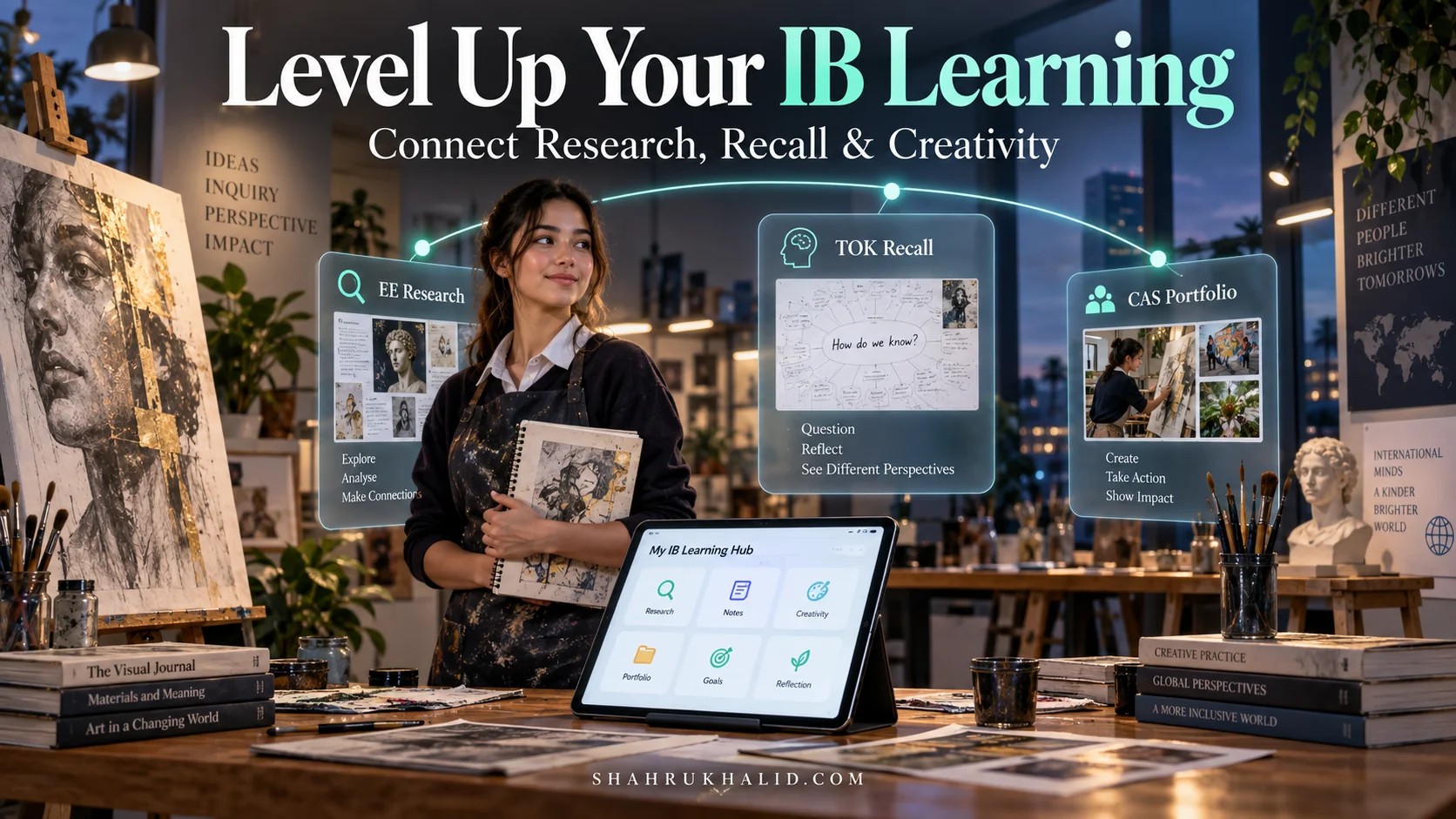
- The TOK API: When you read an article for your Biology class, you consciously ask a TOK-style question (“How does the scientific method used here limit or enable the knowledge produced?”). You then jot this question and a link to the article in your TOK section of your digital notebook. You’ve just created a connection between Subject Group 4 and the DP Core.
- The CAS API: You volunteer to manage the social media for a school event (Service). You use Canva to design the graphics (Creativity) and a spreadsheet to track engagement metrics (Activity). You then log this experience in ManageBac, linking to the Canva designs and the spreadsheet as evidence. You’ve connected three different tools and two CAS strands into one cohesive experience.
Understanding these workflows is about seeing the ‘Digital Brain’ not as a series of separate rooms, but as a palace of interconnected hallways. In the next module, we’ll get our hands dirty and walk through the specific, practical steps to master these workflows.
Hands-on Practical Implementation & Real-World Configuration
Theory is great, but the IB is all about application. This module is where the rubber meets the road. We’re moving from blueprints to building. I’m going to walk you through, step-by-step, how to configure and use some of the most powerful IB curriculum digital tools to your advantage. These aren’t just tips; they are fully functional, production-ready study strategies that you can implement today.
Practical Exercise 1: Building Your Extended Essay Research Brain with Zotero
The Extended Essay (EE) is a marathon, not a sprint. The biggest mistake students make is poor research management. A citation manager is non-negotiable. Let’s set up Zotero, a free, powerful tool.
Objective: Create a bulletproof system for collecting, organizing, and citing your EE research.
Step-by-Step Walkthrough
- Installation & Setup (10 mins):
- Go to Zotero.org and download two things: the Zotero desktop app for your OS (Windows/Mac) and the “Zotero Connector” for your web browser (Chrome/Firefox/Safari).
- Install the desktop app. Open it. It will look like an old-school email client. Don’t be intimidated.
- Install the browser connector. You should see a new icon (a ‘Z’ or a page icon) appear in your browser’s toolbar.
- Create a free Zotero account online and sign in on the desktop app (under `Edit > Preferences > Sync`). This will back up your library to the cloud.
- Creating Your EE Library (2 mins):
- In the Zotero desktop app, on the left-hand pane, click the “New Library” icon (a folder with a plus sign).
- Name it “[Your Subject] EE Research”. This creates a dedicated collection for your project, keeping it separate from other classwork.
- The Magic of Web Clipping (The ‘Aha!’ Moment):
- Navigate to a scholarly article online. Let’s say you’re on JSTOR or your school’s library database and have found a promising PDF.
- Click the “Zotero Connector” icon in your browser. You’ll see a small pop-up.
- Zotero will automatically detect the article type, title, author, journal, date, etc. It will also try to download the full-text PDF and attach it.
- Select your “[Your Subject] EE Research” library and click Save.
- Verification: Go back to your Zotero desktop app. You will see the new entry appear, complete with all bibliographic data and the attached PDF. This is a game-changer. No more manual typing of citations.
- Annotating and Note-Taking (The Deep Work):
- In Zotero, double-click the item you just saved. The PDF will open in Zotero’s built-in reader.
- As you read, you can highlight text and add comments.
- The Killer Feature: On the right-hand side, click the “Add Note” button. You can now extract your highlighted annotations into a single, clean note, complete with citations back to the specific page in the PDF. These notes are fully searchable. You are literally building your EE’s annotated bibliography as you read.
- The Payoff: One-Click Bibliography (The Grand Finale):
- You’re writing your EE in Google Docs or Microsoft Word. You’ve installed the Zotero plugin (it usually installs automatically).
- When you need to insert a citation, you click the “Add/Edit Citation” button from the Zotero tab. A search bar appears. Type the author’s name, select the source, and hit Enter. The correctly formatted in-text citation appears.
- When you’re done writing, click “Add/Edit Bibliography.” Zotero will scan your entire document and generate a complete, alphabetized, and perfectly formatted bibliography in the style of your choice (MLA, APA, Chicago, etc.). The hours of agony you just saved are immeasurable.
Practical Exercise 2: Taming Your Workload with a Kanban Board
The IB is a juggling act of deadlines. A Kanban board is a visual way to manage your tasks and see your entire workload at a glance. We’ll use Trello for this example, as its free tier is more than enough.
Objective: Create a visual dashboard for all your IB tasks to reduce overwhelm and never miss a deadline.
Step-by-Step Walkthrough
- Setup (5 mins): Create a free Trello account. Create a new “Board” and name it “IB Diploma Command Center.”
- Create Your Lists (Columns): Create the following five lists, from left to right:
- `This Month’s Goals`: High-level objectives (e.g., “Finish EE Draft,” “Prep for Bio Test”).
- `To Do (This Week)`: Specific, actionable tasks you need to do this week.
- `In Progress`: What you are actively working on today. Limit this to 2-3 tasks.
- `Done (This Week)`: The most satisfying column. Move completed tasks here.
- `Backlog/Future`: A place to dump all future tasks and ideas so they don’t clog your ‘To Do’ list.
- Create Your Cards (Tasks):
- For every assignment, test, or major task, create a “Card” in the `Backlog/Future` list.
- Heavily Commented Example Card:
- Title: `History IA – First Draft`
- Labels: Use Trello’s colored labels. Make `Red` for “Urgent Deadline,” `Blue` for “History,” `Green` for “IA.”
- Due Date: Set the actual due date. Trello will remind you.
- Description: Paste the assignment prompt from your LMS.
- Checklist: Add a checklist for sub-tasks: `[ ] Finalize Research Question`, `[ ] Complete Outline`, `[ ] Write Section A`, `[ ] Proofread`.
- The Weekly Workflow:
- Sunday Evening (15 mins): Review your `Backlog/Future` list. Drag the tasks you need to accomplish this week into the `To Do (This Week)` list. Review the due dates.
- Each Morning (2 mins): Look at your `To Do (This Week)` list. Drag the 1-3 most important tasks for the day into the `In Progress` list.
- As You Work: When you finish a task, drag the card to the `Done` column. The visual and physical motion is incredibly motivating.
- End of Week: Archive all the cards in the `Done` column. Enjoy the clean slate.
This system provides a clear, visual answer to the question, “What should I be working on right now?” It’s a cornerstone of the self-management ATL skill and a perfect