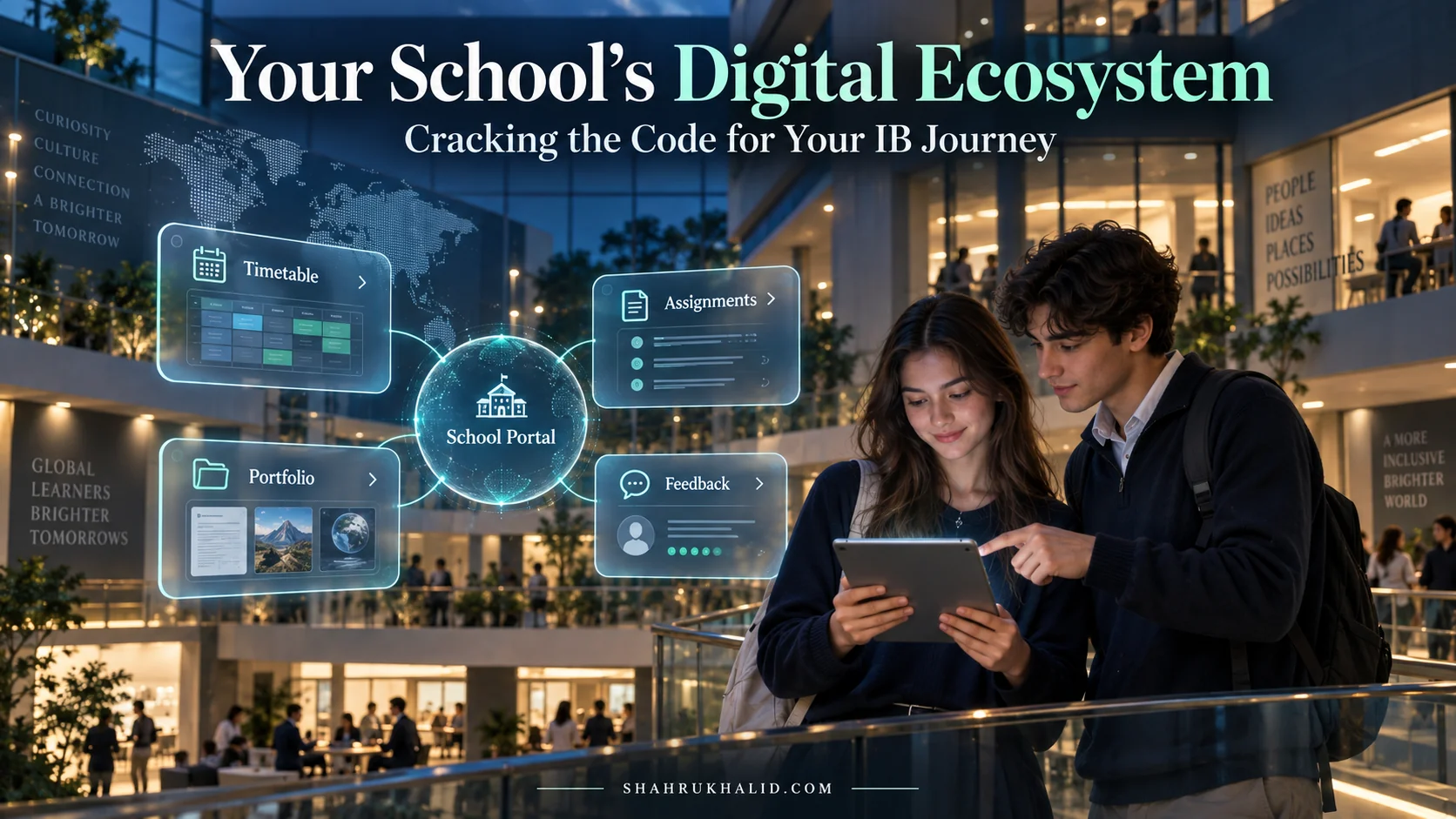
Master Your K-12 Journey: AdminPlus Demystified for International Students in 2026 – Your Guide to Decoding School Data

Key Takeaways
- AdminPlus is a Student Information System centralizing all K-12 academic data for students.
- It transforms academic data from a passive record into a strategic tool for student ownership.
- AdminPlus provides critical, consistent academic records essential for global transfers and university applications.
- Students use AdminPlus for real-time access to grades, schedules, attendance, and school announcements.
- Mastering AdminPlus empowers international students to decode data and excel in their K-12 journey.
I remember my first encounter with a student information system. I was a student myself, navigating a new school in a new country. I logged into a portal, and it was just a wall of numbers, codes, and links. I saw grades, attendance marks, and cryptic announcements. I felt powerless, like this system was just a digital record of things happening to me. It took me years to realize that I had it all wrong. This wasn’t just a record; it was a map, a dashboard, a control panel. And once I learned how to read it, I could start charting my own course.
That’s what this guide is all about. By the time we’re done, you won’t just know how to log in to AdminPlus. You will understand how to use it as a strategic tool to excel in your studies, prepare for university, and take complete ownership of your education, especially as an international student navigating the unique challenges and opportunities of a global K-12 environment. This is your guide to decoding your school data and turning it into your greatest asset.
Module 1: Comprehensive Foundations & Concept Primer
### Welcome to Your Digital Command Center
Before we dive into the nuts and bolts, let’s get one thing straight. What is a Student Information System (SIS), and why should you care?
Imagine your entire school life—every class, every grade, every attendance mark, every note from a teacher—is a collection of LEGO bricks. By themselves, they’re just little pieces of plastic. But when you have a blueprint and a baseplate to organize them, you can build incredible things: a castle, a spaceship, a model of your future.
A Student Information System, like AdminPlus from Rediker Software, is that digital baseplate and blueprint. It’s the central hub where your school organizes all those little pieces of data that make up your academic journey. It’s not just a report card viewer; it’s a dynamic, living record of your progress. For AdminPlus international students, this is even more critical. Your academic records need to be clear, consistent, and easily accessible for everything from transferring schools to applying to universities across different countries and educational systems.
So, let’s answer the big question right away: What is AdminPlus for K-12 international students? It is your secure, personal online portal that gives you a real-time window into your academic world. It’s where you can see your grades as soon as they’re posted, check your schedule for tomorrow, view your attendance record, and receive important announcements from the school. It’s the single source of truth for your academic data.
Why This Matters More Than Ever in 2026
You’re part of a generation that is more globally connected than any before. You might be an IB student in Hong Kong aiming for a university in Canada, an American student in a school in Germany planning to return to the US for college, or a TCK (Third Culture Kid) building a life across multiple continents. Your educational path is not a straight line; it’s a global tapestry.
In this context, being able to manage and understand your own data is not a soft skill; it’s a survival skill. Here’s why mastering your SIS is essential in 2026:
- University Applications are Data-Driven: University admissions officers, whether in the US, UK, or Australia, are looking at more than just your final grades. They’re looking at your trajectory. Did you improve over time? Did you take on more challenging courses? Your AdminPlus portal holds the story of that trajectory. Knowing how to access and interpret this data allows you to tell your story more effectively in your applications and interviews.
- You Are the CEO of Your Education: The old model of school was passive. You sat, you listened, you took a test, and you got a grade. The new model, the one you’re in, is active. You are the protagonist. Tools like AdminPlus give you the data to make informed decisions. You can see you’re struggling in Chemistry before the report card comes out, giving you time to seek help. You can see you’re excelling in History, which might inspire you to join the Model UN club. This is the heart of student data analytics education—using information to actively shape your own learning.
- Clarity in a Complex World: As an international student, you deal with enough complexity. Visas, cultural adjustments, different curriculum standards (like the IB, as detailed by the **IBO**). Your SIS should be a source of clarity, not confusion. By demystifying it, you remove one major source of stress and uncertainty. It becomes your anchor, a reliable place to find out what’s happening, what’s due, and how you’re doing.
Eliminating the Jargon: Your Plain-English Dictionary
The world of educational technology loves its acronyms. Let’s translate the most common ones you’ll see in and around AdminPlus into plain English.
- SIS (Student Information System): We’ve covered this, but let’s lock it in. Analogy: Think of it as your personal academic dashboard, like the dashboard in a car. It shows your speed (grades), your fuel level (attendance), and warning lights (missing assignments), all in one place. AdminPlus is a specific brand of SIS.
- Portal (or PlusPortals): This is simply the name for the website you log into to access the SIS. It’s the “door” to your data. AdminPlus uses the term “PlusPortals” for its web interface.
- Transcript: This is your official academic record. It lists every course you’ve taken, the grade you received, and often your GPA. Analogy: Think of it as your “academic resume.” It’s the single most important document you’ll send to universities.
- GPA (Grade Point Average): A number that represents the average of all your final grades. Different schools and countries calculate this differently (e.g., on a 4.0 scale, a 5.0 scale, or a percentage). AdminPlus will calculate this for you based on your school’s specific rules.
- Data Analytics: This sounds intimidating, but it’s simple. It just means looking at information to find patterns and make smart decisions. When you look at your grades over a semester to see if you’re improving, you’re performing data analytics!
My goal in this first module was to reframe AdminPlus from a scary, technical system into a personal, powerful tool. It’s not something the school uses on you; it’s something you can use for you. Now that we have the foundational concepts down, let’s get you logged in and set up for success.
Module 2: Prerequisites & Complete Environment Setup
### Your Mission: The First Successful Login
Alright, let’s get practical. Before you can master your data, you need to access it. This module is your step-by-step mission guide to getting inside your school’s AdminPlus portal for the first time. There’s no complex coding or server configuration here. Your “environment setup” is about successfully logging in, knowing your way around the main screen, and making sure you can see the information that matters most.
I’ll walk you through this just like I would if I were sitting next to you. We’ll go slow, and we’ll verify every step.
Step 1: Locating Your School’s Portal (The Digital Front Door)
Your school’s AdminPlus portal is a unique website. It’s not something you can just Google easily, as every school has its own specific web address (URL).
How to find your URL
- The Welcome Email: The most common way to get this information is from a “Welcome” or “Account Setup” email from your school’s IT or administration department. Search your inbox (and your parents’ inboxes!) for keywords like “AdminPlus,” “PlusPortals,” “school portal,” or “login.” This email is your golden ticket. It will contain the URL and your initial login details.
- The School Website: Most schools provide a prominent link to their student portal directly on their main website. Look for terms like “Portal,” “Login,” “My School,” or “Current Students” in the top menu or a quick links section.
- Ask a Friend or Teacher: When in doubt, ask! A classmate who has already logged in can share the link with you. Your homeroom teacher or a school administrator can also point you in the right direction.
Pro-Tip: Once you find the URL, bookmark it immediately! Create a bookmark in your browser and name it something clear like “School Portal” or “AdminPlus Login.” This will save you minutes every single day.
The URL will typically look something like this: `https://plusportals.com/YourSchoolName`.
Step 2: The First Login – Your Digital Handshake
You have the URL. You have your username and temporary password from the school’s email. Let’s make the first digital handshake.
- Navigate to the Portal: Open your browser and go to the bookmarked URL. You’ll be greeted by a login screen. It will likely feature your school’s logo.
- Enter Your Credentials:
- School ID / Username: This is your unique identifier. It could be your student ID number, an email address (`yourname@school.edu`), or a combination of your name and numbers. Enter it exactly as it appears in the email. It’s often case-sensitive.
- Password: For your very first login, you’ll use the temporary password the school provided. Type it carefully. Use the “show password” icon (usually an eye symbol) to double-check for typos.
- The Immediate Password Change: For security, nearly all systems will force you to change your password immediately after your first login. This is a good thing! It ensures only you have access to your account.
- Choose a Strong Password: Don’t use “password123” or your birthday. A strong password is a mix of uppercase letters, lowercase letters, numbers, and symbols. A great trick is to use a short, memorable phrase and substitute some letters with numbers or symbols. For example, “MyFirstYear@2026!” is much stronger than “school2026”.
- Save Your Password: Use a secure password manager (like the one built into your browser or a dedicated app) to save your new password. Don’t write it on a sticky note attached to your monitor!
Step 3: Configuring Your “Environment” – Making the Space Your Own
You’re in! Congratulations. You’ll now see the main dashboard or “landing page.” It might look a little busy at first, but think of it as the lobby of your digital school. From here, you can get to any room you need.
Our “environment setup” is about personalizing this space and turning on key features.
- Profile & Settings: Look for a gear icon (⚙️) or your name, usually in the top-right corner. This is your Profile or Settings area. Click on it.
- Verify Your Information: Check that your name is spelled correctly. You might also see your photo, grade level, and other demographic data. If anything is wrong, make a note to inform the school office. Correct school record management starts with accurate data.
- Set Up Notifications: This is HUGE. Look for a “Notifications” or “Alerts” tab. Here, you can often choose to receive an email or a push notification (if you use the mobile app) for important events. I highly recommend enabling notifications for:
- New Grades Posted: Get an alert when a teacher updates your grades.
- School Announcements: Don’t miss out on important news.
- Messages from Teachers: Stay on top of communication.
- Dashboard Customization: Some versions of AdminPlus allow you to customize your main dashboard. You might be able to drag and drop “widgets” or “cards” to prioritize what you see first. If this is available, I suggest moving these three things to the top:
- Today’s Schedule: What class do you have next?
- Recent Grades/Assignments: What’s the latest academic feedback?
- Announcements/Messages: What’s the most recent news?
Step 4: Verification – The “All Systems Go” Checklist
How do you know you’re truly set up and ready to go? Run through this quick checklist.
- [ ] Can I log in and out successfully? Try logging out and then logging back in with your new, personal password.
- [ ] Is my name and grade level correct on the main screen?
- [ ] Can I find the “Grades” or “Academics” section? (Even if there’s no data yet, can you find the link?)
- [ ] Can I find my “Schedule” or “Timetable”?
- [ ] Can I find the “School Announcements” or “News” section?
- [ ] Have I bookmarked the portal URL?
- [ ] Have I saved my password in a secure place?
If you can check off all these boxes, you have successfully completed your environment setup. You’ve moved from being locked out to holding the key to your own command center. In the next module, we’ll explore the layout of this new digital world and understand how all the different parts work together.
Module 3: Core Implementation Architecture & Workflow Blueprint
### Your School’s Digital Blueprint
Now that you’re inside AdminPlus, let’s take a guided tour. Understanding the layout—the “architecture”—is like getting a map of a new city. Once you know where the main districts are and how the roads connect, you can navigate with confidence. You’ll stop wandering aimlessly and start moving with purpose.
From a technical standpoint, as outlined in materials from providers like **Rediker.com**, an SIS is a complex relational database. But for you, the student, it’s much simpler. Think of your AdminPlus portal as a large, well-organized digital building with different wings, each dedicated to a specific purpose.
Let’s explore the main wings using a visual card structure. Imagine each of these is a clickable card on your main dashboard.
—
Visual Card Grid: Navigating the Wings of AdminPlus
[CARD 1: The Academics Wing]
- Icon: A graduation cap or a book.
- Purpose: This is the heart of your academic record. It’s where you track your performance.
- What’s Inside:
- Gradebook/Progress: A real-time view of your grades for each class, often broken down by individual assignments, tests, and quizzes. This is your most frequently visited page.
- Report Cards: Official, term-end summaries of your grades, teacher comments, and attendance. These are static PDF documents.
- Transcript: The master document. A cumulative record of every high school course and final grade, used for university applications.
- GPA: Your calculated Grade Point Average, updated according to your school’s policy (often at the end of a term).
[CARD 2: The Logistics & Scheduling Wing]
- Icon: A calendar or a clock.
- Purpose: This wing manages your time and location. It answers “Where do I need to be and when?”
- What’s Inside:
- Schedule/Timetable: Your daily, weekly, and term-long class schedule. It will show class names, teacher names, room numbers, and times.
- Attendance: A log of your attendance for every class. You can see if you’ve been marked present, late, or absent. This is a key part of school data management for international K-12 schools, as attendance can be linked to visa requirements.
- School Calendar: The master calendar for the entire school, showing holidays, exam weeks, special events, and deadlines.
[CARD 3: The Communications Hub]
- Icon: An envelope or a speech bubble.
- Purpose: This is your connection to the school community. It’s how you stay informed and in touch.
- What’s Inside:
- Announcements/News: School-wide or grade-level announcements. This is where you’ll find out about school closures, upcoming events, or policy changes.
- Messaging/Email: A secure, internal messaging system to communicate with your teachers. (Note: Not all schools enable this feature for students).
- Directory: A searchable list of school staff and their contact information.
[CARD 4: The Personal Dossier Room]
- Icon: A person’s silhouette or a file folder.
- Purpose: This holds your personal and demographic information. It’s your official file.
- What’s Inside:
- Demographics: Your name, address, date of birth, etc.
- Contacts: Your parents’ or guardians’ contact information.
- Medical Information: Any important health information you’ve provided to the school nurse.
- Course Requests: (Usually active once a year) A section where you can select your courses for the next academic year.
—
The Workflow Blueprint: From Teacher’s Gradebook to Your Screen
Understanding the layout is one thing; understanding how information flows through it is another. This is where you start to see the “why” behind the data. Let’s trace the journey of a single grade.
A Diagram of Data Flow (Described)
Imagine a simple flowchart:
- [START] The Action: You take a biology test.
- You complete the test and hand it in.
- [INPUT] The Teacher’s Role: Your biology teacher grades the test.
- Your teacher logs into their own version of AdminPlus (called TeacherPlus). They open their digital gradebook, find your name, and enter “85%” for the “Unit 3 Test.”
- [PROCESS] The SIS Core: The AdminPlus system instantly processes this new piece of data.
- The system receives the 85%. It recalculates your overall grade in Biology based on the weighting of the test (e.g., tests are 40% of the final grade).
- The system logs the date and time the grade was entered.
- If you have notifications enabled, the system triggers an alert to be sent to your email or phone.
- [OUTPUT] Your View in the Portal: You log into your PlusPortal.
- You click on the “Academics Wing” card.
- You select “Biology.”
- You see the new entry: “Unit 3 Test – 85%.”
- You also see your overall Biology grade has changed, for example, from an 88% to an 87% or an 89%, depending on this test’s impact.
- [IMPACT] The Long-Term Record: At the end of the semester, this process culminates.
- Your final calculated Biology grade (e.g., 91%) is finalized.
- *This final grade is then automatically pushed to two official documents: your Report Card for that term and your permanent Transcript.*
Why is this blueprint so important for you, an international student? Because it shows that the system is logical and transparent. A grade doesn’t just appear by magic. It follows a clear path. This means if you ever see something that looks wrong, you can mentally retrace these steps and ask a specific, intelligent question. Instead of saying “My grade is wrong!”, you can say, “I see the grade for the Unit 3 Test was entered, but I don’t think it’s being weighted correctly in my overall average. Could we please check that?”
This is the difference between being a passive observer and an engaged, data-literate student. You’re now equipped with the map and the understanding of how traffic flows. In the next module, we’ll start driving.
Module 4: Hands-on Practical Implementation & Real-World Configuration
### From Theory to Action: Your Daily AdminPlus Workout
You’ve got the keys, you’ve seen the map, and you understand how the traffic flows. Now it’s time to put it all into practice. This module is your hands-on training ground. We’re going to walk through the most common and powerful tasks you’ll perform in AdminPlus. Think of these as your daily or weekly “workouts” to keep you in peak academic shape.
I’ll guide you step-by-step, and I’ll add my own “researcher’s notes”—pro-tips from years of seeing how successful students use these tools.
Walkthrough 1: The Weekly Grade Check-Up (Your 5-Minute Academic Health Scan)
This is the single most important routine you can develop. Don’t wait for the end-of-term report card to be surprised. A quick weekly check-in keeps you in control.
Objective: To review your current grades in all subjects, identify any new entries, and spot any potential issues early.
Step-by-Step
- Log in to your PlusPortal. Your dashboard should be the first thing you see.
- Navigate to the Academics Section. Click on the “Academics,” “Grades,” or “Gradebook” link. This is usually the most prominent option.
- View the Class Summary. You’ll likely see a list of all your current classes, each with an overall grade or percentage next to it. This is your 30,000-foot view. Look for any significant changes from last week.
- Drill Down into a Specific Class. Click on one of your courses, for example, “English 10.”
- Analyze the Assignment List. You will now see a detailed list of all graded items in that class: homework, quizzes, essays, tests. It should show the name of the assignment, the score you received (e.g., 25/30 or 83%), and often the “weight” or category it belongs to (e.g., “Homework – 20%”).
- Look for Key Indicators:
- New Grades: Scan for any grades that have been entered since your last check-in.
- Missing or Blank Scores: A blank, a zero, or a special symbol (like ‘M’ for Missing or ‘I’ for Incomplete) is a major red flag. This is the system telling you that something you were supposed to submit hasn’t been recorded. This is your cue to take immediate action.
- Teacher Comments: Sometimes, a teacher will leave a short comment next to a grade. Look for these! They provide crucial context that a number alone cannot.
Mahnoor's Researcher Note
“I advise students to do this every Sunday evening. It takes less than five minutes and completely reframes your week. Seeing a low quiz score from Friday isn’t a failure; it’s a signal to schedule a meeting with your teacher on Monday. Seeing a missing assignment isn’t a reason to panic; it’s a task to add to your to-do list. This simple habit transforms you from being reactive to being proactive.”
Walkthrough 2: Decoding Your Schedule and Planning Your Day
For a new student, especially in a large, sprawling international school, just knowing where to go can be a major source of anxiety. AdminPlus is your personal navigator.
Objective: To view your daily schedule, find key information like room and teacher names, and use the calendar to plan ahead.
Step-by-Step
- **Find the “Schedule” or “Timetable” Section