Your 2026 Zoom Navigator: An International K-12 Students Guide to Mastering Hybrid Classrooms & Global Connections
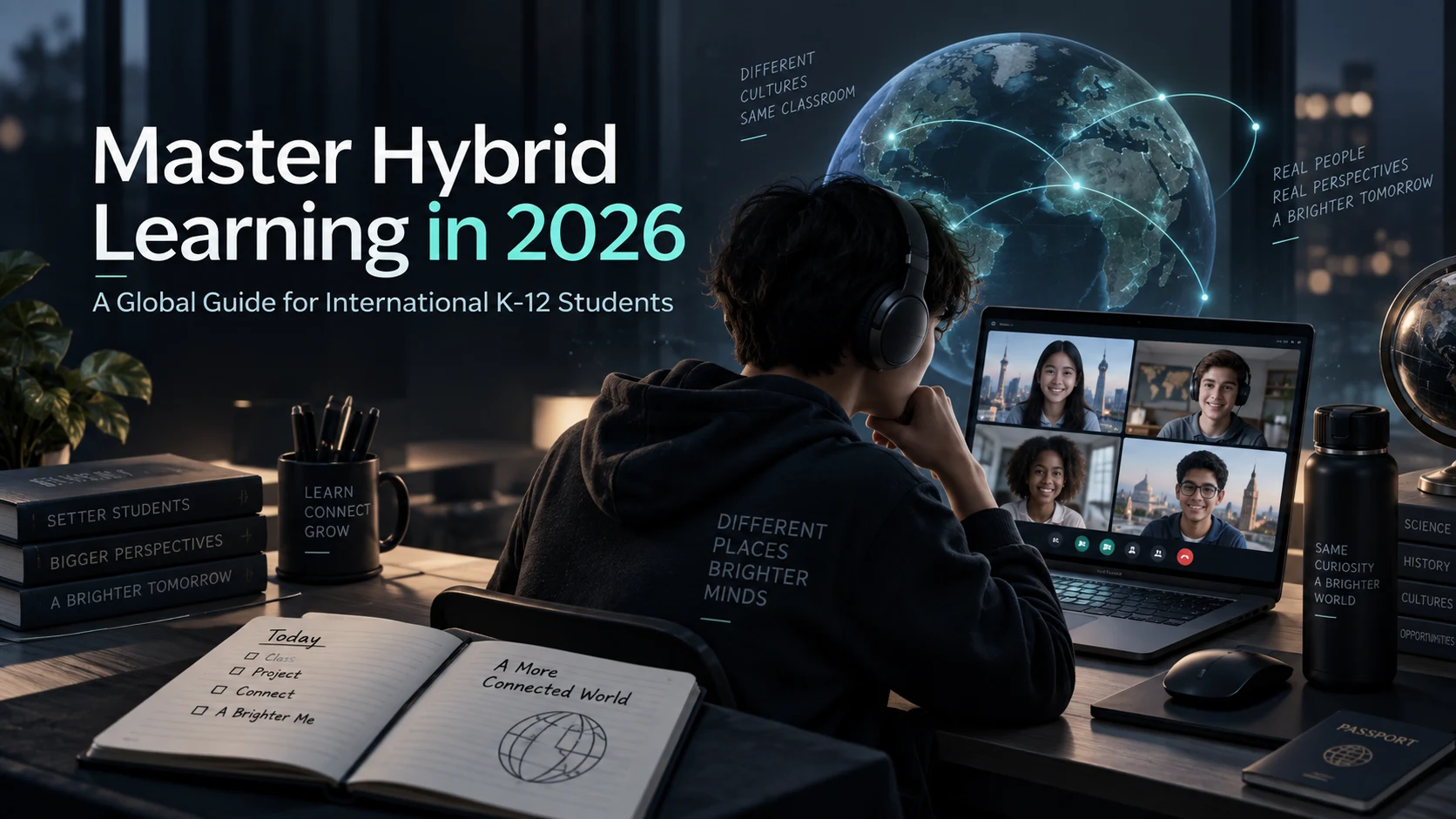
Key Takeaways
- By 2026, international K-12 hybrid learning will be standard, requiring mastery from students.
- Hybrid learning synthesizes in-person and online experiences, far exceeding simple video calls.
- It enables unparalleled global connections, cultural exchange, and diverse learning opportunities.
- Thriving in hybrid environments demands a mindset shift and new navigation skills beyond basic tech use.
- A true hybrid model thoughtfully blends physical classroom interaction with digital global exploration.
When I was your age, my “tech stack” was a five-subject notebook, a well-organized Trapper Keeper, and a landline phone for group projects (which usually meant someone’s parent yelling “Phone’s for you!”). Today, your classroom might be in your bedroom, your lab partners could be three time zones away, and your library is, well, the entire internet. You’re living and learning in a world I could only dream of, a world of International K-12 Hybrid Learning.
By 2026, this won’t be a temporary fix or a strange experiment. It will be the very fabric of a world-class education. It’s the engine that will connect you with ideas, cultures, and friends from across the planet. But like any powerful engine, you need a manual. You need a navigator.
That’s why I’m writing this for you, on behalf of my colleague Shahrukh Khalid, who has dedicated his career to shaping the intersection of pedagogy and technology. This isn’t just another blog post. This is your masterclass. Your complete guide to not just surviving, but thriving in the hybrid classroom. We’re going to go beyond just “how to use Zoom” and build a complete system for your academic and personal success.
So, grab a drink, get comfortable, and let’s begin your journey to becoming a master navigator of the hybrid world.
Comprehensive Foundations & Concept Primer
Before we start building your digital command center, we need to lay a solid foundation. You wouldn’t build a house without understanding what a blueprint is, right? This module is about understanding the ‘why’ behind hybrid learning. It’s about shifting your mindset from seeing it as a challenge to seeing it as your single greatest opportunity.
What Exactly is ‘Hybrid Learning’ in 2026? (Hint: It’s Not Just Zoom Calls)
Let’s get one thing straight. When we talk about International K-12 Hybrid Learning, we are not just talking about watching a recorded lecture from your teacher. That’s like saying a smartphone is just for making calls. The reality is so much richer and more exciting.
So, what is it?
At its core, hybrid learning is a thoughtful blend of in-person and online learning experiences, designed to give you the best of both worlds.
Think of it like being a superhero with two secret identities. One identity is your in-person self, collaborating in a physical classroom, doing hands-on science experiments, participating in school sports, and sharing lunch with your friends. The other is your digital self, a global explorer of knowledge, connecting with experts from around the world, collaborating on projects with students in other countries, and learning at your own pace.
A true hybrid model, especially in a forward-thinking international school, isn’t a 50/50 split. It’s a synthesis. It’s where your teacher uses the physical classroom for activities that thrive on face-to-face interaction—like Socratic seminars, complex lab work, or drama rehearsals. Then, they use the digital space for things it does best—providing access to a global audience, allowing you to re-watch a complex explanation of calculus, or using simulations that would be impossible in a real classroom.
This is a fundamental principle you’ll see in the curriculum design from leading educational bodies like the International Baccalaureate (IBO). The IBO’s mission is to develop “inquiring, knowledgeable and caring young people who help to create a better and more peaceful world through intercultural understanding and respect.” As stated on ibo.org, their programmes encourage students to become active, compassionate, and lifelong learners. A well-executed hybrid model is perhaps the most powerful tool ever created to achieve this. It allows you to be an “inquirer” not just in your local library, but in the digital archives of the world’s greatest museums. It enables “intercultural understanding” not by reading a textbook, but by co-creating a presentation with a peer in Tokyo.
So, the first mental shift is this: Stop thinking of “online school” and “in-person school.” Start thinking of your education as one single, fluid experience that happens in different, purpose-built spaces.
The ‘Why’: Your Unfair Advantage as a Global Citizen
Okay, so it’s a blend. But why does it matter so much for you, an international K-12 student? Because this model gives you a set of superpowers that students in traditional systems can only dream of.
Superpower 1: Time and Space Mastery.
In a traditional model, learning happens from 8:00 AM to 3:00 PM, Monday to Friday, inside one building. A hybrid model shatters that container. Got a major tennis tournament next week? You can structure your asynchronous (the fancy word for ‘on your own time’) work around your training schedule. Are you a night owl who does your best thinking after dinner? The digital campus is always open. This flexibility teaches you a skill that most adults struggle with: self-management and personal responsibility. You’re not just learning history; you’re learning how to be the master of your own time.
Superpower 2: The Global Rolodex.
This is my favorite one. In the old days, your world was your school. In a hybrid international school, your school is the world. Your school can bring in a marine biologist live from a research vessel in the Antarctic to talk about climate change. Your history teacher can arrange a collaborative project where your class, based in Dubai, works with a class in São Paulo to analyze the cultural impact of coffee.
You’re not just learning about the world; you’re building relationships with the world. These connections, these friendships, these collaborative experiences are the foundation of a true global network. By the time you graduate, you won’t just have a diploma; you’ll have friends and future colleagues on every continent. This is the future of Global K-12 education trends, and you are living on the cutting edge.
Superpower 3: Personalized Learning Pathways.
Do you find a specific topic in biology fascinating? In a traditional model, you might get to read an extra chapter. In a hybrid model, you can dive into a rabbit hole of curated videos, interactive simulations, and university-level articles provided by your teacher on the school’s Learning Management System (LMS). Conversely, if you’re struggling with a concept, you can re-watch the lesson, go through an interactive tutorial, and get one-on-one support during a virtual office hour, all without feeling like you’re “holding up the class.”
Your school’s technology stack is designed to support this. As my colleague Shahrukh Khalid often points out, the goal of educational technology is not to replace teachers, but to give them superpowers too. Systems are designed to help teachers see exactly where you are excelling and where you need support, allowing them to tailor the experience just for you. This creates a powerful feedback loop that accelerates your learning far beyond what a one-size-fits-all approach could ever achieve.
So, let’s reframe. The question isn’t “How do I survive hybrid learning?” The question is, “How do I leverage these incredible superpowers to build an amazing future?” That’s what the rest of this guide is all about.
Prerequisites & Complete Environment Setup
Welcome to Mission Control. Every astronaut, every pilot, every race car driver has a cockpit—a perfectly organized space where every tool is within reach and every dial gives them the critical information they need. Your learning environment, both physical and digital, is your cockpit for navigating the world of International K-12 Hybrid Learning.
Getting this right isn’t just about being neat. It’s about reducing friction. Every second you spend looking for a file, untangling a headphone wire, or trying to remember a password is a second you’re not spending on learning, creating, or connecting. In this module, we’re going to build your cockpit, step-by-step.
Your Physical Space: The Launchpad
Your physical environment has a massive impact on your focus, energy, and well-being. Let’s optimize it for peak performance.
1. The Desk: Your Command Console
- Location, Location, Location: If possible, set up your desk in a space with good natural light and minimal foot traffic. Facing a wall can help reduce distractions, while facing a window can be great if you don’t get easily distracted by the world outside. The key is to make it a dedicated learning zone. When you sit here, your brain should know: it’s time to focus.
- Ergonomics are Not Boring: You’re going to be spending a lot of time here. “Ergonomics” is just a scientific way of saying “comfortable and healthy for your body.”
- Your chair should support your back.
- Your feet should be flat on the floor.
- Your monitor should be at eye level (prop it up on a stack of books if you need to!).
- Your keyboard and mouse should be positioned so your elbows are at a 90-degree angle.
- Trust me, your future self will thank you for not being a hunchback.
2. Audio: The Clarity Connection
- Input (Your Mic): The built-in microphone on your laptop is… okay. But it picks up every click, every rustle, every family member in the next room. A good quality headset with a dedicated microphone is one of the best investments you can make. It’s not just about sounding professional; it’s about being understood without having to repeat yourself. It shows respect for your classmates’ and teacher’s ears.
- Output (Your Headphones): Use headphones. Period. This does two things: it blocks out distracting noises around you, and it prevents audio feedback (that awful echo when your mic picks up sound from your speakers).
3. Lighting: Look and Feel Your Best
- Front-Facing Light: The most important rule of video calls: your primary light source should be in front of you, not behind you. A window in front of you is perfect. A lamp placed behind your laptop is great. A bright window or light behind you will turn you into a mysterious silhouette. A simple, inexpensive ring light can make a world of difference. Looking good on camera isn’t about vanity; it helps people read your facial expressions and feel more connected to you.
Verification Checklist for Your Physical Space
- [ ] Is my desk dedicated to learning?
- [ ] Can I sit comfortably for at least an hour?
- [ ] Is my main light source in front of me?
- [ ] When I speak, is my voice clear and free of background noise?
- [ ] Can I hear others clearly without distractions?
Your Digital Space: The Operating System
Your digital environment is even more important than your physical one. This is where the work actually happens. We’re going to create a system so clean and logical that it becomes invisible, letting you focus on what truly matters.
1. The Desktop: A Zen Garden, Not a Junkyard
Your computer’s desktop is not a storage folder. Every file there is a tiny distraction, a little visual “to-do” item screaming for your attention.
- The Rule: Keep your desktop almost completely empty. Allow only shortcuts to applications and perhaps the one folder for the project you are actively working on today.
- The Action: Create a folder on your computer called “Inbox” or “To Be Filed.” Any screenshot, any random download—it goes in there. Once a day, spend two minutes emptying that folder and putting the files where they belong.
2. The File System: Your Digital Library
This is the single most important organizational task you will undertake. A logical folder structure is your salvation. Here is a battle-tested directory layout you can steal and adapt. Create this inside your main documents folder (e.g., `Documents/MySchool/`).
├── 01_Academics/
│ ├── G10_Term1_2025/
│ │ ├── BIO101_Ms_Foster/
│ │ │ ├── 01_Notes
│ │ │ ├── 02_Assignments
│ │ │ ├── 03_Readings
│ │ │ └── 04_Submissions
│ │ ├── ENG101_Mr_Khan/
│ │ │ ├── 01_Notes
│ │ │ ├── 02_Assignments
│ │ │ ├── 03_Readings
│ │ │ └── 04_Submissions
│ │ └── … (other classes)
│ └── G10_Term2_2026/
│ └── …
├── 02_Extracurriculars/
│ ├── Model_UN/
│ └── Soccer_Team/
├── 03_Projects/
│ ├── IB_Extended_Essay_2026/
│ └── Science_Fair_Project_Mars_Colony/
└── 04_Archive/
└── G09_2024/
└── … (old school year)
Why this works
- Chronological & Hierarchical: It’s organized by school year and term, then by subject. This mirrors how your school thinks.
- Numbered Prefixes: The `01_`, `02_` prefixes ensure your main folders always stay in the same logical order, not alphabetical.
- Action-Oriented Subfolders: Inside each class folder, the structure (`Notes`, `Assignments`, `Readings`, `Submissions`) tells you exactly what to do with a file. Got a PDF from your teacher? It goes in `03_Readings`. Finished your essay? A copy goes in `04_Submissions` before you upload it.
3. The Browser: Your Portal to the World
Your browser is your primary tool. Don’t just use it; configure it.
- Use Profiles: Most browsers (Chrome, Firefox, Edge) allow you to create profiles. Create a dedicated “School” profile. When you open this browser window, it has its own bookmarks, its own extensions, and you’re logged into your school Google/Microsoft account. Create another “Personal” profile for YouTube, gaming, and social media. This separation is critical for focus. When you’re in your “School” profile, you won’t get notifications from your personal life.
- Bookmark Bar as a Dashboard: Your bookmark bar should be a mission control dashboard. Don’t just save random links. Create folders:
- `School Portal` (link to your main school login, like the one for your Rediker SIS)
- `LMS` (link to Canvas, Blackboard, Google Classroom, etc.)
- `Class Links` (a folder containing the Zoom/Teams link for each class)
- `Research Tools` (JSTOR, Google Scholar, your school library portal)
Verification Checklist for Your Digital Space
- [ ] Is my computer desktop clean?
- [ ] Have I created the main `MySchool` folder structure?
- [ ] Have I created a dedicated “School” profile in my web browser?
- [ ] Is my bookmark bar organized like a dashboard with quick links to essential school sites?
Setting this up might take you an hour. But that one hour will save you hundreds of hours of frustration and wasted time over the school year. You’ve now built a clean, efficient, and powerful launchpad for your journey into online learning for K-12 students abroad. Your cockpit is ready. In the next module, we’ll learn how to fly it.
Core Implementation Architecture & Workflow Blueprint
Alright, your environment is prepped. Your cockpit is clean. Now, let’s map out the flight plan. A workflow is just a fancy name for a repeatable process that gets you from A to B with minimum stress. In our case, it’s the process of turning a teacher’s assignment into a completed, submitted, and filed piece of work.
This isn’t about rigid rules; it’s about building smart habits that free up your brainpower for the stuff that matters—the actual learning. We’re going to design a blueprint that connects your school’s systems to your personal system.
The Grand Unified Workflow: From Assignment to Archive
Think of the information flow at school like a river. It starts at a source (your teacher) and flows through various points (the school portal, your email, the LMS) until it reaches you. A bad workflow is like trying to catch the water in your hands—it’s messy and you lose most of it. A good workflow is like building a series of canals and reservoirs to direct the water exactly where you need it.
Our workflow has four main stages, which we can visualize as a series of connected cards:
[Card 1: INBOX] -> [Card 2: ACTION] -> [Card 3: WORKSPACE] -> [Card 4: OUTPUT]
Let’s break down this “Assembly Line” for academic success.
Visual Card Grid
| Stage | Card Name | Primary Tool(s) | Core Function |
| :— | :— | :— | :— |
| 1. Capture | INBOX | Email, LMS Notifications, School Portal (Rediker) | Collect all incoming tasks, dates, and files in ONE central place. |
| 2. Process | ACTION | Calendar, To-Do List App (e.g., Todoist, Microsoft To Do) | Decide what to do with each item from the INBOX and when. |
| 3. Execute | WORKSPACE | Digital Notebook (e.g., Notion, OneNote), Your File System | The dedicated space where you do the actual work: take notes, write essays, solve problems. |
| 4. Finalize | OUTPUT | LMS Submission Page, Your `04_Submissions` Folder | Submit the finished work and archive it for your records. |
This four-stage process is the fundamental mechanic of your entire academic life. Let’s walk through it.
Stage 1: The INBOX – Your Central Collection Point
Your school will throw information at you from multiple directions:
- An assignment is posted on the LMS (e.g., Canvas, Google Classroom).
- Your teacher sends an email with a crucial PDF attachment.
- The school’s main portal, often a Student Information System (SIS) like Rediker’s AdminPlus, posts a new calendar event for a school-wide assembly.
- A classmate messages you on Teams/Slack about a group project.
The biggest mistake students make is trying to manage tasks from within these different systems. They leave emails unread as a “reminder,” star LMS announcements, and hope they remember the verbal instruction from their teacher. This is a recipe for disaster.
Your Mission: You need ONE, and only one, central digital inbox. This could be the inbox of a dedicated to-do list app. Every piece of information, every task, every deadline, no matter where it comes from, must be forwarded or manually entered into this single location.
Example Workflow
- Your History teacher posts a new essay assignment on the LMS, due next Friday.
- You do not just “read” it. You immediately open your to-do list app.
- You create a new task: “Write History Essay on the Silk Road.”
- You add the due date: Next Friday.
- You copy the link to the LMS assignment page and paste it into the task’s notes.
- You download the attached rubric PDF. You do NOT leave it in your ‘Downloads’ folder. You immediately move it to `/MySchool/01_Academics/G10_Term1_2025/HIS101_Mr_Jones/03_Readings/`.
You have now “processed” the notification. The LMS can go down, your email can get deleted—it doesn’t matter. The task now lives in your system.
Stage 2: The ACTION – The Triage and Planning Hub
Your inbox is for collection, not for storage. At least once a day (I recommend at the end of your school day), you’ll triage your inbox. This is where your Calendar and To-Do list work together.
For each item in your inbox, you ask:
- Is this actionable? If yes, it’s a task. If no (like a school newsletter), read it and archive/delete it.
- Does it have a deadline? If yes, it goes on your Calendar AND your To-Do list.
- Does it need to happen at a specific time? If yes (like a Zoom class or a meeting), it’s a Calendar Event.
- Can I do it in under two minutes? If yes, do it immediately. Don’t even log it. (e.g., “Email Mr. Smith to confirm meeting time.”)
The Calendar is for things that are time-specific. Your class schedule, appointments, and deadlines. Deadlines are crucial—put the due date of the History essay on your calendar as an all-day event for that Friday. This gives you a visual overview of your week.
The To-Do List is for things that are not time-specific. “Study for Math test” or “Work on History essay” are tasks. You can do them whenever you have a free block in your calendar.
This is how you answer the question, “How can K-12 international students succeed in hybrid classrooms?” By building a system that separates “what” needs to be done (your To-Do list) from “when” you have time to do it (your Calendar). This separation is the key to managing the flexibility of a hybrid schedule without feeling overwhelmed.
Stage 3 & 4: The WORKSPACE & OUTPUT – Deep Work and Delivery
Once you’ve decided what to work on (thanks to your Action hub), you move to your Workspace.
The Workspace: This is your digital notebook (like OneNote or Notion) and your meticulously organized file system from Module 2. When it’s time to work on that History essay, you:
- Open your digital notebook to the “History” section.
- Create a new page titled “Silk Road Essay.”
- You open the `/HIS101_Mr_Jones/03_Readings/` folder to access the rubric and any other materials you saved.
- You start your research and write your draft.
This is your sacred space for “deep work.” Because you’ve set up your browser profiles, you’re not getting social media notifications. Because you’ve processed your inbox, you’re not worried you’re forgetting something. You can just focus on the task at hand.
The Output: You’ve finished the essay. Now what?
- Final Version Control: Save the final version of your essay with a clear name, like `Ahmed_Maryam_History_SilkRoadEssay_FINAL.pdf`.
- Archive Your Copy: Move this final PDF into your `/HIS101_Mr_Jones/04_Submissions/` folder. This is your personal record. It’s saved you from “the LMS ate my homework” more times than I can count.
- Submit: Navigate to the LMS page (the link is conveniently in your to-do list task!) and upload the file.
- Check it Off: The most satisfying step of all. Go back to your to-do list and check off “Write History Essay on the Silk Road.”
This entire blueprint, from Inbox to Output, is the core architecture of your success. It’s a repeatable, scalable system that can handle anything your virtual classrooms K-12 international experience throws at you. As my colleague Shahrukh Khalid‘s work on campus technology integration emphasizes, the most effective systems are the ones that connect the institution’s architecture (the LMS, the SIS) with the individual user’s workflow. You’ve just designed your personal integration plan.
Hands-on Practical Implementation & Real-World Configuration
Theory is great, but let’s get our hands dirty. This module is where the rubber meets the road. We’re going to take the blueprint from Module 3 and build it using real, accessible tools. I’ll provide heavily commented, “production-ready” templates and step-by-step walkthroughs. Think of this as your IKEA instruction manual for building a high-performance academic machine.
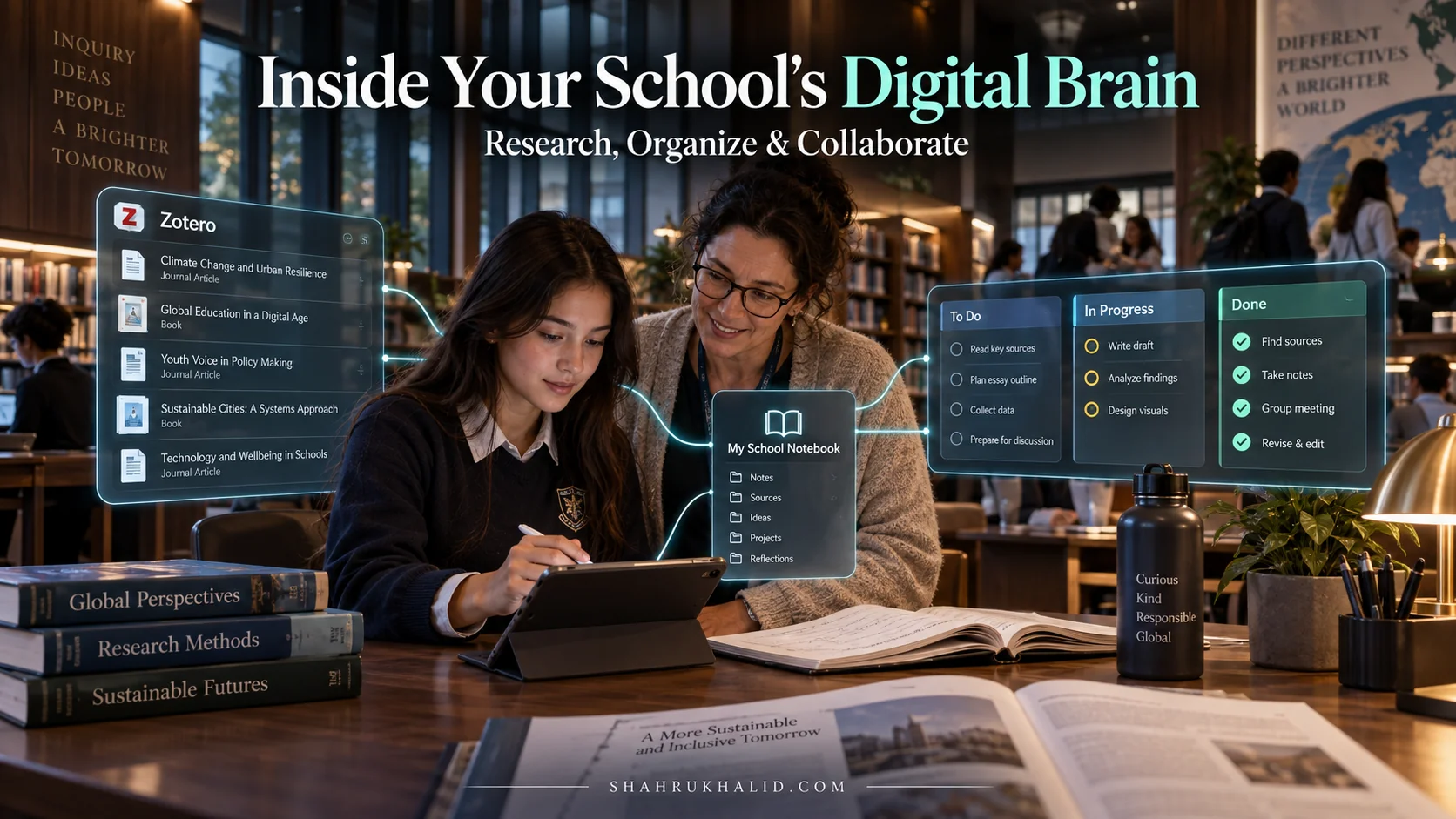
Your ‘Digital Brain’: Choosing and Configuring a Note-Taking App
Your digital notebook is more than just a place to type notes. It’s your “second brain”—a searchable, organized, and interconnected repository of everything you’re learning. The goal is to create a system where you can find any piece of information from any class in under 15 seconds.
Let’s use Notion as our example, as it’s powerful, free for personal use, and incredibly flexible. (You could achieve similar results with OneNote, Obsidian, or Evernote).
Step-by-Step Notion Setup for a K-12 Student
- Create Your “School Hub” Page:
- Sign up for Notion and create a new, blank page. Title it ` G10 – School Hub 2025-2026 `. This will be your main dashboard.
- Use the `/` command to add an icon (like a graduation cap 🎓) and a cover image to make it your own.
- Create a Master Class Database:
- On your Hub page, type `/database – inline` and select it. This creates a table.
- Name the database `My Classes`.
- Create the following columns (called “Properties” in Notion):
- `Class Name` (Title Property): e.g., “BIO101: Cell Biology”
- `Teacher` (Text Property): e.g., “Ms. Foster”
- `Room / Link` (URL Property): Paste the permanent Zoom/Teams link here.
- `Syllabus` (File Property): Upload the class syllabus PDF here.
- `Term` (Select Property): Create options like “Term 1,” “Term 2.”