PlusPortals 2026 Power-Up: Your International K-12 Student Guide to Tracking Grades, Assignments & Attendance for Success
Key Takeaways
- PlusPortals helps international K-12 students manage grades, assignments, and attendance efficiently.
- It functions as a digital backpack, organizing all academic information for clarity.
- Mastering PlusPortals is crucial for predicting, planning, and achieving academic excellence.
- The tool is vital for navigating the complexities of diverse international K-12 curricula.
- PlusPortals transforms from a simple website into a personal command center for success.
Today, I want to talk to you directly. Not as a researcher to a subject, but as a guide, a mentor, and someone who vividly remembers the whirlwind of being a K-12 student. I remember the lost assignment papers, the frantic “When is that project due?!” texts to friends, and the sinking feeling of seeing a grade that I didn’t understand. Your world today is even more complex, especially as an international student navigating diverse curricula, new cultures, and the high stakes of modern education.
That’s why we’re here. This guide is your masterclass for turning your school’s portal, specifically PlusPortals, from a simple website you have to check into your personal command center for academic achievement. We’re going to transform it into the key to unlocking PlusPortals K-12 success. Forget just logging in to see a grade; by the end of this, you’ll be using it to predict, plan, and perform at your highest level. Let’s begin.
Comprehensive Foundations & Concept Primer
Before we dive into the clicks and buttons, let’s zoom out and understand the ‘why’. Why does a tool like PlusPortals even exist, and why is mastering it, especially in 2026, one of the most critical skills you can develop for your academic career?
The ‘Digital Backpack’ Analogy: Taming the Chaos
I want you to think back to a time before everything was online. Imagine your backpack. It’s probably stuffed with textbooks, crumpled handouts, a planner with scribbled notes, maybe a permission slip your parents were supposed to sign last week, and a half-finished math worksheet. It’s heavy, disorganized, and stressful. Finding what you need, when you need it, is a constant battle.
Now, imagine a different kind of backpack. A digital one. This backpack is weightless, perfectly organized, and lives on your phone and computer. Every handout, every assignment, every due date, every grade, and every message from your teacher is filed away in the exact right spot, accessible in seconds. It even sends you reminders before you forget something important.
That, in its essence, is what PlusPortals is. It’s not just a website; it’s your digital backpack, your personal academic assistant, and your flight-deck control panel all rolled into one. It’s designed to take the chaos of school life and put it into a clear, manageable order. And in the world of international education, where you might be juggling an IB curriculum (a framework we at Shahrukh Khalid’s firm deeply analyze with reference to standards from the IBO.org), AP courses, and local requirements, taming that chaos is not a luxury—it’s a necessity.
Why This Is Your Secret Weapon in 2026
Being a student today is different. You are preparing for a world that values not just what you know, but how you manage information, how you take ownership of your progress, and how you communicate in a digital landscape. Mastering PlusPortals isn’t about learning a piece of software; it’s about building the executive functioning skills that will define your success in university and beyond.
Think about it:
- Ownership: Instead of waiting for a parent-teacher conference to find out you’re behind, you can see your progress in real-time. You are the first to know, which means you are the first one who can act.
- Strategic Planning: Instead of just reacting to the next deadline, you can look at the calendar and see the entire semester laid out. You can spot the “hell week” in October when three major projects are due and start planning for it in September.
- Informed Communication: When you email a teacher with a question, you can say, “I was reviewing my grade on the ‘Cellular Respiration Lab’ from last Tuesday in PlusPortals, and I had a question about the comment on criterion B.” This shows your teacher you are engaged, organized, and serious about your learning. It changes the entire dynamic of the conversation.
For an international K-12 student, this is even more critical. You might be in a different time zone from some of your family, making it harder for them to keep up. Your student success portal becomes the bridge, allowing you to take the lead in managing your own academic life. This is the foundation of achieving true PlusPortals K-12 success.
Eliminating the Jargon: SIS, LMS, and Where PlusPortals Fits
You’ll hear a lot of acronyms thrown around by schools and tech people. Let’s demystify the big ones right now.
- SIS (Student Information System): Think of this as your school’s master brain. It’s a massive, secure database that holds the official record for everything. According to industry leaders like Rediker.com, the creators of PlusPortals, the SIS is the “single source of truth” for your name, your address, the classes you’re enrolled in, your final grades, and your official attendance record. It’s the system the front office uses. You, as a student, rarely touch the SIS directly.
- LMS (Learning Management System): This is the classroom’s digital space. It’s where learning happens. It’s where your teacher posts assignments, where you might take an online quiz, or where you participate in a discussion forum. Tools like Google Classroom or Canvas are often pure LMSs.
So, where does PlusPortals fit? This is the brilliant part. **PlusPortals is a portal that sits on top of the SIS (specifically, Rediker’s AdminPlus SIS) and combines its official data with LMS-like features.**
Let me use another analogy. The SIS is like the secure vault at a bank, holding all the important money and documents (your official records). You can’t just walk in there. PlusPortals is the friendly, well-lit bank lobby and the ATM outside. It gives you a safe and easy-to-use interface to view the information from the vault (your grades, attendance) and interact with the daily business of the bank (get assignments, send messages).
This integration is the answer to the question, “Is PlusPortals good for K-12 academic success?” Yes, because it connects the official, high-stakes data of the SIS with the day-to-day workflow of the classroom. It’s not two separate systems you have to check; it’s one unified hub. This seamless flow of information is a core principle we analyze in campus technology stack integration, as detailed in our research on shahrukhalid.com. It’s what makes powerful student academic tracking not just possible, but intuitive.
Prerequisites & Complete Environment Setup
Alright, theory time is over. Let’s get our hands dirty and get you logged in, set up, and ready to take control. This module is your step-by-step guide to going from zero to fully operational. We’ll ensure your digital environment is perfectly configured for success.
Step 1: Securing Your Golden Ticket (Your Login Credentials)
Everything starts with your username and password. You can’t get into the command center without the keys.
- Where do they come from? Your school is the sole provider of your login information. This isn’t something you can sign up for on your own like a social media account. Typically, the school’s IT department or administrative office will send an email to you or your parents with a welcome letter. This letter is your golden ticket.
- What’s in the email? It will contain three crucial pieces of information:
- The unique URL for your school’s PlusPortals site. It will look something like `www.plusportals.com/YourSchoolName`. Bookmark this page immediately. Don’t just Google “PlusPortals” every time, as that will take you to a generic page.
- Your Username. This is often your student ID number or your school email address.
- A temporary password. You will be required to change this the first time you log in.
- “I can’t find the email!” What now? Don’t panic. This is extremely common. The first person to contact is usually your homeroom teacher, advisor, or the school’s main administrative office. Simply ask, “I need help with my PlusPortals login information. Who is the best person to speak to about that?” They will point you to the right person, likely in the IT or tech support department.
Step 2: The First Launch & Login Sequence
You have your credentials. It’s time to launch.
- Navigate to Your School’s Portal URL: Open a web browser (Chrome, Firefox, Safari, etc.) and type in the specific URL your school provided.
- Enter Your Credentials: You’ll see a login screen asking for your Username and Password. Enter the ones from your welcome email carefully.
- The Password Change: The very first time you log in, the system will force you to change your password. This is a critical security step.
- Choose a Strong Password: Don’t use “password123” or your birthday. A good password is long (at least 12 characters) and includes a mix of uppercase letters, lowercase letters, numbers, and symbols. A great trick is to think of a memorable phrase and turn it into a password. For example, “My favorite IB class is History!” could become `MfIc=H!2026`. It’s easy for you to remember but very hard for others to guess.
- Save Your Password: Use a secure password manager (like the one built into your browser or a dedicated app) to save it. You’ll be logging in a lot, so don’t rely on memory alone.
- First Look: Once you’re in, just take a breath and look around. You should see your name somewhere on the screen, a welcome message, and maybe a list of your classes. This is your new home base.
Step 3: Personalizing Your Profile & Notification Settings
This is a step most students skip, but it’s the difference between using a generic tool and creating a personalized assistant.
- Find Your Profile: Look for your name, an initial, or a silhouette icon, usually in the top-right corner of the screen. Click on it and find a link that says “Profile,” “Settings,” or “Account.”
- Upload a Profile Picture: If your school allows it, upload a clear, school-appropriate photo of yourself. It seems small, but it makes the portal feel more like yours. It also helps your teachers put a face to your name in the digital space.
- Check Your Contact Information: Ensure your email address is correct. This is vital for the next step.
- Configure Your Notifications (The Game Changer): Find the “Notifications” tab or section. This is where you tell PlusPortals what you want to be alerted about and how. You’ll likely see a list of options like:
- New Grade Posted
- New Assignment Posted
- School Announcement
- Message from a Teacher
- Attendance Update (e.g., you were marked tardy)
For each of these, you can typically choose to receive an email or a push notification (which we’ll get to next). My recommendation?
- Turn ON notifications for New Grades, New Assignments, and Teacher Messages. These are the high-priority items you need to know about ASAP.
- Consider turning ON School Announcements. This helps you stay in the loop without having to remember to check.
- Be strategic about Attendance. If you’re never late, you might not need this. If you’re an athlete like Sofia from our case study, this can be a crucial way to confirm your excused absences are logged correctly.
Step 4: Go Mobile – Your Portal in Your Pocket
Your laptop is for deep work, but your phone is for quick checks and instant alerts. The PlusPortals mobile app is an essential part of your toolkit.
- Download the App: Go to the Apple App Store (for iPhone) or Google Play Store (for Android) and search for “ParentPlus” or “StudentPlus.” The app is often branded for parents but works for students too. Download the official app from Rediker Software.
- Login on the App: The first time you open the app, it will ask for your school’s name. Start typing it, and a list should appear. Select your school. Then, log in with the same username and the new password you just created.
- Enable Push Notifications: This is the most important step. When the app asks for permission to send you notifications, say YES. This connects to the notification settings you just configured. Now, when your history teacher posts a new grade, your phone will buzz instantly. This is proactive student academic tracking in action.
Step 5: The Final Verification Checklist
You’re in. You’re personalized. You’re mobile. Let’s do a final check to ensure everything is working perfectly.
- [ ] Can you see your name and profile picture (if uploaded) correctly?
- [ ] On the main dashboard, can you see a list of your correct classes for this semester? (e.g., IB English HL, AP Calculus BC, Grade 10 Physical Education).
- [ ] Can you click on one of those classes and see the teacher’s name?
- [ ] Can you find the main navigation menu? (Usually on the left side or across the top).
- [ ] If you go to the Calendar, does it show today’s date?
- [ ] On your phone, did you receive a test notification if your portal has that feature, or are you confident notifications are enabled?
If you can check off all these boxes, congratulations. Your environment is set up. You’ve moved beyond being a passive user and have laid the groundwork to become a power user. You are now ready to explore the architecture of your new command center.
Core Implementation Architecture & Workflow Blueprint
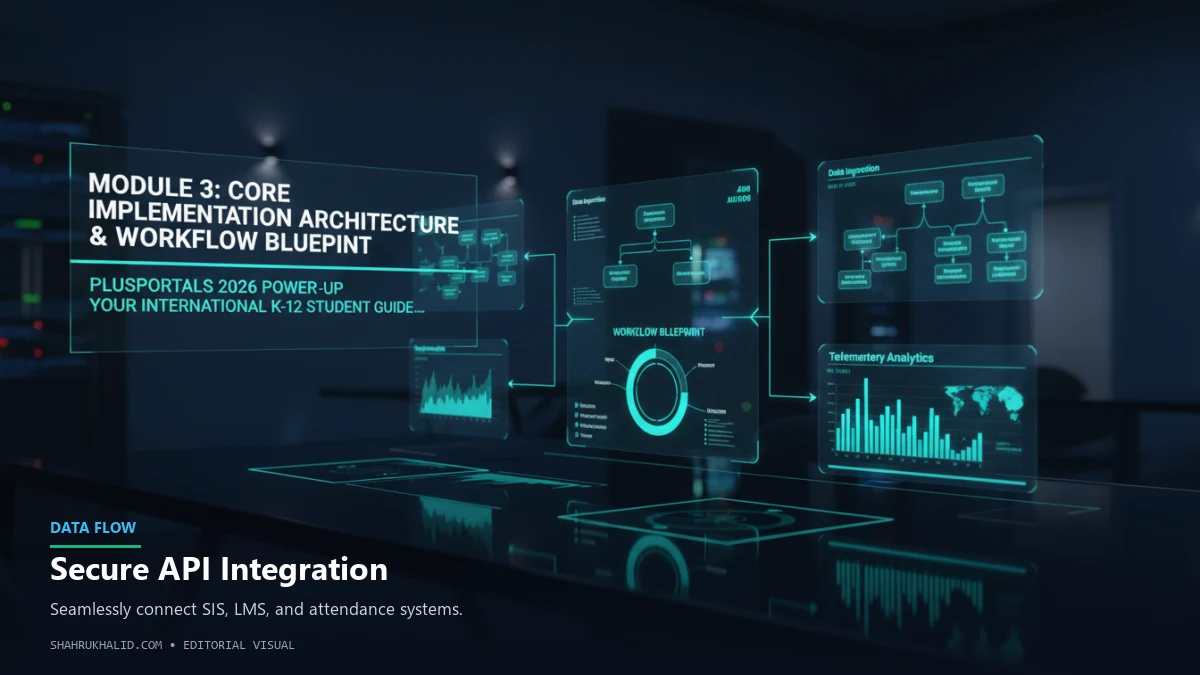
Now that you’re inside and comfortable, let’s draw a map of this new digital territory. Understanding the layout—the “architecture”—is key to navigating it efficiently. I want you to think of this module as your guided tour, where I’ll show you the main landmarks and how they all connect. We’ll build a mental blueprint of your daily, weekly, and monthly workflows for achieving PlusPortals K-12 success.
The Dashboard: Your Morning Mission Briefing
The first screen you see when you log in is the Dashboard or Home screen. Do not just glance at it and click away. This screen is your single most powerful tool for a quick, at-a-glance status update. It’s like the Heads-Up Display (HUD) in a fighter jet, giving you all the critical information you need to fly your day.
Let’s break down the typical “cards” or “widgets” you’ll find here. Imagine them as a grid on your screen.
Visual Card Grid: The PlusPortals Dashboard
| Card 1: Recent Scores | Card 2: Upcoming Assignments |
| :— | :— |
| What it is: A live feed of the most recently graded assignments. It will show the assignment name, the class, and the score you received. | What it is: A list of the next 5-7 assignments that are due, sorted by date. This is your immediate to-do list. |
| Your Action: This is your first alert. See a great score? Awesome! See a score that’s lower than you expected? Don’t panic. Click on it to investigate further (we’ll cover this in Module 4). | Your Action: Scan this every single morning. Does anything surprise you? Is that quiz you forgot about happening tomorrow? This card prevents “I didn’t know that was due!” emergencies. |
| Card 3: School Bulletins & News | Card 4: Attendance Summary |
| :— | :— |
| What it is: A feed of announcements from the school’s main office. Think spirit week, picture day, early dismissals, or important policy updates. | What it is: A quick summary of your attendance for the marking period, showing total absences and tardies. |
| Your Action: Read these! This is how you stay plugged into the life of the school community. Missing a bulletin could mean missing a fun event or an important deadline. | Your Action: A quick glance is all you need. If the numbers look right, move on. If you see a number that seems too high, it’s a flag to investigate the detailed attendance record. This is the first step in PlusPortals attendance management. |
| Card 5: Today’s Schedule (Often present) | Card 6: Recent Messages |
| :— | :— |
| What it is: A simple list of your classes for the current day, showing the period, time, and classroom number. | What it is: A snippet of the latest messages you’ve received from teachers or staff through the portal’s internal messaging system. |
| Your Action: In the first few weeks of school, this is a lifesaver for finding your way around. Even later, it’s a great confirmation of your daily rhythm. | Your Action: Treat this like your email inbox. If you see a new message, click and read it promptly. A quick response shows your teachers you are on top of things. |
This dashboard is your starting point. It’s designed to answer the question, “What do I need to know right now?”
The Navigation Menu: Your Map to Everywhere
While the dashboard is your “at-a-glance” view, the main navigation menu is your detailed map. It’s usually a vertical bar on the left side of your screen. This is how you perform deep dives into specific areas. Let’s walk through the most important destinations on this map.
- Home/Dashboard: This always brings you back to the main screen we just discussed.
- Academics / Classes: This is the heart of the portal. Clicking this will usually show you a list of all your courses. From here, you can click on an individual class (e.g., “IB Chemistry SL”) to enter its specific homepage. This class-specific page is where you’ll find everything related to that one subject: its gradebook, its assignment list, its teacher’s contact info, and any files they’ve uploaded just for that class. This is the core of K-12 assignment tracking.
- Calendar: This is your strategic, long-term planning tool. It aggregates assignments, school events, and holidays from all your classes and the school itself into one master calendar. You can view it by day, week, or month. Want to know what your workload looks like in three weeks? The monthly calendar view is your crystal ball.
- Attendance: This link takes you to the detailed view of your attendance record. Unlike the summary on the dashboard, this page will show you a day-by-day, period-by-period log. You can see if you were marked tardy for 2nd period on a specific Tuesday, and whether an absence was marked as Excused or Unexcused.
- School Communication / Messaging: This is your internal, school-only email system. It’s where you can find bulletins, news, and a directory of teachers and staff. Crucially, it’s where you can compose and send messages to your teachers in a secure, recorded environment.
- E-Locker / Digital Locker: Think of this as a shared cloud drive for your school. Teachers can upload files here. Some might create a folder for their specific class (e.g., “Mr. Smith’s Grade 11 History Resources”) containing the syllabus, reading materials, or project guidelines. There might also be school-wide resources here, like the official student handbook or library guides.
Your Daily & Weekly Workflow Blueprint for Success
Knowing the map is one thing; using it to navigate effectively is another. Here is a simple but powerful workflow that you can adapt. This is the practical answer to “How do international K-12 students use PlusPortals?”
The 5-Minute Morning Check-in (Daily)
- Login: Before you even leave for school, log into PlusPortals on your computer or open the app.
- Scan Dashboard:
- Recent Scores: Any new grades?
- Upcoming Assignments: What’s due today and tomorrow?
- Bulletins: Any new school-wide news?
- Check Messages: Any new messages from teachers?
- Action: If a grade is confusing, make a note to ask the teacher. If you forgot about a quiz, do a quick review. If there’s a new announcement, read it. This entire process takes less than five minutes but sets you up to be prepared and proactive for the entire day.
The Homework & Planning Session (Daily/Every Few Days)
- Navigate to a Specific Class: Go to `Academics > [Your Class Name]`.
- Review Assignments: Look at the full assignment list for that class. Check the details of the homework for that night. Are there any files attached? Download them from the assignment description or the E-Locker.
- Check Grades: While you’re on the class page, click over to the Gradebook. See how your recent work has impacted your overall average. Read