Kognity 2026 Unlocked: Your K-12 Students Real-World Guide to Smarter Study & Stress-Free Success
Key Takeaways
- Kognity transforms learning from static textbooks to a dynamic, adaptive experience.
- It acts as a personal academic coach, guiding students through their learning journey.
- Unlike static textbooks, Kognity provides real-time progress tracking and adaptive support.
- Kognity offers diverse learning resources like videos, 3D models, and quizzes.
- It functions as an intelligent GPS for education, optimizing study paths and identifying weaknesses.
Forget everything you think you know about “e-learning.” We’re diving deep into a system designed not just to replace your textbook, but to become your personal academic coach, available 24/7. Let’s get started.
Comprehensive Foundations & Concept Primer
Before we jump into the nuts and bolts, let’s get on the same page about what Kognity actually is and, more importantly, why it matters for you in 2026. I’ve seen countless schools adopt new tech, but the platforms that truly stick are the ones that understand the student’s world. Kognity is one of those.
Why Your Textbook Is a Paper Map and Kognity Is a GPS
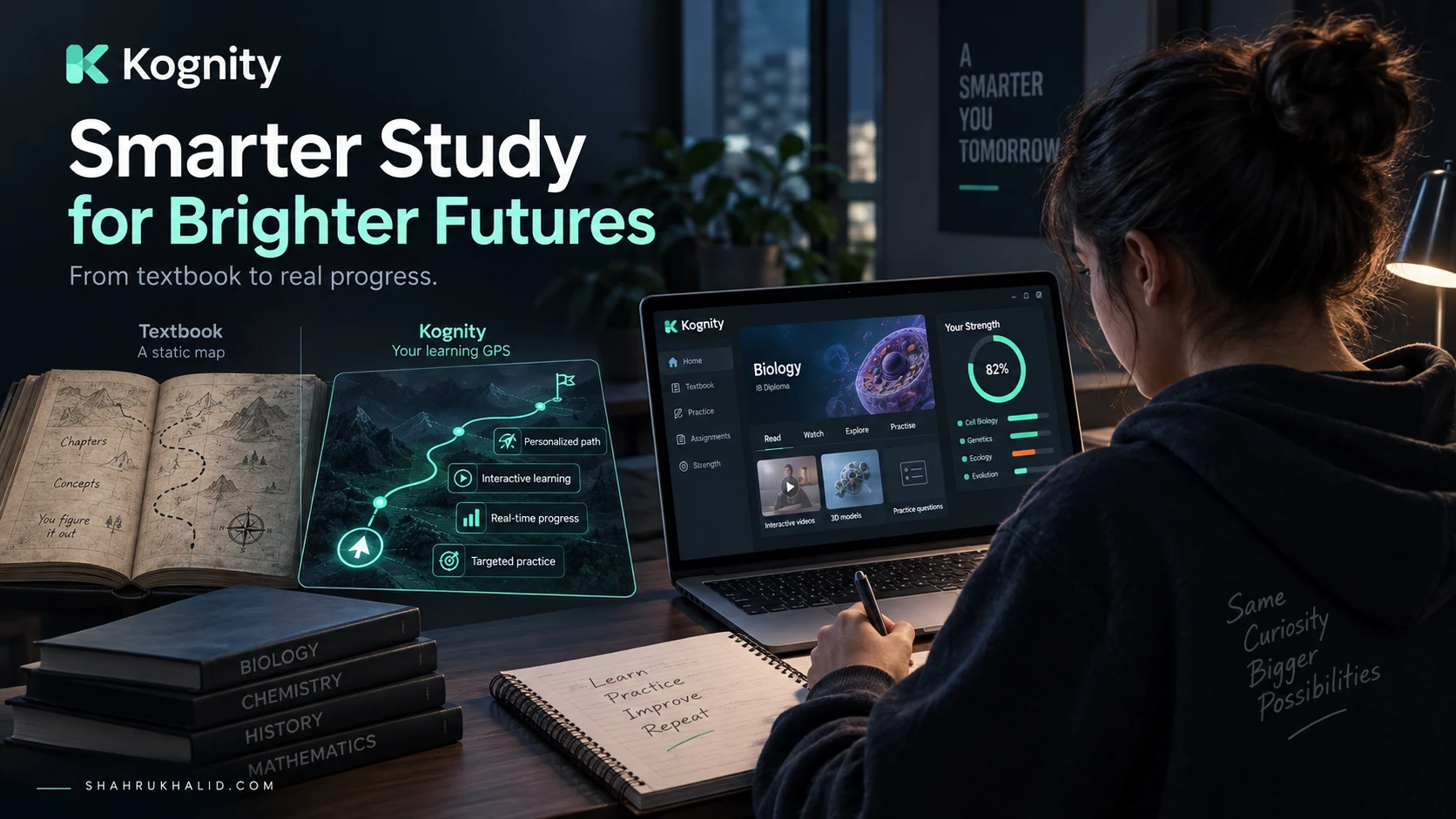
Think about your traditional textbook. It’s like a beautifully printed, detailed paper map. It contains all the necessary information—the cities (chapters), the roads (concepts), and points of interest (key terms). It’s reliable, authoritative, and has been the standard for centuries. But it has limitations. A paper map can’t tell you where you currently are. It can’t tell you the fastest route to your destination. It can’t warn you about traffic jams (difficult topics) ahead, and it certainly can’t suggest an alternate, scenic route if you’re struggling with the main highway. You, the traveler, have to do all the work of navigating, plotting your course, and figuring out where you went wrong if you get lost.
Now, think of Kognity as the Waze or Google Maps of your education. It’s a dynamic, intelligent, and interactive guide. It still has the same core map—the curriculum-aligned content, vetted and approved. But it does so much more. It knows exactly where you are in your learning journey (your “strength” score). It highlights the most efficient path to understanding a topic. If you get stuck on a concept, it offers you a different way to learn it—maybe a video, a 3D model, or a quick quiz. It tracks your progress in real-time, showing you which areas are your strong suits and which need more attention. This is the core principle of Kognity: it’s not just a book on a screen; it’s an adaptive learning partner. This shift from static content to a dynamic learning environment is the key to unlocking major Kognity platform benefits and is essential for navigating the rigors of modern K-12 education, especially in demanding programs like the IB Diploma.
The Core Principles: De-Jargoning “Intelligent Learning”
You’ll hear terms like “adaptive learning,” “data-driven insights,” and “interactive content.” Let’s translate that into what it means for your Tuesday night homework session.
- Content + Interaction = Understanding: Reading about the process of mitosis is one thing. Watching an animated video of it, then manipulating a 3D model of a cell as it divides, and then answering five quick questions to check your understanding—that’s a completely different level of learning. Kognity is built on this principle. It weaves videos, simulations, and questions directly into the text, turning passive reading into an active experience.
- Know Thyself (Through Data): How do you really know if you understand a chapter? Usually, it’s a gut feeling, or you wait until you get a quiz back from your teacher. Kognity changes that. Every question you answer, every video you watch, feeds into your personal learning profile. The “Strength” feature gives you a live, color-coded overview of your grasp on every single sub-topic. This isn’t about grading you; it’s about empowering you. It answers the question, “What should I study tonight?” with scientific precision.
- Curriculum is King: For students in international schools, this is a massive deal. The content on Kognity isn’t just random information. It’s meticulously aligned with your specific curriculum, whether it’s IB, IGCSE, or something else. As noted by the official standards from the IBO (
ibo.org), curriculum alignment is non-negotiable for effective teaching and assessment. Kognity works backward from the exam, ensuring that everything you learn is relevant, targeted, and directly applicable to what you’ll be tested on. This is a crucial factor in achieving exam success Kognity.
So, when we talk about Kognity, we’re not just talking about a digital textbook. We’re talking about a smarter way to study. It’s a system designed to save you time, reduce your stress, and give you the confidence that you’re focusing on the right things. In the modules that follow, I’ll show you exactly how to make this powerful system work for you.
Prerequisites & Complete Environment Setup
Alright, let’s get you logged in and set up for success. In my world of software development, “environment setup” means installing tools and configuring code libraries. For you, it means setting up your personal digital learning space so that Kognity becomes a seamless part of your study routine, not just another website you have to log into. This module is your step-by-step guide to getting everything in place.
Step 1: The Golden Ticket – Your Login Credentials
First things first, you can’t use Kognity without an account, and in almost every case, your school provides this for you. Your school’s technology department or administration manages student accounts through a Student Information System (SIS). Many international schools use powerful systems like Rediker’s AdminPlus (as detailed on rediker.com), which acts as the central database for all student, parent, and teacher information.
Your Kognity account is often linked directly to this system. This means you might log in using one of two main methods:
- Direct Login: Your school will provide you with a unique username (often your school email address) and a password for the Kognity website.
- Single Sign-On (SSO): This is becoming more common. You’ll log into your school’s main portal (like Google Workspace, Microsoft 365, or another platform), and from there, you’ll see a Kognity icon. Clicking it will log you in automatically without needing a separate password. This is part of a streamlined campus technology stack, a concept Shahrukh Khalid often emphasizes for reducing friction for students (a key topic on
shahrukhalid.com).
Action Step: If you don’t have your login details, your first stop is your school’s IT department or your homeroom teacher/advisor. Ask them, “How do I log into Kognity?” and they will point you in the right direction. Do not try to create an account on your own from the Kognity homepage; it won’t be linked to your school’s classes.
Step 2: Your First Flight – Logging In and a Quick Tour
Once you have your credentials, it’s time to log in. Let’s do a walkthrough.
- Open your web browser (Chrome, Firefox, Safari, or Edge are all fine).
- Navigate to your school’s specific Kognity URL or the main login page.
- Enter your username and password, or use the SSO option if your school has it.
- Verification: The first time you log in, you should see a dashboard. The most important thing to verify is that you see your subjects listed. You should see tiles or links for “IB Biology HL,” “IGCSE History,” “MYP Mathematics,” etc. If you don’t see the correct subjects, or if one is missing, this is the time to flag it to your teacher. It’s usually a simple fix in the school’s system to assign you to the right digital class.
Take a moment to click around. Don’t worry, you can’t break anything! Click on one of your subjects. You’ll likely land in the “Intelligent Textbook.” Notice the table of contents on the left, the main content in the center, and perhaps some stats on the right. This is your new home base for this subject.
Step 3: Configuring Your Personal Learning Cockpit
Now let’s tweak a few settings to make the platform work better for you. This is like adjusting the seat and mirrors in a car before you start driving.
- Profile & Notifications: Find the settings or profile icon (usually in the top-right corner). Here, you can sometimes add a profile picture or adjust your name. More importantly, look for “Notification Settings.” Kognity can send you reminders about assignments. At first, keep these on. But if you find them becoming “digital noise,” you can customize them here. Maybe you only want a summary email once a day, or no emails at all. You are in control.
- Browser Bookmarks: This is a simple but powerful tip. Bookmark the Kognity dashboard page in your browser. Create a “School” folder in your bookmarks bar and put Kognity right at the top. The goal is to make accessing Kognity as effortless as opening a textbook. Reducing that tiny bit of friction makes you more likely to use it for quick, 5-minute review sessions.
- Digital Workspace Hygiene: When you sit down to do a “Kognity session,” treat it like real study time. Close out of distracting tabs like YouTube, Instagram, or Discord. Put your phone on silent and out of reach. The power of digital learning K-12 is immense, but it requires the same discipline as analog learning. Your environment, both physical and digital, matters.
By the end of this module, you should be able to log in confidently, know that you have access to the right materials, and have your digital space configured to support focused work. You’re no longer just a passenger; you’re in the pilot’s seat.
Core Implementation Architecture & Workflow Blueprint
Now that you’re set up, let’s look under the hood. Understanding the structure of Kognity—its “architecture”—is the key to using it efficiently. If you just click around randomly, you’ll only ever use a fraction of its power. But if you understand the workflow, you can build powerful, repeatable study habits. Let’s map out the four key areas and how they connect.
The Kognity Blueprint: A Visual Card Grid
Imagine the Kognity platform for each subject is a building with four main rooms. You need to know what each room is for and how the hallways connect them. Here’s the breakdown:
CARD 1: The Dashboard / Home
What it is: Your mission control. When you first log in, this is what you see. It gives you a high-level overview of all your subjects.
Key Features: Links to each of your digital textbooks, a summary of any upcoming or overdue assignments, and sometimes a “continue reading” prompt to jump back to where you left off.
Purpose: To give you a quick, at-a-glance view of your academic landscape and guide your immediate priorities.
CARD 2: The Intelligent Textbook
What it is: The heart of the platform. This is the interactive, multimedia-rich replacement for your physical book.
Key Features: Curriculum-aligned text, embedded videos, 3D models, simulations, definitions for key terms, and “Check Your Understanding” questions.
Purpose: To deliver core knowledge in an engaging and multi-modal way, moving you from passive reading to active learning.
CARD 3: The Practice Centre
What it is: Your personal gym for your brain. This is where you go to actively retrieve information and test your knowledge.
Key Features: A massive question bank, categorized by topic and difficulty. You can filter questions to focus on your weak areas (as identified by the platform) or create mixed quizzes to simulate exam conditions.
Purpose: To strengthen your understanding, identify knowledge gaps, and build confidence for exams. This is the engine for exam success Kognity.
CARD 4: Assignments & Strength
What it is: The bridge between you and your teacher. This area holds assigned readings and questions, and tracks your progress.
Key Features: A list of tasks set by your teacher with due dates. The “Strength” view provides a detailed, color-coded breakdown of your mastery of every single topic in the syllabus.
Purpose: To complete assigned work and, more importantly, to get data-driven insights into your own learning so you can study smarter.
The Student Success Workflow: From Clueless to Confident
Knowing what the rooms are is one thing; knowing how to move between them is another. A highly effective student doesn’t just live in one of these rooms. They follow a purposeful workflow. Here is a blueprint for a typical study cycle for a new topic, let’s say “Cellular Respiration” in Biology.
Step 1: The Pre-Flight Check (The Intelligent Textbook)
- Action: Before the teacher even covers it in class, you spend 10-15 minutes in the Kognity textbook for that section.
- Workflow: You don’t read every word. You skim the headings and subheadings to get a mental map of the topic. You watch the introductory video (it’s usually short, 2-4 minutes). You look at the diagrams and 3D models. You read the key term definitions.
- Outcome: You walk into class with a foundational context. You’re not hearing terms like “glycolysis” or “Krebs cycle” for the first time. The lecture is now reinforcing and deepening your knowledge, not introducing it from scratch. This is a massive advantage.
Step 2: Active Learning & Consolidation (The Intelligent Textbook & Assignments)
- Action: After the class, you go back to the same section in the textbook.
- Workflow: Now you read it in more detail. You use the built-in highlighting tool for key sentences (we’ll cover how to do this effectively in the next module). You complete any “Check Your Understanding” questions embedded in the text. If your teacher has set an assignment (e.g., “Read section 2.8 and answer the 10 questions”), you complete it.
- Outcome: You have actively engaged with the material, solidifying what you learned in class. The immediate feedback from the questions tells you if you’re on the right track.
Step 3: The Stress Test (The Practice Centre)
- Action: A day or two later, or during your weekly review, you go to the Practice Centre.
- Workflow: You navigate to the “Cellular Respiration” topic. You choose to answer 15 multiple-choice questions. You get a score of 11/15. Kognity shows you the four you got wrong and provides detailed explanations. You notice that three of the four were about the Krebs cycle.
- Outcome: You have just used data to identify a specific knowledge gap. You now know exactly what to review. You haven’t wasted time re-reading the parts you already understand.
Step 4: Targeted Review & Mastery (Textbook -> Practice Centre -> Strength)
- Action: You address the weakness you identified.
- Workflow: You go back to the Intelligent Textbook, but only to the sub-section on the Krebs cycle. You re-read it carefully and watch the specific video on it. Then, you return to the Practice Centre and generate 5 more questions, filtered to be only about the Krebs cycle. This time, you get 5/5. You then check your “Strength” page and see that the bar for “The Krebs Cycle” has moved from orange (developing) to green (mastered).
- Outcome: True, confident mastery. You’ve closed the loop, turning a weakness into a strength. This systematic process is the essence of achieving Kognity K-12 success.
This workflow isn’t just a theory; it’s a practical, repeatable strategy that top students use to learn more in less time. In the next module, we’ll get hands-on with the tools that make this workflow possible.
Hands-on Practical Implementation & Real-World Configuration
Theory is great, but results come from practice. This module is all about action. I’m going to walk you through four common student scenarios, step-by-step, showing you exactly which buttons to click and which features to use to execute the workflow we just designed. Think of this as your flight simulator training. Let’s master the controls for effective K-12 study strategies using Kognity.
Scenario 1: The 15-Minute Pre-Read for a New Topic
The Goal: To walk into your next History class about the causes of World War I already knowing the key players and concepts. This turns the lecture into a review session, not a frantic note-taking marathon.
Step-by-Step Walkthrough:
- Log in and Navigate: Log into Kognity and click on your History textbook.
- Find the Chapter: Using the table of contents on the left, find the chapter on “The Causes of World War I.” Click on it.
- Mental Scaffolding (2 mins): Don’t start reading. Scroll through the entire section. Just look at the main headings and subheadings (e.g., “Alliances,” “Imperialism,” “Militarism,” “Nationalism,” “The Assassination in Sarajevo”). This builds a mental outline in your head.
- Watch the Intro Video (3-5 mins): Most Kognity sections start with a short, engaging video. It’s usually right at the top. Watch it. This will give you the big-picture narrative and introduce the main ideas in a visual format.
- Scan for Key Terms (3 mins): Scroll through the text again, but this time, only look for the bolded or specially highlighted key terms. When you hover over or click them, a definition pops up. Read the definitions for terms like “Triple Entente,” “Triple Alliance,” and “Balkan Powder Keg.”
- Look at the Visuals (2 mins): Pay attention to any maps showing the alliance systems or infographics detailing military build-ups. Visuals often communicate complex information more efficiently than text.
- Quick Strength Check (1 min): Glance at the “Strength” meter for this section. It will likely be gray or red, indicating you haven’t started yet. That’s your baseline. Your goal is to turn it green over the next few days.
Result: In just 15 minutes, you’ve primed your brain. You’re now ready to learn, and the upcoming class will be significantly more valuable.
Scenario 2: Active Studying & Digital Note-Taking
The Goal: To read a chapter on “Stoichiometry” in Chemistry and create useful, active notes that you can actually use for revision, rather than just passively highlighting everything.
Step-by-Step Walkthrough:
- Go to the Section: Open your Chemistry book in Kognity and go to the “Stoichiometry” section.
- Engage with Interactives as You Read: As you read the text, don’t skip the embedded elements. When you see a “Worked Example” of a mole calculation, expand it and follow it step-by-step. If there’s a mini-simulation, play with it. Answer the “Check Your Understanding” questions as they appear. This breaks up the monotony and forces your brain to switch from passive to active mode.
- Implement Smart Highlighting (The “Less is More” Rule): Resist the urge to highlight entire paragraphs. Instead, use the highlighting tool (usually just by selecting text) for specific, key information only:
- Formulas: e.g., `moles = mass / molar mass`
- Core Definitions: e.g., “The limiting reactant is the reactant that is completely consumed in a chemical reaction.”
- Crucial “Rule” Statements: e.g., “The coefficients in a balanced chemical equation represent the mole ratio.”
- Use the Notes Feature for Active Recall: This is the game-changer. The notes feature isn’t just for copying text. Use it to paraphrase and ask questions.
- Paraphrase: After reading a complex paragraph, click the “add note” icon and rewrite the concept in your own words. For example, “So basically, stoichiometry is just like a recipe for a chemical reaction, using the balanced equation to figure out how much stuff you need and how much you’ll make.”
- Ask Questions: If you don’t understand something, add a note with a question. “Why do we have to convert to moles first? What happens if I don’t?” This flags it for you to ask your teacher or a friend later.
- Export Your Notes: Many versions of Kognity allow you to view all your highlights and notes for a book in one place. You can then copy/paste these into a separate document or use them to create flashcards. You’ve just created a personalized study guide.
Result: You’ve not only “read” the chapter, you’ve wrestled with it, translated it, and created a set of active study materials. This is how to use Kognity effectively K-12.
Scenario 3: Mastering Exam Prep with the Practice Centre
The Goal: Your final exams are in three weeks. You need an efficient way to revise all of IB Economics SL, focusing on your specific weaknesses to maximize your score.
Step-by-Step Walkthrough:
- Go to the Practice Centre: From the main dashboard of your Economics book, click on the “Practice Centre” (sometimes just called “Practice” or “Questions”).
- Initial Diagnosis (Broad Quiz): Don’t start with a specific topic. Select all the main topics you’ve covered this year (e.g., Microeconomics, Macroeconomics, The Global Economy). Choose a mix of question types (if available) and generate a quiz of 30-40 questions. This is your diagnostic test.
- Analyze the Results: Complete the quiz. Don’t just look at the overall score. Kognity will break down your performance by topic. You might see:
- Microeconomics: 90%
- Macroeconomics: 75%
- The Global Economy: 55%
- Drill Down into Weaknesses: The data is clear. Your priority is “The Global Economy.” Now, go back to the Practice Centre filter. Deselect everything else and select only the sub-topics within “The Global Economy” (e.g., “Exchange Rates,” “Balance of Payments,” “Terms of Trade”).
- Targeted Practice Sessions: For the next few days, your practice is focused. Do 15-20 question quizzes only on these weak topics. When you get a question wrong, read the explanation carefully. Kognity’s explanations are gold; they often refer you back to the exact section in the textbook you need to review.
- The “Red to Green” Challenge: Go to your “Strength” page. Your goal is to turn all the red and
Frequently Asked Questions