AdminPlus Demystified: Your 2026 International K-12 Student Guide to Grades, Schedules & Data Safety
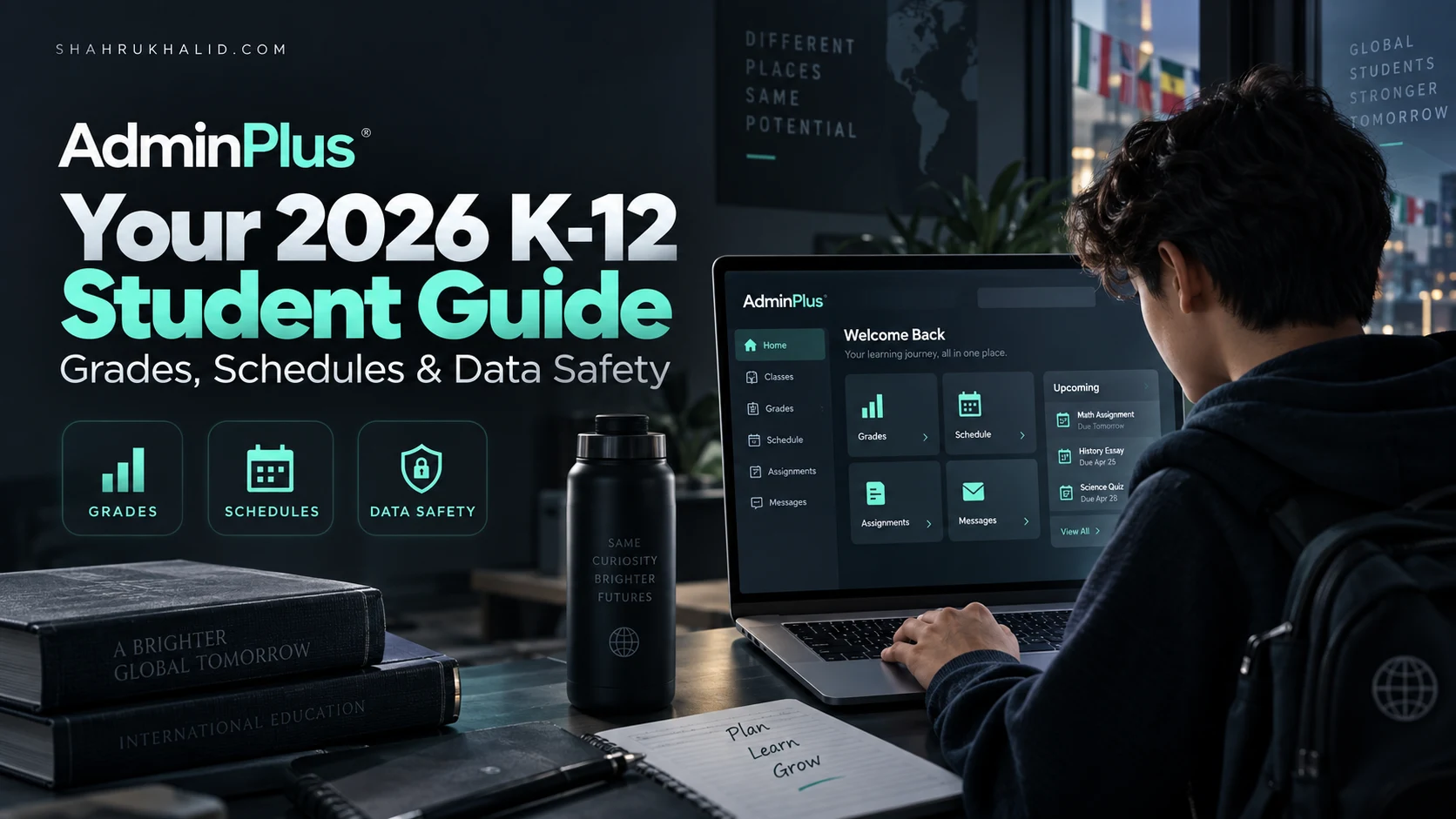
Key Takeaways
- AdminPlus is your central, powerful tool for academic success, not just a portal.
- It acts as your personalized academic GPS, dashboard, and communication hub.
- AdminPlus is a secure, centralized Student Information System (SIS) database.
- The SIS database is built for extreme security and reliability of student data.
- It stores all academic and personal information, from classes to grades.
We’re going to talk about a system you’ll likely spend a lot of time with during your international school journey: AdminPlus. Think of this as your official, exhaustive masterclass. We’re going to demystify every corner of it, transforming it from a simple portal you have to check into a powerful tool for your own academic success. This isn’t just a “how-to” list; this is your complete 2026 international K-12 student guide to mastering your grades, schedules, and data safety. Let’s begin.
Comprehensive Foundations & Concept Primer
I remember my first encounter with a student information system. It was clunky, confusing, and felt more like a barrier than a help. It was just a place where grades appeared, often with no context, leaving me feeling more anxious than informed. Fast forward to today, and the landscape has changed dramatically. In 2026, your school’s information system isn’t just a digital report card; it’s the central nervous system of your entire academic life. And for many of you in top-tier international schools, that system is AdminPlus by Rediker Software.
So, what is this thing, really?
Let’s use an analogy. Imagine your entire school experience—your classes, your teachers, your grades, your attendance, your library books, even your lunch account—is a massive, sprawling city. It’s vibrant and full of activity, but it can also be incredibly complex to navigate.
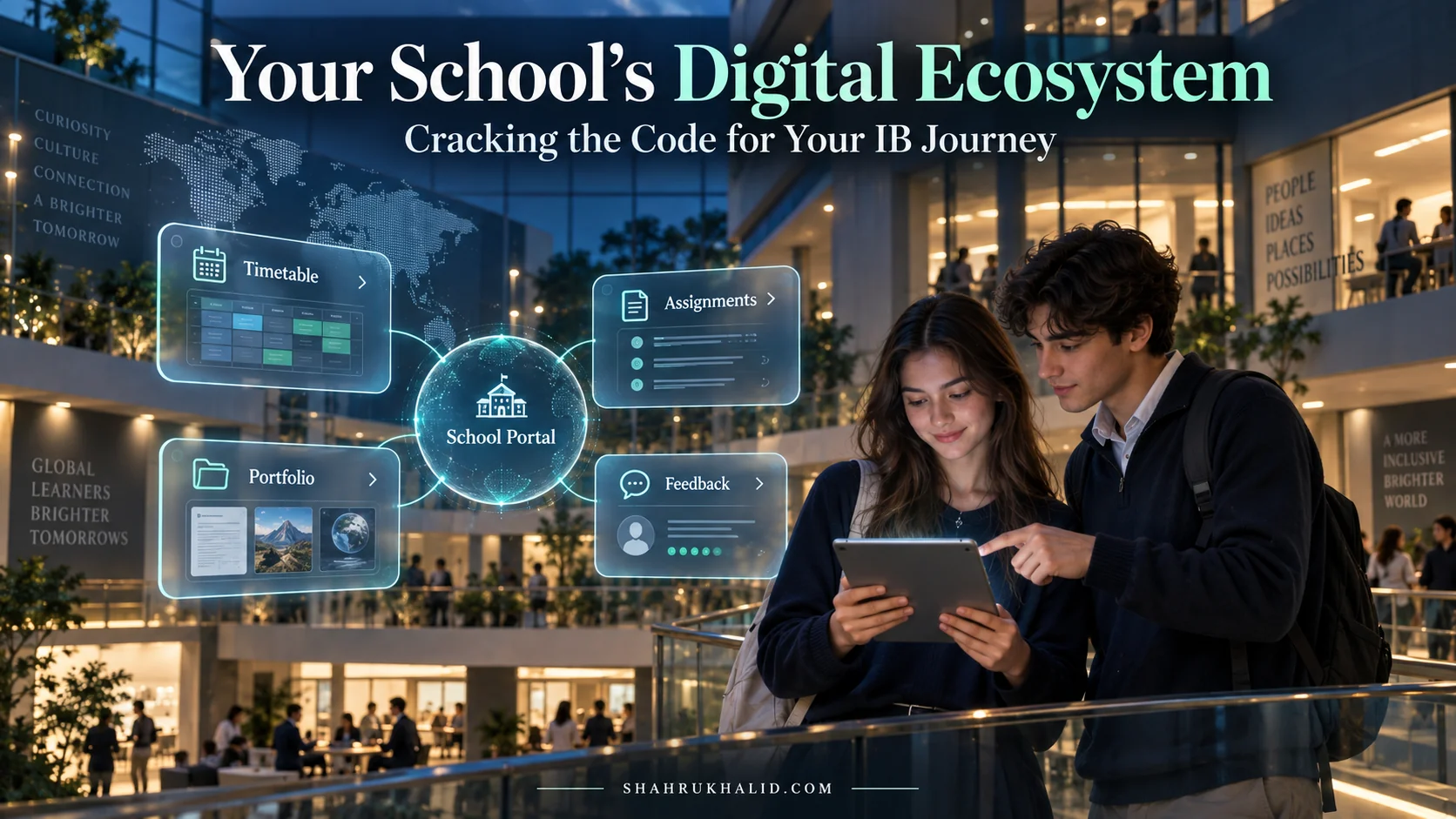
In this analogy, AdminPlus is your personalized, high-tech GPS, dashboard, and communication device, all rolled into one. It doesn’t create the city (your school, teachers, and curriculum do that), but it gives you the map, the real-time traffic updates (new grades!), and the direct lines of communication you need to navigate it successfully. It’s your single source of truth.
Eliminating the Jargon: What is a Student Information System (SIS)?
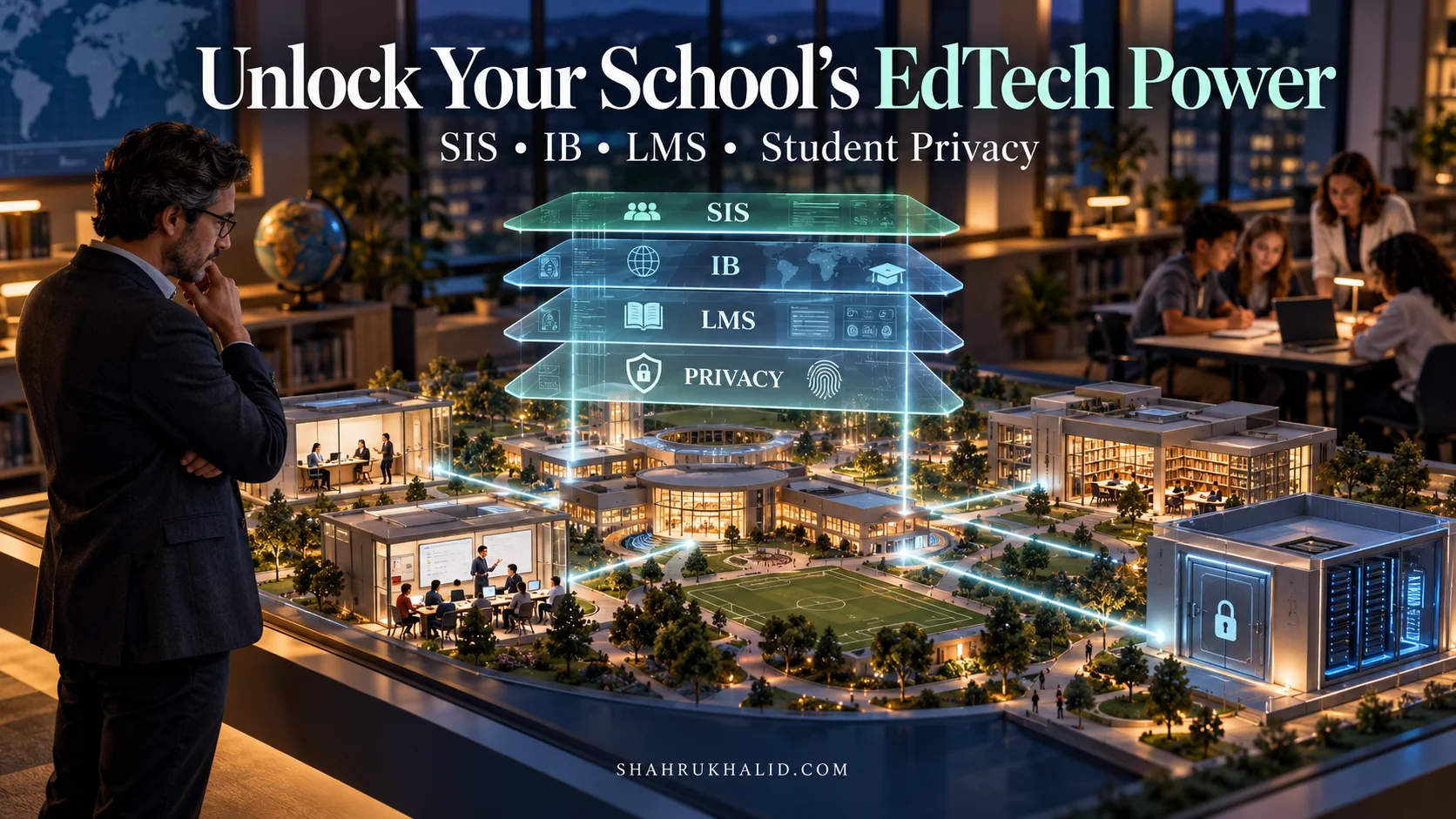
You’ll hear adults throw around the term “SIS” or “Student Information System.” Don’t let the corporate-sounding name intimidate you. At its core, an SIS is just a secure, centralized database designed specifically for schools. Think of it as the school’s digital filing cabinet.
- The “Database” Part: This is just a fancy word for an organized collection of information. Instead of paper files in a metal cabinet, it’s digital data stored on secure computers. According to the architectural principles outlined by providers like Rediker.com, these databases are built with extreme security and reliability in mind, because they hold the most important information a school has: its student data.
- The “Information” Part: This is everything about your academic life. Your name, your parents’ contact info, the classes you’re enrolled in (like that challenging IB HL Physics class), the grades you get on your assignments, your attendance records, and notes from your teachers.
- The “System” Part: This is the software—the website and mobile app—that lets you, your parents, your teachers, and school administrators access and interact with that information in a controlled way. A teacher uses the system to enter your grade for a history essay. You use the system to see that grade. An administrator uses the system to generate your schedule. It’s all connected.
So, when we talk about this AdminPlus Student Guide, we’re really talking about learning to master your personal interface to this powerful system.
Why This is Essential in 2026: Your Data, Your Education
In the past, your academic data was something that happened to you. A grade was given, a report card was printed, and that was that. In 2026, this is no longer the case. Your academic data is a living, breathing part of your learning process.
Think about the world you’re growing up in. We have smartwatches that track our health, apps that curate our news, and algorithms that suggest what we should watch next. Your education is becoming just as data-rich. Systems like AdminPlus are at the forefront of this shift. They allow for:
- Real-Time Feedback: You no longer have to wait weeks for a test score. You can see your performance on a quiz from this morning, read your teacher’s comments, and know exactly what you need to study for the next one. This creates a tight feedback loop that accelerates learning.
- Personalized Pathways: As you progress through school, the data in AdminPlus helps you and your counselors make smarter decisions. Are your grades in the sciences consistently strong? Maybe it’s time to consider a more advanced track or an extracurricular STEM club. This data helps tailor your education to your strengths and interests.
- Ownership and Agency: This is the most important part. When you understand how to navigate AdminPlus, you are no longer a passive recipient of information. You become an active participant in your education. You can track your progress towards a goal (like improving your formative assessment scores in English), identify areas where you need help, and use the information to have more productive conversations with your teachers. As my colleague Shahrukh Khalid often emphasizes, technology in schools is at its best when it empowers students to take ownership of their learning journey.
This guide is your key to unlocking that power. We’ll move from the “what” and “why” to the “how,” starting with the very first step: getting you logged in and set up for success.
Prerequisites & Complete Environment Setup
Alright, let’s get our hands dirty. Before you can harness the power of AdminPlus, you need to get inside. This module is all about the “keys to the kingdom”—getting your login credentials, accessing the portal for the first time, and configuring your digital environment so it works for you, not against you. We’ll treat this like setting up a new phone or a new gaming console: a few simple steps to get you to the fun part.
Step 1: Securing Your Access Credentials
First things first: you cannot sign up for AdminPlus on your own. This is a closed system for a very good reason—security. Your school is the gatekeeper.
Your login credentials (a username and password) will be provided by your school’s technology department or administration office. This usually happens in one of a few ways:
- During Orientation: If you’re new to the school, you’ll likely receive a sealed envelope or a secure email with your login details as part of your welcome packet.
- Via a Welcome Email: The school might send an email to your official school email address (or your parents’ email) with a link to set up your account for the first time.
- From Your Homeroom Teacher/Advisor: In some schools, your primary teacher or advisor is responsible for distributing these credentials at the beginning of the school year.
Action Item: If you don’t have your login details, your very first step is to politely contact your school’s IT help desk or your advisor. Do not ask a friend for the link; schools often have unique, specific URLs for their AdminPlus portal.
A Quick Word on Passwords: Your school will likely give you a temporary password. It will probably be a random string of letters and numbers like `gH8!kL2p`. The system will force you to change this the very first time you log in. When you choose your new password, please, please, please make it a good one. Don’t use “password123” or your birthday. A strong password is your first line of defense in protecting your academic data. A good method is to use a short, memorable phrase, like `MyCatLoves#Tuna2026!`. It’s long, has a mix of characters, and is easy for you to remember but hard for others to guess.
Step 2: Your First Login – A Step-by-Step Walkthrough
You have your username, your temporary password, and the unique web address (URL) for your school’s AdminPlus portal. Let’s log in.
- Navigate to the Portal: Open your web browser (Chrome, Safari, Firefox, etc.) and carefully type in the URL your school provided. It will likely look something like `https://plusportals.com/YourSchoolName`.
- Bookmark It!: Once the page loads, bookmark it immediately. You’ll be visiting this page a lot. This simple action prevents you from accidentally landing on a fake “phishing” site in the future.
- Enter Your Credentials: You’ll see fields for a username and password. Enter the ones your school gave you.
- The Password Change: As mentioned, you’ll almost certainly be prompted to change your password. Enter the temporary one again, and then enter your new, strong password twice to confirm it.
- Welcome to the Dashboard: Success! You should now be looking at the main AdminPlus dashboard. It might look a little overwhelming at first, with different boxes and menus. Don’t worry. We’ll break it all down.
Visual Verification Card
| Element to Check | What It Should Look Like | What to Do If It’s Wrong |
| :— | :— | :— |
| Your Name | Your full, correct name should be visible, usually in the top-right corner. | If your name is misspelled or incorrect, notify your school’s administration office. This is an official record. |
| Your School’s Logo | Your school’s logo and colors should be prominent. | If it looks like a generic, unbranded site, double-check the URL. You might be on the wrong page. |
| Initial Classes | You might see a list or calendar view of your classes. | If the classes look completely wrong (e.g., you’re in Grade 10 but see Grade 7 classes), contact your school counselor or registrar immediately. There might be an error in your enrollment. |
Step 3: Configuring Your Digital Environment
Now that you’re in, let’s tune the system. This is like adjusting the driver’s seat and mirrors in a new car. These small tweaks make a huge difference in your day-to-day experience.
1. Profile & Personal Information
Find the section for your profile, often by clicking your name in the corner. Here you can usually:
- Upload a Profile Picture: Please use a clear, school-appropriate headshot. This helps your teachers put a face to your name, especially in a large school.
- Review Contact Information: You likely can’t change this, but you can review it. If you see an old phone number or incorrect address, let your parents and the school office know so they can update the official record. Accurate contact info is crucial in an emergency.
2. Notification Settings
This is the most important configuration you will perform. AdminPlus can notify you about almost everything: new grades, upcoming assignments, school announcements, etc. If you leave everything on, you’ll be flooded with alerts. If you turn everything off, you’ll miss critical information.
Find the “Settings” or “Notifications” menu. You’ll typically see a list of notification types with checkboxes for Email and/or Push Notifications (if you use the mobile app).
My Recommended Notification Setup for a Balanced Student
| Notification Type | Email (Turn ON/OFF) | Push (Turn ON/OFF) | Why? |
| :— | :— | :— | :— |
| Grade Update | ON | ON | This is the big one. You want to know as soon as a teacher posts a grade and feedback. |
| School Announcements | ON | OFF | Important, but you don’t need an instant buzz for a non-urgent school-wide message. An email digest is fine. |
| Class Announcements | ON | ON | Your teacher might post a critical update about an exam or a change in homework. You want this instantly. |
| Assignment Due Reminder | OFF | ON | A push notification the day before an assignment is due is a great safety net. An email is just more clutter. |
| Attendance | ON | ON | If you are marked absent or late incorrectly, you want to know immediately so you can get it corrected. |
This setup ensures you get time-sensitive, personal information instantly via push notifications, while less urgent, broader information comes via email, which you can check once or twice a day. This is a core principle of managing your digital life: control your notifications, don’t let them control you.
You are now set up. Your account is secure, you’ve verified your core information, and you’ve configured your notifications to serve your needs. In the next module, we’ll pull back the curtain and look at the architecture of how information actually flows through this system.
Core Implementation Architecture & Workflow Blueprint
Okay, you’re in the system and you’ve set up your space. Now, let’s get a little more technical, but I promise to keep it simple. To truly master a tool, you need to understand how it thinks. How does a grade you earned in 3rd-period Biology make its way from your teacher’s gradebook to your screen? How is your schedule built from a million different possibilities?
Understanding these workflows will change how you see AdminPlus. It’s not magic; it’s a logical process. Knowing the process helps you understand delays, spot potential errors, and appreciate the complexity behind the simple interface you see. We’ll visualize these as “journeys.”
The Grade Journey: From Teacher’s Red Pen to Your Portal
This is the workflow you’ll care about most. It seems simple—the teacher enters a grade, and you see it. But there’s a sophisticated process happening in the background, which we can map out.
Diagram Grid: The Flow of a Single Grade
| Step 1: Creation | Step 2: Entry | Step 3: Synchronization | Step 4: Publication |
| :— | :— | :— | :— |
| Who: The Teacher | Who: The Teacher | Who: The System (AdminPlus) | Who: The System & You |
| What: The teacher grades your assignment (a quiz, an essay, a lab report). They might do this on paper, in a separate app, or directly in their own grading software. The grade exists, but it’s not in the system yet. | What: The teacher logs into their own version of AdminPlus, called TeacherPlus Gradebook. They find your name in the class list and enter the score, any comments, and categorize the assignment (e.g., “Formative,” “Summative,” “Homework”). | What: This is the key technical step. The TeacherPlus Gradebook software “syncs” with the main AdminPlus database. This isn’t always instantaneous. The system might sync every few minutes, or the teacher might have to manually click a “sync” button. | What: Once the grade is in the central database, the rules set by your school determine when you can see it. Some schools make grades visible instantly. Others might have a 24-hour delay or only publish grades on a specific day of the week. You then log into your portal and see the updated grade. |
| Key Insight: A delay between finishing an assignment and seeing the grade is normal. The teacher needs time to grade it (Step 1) and enter it (Step 2). There can also be a small technical delay during synchronization (Step 3). |
This workflow answers the question: “Why can’t I see my grade yet?” The answer could be at any of these four steps. Understanding this helps you ask better questions. Instead of “Where’s my grade?”, you can ask your teacher, “I was wondering if you’ve had a chance to enter the scores for the Chapter 5 test into TeacherPlus yet?” This shows you understand the process and are asking respectfully.
The Schedule Journey: A Puzzle of a Million Pieces
Creating a master schedule for a school with hundreds or thousands of students is one of the most complex tasks an administrator performs. Your personal schedule is one perfect path through that giant puzzle. AdminPlus is the tool that makes it possible.
Workflow Blueprint: Building Your Academic Timetable
- Course Requests (You & Your Counselor): Long before the year begins, you sit down with your counselor or use an online form to request courses. You want IB English HL, AP Calculus BC, and maybe Pottery. You’re not enrolled yet; you’re just stating your preferences.
- The Master Schedule Build (The Administrator): This is the magic. A school administrator (often a Vice-Principal or Registrar) uses the AdminPlus scheduling module. They input all the constraints:
- Which teachers can teach which subjects?
- Which classrooms are available at which times?
- How many students can fit in each class?
- Which courses are mandatory for each grade level?
- Crucially, they also input all the student requests from Step 1.
- The Algorithm Runs (The System): The administrator then runs the scheduling engine. The AdminPlus algorithm churns through millions of possible combinations, trying to solve the puzzle by honoring as many student requests as possible while respecting all the constraints. As noted in pedagogical guides from sources like Shahrukh Khalid’s site, this process is vital for ensuring students have access to the courses that align with their future academic and career pathways.
- Conflict Resolution (The Administrator & Counselor): The first run is never perfect. The system will spit out a list of “unresolved conflicts.” For example, 20 students want to take both AP Physics and Orchestra, but the only sections are offered at the same time. The administrator and counselors then work manually to solve these, perhaps by opening a new section of a class or calling students to ask them to choose an alternative.
- Publication (The System & You): Once the schedule is finalized and “locked,” the administration publishes it to the student portals. You log in just before school starts and see your complete, conflict-free schedule for the semester or year.
Understanding this journey explains why you can’t just switch classes on a whim. Changing one student’s schedule is like pulling a Jenga block out of a tower; it can have ripple effects on class sizes and other students’ schedules.
The Data Safety Journey: Your Digital Fortress
This is the workflow you don’t see, but it’s the most important one of all. How is your personal and academic information kept safe? This is a core part of the AdminPlus data privacy promise.
Visual Card: The Layers of Data Security
| Layer | Description | Analogy |
| :— | :— | :— |
| Layer 1: Physical & Network Security | The actual computers (servers) that store the AdminPlus database are housed in highly secure data centers. These facilities have guards, cameras, backup power, and sophisticated firewalls to prevent unauthorized physical or network access. This is a core part of the infrastructure provided by Rediker Software. | The Bank Vault. The physical building is secure, with thick walls and guards. You can’t just walk in off the street and get to the money. |
| Layer 2: Encryption | When your data travels from your computer to the AdminPlus server (and vice-versa), it’s encrypted. This means it’s scrambled into an unreadable code. Even if someone could “intercept” the data, they wouldn’t be able to read it. You can verify this by looking for the little padlock icon (HTTPS) in your browser’s address bar. | The Armored Car. The money isn’t just sitting in the back of a pickup truck. It’s inside a locked, armored vehicle. Even if the truck is stopped, the money is still protected. |
| Layer 3: Access Control | This is the most visible layer to you. AdminPlus uses a role-based access system. Your login only lets you see your grades. A teacher’s login only lets them see the grades of the students in their classes. An administrator has wider access, but even that is logged and monitored. | The Key Card. Your key card only opens your hotel room. The manager’s key card can open all the rooms, but the front desk knows every time they use it and for which door. |
| Layer 4: You – The Human Firewall | The strongest systems can be defeated by a compromised password. Your responsibility is to use a strong, unique password and never share it. You must also be vigilant against “phishing”—fake emails or websites designed to trick you into revealing your login details. | You. You are the one who holds the key to your own room. Don’t leave it lying around or give a copy to a stranger. |
So, is your personal data safe on AdminPlus? Yes, the system is designed with multiple, robust layers of security. But the security is a partnership. The company and the school manage the first three layers, but you are the guardian of the fourth and most critical layer.
Now that you understand the “how” and “why” behind the scenes, let’s move into the practical, hands-on part of this AdminPlus Student Guide.
Hands-on Practical Implementation & Real-World Configuration
This is where the rubber meets the road. We’ve talked theory and architecture; now it’s time for action. This module is a series of detailed, step-by-step walkthroughs for the tasks you’ll perform most often in AdminPlus. I want you to open your school’s portal in another tab and follow along if you can. We’re going to make you an expert at navigating your own academic data.
Mastering Your Grades: The Art of a Deeper Look
Simply seeing your grade is Level 1. Mastering the gradebook means understanding the context, the feedback, and the trends. This is how you turn data into a strategy for improvement. This is the heart of AdminPlus grades management.
Step-by-Step: How to Check Grades in AdminPlus as an International Student
- Login and Navigate: Log into your AdminPlus portal. On the main dashboard or in the left-hand navigation menu, look for a tab or button labeled “Classes,” “Academics,” or “Gradebook.” Click it.
- The Class Overview: You’ll likely see a list of all your current classes, each with a current overall grade or average next to it.
- Pro-Tip: Don’t panic if a grade looks lower than you expected, especially early in the term. If only one or two small assignments have been entered, the average can swing wildly. It’s the trend over time that matters.
- Dive into a Specific Class: Click on one of your classes, for example, “IB History Year 1.” This will take you to the detailed grade view for that single course.
- Anatomy of the Gradebook Detail Page: Here’s what you’ll typically see. It’s a table of all your assignments for that class.
- Assignment Name: The name of the task (e.g., “French Revolution Essay,” “Chapter 3 Quiz”).
- Category: This is important! It tells you the type of assignment, such as “Formative,” “Summative,” “Homework,” or “Project.” In many schools, especially those following an International Baccalaureate curriculum, summative assessments (like final exams and major essays) are weighted much more heavily than formative ones (like practice work). Understanding this helps you prioritize your effort.
- Date Assigned / Date Due: Helps you keep track of your timeline.
- Score: This is your result. It might be a fraction (e.g., `85/100`), a percentage (`85%`), or a letter grade (`B`). Sometimes, for IB students, it might be a 1-7 score.
- Comments Icon: This is the gold mine! Look for a small speech bubble or “notes” icon next to your score. CLICK IT. This is where your teacher provides specific, personal feedback. They might write, “Excellent analysis of the primary sources, but be sure to check your citations for proper formatting.” This comment is far more valuable than the number grade itself. It’s your personal instruction manual for how to do better next time.
Study Tip: Create a “Feedback Log.” Once a week, go through your classes in AdminPlus. In a notebook or a digital document, for each class, write down one piece of positive feedback you received and one piece of constructive criticism. Before you start your homework for that class, review your log. This active engagement with feedback is a proven strategy for academic growth.
Navigating Your Schedule Like a Pro
Your schedule is your daily map. Knowing how to read it quickly and spot important details can save you a lot of stress, especially at the start of a new semester. This is a core part of understanding the AdminPlus schedule for international students.
Step-by-Step: Viewing and Understanding Your Schedule
- Find the Schedule Tab: From the main dashboard, find the link for “Schedule” or “My Schedule.”
- Choose Your View: Most portals offer several ways to look at your schedule.
- List View / Matrix View: This is often the default. It shows your schedule in a grid, with days of the week across the top and periods/times down the side. This is great for getting a “big picture” view of your week.
- Day View: This shows you just today’s schedule in a simple, chronological list. Perfect for a quick morning check to see where you need to be first period.
- Week View: Similar to the Day View, but for the entire week.
- **Decoding