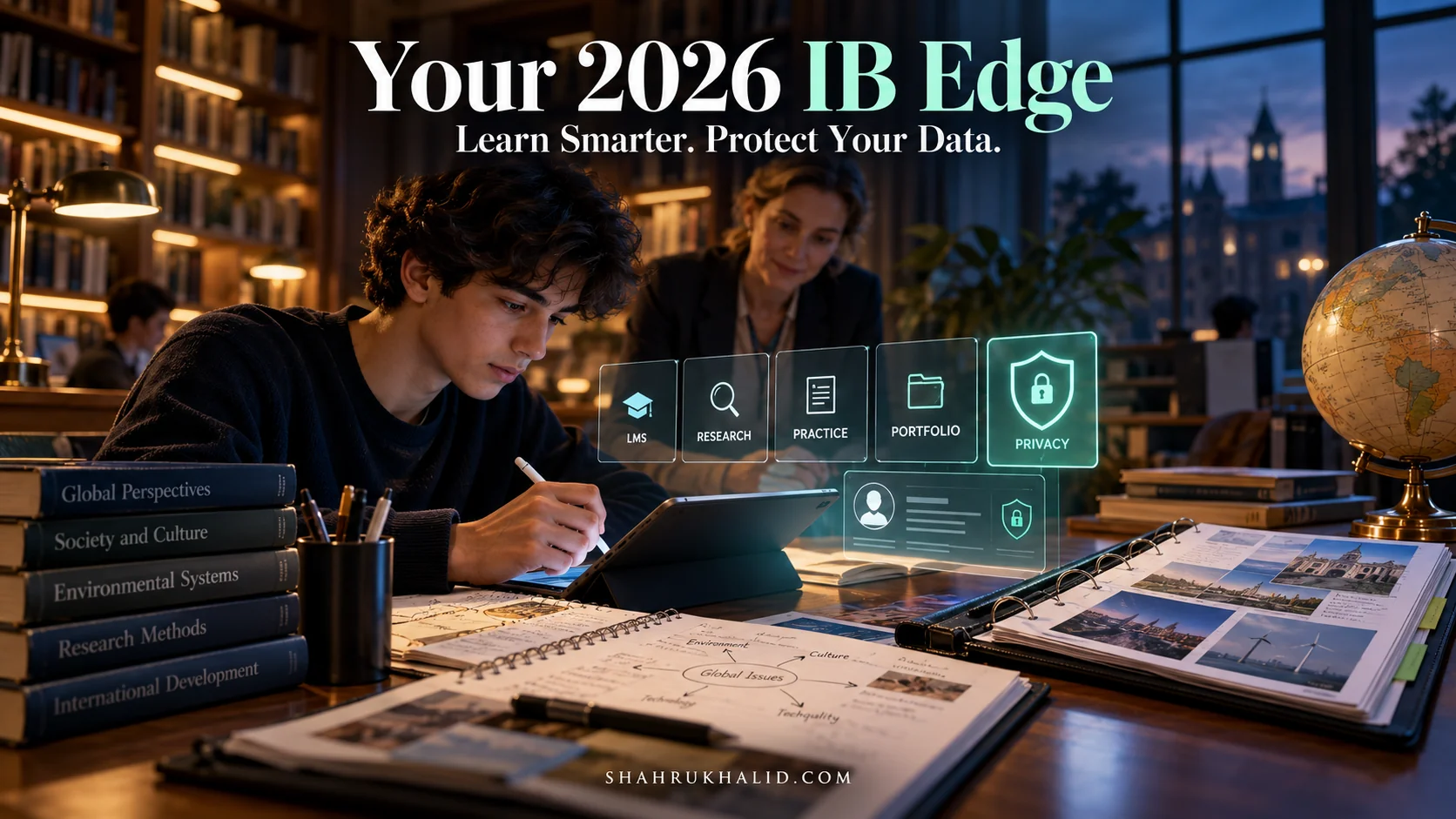
Behind the Screens: Your 2026 K-12 Guide to International School Tech that Connects, Protects, and Powers YOUR Learning

Key Takeaways
- School tech (EdTech) is the essential digital infrastructure connecting, protecting, and powering student learning.
- An EdTech Stack is a team of interconnected tech tools forming the school's digital ecosystem.
- EdTech functions as the school's vital digital infrastructure, like a city's power grid and roads.
- The Student Information System (SIS) is the school's central brain for all official student records.
- Understanding school tech empowers students to supercharge learning, collaborate globally, and stay safe.
Forget the dry, technical manuals. This is your masterclass. We’re going to explore the technology that shapes your daily life at school, not from the perspective of an IT administrator, but from yours. By the end of this guide, you’ll understand the ‘what,’ the ‘how,’ and—most importantly—the ‘why’ behind your school’s tech. You’ll learn how to master these tools to not just complete your assignments, but to truly supercharge your learning, collaborate with friends across the globe, and keep your digital life safe and sound. Let’s get started.
Comprehensive Foundations & Concept Primer
Welcome to the engine room! Before we start tinkering with the tools themselves, it’s crucial to understand what we’re even talking about. When you hear a term like International K-12 EdTech, it might sound like a bit of corporate jargon. But I promise you, it’s the invisible framework of your entire school experience. It’s the magic behind how your history teacher in Dubai can share a virtual reality tour of the Roman Colosseum with you, how you can co-edit a presentation with a classmate in a different time zone, and how your grades and report cards appear seamlessly in your student portal.
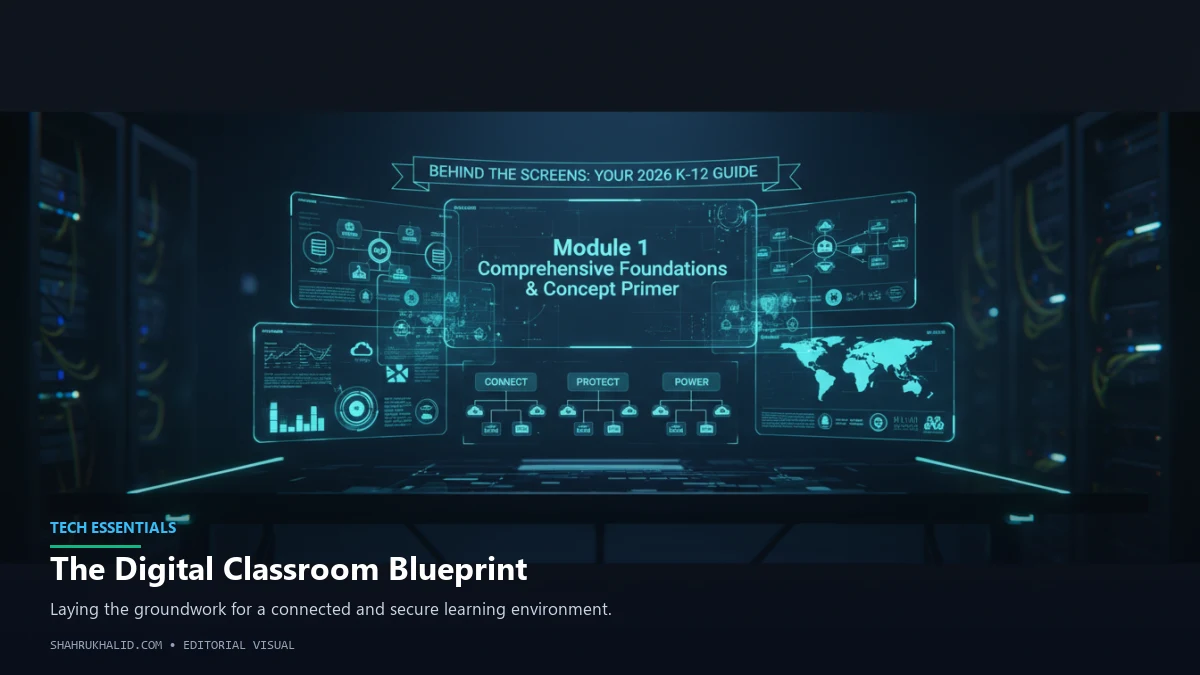
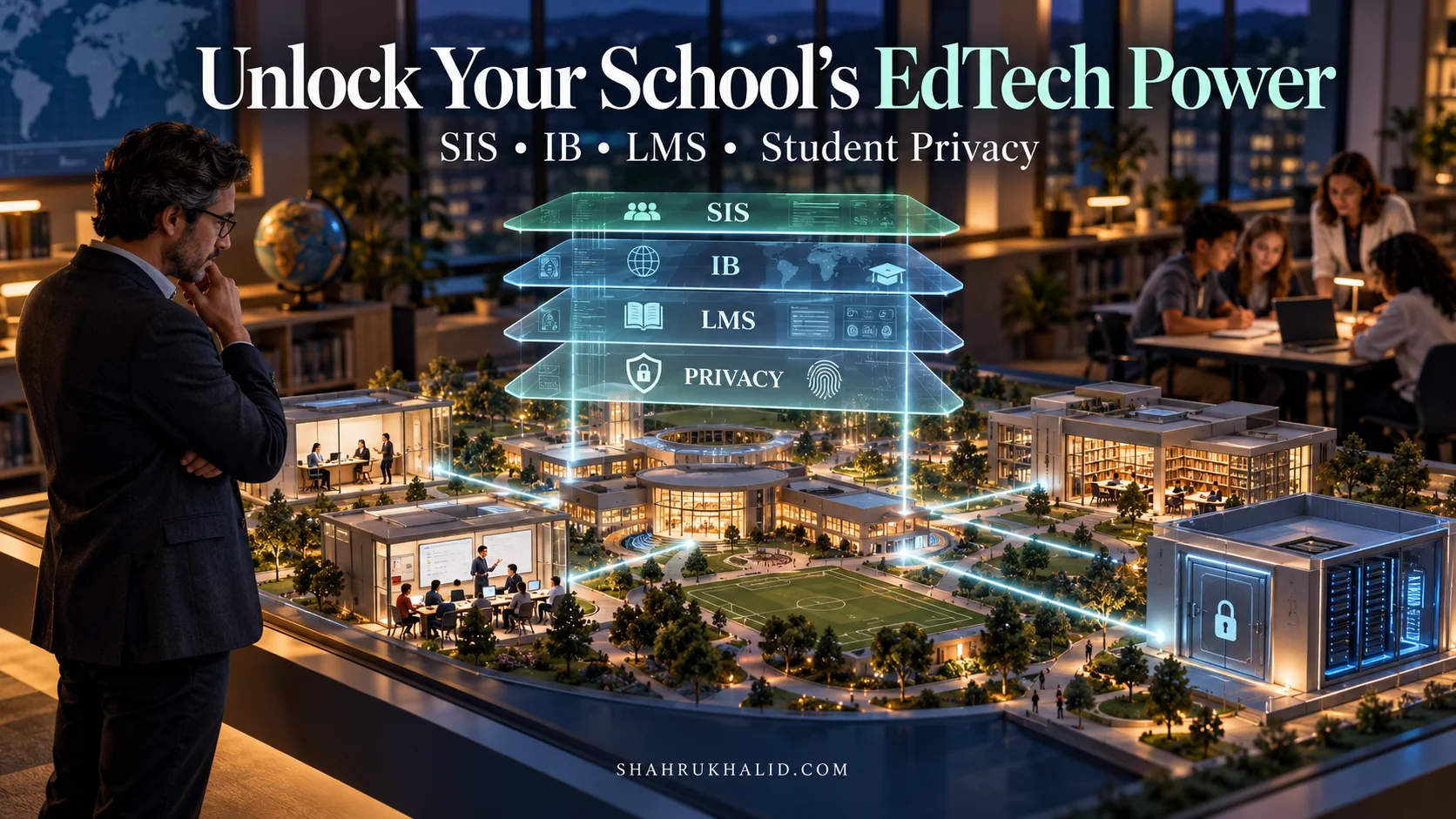
Think of it like this: your school is a bustling, vibrant city. The buildings are your classrooms, the library is your research hub, and the sports fields are where you connect and play. The EdTech is the city’s entire infrastructure. It’s the power grid, the road network, the communication towers, and the security systems that make everything run smoothly, safely, and efficiently. Without it, you’d just have a collection of disconnected buildings. With it, you have a living, breathing community. In 2026, this digital infrastructure is more critical than ever, especially in international schools where students and teachers come from all corners of the world.
What is an “EdTech Stack” and Why Should You Care?
Let’s break down our first piece of “jargon.” An “EdTech Stack” is simply the collection of different technology tools your school has chosen and connected together. It’s not just one single app; it’s a whole team of apps working in concert. You’ve probably used most of these without even thinking about how they relate to each other.
Imagine you’re building a project for your International Baccalaureate (IB) Middle Years Programme. Here’s how a typical stack comes into play:
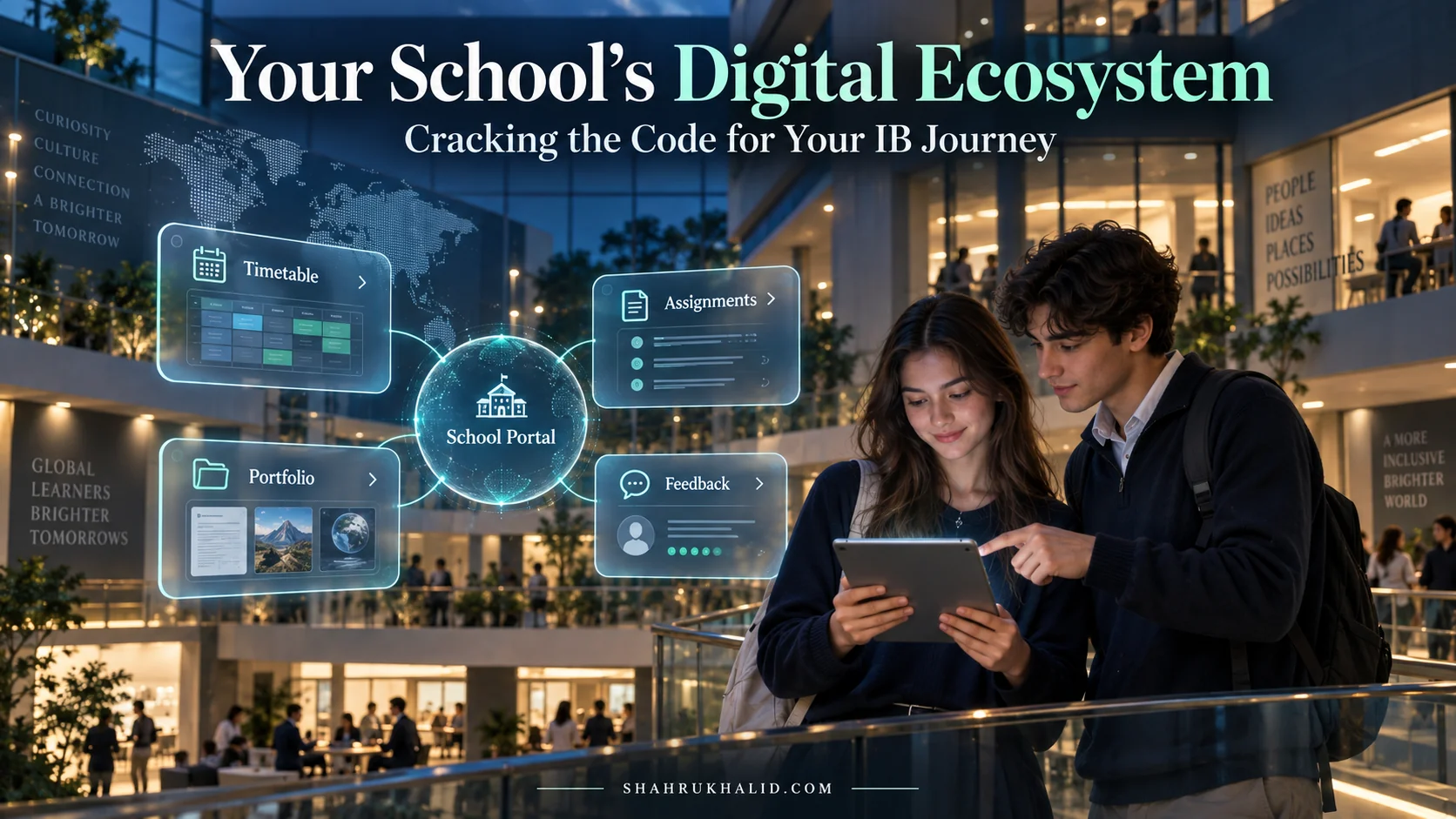
- The Brain (The SIS): You log into your school’s student portal to check the assignment details. This portal is your window into the Student Information System (SIS). Think of the SIS as the school’s master digital filing cabinet or its central brain. It holds the official records: your name, your classes, your attendance, your grades, your emergency contacts. When your teacher enters a grade, it goes into the SIS. When the school needs to send a message to all 10th graders, it uses the SIS to know who to contact. A great example of this is a system like Rediker’s AdminPlus, which many schools use to manage this core data. For you, it’s the single source of truth for your academic record.
- The Classroom (The LMS): The assignment prompt itself lives on a platform like Google Classroom, Canvas, or Microsoft Teams. This is your Learning Management System (LMS). If the SIS is the school’s main office, the LMS is your actual digital classroom. It’s where the day-to-day learning happens: where teachers post resources, where you submit your work, and where you participate in discussion forums. It’s the digital equivalent of your teacher handing out a worksheet or writing on the whiteboard.
- The Tools (The Apps): To do the work, you open up Google Docs or Microsoft Word Online. You use a tool like NoodleTools or EasyBib to manage your citations, a core skill emphasized by the IBO.org for academic honesty. You might use Canva to design a poster or Prezi for a presentation. These are your productivity and creation applications.
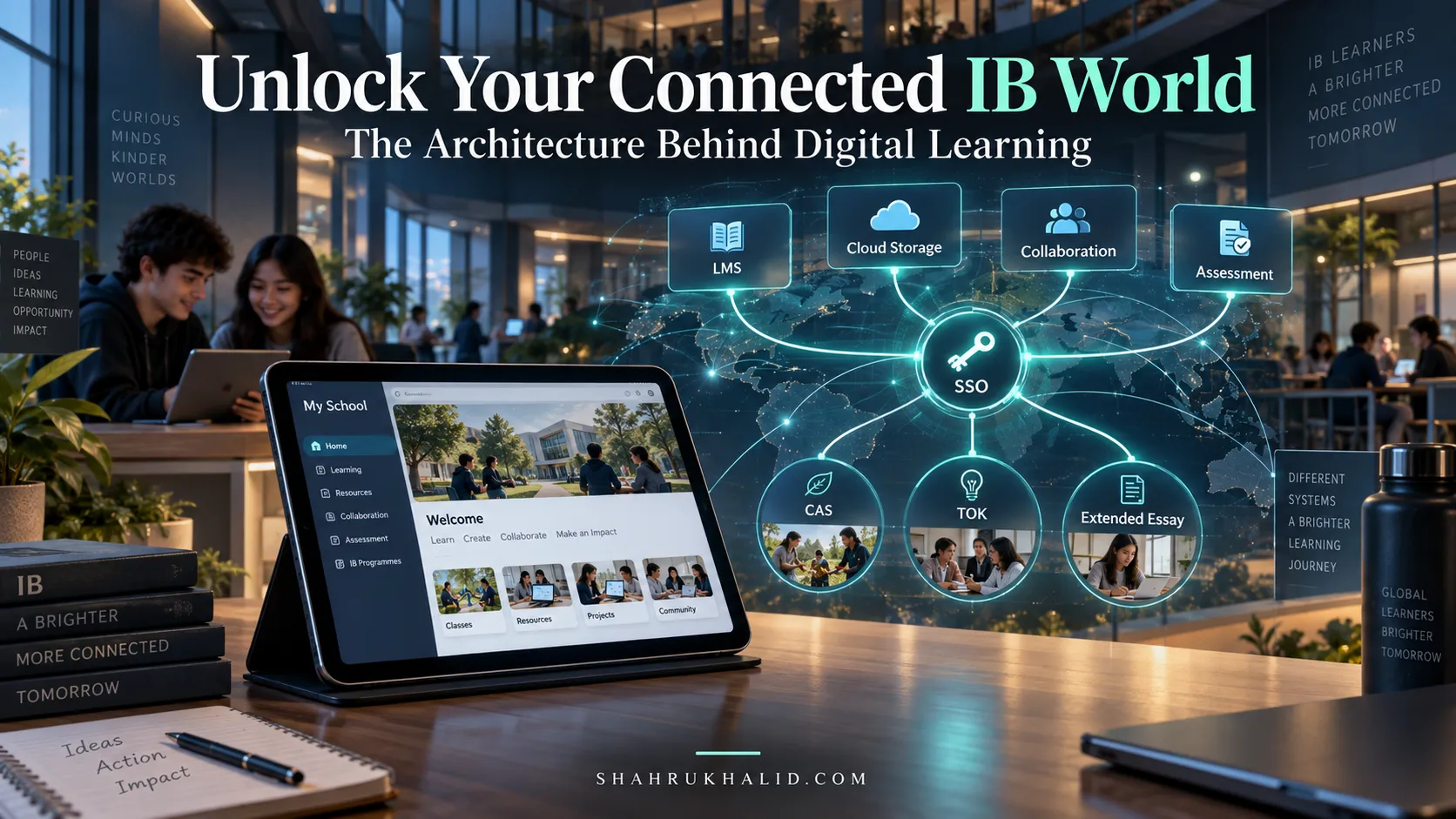
- The Connection (The Glue): How did you log into all of these with one username and password? That’s often a system called Single Sign-On (SSO). It’s the digital master key that unlocks all the right doors for you. How does your grade from the LMS (Canvas) get into the SIS (Rediker)? That’s the work of something called an API (Application Programming Interface). An API is like a universal translator or a secure messenger that allows different software to talk to each other and share information automatically.
Why should you care? Because understanding this structure helps you troubleshoot problems, work more efficiently, and see the bigger picture. When you know that the LMS is for classwork and the SIS is for official grades, you know where to look for what. When you understand that these systems are meant to be connected, you can start using them in more powerful ways, which we’ll cover in Module 4.
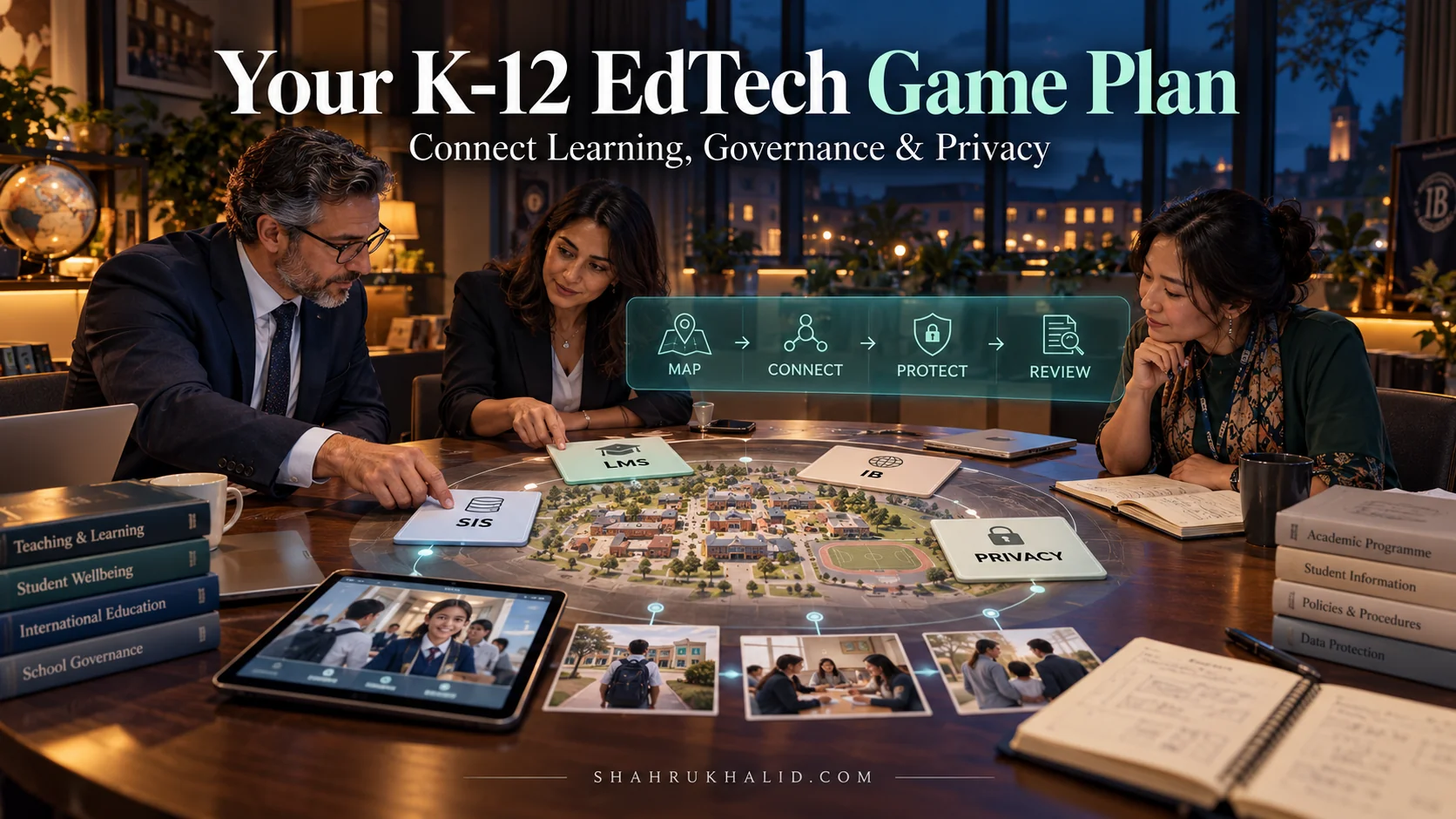
The Three Pillars of Modern School Tech: Connect, Protect, Power
All of this technology, this entire ecosystem of K-12 educational technology solutions, can be boiled down to three core missions. As you go through your school day, try to spot these pillars in action.
1. Connect: Building Your Global Community
In an international school, your ‘community’ isn’t just the people you see in the hallway. It’s the student who moved back to their home country but still collaborates with you on a project. It’s the teacher who is at a conference in another country but still holds virtual office hours. Technology is the thread that weaves this global community together. Tools like video conferencing (Zoom, Google Meet), collaborative whiteboards (Miro, Jamboard), and instant messaging platforms (Teams, Slack) create connected learning environments that dissolve physical distance. They make it possible to have a truly international education, not just an education in an international location.
2. Protect: Guarding Your Digital Identity
This is a huge one, and it’s something your school takes very seriously. Every time you log in, submit an assignment, or fill out a form, you’re creating data. That data—your grades, your writing, your personal information—is valuable. School cybersecurity K-12 is all about building a digital fortress to protect that information. This involves a lot more than just passwords. It includes:
- Data Encryption: Scrambling your data so that even if someone intercepted it, they couldn’t read it. Think of it as writing a message in a secret code that only your school’s systems can decipher.
- Firewalls: A digital security guard that stands between your school’s network and the outside internet, blocking suspicious traffic.
- Acceptable Use Policies (AUPs): The rules of the road for using school technology, designed to protect both you and the school.
- Digital Citizenship Training: Teaching you how to be a smart, safe, and ethical user of technology.
Understanding the ‘Protect’ pillar helps you become a partner in your own safety. We’ll dive deep into how you can contribute in Module 2.
3. Power: Supercharging Your Learning Journey
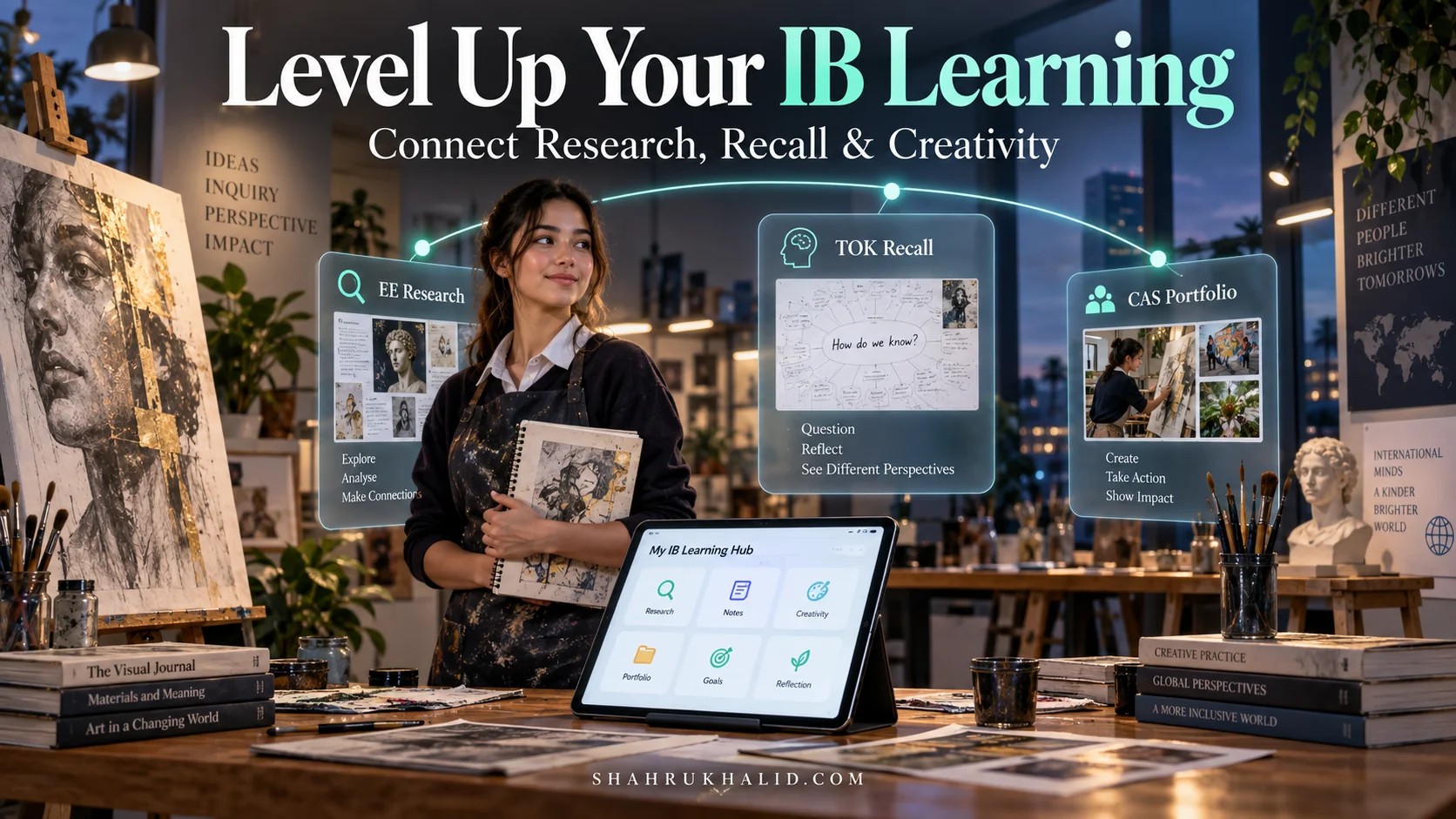
This is the most exciting part. Technology is no longer just about consuming information; it’s about creating, analyzing, and personalizing your own learning path. This is the ‘Power’ pillar. It’s about using tech to go beyond the textbook.
- Personalized Learning: Some platforms can adapt to your learning speed. If you master a math concept quickly, it might give you a harder challenge. If you’re struggling, it might offer a tutorial video or extra practice.
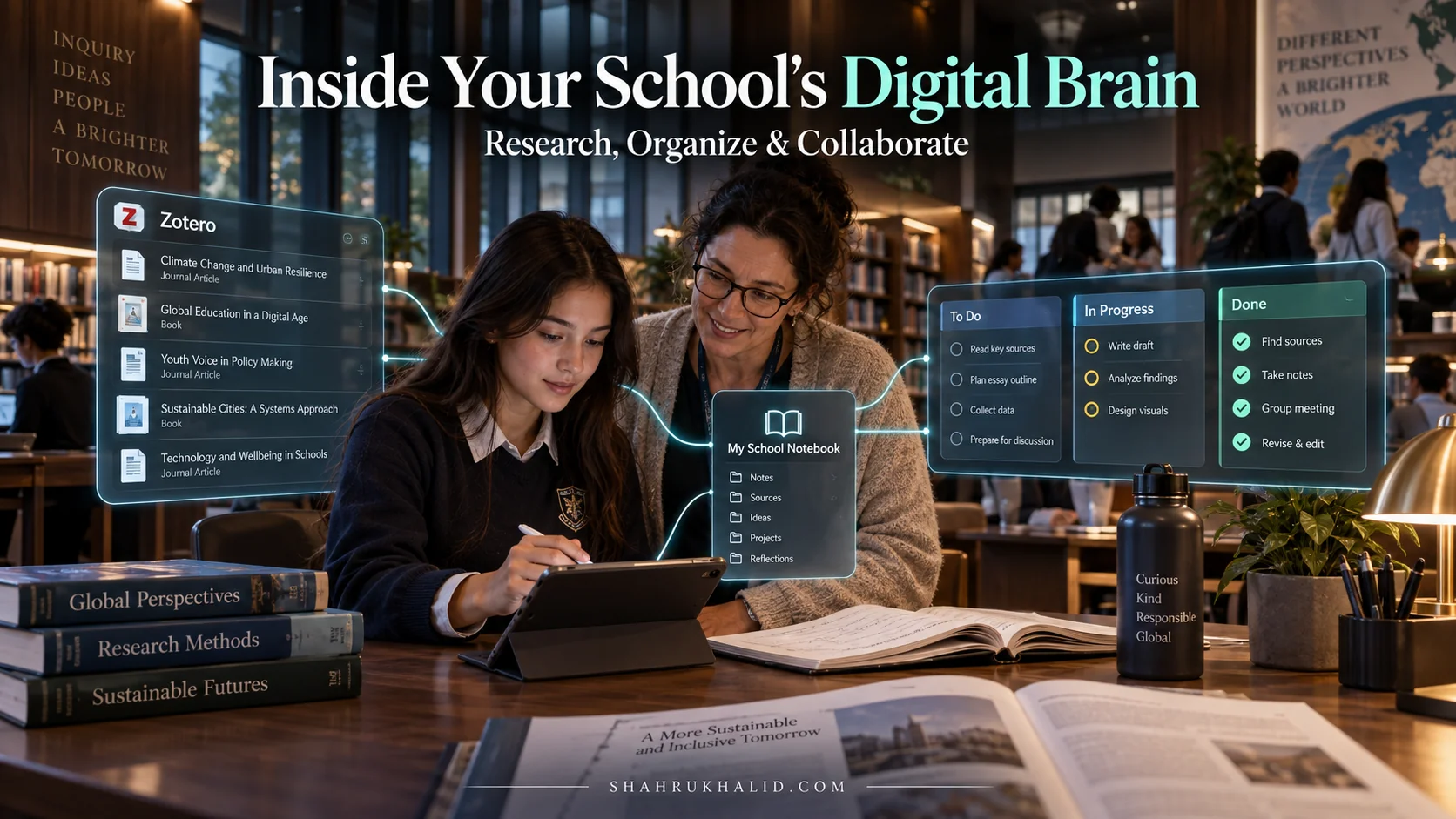
- Access to Information: You have the world’s biggest library at your fingertips. Digital research databases, academic journals, and primary source archives are just a click away.
- Creation over Consumption: You can now produce a podcast instead of writing an essay, design a 3D model instead of a 2D drawing, or code a simple app to demonstrate a scientific principle. The tools are there to empower your creativity.
As we move toward 2026, the focus of digital learning international schools is shifting heavily toward this pillar. It’s about giving you the tools and the skills to not just be a student, but to be a creator, a researcher, and a problem-solver.
Prerequisites & Complete Environment Setup
Alright, now that we’ve got the big picture, let’s get practical. You wouldn’t start a major art project with a messy desk and no supplies, right? The same goes for your digital learning. Setting up your personal digital environment is the single most important step you can take to reduce stress, save time, and do your best work. This isn’t about server configuration; this is about organizing your world. Let’s build your digital command center, step-by-step.
Step 1: The Digital Backpack – Organizing Your Cloud Storage
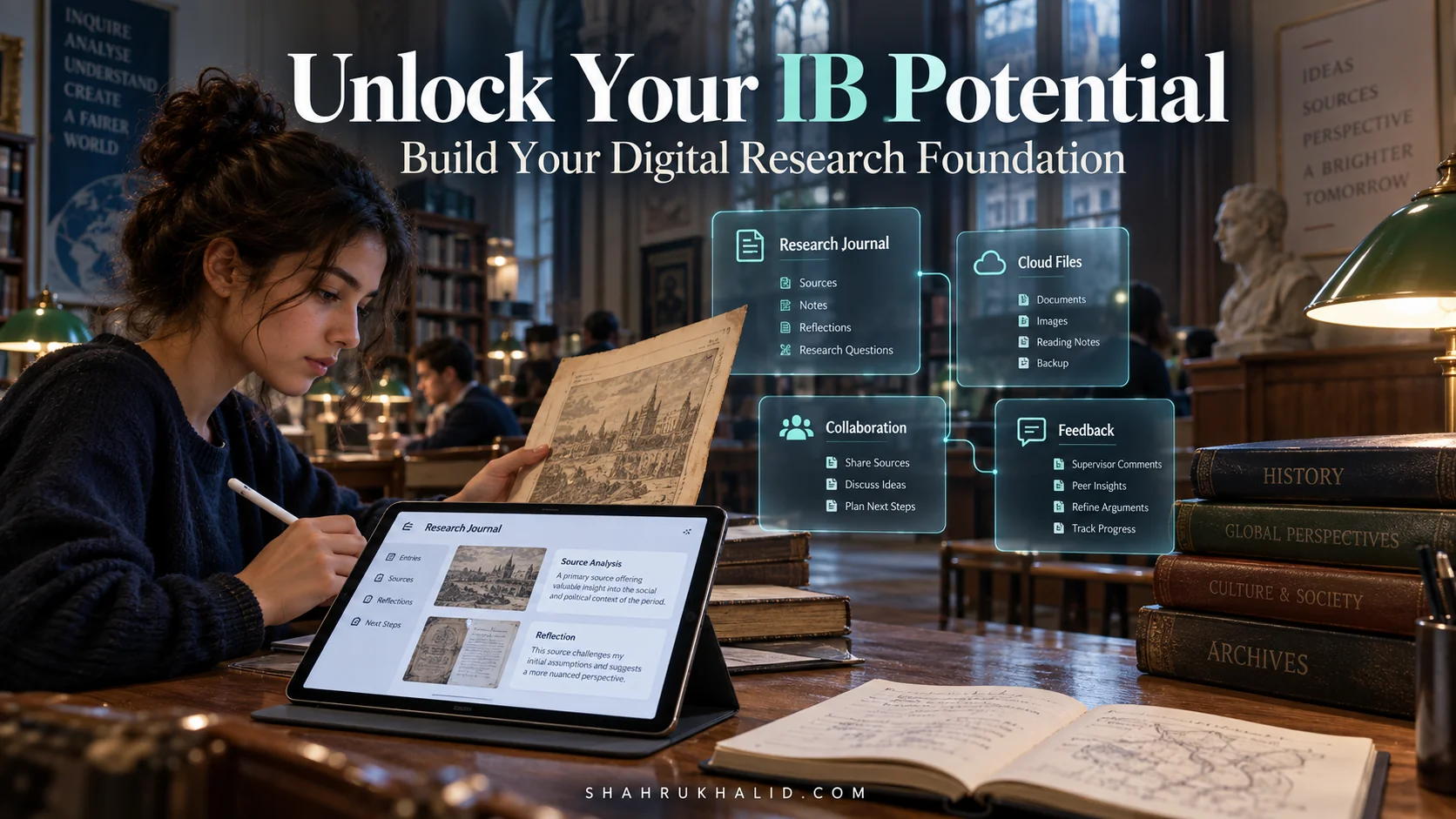
Your school almost certainly provides you with a cloud storage account, likely Google Drive or Microsoft OneDrive. This is your digital backpack. But for many students, it’s a chaotic jumble of untitled documents, random downloads, and shared files with no home. Let’s fix that. A logical folder structure is your best friend.
Actionable Exercise: Create Your Master Folder Structure
Open your Google Drive or OneDrive right now and create the following top-level folder. I recommend naming it something clear like `[School Name] 2024-2025`.
Inside that main folder, create a folder for each of your subjects:
[School Name] 2024-2025/
├── 01 - IB English A L&L
├── 02 - IB History HL
├── 03 - IB Biology SL
├── 04 - IB Math AA SL
├── 05 - IB Spanish B
└── 06 - CAS & Extended Essay
Pro-Tip: I use numbers (`01`, `02`) in front of the folder names. This forces the folders to stay in the same order (the order on your schedule, for example) instead of sorting alphabetically. It’s a small trick that makes a huge difference.
Now, let’s go one level deeper. Inside each subject folder, create a consistent structure. This is where the magic happens. A great starting point is:
02 - IB History HL/
├── Unit 1 - The Move to Global War
│   ├── Assignments
│   ├── Class Notes
│   └── Readings & Resources
├── Unit 2 - Authoritarian States
│   ├── Assignments
│   ├── Class Notes
│   └── Readings & Resources
└── ...and so on for each unit
Why does this matter?
When your teacher says, “Pull up your notes on the causes of World War I,” you won’t be frantically searching your entire drive. You’ll navigate calmly: `History > Unit 1 > Class Notes`. When you need to submit your final essay, you’ll save it directly into `History > Unit 1 > Assignments`. This simple habit eliminates the “I can’t find my file!” panic forever.
Step 2: The Master Key – Taming Your Passwords
You have a password for the school portal (SIS), the learning platform (LMS), your email, the library database, and probably a dozen other apps. Using the same simple password everywhere is like using the same key for your house, your car, and your locker—it’s convenient until someone finds it. And writing them on a sticky note is a big no-no.
This is where a Password Manager comes in. It’s a secure, encrypted vault that creates, stores, and fills in strong, unique passwords for all your accounts. You only have to remember one strong master password to unlock the vault.
Actionable Exercise: Set Up a Password Manager
- Choose a Manager: There are many great options. Bitwarden is a fantastic, highly respected choice that offers a robust free version. 1Password and Dashlane are also excellent.
- Create a STRONG Master Password: This is the one password you absolutely must remember. Don’t use your birthday or “password123”. A good method is to combine 4-5 random words, like `Correct-Horse-Battery-Staple`. It’s long, hard to guess, but easier for you to remember than `8!xR$z#qP`.
- Install the Browser Extension and App: Install the password manager’s extension for your web browser (Chrome, Firefox, Safari) and the app on your phone. This is what allows it to automatically save and fill passwords.
- Start Saving: Go to your main school login page. Instead of letting your browser save the password, let your new password manager save it. From now on, do this for every site you use. Over time, you’ll build a secure library of all your logins.
This is a core skill for school cybersecurity K-12. By using a password manager, you are taking a professional-grade step toward protecting your own data and identity online. It answers the question, “How can I help protect my student data?” in a very direct way.
Step 3: The Control Panel – Configuring Your Notifications
Ding! A new email. Buzz! A notification from Teams. Pop! A reminder from your calendar. Constant notifications are a major obstacle to deep focus. You need to be the master of your notifications, not the other way around.
Actionable Exercise: The Notification Audit
Take 15 minutes and go through your phone and computer settings. For every single app, ask yourself: “Do I need this app to interrupt me with a sound or a banner right now?”
- Turn OFF notifications for most social media and entertainment apps. You can check them on your own schedule.
- Customize school app notifications. In your LMS (Canvas, Google Classroom) or communication app (Teams), you can often choose what you get notified about. Maybe you want a notification for a new grade or a direct message from a teacher, but not for every new discussion post. Tweak these settings to your liking.
- Use “Focus” or “Do Not Disturb” modes. When you sit down to study or do homework, activate a Focus Mode on your device. You can configure it to only allow notifications from specific people (like your parents) or specific apps. This is a superpower for concentration.
By setting up your digital environment this way, you’re not just being tidy. You’re creating the conditions for success. You’ve built a system that reduces friction, enhances security, and protects your focus. You’re ready to start doing the work.
Core Implementation Architecture & Workflow Blueprint
Okay, we’ve organized your personal space. Now, let’s zoom out and look at the blueprint of your school’s entire digital campus. Understanding this “architecture” isn’t just for IT folks; it helps you understand the flow of information and why things work the way they do. It’s like knowing the city map—it helps you get where you’re going faster.
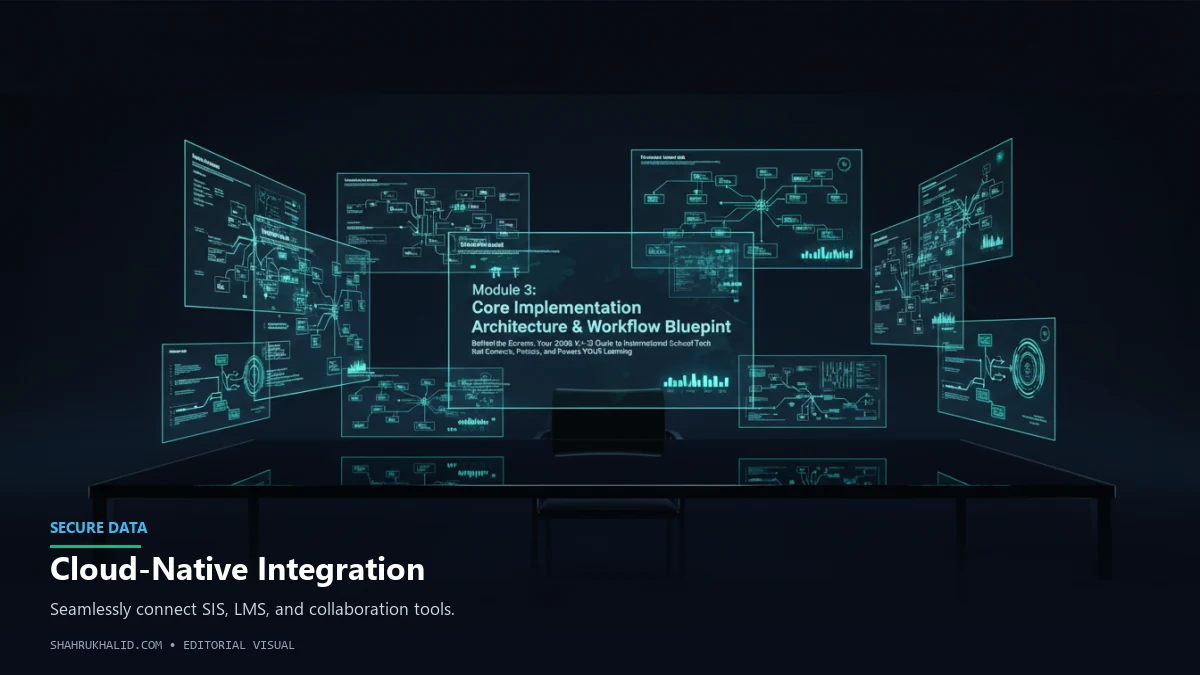
As I mentioned in Module 1, we can imagine this as a city. Let’s build out that analogy with a visual grid. Imagine these as “cards” you can lay out on a table to see how they all connect.
The Digital City: A Grid of Your School’s Tech
Here’s a breakdown of the key buildings in your school’s digital city and the roads that connect them. This is a simplified but powerful model of how most international school technology trends are shaping campus infrastructure.
Building: City Hall
Technical Name: Student Information System (SIS)
Examples: Rediker AdminPlus, PowerSchool, Veracross
Analogy: This is the official records office. It holds the “single source of truth” about you. Your legal name, your schedule, your attendance record, your final grades, your parents’ contact info—it all lives here. You typically interact with it through a “student portal.”
Your Interaction: You log in to see your report card, check your attendance, or view the official school calendar.
Building: The Schoolhouse
Technical Name: Learning Management System (LMS)
Examples: Google Classroom, Canvas, Schoology, Moodle
Analogy: These are your individual classrooms, hallways, and assignment trays. It’s where daily learning happens. It’s dynamic, constantly updated with new assignments, resources, and discussions.
Your Interaction: You download readings, submit essays, take quizzes, and participate in class forums here. This is likely where you spend most of your digital school day.
Building: The Library & Workshop
Technical Name: Productivity & Content Suites
Examples: Google Workspace (Docs, Sheets, Slides), Microsoft 365 (Word, Excel, PowerPoint), Adobe Creative Cloud, Canva
Analogy: This is where you do the actual work. It’s your notebook, your calculator, your art supplies, and your presentation clicker all in one.
Your Interaction: You write your essays, build your presentations, and analyze data in spreadsheets here.
Building: The Post Office & Town Square
Technical Name: Communication Platforms
Examples: Microsoft Teams, Google Chat/Meet, Email, Remind
Analogy: This is how messages get around the city. It includes formal mail (email), instant messages for quick questions, and public announcements in the town square (school-wide channels).
Your Interaction: You email a teacher with a detailed question, message your project group, or join a video call for a virtual class.
The Workflow Blueprint: A Day in Your Digital Life
So how do these “buildings” work together? They are connected by “roads” and “power lines” called APIs (Application Programming Interfaces). An API is a set of rules that lets one piece of software talk to another. Thanks to the work of people like Shahrukh Khalid’s team, who specialize in campus technology stack integration, these systems don’t live on separate islands. They form a cohesive workflow.
Let’s trace the journey of a single assignment to see how it works. This is a core workflow in any digital learning international school.
The Journey of a History Essay:
- Creation (The SIS): At the start of the semester, your school administrator uses the SIS (City Hall) to create your “History 10” class and assign you and your teacher to it.
(Data Flow: The SIS now knows you are in this class.) - Syncing (The API Road): Overnight, a secure, automated process (the API) runs. It reads the new class information from the SIS.
(Data Flow: The API securely tells the LMS, “Hey, create a History 10 class and add these specific students and this teacher.”) - Assignment (The LMS): Your teacher logs into the LMS (The Schoolhouse) and creates a new assignment: “Essay on the Causes of the Cold War.” They attach a PDF reading and set a due date.
(Data Flow: The LMS now holds the assignment details and rubric.) - Work (The Workshop): You log into the LMS, see the new assignment, and click on the “Create” button. This might automatically create a new Google Doc for you from a template, already named `[Your Name] – Cold War Essay`. You do your research, write your essay in this document (The Workshop), and use a citation tool that’s integrated with Google Docs.
(Data Flow: Your work is saved continuously in your cloud storage.) - Collaboration (The Town Square): You share your draft with a classmate for peer review using the “Share” button. They leave comments and suggestions directly in the document, and you get an email notification (The Post Office).
(Data Flow: Collaboration happens within the productivity suite, with notifications handled by the communication platform.) - Submission (The LMS): Once you’re done, you go back to the assignment in the LMS and click “Submit.” The LMS takes a “snapshot” of your Google Doc at that moment and attaches it to the assignment.
(Data Flow: You’ve officially turned in your work in the digital classroom.) - Grading (The API Road, again): Your teacher grades the essay inside the LMS, leaving comments and assigning a score of 85/100. They then click a button like “Post to SIS.” Another API (a secure road) takes that final grade and sends it to the SIS (City Hall).
(Data Flow: The official grade is now recorded in the school’s master database.) - Notification (The SIS Portal): You log into your student portal and see your official grade for the essay is now part of your overall History grade.
(Data Flow: You are viewing the permanent, official record.)
Why is this blueprint so important for you to understand? Because it demystifies the process. You now know that the grade in the LMS is temporary, while the grade in the SIS is the official one. You understand that your Google Doc is a living file, but what you “submit” is a specific version of it. This knowledge helps you navigate your digital school with confidence and clarity, making you a more effective and empowered student.
Hands-on Practical Implementation & Real-World Configuration
Theory is great, but let’s get our hands dirty. This module is all about moving from “knowing” to “doing.” I’m going to walk you through, step-by-step, how to use the tools in your school’s EdTech stack like a pro. These aren’t just tips; they are practical exercises you can do right now to make your school life easier and your work better. We’re focusing on the student-level “implementation” of these powerful systems.
Exercise 1: The Ultimate Study Calendar – Mastering Your LMS & Personal Calendar
One of the biggest student complaints I hear is feeling overwhelmed by due dates. Your LMS has a calendar, your phone has a calendar, and you might even have a paper planner. Let’s unify them into one powerful system.
The Goal: Create a single, color-coded digital calendar that shows your class schedule, assignment due dates, and personal study blocks.
Step-by-Step Walkthrough:</