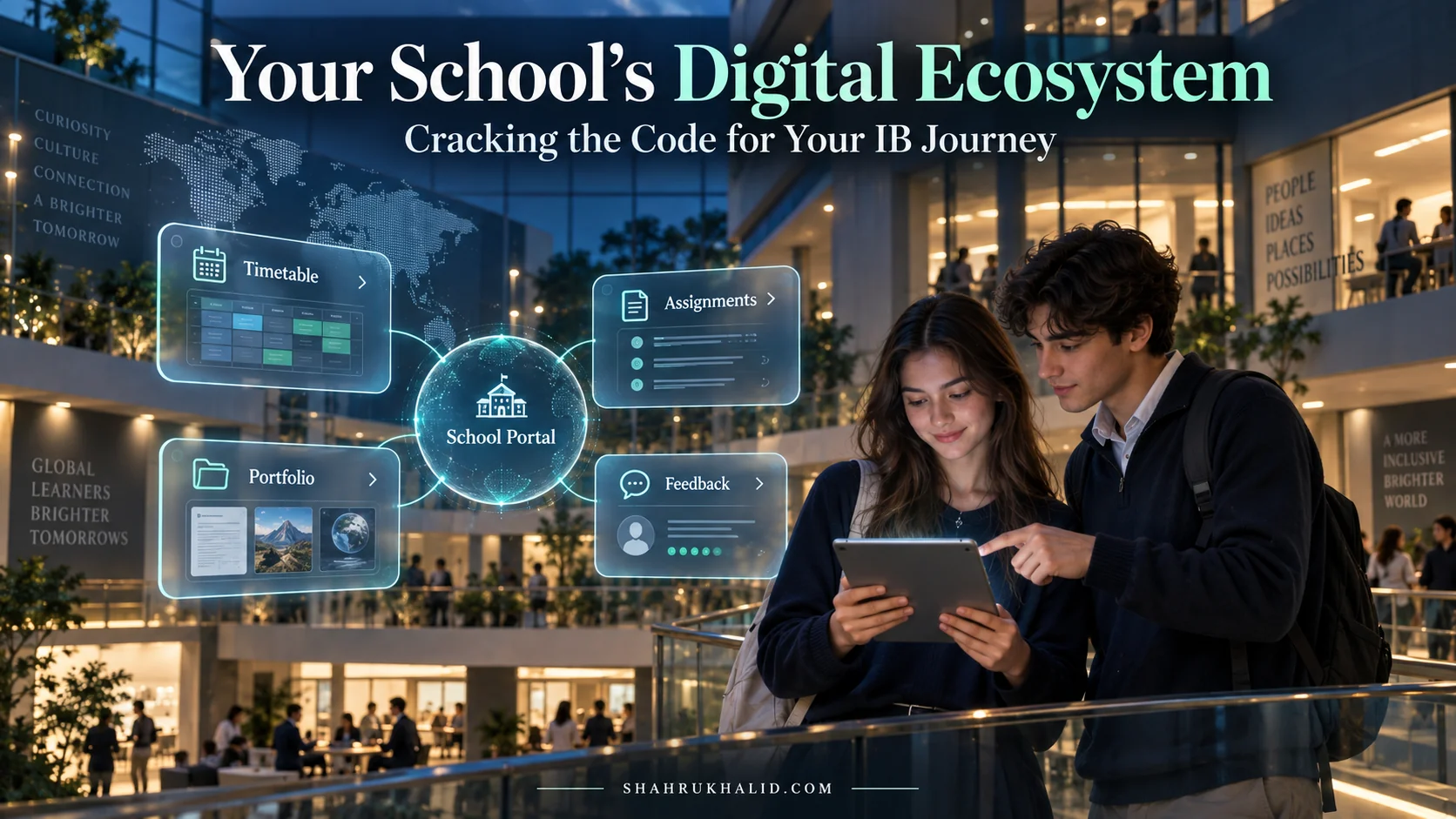
PlusPortals Unlocked (2026): A Student’s Practical Guide to Tracking Homework, Checking Real-Time Grades, and Owning Your K-12 Schedule

Key Takeaways
- The guide transforms PlusPortals into a personal academic command center for students.
- PlusPortals centralizes homework tracking, real-time grades, and K-12 schedule management.
- PlusPortals serves as the user-friendly front-end for the school's complex Student Information System (SIS).
- It replaces information chaos by providing a single source of truth for academic life.
- Mastering PlusPortals empowers students to turn academic data into proactive decisions and strategy.

This isn’t just another user manual. This is your personal, practical, and exhaustive guide to mastering PlusPortals. We’re going to move beyond just ‘logging in’ and transform this platform from a simple requirement into your personal command center for academic success. By the end of this guide, you won’t just know how to use PlusPortals; you’ll know how to make it work for you, turning data into decisions, deadlines into plans, and stress into strategy. Let’s get started.
Comprehensive Foundations & Concept Primer
Before we dive into the clicks and taps, let’s pull back the curtain and understand what PlusPortals actually is and, more importantly, why it matters so much in your life as a student in 2026. Too often, we’re handed a tool with a username and password and told, “Use this,” without any context. That ends today. Understanding the ‘why’ is the first step to mastering the ‘how’.
What is PlusPortals for K-12 students? The Command Center Analogy
Imagine you’re the pilot of a sophisticated aircraft. Your destination? Graduation and whatever amazing future you’re building for yourself. Now, you wouldn’t fly this plane by just guessing your altitude, speed, or fuel levels. You’d have a dashboard, a cockpit filled with instruments giving you real-time, critical information. You’d have a flight plan, communication with air traffic control, and detailed weather reports.
Think of PlusPortals as your academic cockpit. It’s not just a website; it’s a centralized, interactive dashboard designed to give you all the critical information you need to navigate your school year successfully. It’s the single source of truth for your academic life.
For years, this information was scattered. A homework assignment was scribbled in a planner (if you remembered). A grade on a test was a mystery until the paper was handed back a week later. A change in the bell schedule was a rumor spread in the hallway. This created information chaos, anxiety, and made it incredibly difficult for you to be proactive.
PlusPortals, at its core, is the front-end interface for your school’s massive, underlying database, known as a Student Information System (SIS). Companies like Rediker.com build these powerful SIS architectures that act as the central nervous system for the entire school. The SIS holds everything: your enrollment data, your parents’ contact info, your attendance records, your teachers’ gradebooks, and the master school calendar. But you can’t just log in to the raw database—it’s complex and overwhelming. That’s where PlusPortals comes in. It takes all that vital data from the SIS and presents it to you in a clean, organized, and interactive way. It answers the fundamental question: “What do I need to know and do right now to be successful in school?”
Why This Is Your Most Essential Tool in 2026
In 2026, the nature of education, especially in forward-thinking international schools, has evolved. It’s no longer just about memorizing facts for an end-of-term exam. It’s about developing skills like self-management, critical thinking, and reflection. Curricula like the International Baccalaureate (IB) explicitly build these skills into their framework, as seen in the IB Learner Profile. As they state on ibo.org, an IB learner strives to be, among other things, “organized,” “knowledgeable,” and “reflective.”
How can you be organized if your deadlines are in three different places? How can you be reflective about your learning if you don’t see your grade on a project until a month after you’ve forgotten what it was about?
This is where a powerful K-12 student portal becomes indispensable. PlusPortals isn’t just a convenience; it’s a pedagogical tool that enables you to:
- Move from Reactive to Proactive: Instead of reacting to a bad grade you got last week, you can see your performance in near real-time, identify a downward trend in quiz scores, and proactively seek help before it becomes a major problem.
- Develop Executive Functioning Skills: Executive functions are the self-management skills that help you achieve goals. They include planning, organization, time management, and task initiation. Every time you use PlusPortals to plan your homework schedule for the week or break down a large project based on its due date, you are actively building these critical life skills.
- *Own Your Learning Data: Your grades aren’t just letters or numbers; they are data points about your understanding. PlusPortals gives you direct access to this data. You can see that you’re acing the homework assignments in Chemistry but struggling with the lab reports. This insight is gold. It tells you exactly where to focus your energy and study efforts. This is the heart of
student academic success
.
The world you’re preparing for won’t have teachers reminding you about every single deadline. Your future university professors and employers will expect you to manage your own time, track your own projects, and monitor your own performance. Using PlusPortals effectively is your training ground for these essential professional and life skills. It’s the bridge between the structured support of K-12 and the independence of higher education and beyond.
Eliminating Jargon: Core Principles in Plain English
Let’s demystify some terms. You’ll hear them thrown around, and knowing what they mean will make you a more confident user.
- Portal: Just a fancy word for a secure website that acts as a gateway to information. Think of it as a private door that only you have the key to.
- SIS (Student Information System): As we mentioned, this is the master database. It’s the “brain” of the school’s administrative operations. PlusPortals is the “face” of the SIS for students, parents, and teachers.
- Real-Time Grades: This is a key feature, but it’s important to understand the nuance. “Real-time” means the grade appears in your portal as soon as your teacher enters it into their digital gradebook and “publishes” it. It doesn’t mean the grade appears the second you hand in the test. The “real-time” part is the sync between the teacher’s gradebook and your view. This is a massive leap from the old paper-based system.
- Workflow: This simply means the typical process or sequence of actions you take to get something done. For example, your “homework workflow” might be: log in, check the calendar for new assignments, open the assignment details, download the attached worksheet, and then add a reminder to your personal calendar.
- Dashboard: The first screen you see when you log in. It’s designed to give you a high-level overview of the most important, timely information—like today’s schedule, upcoming deadlines, and recent announcements. It’s your “at-a-glance” summary.
By understanding these core concepts, you’re no longer just a passive user. You’re an informed navigator who understands the structure and purpose of your digital environment. You’re ready to move from theory to practice.
Prerequisites & Complete Environment Setup

Alright, theory session is over. It’s time to get our hands dirty. This module is all about getting you from zero to fully operational. We’ll cover everything from your very first login to customizing your environment so it works perfectly for you. Think of this as laying the foundation and wiring the electricity for your academic command center. A little bit of setup now will save you a massive amount of time and headache later.
Step 1: The Golden Ticket – Obtaining Your Login Credentials
Before you can unlock the power of PlusPortals, you need the keys. Your school is the keeper of these keys. You will typically receive your login credentials in one of the following ways:
- *An official school email: Your school’s IT or administrative department will often send a welcome email to your official student email address. This email is critical. Do not delete it. It will contain:
- The specific URL (web address) for your school’s PlusPortals login page. This is important because it’s not always just `plusportals.com`. It’s usually a custom address like `www.plusportals.com/YourSchoolName`.
- Your Username.
- A temporary password.
- A physical letter or handout: Especially at the beginning of a new school year or for younger students, you might receive a printed sheet with your login info. Keep this in a safe place until you’ve successfully logged in and changed your password.
- *During an orientation or tech session: Your school might hold a session where they walk you through the login process and provide your credentials in person. Pay attention!
Zara’s Pro-Tip: The moment you get these details, take a picture of them with your phone (and then store that picture in a secure folder) or write them down in a secure, private notebook. This is your backup in case you forget. The number one reason students get stuck at this stage is because they misplace their initial login information.
Step 2: Your First Flight – The Initial Login Process
Let’s walk through your very first login. It’s a simple process, but knowing the steps can prevent a lot of frustration.
- Navigate to the Correct URL: Open your web browser (Chrome, Firefox, Safari, etc.) and carefully type in the specific PlusPortals URL your school provided. Bookmarking this page immediately is a non-negotiable first step. Call it “School Portal” or “PlusPortals Login.”
- Enter Your Credentials: You’ll see a login box asking for three pieces of information:
- School: You’ll need to enter your school’s name or a specific code provided in your welcome email. Start typing your school’s name, and it should appear in a dropdown list. Select it. This tells the system which school’s database to connect to.
- Username: Carefully type the username you were given. It’s often case-sensitive, so `JSmith` is different from `jsmith`.
- Password: Enter the temporary password. Again, this is almost always case-sensitive. You can often click an “eye” icon to see the password as you type it, which is incredibly helpful for avoiding typos.
- The Immediate Password Change: For security reasons, the very first time you log in with a temporary password, the system will force you to create a new, permanent password. This is a critical step!
- Choose a Strong Password: Don’t use `password123` or your birthday. A strong password is at least 12 characters long and includes a mix of uppercase letters, lowercase letters, numbers, and symbols (like `!`, `@`, `#`). A great trick is to use a phrase you can remember, like `MyFavoritePizzaIsPepperoni!2026`. It’s long, complex, and easy for you to recall.
- Confirm Your New Password: You’ll have to type it a second time to ensure you didn’t make a typo.
- Store It Securely: Use a password manager app (like 1Password, Bitwarden, or even the one built into your browser) or write it down and store it in a very safe place at home. This will save you from the hassle of the password reset process later.
- *First Look at the Dashboard: Once you’ve successfully changed your password, you’ll be logged in and will see the main PlusPortals Dashboard for the first time. Take a moment. It might look a bit busy, but don’t be intimidated. We’ll break it all down in the next module.
Step 3: Configuring Your Environment – The Mobile App and Notifications
Your setup isn’t complete until you’ve connected your mobile device and customized your notifications. This is what makes the portal a truly active part of your daily life, not just a website you visit occasionally.
Installing the Mobile App:
- Go to the App Store (for iOS devices) or Google Play Store (for Android devices).
- Search for “ParentPlus” or “StudentPlus.” The app is developed by Rediker Software, so look for that name to ensure you have the official one.
- Download and install the app. It’s free.
- Launch the app. You will be prompted for the same information as the web login: School, Username, and your new, permanent Password.
- Enable Face ID or Touch ID if your phone offers it. This makes logging in on the go incredibly fast and secure.
Why the App is a Game-Changer
The web portal is great for deep work—writing a message to a teacher or planning a project. The mobile app is for quick hits of information:
- Did my teacher post the grades for yesterday’s quiz yet? (Quick check)
- What room is my next class in? (A glance at your schedule)
- Oh no, I forgot what the math homework was! (Pull up the assignment in seconds)
- School is closed due to snow! (Push notification)
Customizing Notifications:
This is perhaps the most important configuration step for avoiding overwhelm and ensuring you get the information you need. In the web portal, look for a “Settings” or “My Account” section (often under your name in the top right corner). Here, you’ll find notification preferences.
You can typically choose to receive notifications via email, push notification to the mobile app, or both. You can also select what you want to be notified about.
Here is my recommended “Smart Notification” setup for a new student:
By tailoring these settings, you transform the portal from a noisy firehose of information into a curated stream of intelligence.
Step 4: Verification – The “All Systems Go” Check
You’ve logged in, changed your password, installed the app, and set your notifications. Now, let’s do a quick systems check to make sure everything is working as expected.
- Web Portal Check: On your computer, log out and log back in using your new, permanent password and the bookmark you created. Does it work? Perfect.
- Mobile App Check: Open the app on your phone. Can you see your classes and schedule? Great.
- *Notification Check: Ask a friend or check yourself: has a teacher posted an announcement or a grade recently? If so, did you receive the notification you expected (push or email)? If not, don’t worry. The first one will come through soon. The key is that you’ve set up the system to deliver it.
Congratulations. Your environment is now fully configured. You have your keys, you’ve secured your cockpit, and you’ve tuned your communication systems. You are ready to take full control. In the next module, we’ll start exploring the instruments.
Core Implementation Architecture & Workflow Blueprint
Now that you’re logged in and set up, let’s map out the territory. The PlusPortals interface is dense with information, and trying to absorb it all at once can be overwhelming. The key is to understand its structure—its “architecture”—and then build a routine—a “workflow”—for how you interact with it. In this module, we’ll dissect the portal piece by piece and then assemble it into a powerful daily, weekly, and monthly routine.
Deconstructing the Dashboard: Your Academic “Heads-Up Display”
The first screen you see after logging in is the Dashboard. Its job is to give you the most critical, time-sensitive information at a glance. Think of it as the main screen in your cockpit, showing your immediate status. While each school can customize this view, most dashboards are built from a series of “cards” or “widgets.” Let’s look at the most common ones.
Visual Card Structure of a Typical PlusPortals Dashboard
The Dashboard is designed for quick consumption. You scan it, identify the most important items, and then dive deeper into the specific sections of the portal for more detail. Don’t live on the Dashboard; use it as your launchpad.
The Core Navigation: A Tour of Your Primary Toolset
On the side or top of your screen, you’ll see the main navigation menu. This is how you move from the high-level Dashboard to the detailed sections of the portal. Let’s walk through the most important tabs.
- Home/Dashboard: This always takes you back to that main summary screen. If you ever feel lost in the portal, clicking “Home” is your reset button.
- Classes: This is arguably the most powerful section. When you click here, you’ll see a list of all your courses (e.g., “ENG101 – English Literature,” “BIO202 – Biology”). Clicking on a specific class takes you to a “Class Page” dedicated solely to that subject. This page is your digital classroom hub and typically includes:
- Assignments: A complete list of all homework for that class only.
- Gradebook: Your detailed grades for that class only.
- Class Files/Resources: Handouts, PowerPoints, and other resources the teacher has uploaded.
- Teacher Info: The teacher’s name and a button to email them.
- *Calendar: This is your master planner. It aggregates deadlines from all your classes into one unified view (day, week, or month). This is where you zoom out from the “due tomorrow” view on the dashboard to see the “big picture” of your workload. You can see that you have a math test on Thursday and a history project due on Friday, which helps you plan your study time. This is a cornerstone of effective
PlusPortals schedule management tips
.
- Grades/Gradebook: While each class page has its own gradebook, this main “Grades” tab often provides a summary view of your current average in all your classes on one screen. It’s your academic report card, updated in near real-time. It’s the answer to the question, “How am I doing overall?”
- School: This section usually contains school-wide information that isn’t tied to a specific class. This is where you might find:
- Directory: A list of teachers and staff.
- School Calendar: The master calendar with holidays, exam weeks, and school events.
- *Resources: Links to the school library, counseling department, or other school-wide services.
Understanding this structure is key. If you want to know what’s due tomorrow across all classes, you check the Dashboard or the main Calendar. If you want to find the PowerPoint from last Tuesday’s Biology lecture, you go to `Classes > Biology > Resources`. If you want to see every single graded assignment that makes up your English grade, you go to `Classes > English > Gradebook`.
The “Day in the Life” Workflow Blueprint
Knowing where everything is located is one thing; using it effectively is another. The best way to master PlusPortals is to build it into your daily routine. Here is a simple but incredibly powerful workflow that I recommend to all students.
1. The 5-Minute Morning Check-in (Before School)
- Goal: Prepare for the day ahead.
- Platform: Web Portal on a laptop or Mobile App.
- Steps:
- Open PlusPortals. Glance at the Dashboard.
- Check My Schedule: “What’s my first period? Any room changes?”
- Check Announcements: “Is it a special dress-down day? Is there an assembly?”
- Quick scan of Upcoming Assignments: “Anything due today that I might have forgotten?”
- *Outcome: You walk into school feeling prepared, not surprised. You know where you’re going and what’s expected of you.
2. The In-School Resource Access (During the Day)
- Goal: Use the portal as a digital locker and resource hub.
- Platform: School computer, tablet, or mobile app (if permitted).
- Examples:
- In study hall, you realize you left your history textbook at home. You log in, go to `Classes > History > Resources`, and download the PDF of the chapter the teacher uploaded.
- Your English teacher says, “The instructions for the project are on the portal.” You immediately navigate to `Classes > English > Assignments` to see it.
- *Outcome: You are more resourceful and less dependent on physical materials. The classroom extends beyond the four walls.
3. The 30-Minute Evening Wind-Down & Planning Session (After School/Evening)
- Goal: Review the day, process new information, and plan for tomorrow. This is the most important workflow.
- Platform: Web Portal on a laptop/desktop for a bigger screen and more focus.
- Steps:
- *Review New Grades: Go to the Dashboard or the main Grades tab. See any
Recent Scores
? Click on them. Don’t just look at the number. See the assignment it’s for. Reflect: “85/100 on the algebra quiz. I’m happy with that, but I need to review the questions I got wrong on factoring.”
- *Process New Homework: Go to the Calendar or navigate to each
Class Page
. Look for any new assignments posted that day. Open each one. Read the instructions. Download any necessary files.
- Plan Your Work: This is the crucial step. Look at your personal planner (digital or physical). Transfer the new assignments from PlusPortals into your plan. Don’t just list them; schedule them. “Okay, the English reading is for tomorrow, so I’ll do that now. The science project isn’t due for two weeks, but I need to schedule one hour this Saturday to work on the outline.”
- *Outcome: You end the day with a clear understanding of your academic standing and a concrete plan for what needs to be done. This single routine is the most effective way to prevent procrastination and reduce homework-related stress. It’s the essence of
how students use PlusPortals effectively
.
By adopting this simple