Your Schools Digital Brain: A K-12 Students 2026 Guide to Seamless Tech & Data Privacy in International Schools

Key Takeaways
- Your school's tech network is its 'Digital Brain,' fundamental for students by 2026.
- Student data is the 'digital DNA of your academic identity' in 2026.
- The Student Information System (SIS) is the 'source of truth' for fundamental student records.
- The Learning Management System (LMS) serves as the 'working memory' for daily academic tasks.
- Mastering digital life requires understanding your school's interconnected 'Digital Brain' technology network.
Over the years, I’ve seen a massive shift. Your school life is no longer just about what happens in the classroom. It lives and breathes inside a complex, interconnected network of digital tools. This network is your school’s “Digital Brain,” and you are its most important user. By 2026, understanding this Digital Brain won’t just be a neat skill; it will be as fundamental as knowing how to write an essay or solve an equation.
This guide is the conversation I wish I could have with every single student in an international school. It’s not a boring textbook. It’s a masterclass, a playbook, and your personal map to navigating the exciting, and sometimes tricky, world of modern education. We’re going to demystify the technology you use every day, turn you into a master of your own data, and prepare you for a future where your digital identity is one of your most valuable assets.
Let’s begin.
Comprehensive Foundations & Concept Primer
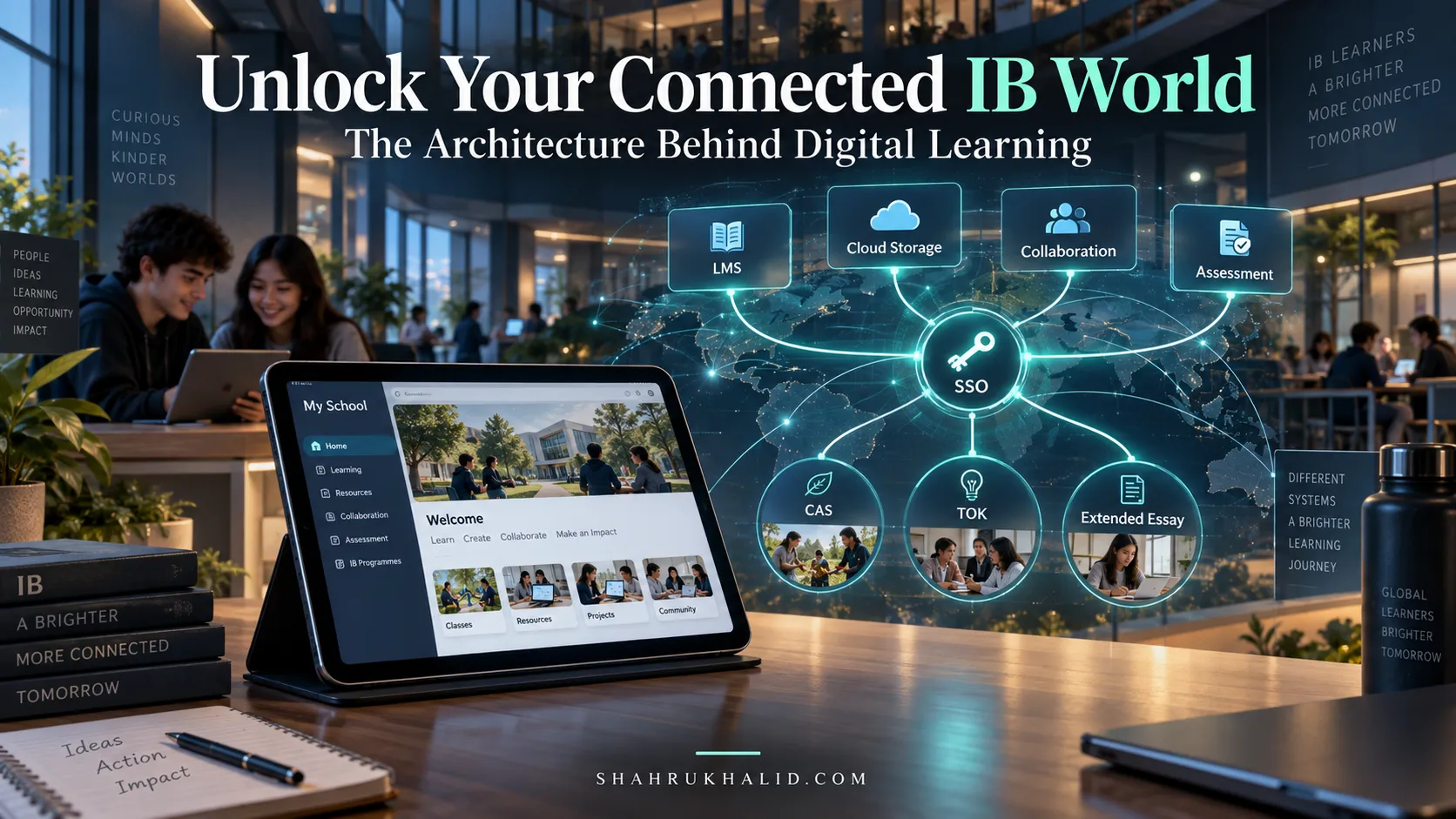
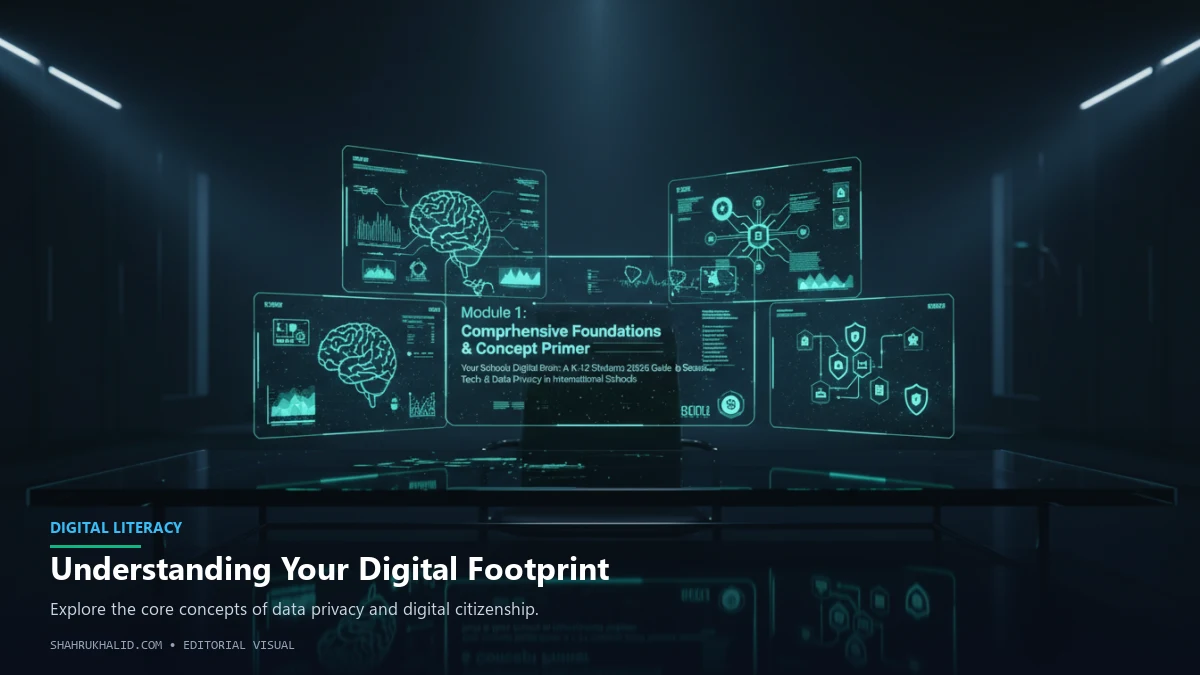
Before we dive into the deep end, let’s start with a simple but powerful idea. Imagine your school isn’t just a building, but a living, thinking organism. It has memories, it processes information, it communicates, and it helps you learn and grow. All the technology your school uses—from the app where you check your grades to the platform where you submit your history paper—forms the different parts of this “Digital Brain.”
Understanding this brain is the first step toward mastering your digital life at school. Why? Because every single time you log in, submit an assignment, or collaborate on a project, you’re interacting with it. You’re creating and sharing information—your data. And in the world of 2026, your data is not just a string of ones and zeros; it’s the digital DNA of your academic identity.
Your School’s Digital Brain: A Simple Analogy
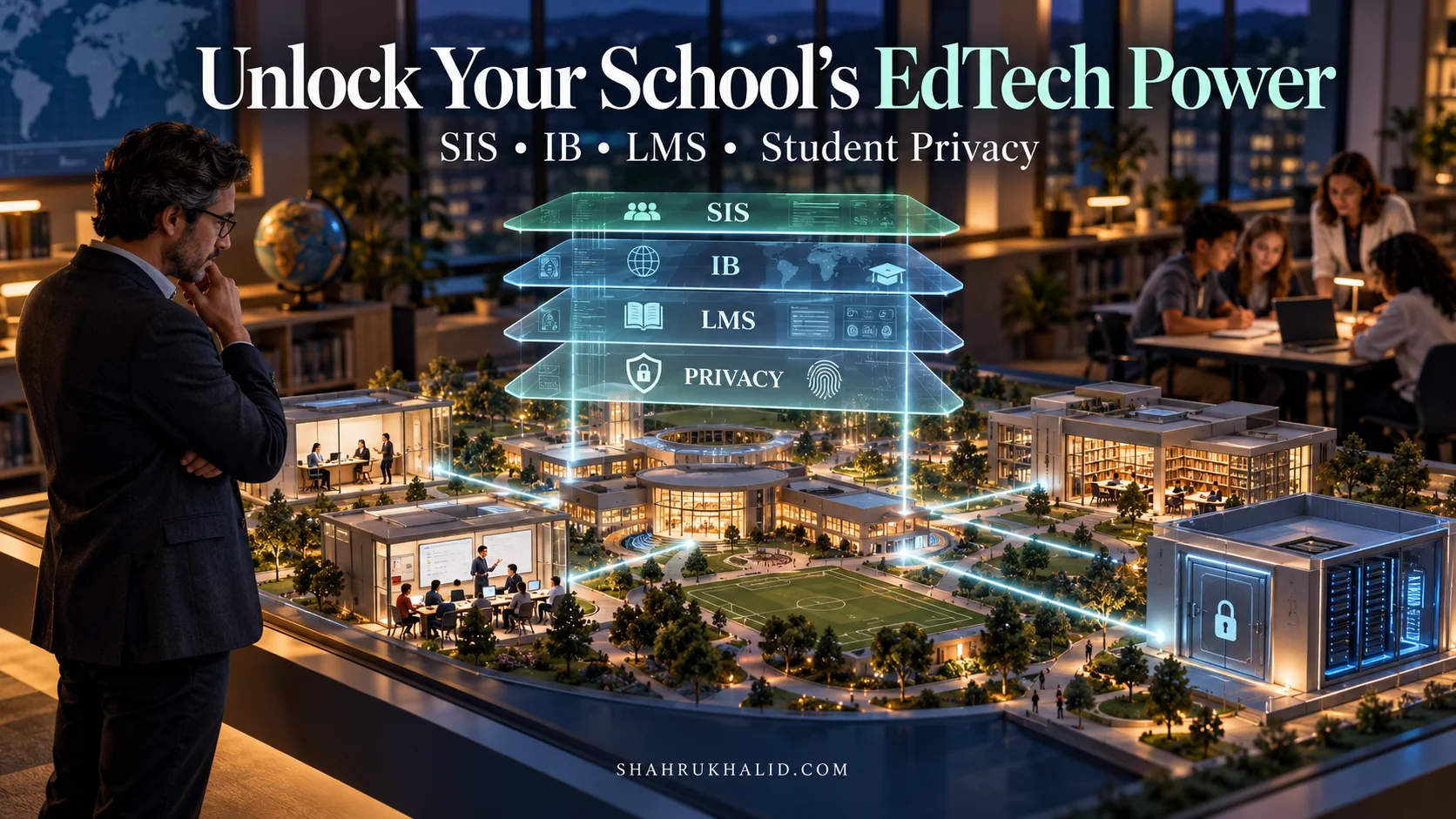
Let’s break down this Digital Brain. It’s not one single thing; it’s a network of specialized parts working together, much like our own brains.
- The Long-Term Memory (The Hippocampus): Your Student Information System (SIS)
This is the core, the bedrock of your school identity. Think of it as the part of the brain that stores your most fundamental memories: your name, your date of birth, your parents’ contact information, your official grades, your attendance record. For many international schools, this system might be something like Rediker’s AdminPlus or a similar platform. You rarely interact with it directly, but it’s the “source of truth” that tells every other system who you are. It’s the official record. When you graduate, the transcript you get comes from the deep archives of the SIS.
- The Working Memory (The Prefrontal Cortex): Your Learning Management System (LMS)
This is where the action happens day-to-day. It’s your digital classroom. Platforms like ManageBac (especially for IB schools), Google Classroom, Canvas, or SeeSaw are your working memory. This is where your brain juggles current tasks: “What’s my math homework tonight? When is my TOK essay due? Where are the resources for the science fair?” The LMS is constantly talking to the SIS. It pulls your class schedule and name from the SIS to know which digital classrooms you belong in. It’s the hub of your daily academic life.
- The Creative & Social Lobes: Your EdTech Apps & Collaboration Tools
This is the vibrant, ever-changing landscape of specialized applications. Turnitin, Kahoot!, Padlet, Miro, Google Docs, Microsoft Teams. These are the tools your brain uses for specific, creative, or collaborative tasks. Think of them as specialized skills. One tool helps you check your essay for plagiarism, another helps you brainstorm with classmates on a virtual whiteboard, and another turns a vocabulary review into a fun game. These tools are often “plugged into” your LMS, creating a seamless workflow but also a complex web of data sharing.
- The Nervous System (The Neurons): APIs and Integrations
This is the invisible magic that connects everything. An API (Application Programming Interface) is simply a set of rules that allows different software programs to talk to each other. It’s like a waiter in a restaurant. You (an app) give the waiter (the API) your order (a data request). The waiter takes it to the kitchen (another app or server), and brings back your food (the data you asked for). When you use your Google account to log into a new app like Quizlet, you are using Google’s API. When your Turnitin score automatically appears in ManageBac, that’s an API at work. As we’ll see, understanding what “order” you’re approving is crucial for your privacy.
Why This Matters More Than Ever in 2026: The Core Principles of K-12 Tech Privacy
So, why the sudden urgency? Why is a guide like this essential for you in 2026? Because the Digital Brain is getting smarter, more personalized, and hungrier for data. AI tutors will adapt to your learning style, virtual reality labs will track your movements to help you master a chemistry experiment, and your digital portfolio will showcase your skills to universities in ways a simple transcript never could.
This is incredibly exciting. But it also means we need to be more intentional and principled about our digital lives. This brings us to a crucial topic: student data privacy K-12. This isn’t about hiding or being paranoid. It’s about being smart, safe, and in control. It’s about understanding the “rules of the road” for the digital world.
Here are the three core principles you need to know, translated into plain English:
- Data Minimization: “Pack Lightly.”
The principle is simple: An app or service should only collect the data that is absolutely necessary for it to do its job.
- Real-World Analogy: Think about packing for a weekend trip. You pack shorts and a t-shirt for the beach, not a heavy winter coat. In the same way, a simple calculator app on your phone has no business asking for access to your contacts list. A digital flashcard app doesn’t need to know your precise location. Learning to spot when an app is trying to “overpack” your data is a critical skill.
- Purpose Limitation: “Use It For One Thing Only.”
This means that data collected for one specific purpose shouldn’t be used for another purpose without your permission.
- Real-World Analogy: You give your friend your house key so they can water your plants while you’re away. You don’t expect them to then use that key to host a party or snoop through your closets. Similarly, when you submit an essay to a plagiarism checker, your data should be used for that one purpose—checking for plagiarism. It shouldn’t be sold to advertisers or used to build a psychological profile of you.
- Consent & Control: “You’re the Boss.”
This is the most important principle. You have the right to know what data is being collected about you, who it’s being shared with, and why. You also have the right to control that data, including the right to see it and, in many cases, to have it deleted.
- Real-World Analogy: It’s like a permission slip. Before you go on a school trip, your parents have to sign a form that clearly states where you’re going, what you’ll be doing, and who is responsible. In the digital world, those “I agree to the Terms of Service” checkboxes are permission slips. Our goal is to teach you how to actually read and understand what you’re signing.
Answering the big question, Why is data privacy important for K-12 students?, is simple. Your data tells a story about you—your strengths, your weaknesses, your interests, your habits. In the short term, protecting this data keeps you safe from scams, identity theft, and online bullying. In the long term, it’s about shaping your own narrative. The digital footprint you create today will be seen by university admissions officers, scholarship committees, and future employers. By managing your privacy, you ensure that the story your data tells is the one you want to tell—one of a responsible, capable, and principled digital citizen. This is a core part of what the IB Learner Profile means by being “Principled” in a modern, global context.
Prerequisites & Complete Environment Setup
Now that we understand the “why,” let’s get our hands dirty with the “how.” Think of this module as setting up your personal digital headquarters. Just as you organize your backpack and desk for a successful school day, you need to organize your digital tools to be secure, private, and efficient. We’re going to build a strong foundation that will protect you across every single app and website you use for school.
This isn’t about buying expensive software. It’s about using the tools you already have, but using them smarter. We’ll go step-by-step.
Step 1: Build Your Digital Vault with a Password Manager
This is the single most important step you can take to protect your digital life. Period.
- The Problem: You have dozens of accounts: school email, Google/Microsoft, ManageBac, Khan Academy, Quizlet, your social media, and more. Most people either use the same simple password for everything (like `MydogFluffy123`) or slight variations of it. This is like using the same key for your house, your car, your locker, and your diary. If a thief gets that one key, they have access to your entire life.
- The Solution: A Password Manager. A password manager is a super-secure, encrypted digital vault that creates, stores, and remembers a unique, complex password for every single website you use. You only have to remember one thing: the single, super-strong “master password” to unlock your vault.
- Plain-English Explanation: It’s like having a magical keychain with a million unique, un-pickable keys. You just need the one master key to open the keychain itself.
Your Action Plan: Setting Up Your Vault
- Choose Your Manager: There are many great options. Bitwarden is a fantastic, free, and open-source choice. 1Password and Dashlane are also excellent premium options that your family might already use. For this guide, let’s use Bitwarden as our example because it’s accessible to everyone.
- Install It: Go to the official Bitwarden website and create an account. Then, install two things:
- The browser extension for Chrome, Firefox, Safari, or Edge. This is what will help you log in to websites automatically.
- The mobile app for your phone. This gives you access to your passwords on the go.
- Create a STRONG Master Password: This is the key to your kingdom. It needs to be long and memorable to you, but impossible for others to guess. Don’t use `Password123!`. A great method is to string together four or more random words, like `Correct-Horse-Battery-Staple`. Or use a phrase that means something to you, like `MyFirstIBProjectWasOnPhotosynthesis!2024`. Write this password down and store it in a physically safe place (like a drawer in your parents’ desk) while you’re memorizing it. After a week, you’ll know it by heart.
- Start Saving Passwords: Now, go to your key school websites (LMS, SIS portal, email). Instead of logging in, use Bitwarden’s password generator to create a new, long, random password (e.g., `k&^9$p@z!J#s7@qG`). Save this new login to Bitwarden, and then use it to update your password on the website. Do this for 2-3 key accounts to start. Over time, you’ll add all of them.
Verification Checklist
- [ ] I have created an account with a password manager.
- [ ] I have created a strong, unique master password that I can remember.
- [ ] I have installed the browser extension and the mobile app.
- [ ] I have successfully changed the password for my school email account to a new, generated password and saved it in my vault.
Step 2: Fortify Your Logins with Two-Factor Authentication (2FA)
If a password manager is a strong lock on your door, 2FA is the security chain. It means that even if someone steals your password (your key), they still can’t get in without a second piece of proof that you are who you say you are.
- Plain-English Explanation: It’s like when you use your ATM card (something you have) and then enter your PIN (something you know). 2FA on a website requires your password (something you know) and a temporary code, usually from an app on your phone (something you have).
Your Action Plan: Enabling 2FA
- Get an Authenticator App: The most common and secure method for 2FA is an app on your phone that generates time-sensitive 6-digit codes. Download a free one like Google Authenticator, Microsoft Authenticator, or Authy.
- Enable 2FA on Your Core Accounts: Start with the most important one: your primary school email (whether it’s Google Workspace or Microsoft 365).
- For Google: Go to your Google Account settings > Security > 2-Step Verification. Follow the on-screen instructions. It will show you a QR code.
- For Microsoft: Go to your Microsoft Account settings > Security > Advanced security options > Turn on two-step verification. It will also guide you to set up the app.
- Scan the Code: Open your authenticator app (e.g., Google Authenticator) and tap the ‘+’ button. Choose “Scan a QR code.” Point your phone’s camera at the QR code on your computer screen.
- Save & Verify: The app will now show a 6-digit code for that account that changes every 30 seconds. The website will ask you to enter the current code to prove you’ve set it up correctly. You’re done! Now, whenever you log in from a new device, you’ll need your password and a code from the app.
Verification Checklist
- [ ] I have an authenticator app installed on my phone.
- [ ] I have successfully enabled 2FA on my main school email account.
- [ ] I have saved the backup codes the service provides and stored them in a safe place (like with my master password).
Step 3: Configure Your Digital Workspace for Privacy
Your web browser is your window to the internet. Let’s install some curtains. Your schoolwork should be done in a clean, private environment, free from unnecessary tracking.
Your Action Plan: Browser and File Organization
- Choose a Privacy-Conscious Browser (or Enhance Your Current One):
- Good: Standard browsers like Google Chrome or Microsoft Edge are fine, but we need to tweak them.
- Better: Mozilla Firefox is a fantastic non-profit-backed browser with strong default privacy protections.
- Best for Privacy: Brave is a browser with a built-in ad and tracker blocker.
- Install Key Extensions (for Chrome/Firefox/Edge):
- uBlock Origin: This is the gold standard for blocking ads and trackers. It will make pages load faster and stop advertisers from following you around the web.
- Privacy Badger: From the Electronic Frontier Foundation (EFF), this extension specifically learns to block invisible trackers.
- Tweak Your Browser Settings:
- Set your default search engine to a privacy-respecting one like DuckDuckGo.
- In your browser’s privacy settings, find the option to “Block third-party cookies.” This is a huge step in preventing cross-site tracking.
- Organize Your Digital Files: A messy digital desktop is as bad as a messy physical one. It can lead to you accidentally sharing the wrong document. Create a simple, logical folder structure in your cloud storage (Google Drive/OneDrive).
- Example Directory Layout:
/ 11th Grade – IB
/ Biology HL
/ Unit 1 – Cell Biology
/ Notes
/ Assignments
/ Lab Reports
/ History SL
/ IA – Historical Investigation
/ Research Articles
/ Drafts
/ Final Submission
/ TOK
/ Exhibition
/ Essay
This structure makes it easy to find what you need and, crucially, helps you set sharing permissions at the folder level, reducing the risk of mistakes.
Verification Checklist
- [ ] I have installed an ad/tracker blocker like uBlock Origin.
- [ ] I have set my browser to block third-party cookies.
- [ ] I have created a logical folder structure for the current school year in my cloud drive.
By completing this module, you’ve built a personal digital fortress. You now have the prerequisites to engage with your school’s Digital Brain and the wider internet safely and confidently.
Core Implementation Architecture & Workflow Blueprint
Alright, you’ve secured your personal digital space. Now, let’s zoom out and look at the bigger picture: the school’s “Digital Brain” itself. How do all these systems your school has purchased and set up actually work together? Understanding this architecture is not just for IT administrators; it’s for you, the student. When you know how the data flows, you can make smarter decisions and troubleshoot problems more effectively.
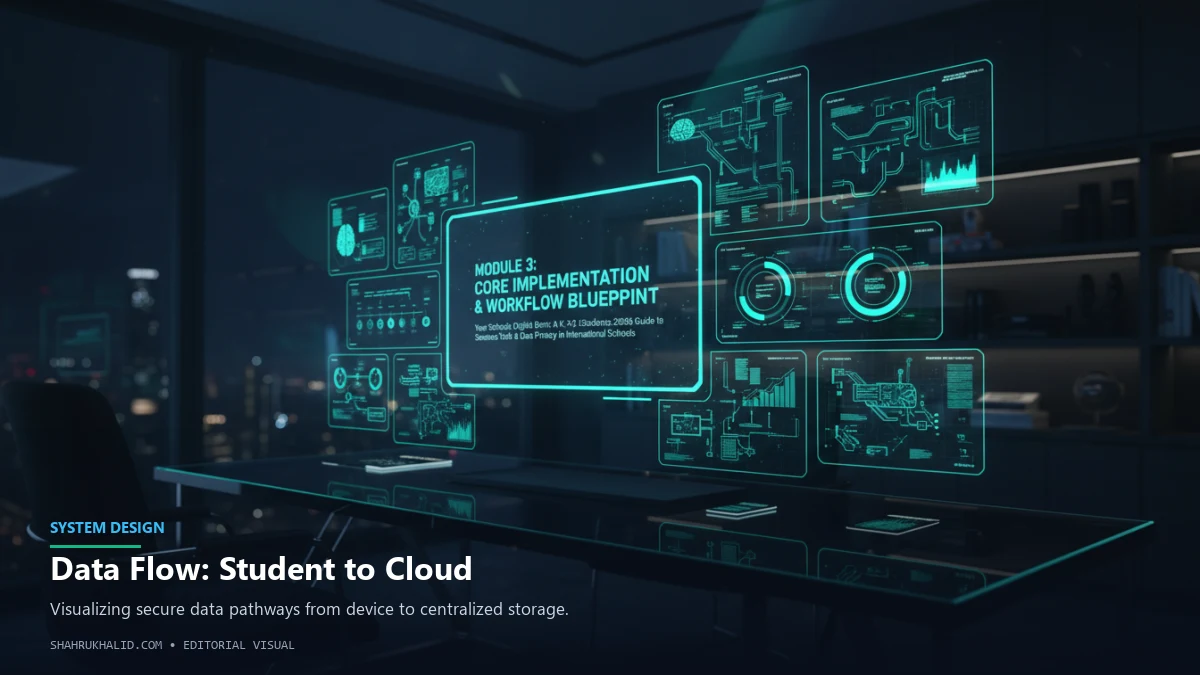
We’re going to map out this architecture using a series of “visual cards” to represent the different parts of the brain. Then, we’ll trace the journey of a single piece of your work—your IB Extended Essay—as it travels through this system.
The Architecture of the Digital Brain: Visual Cards
Imagine these as interconnected nodes in a network. Each one has a specific job, and they are constantly communicating.
[Visual Card 1: The Core Identity]
System: Student Information System (SIS)
Brain Analogy: The Hippocampus (Long-Term Memory & Identity)
Real-World Examples: Rediker AdminPlus, PowerSchool, Veracross
What it Stores:
- Who You Are: Legal Name, Student ID Number, Date of Birth, Address.
- Your Official Record: Final Grades, Report Cards, Transcripts, Attendance, Disciplinary Actions.
- Your Connections: Parent/Guardian Information, Emergency Contacts.
How You Interact with It: Mostly indirectly. You might log into a “Parent/Student Portal” to see your final report card, which is pulling data directly from the SIS. Its main job is to be the single, authoritative source of truth. As a researcher who has seen the backend of these systems (as detailed on platforms like rediker.com), I can tell you they are complex databases designed for security and accuracy above all else. Your school’s administration lives in this system.
[Visual Card 2: The Daily Workspace]
System: Learning Management System (LMS)
Brain Analogy: The Prefrontal Cortex (Working Memory & Task Management)
Real-World Examples: ManageBac, Google Classroom, Canvas, Schoology
What it Stores:
- Your Classes: Which courses you’re enrolled in
Frequently Asked Questions