Your 2026 K-12 Digital Ecosystem Survival Guide: Seamless Tech, Data Privacy, and Student Power in International Schools

Key Takeaways
- Students can master their digital destiny by understanding their school's complex digital ecosystem.
- A K-12 digital ecosystem is the interconnected suite of tools and data streams powering modern education.
- The Student Information System (SIS) is the central, official record-keeper for all core student administrative data.
- The Learning Management System (LMS) facilitates core teaching, learning, assignments, and teacher-student interaction.
- Understanding the digital ecosystem transforms student frustration with disparate apps into confident navigation.

This isn’t just another guide about using school software. This is your survival guide, your blueprint, and your masterclass for not just surviving, but thriving in the complex digital environment of your school by 2026. We’re going to pull back the curtain on the systems that track your grades, deliver your assignments, and store your data. We’ll turn confusion into confidence, and you’ll walk away as the master of your own digital destiny. Let’s begin.
Comprehensive Foundations & Concept Primer
I remember a conversation with a Grade 10 student named Maya. She was frustrated. “Ms. Shah,” she said, holding up her phone, “I have an app for my grades, a website for my homework, a different login for the library, my teachers use three different chat apps, and my parents get emails I never see. I feel like I’m an IT manager, not a student.”
Maya perfectly described the chaos many students feel. But what she was navigating, without having a name for it, was her school’s K-12 digital ecosystem. And understanding that name is the first step to taming the chaos.
What in the World is a K-12 Digital Ecosystem? (And Why It’s Not as Scary as It Sounds)
Let’s get the big question out of the way: What is a K-12 digital ecosystem?
Forget servers and code for a moment. Think of your school as a city. For this city to function, it needs infrastructure. It needs roads for people to travel on, a power grid to supply electricity, a water system, and buildings like libraries and hospitals. All these systems have to work together. You can’t have a hospital with no power or a library with no roads leading to it.
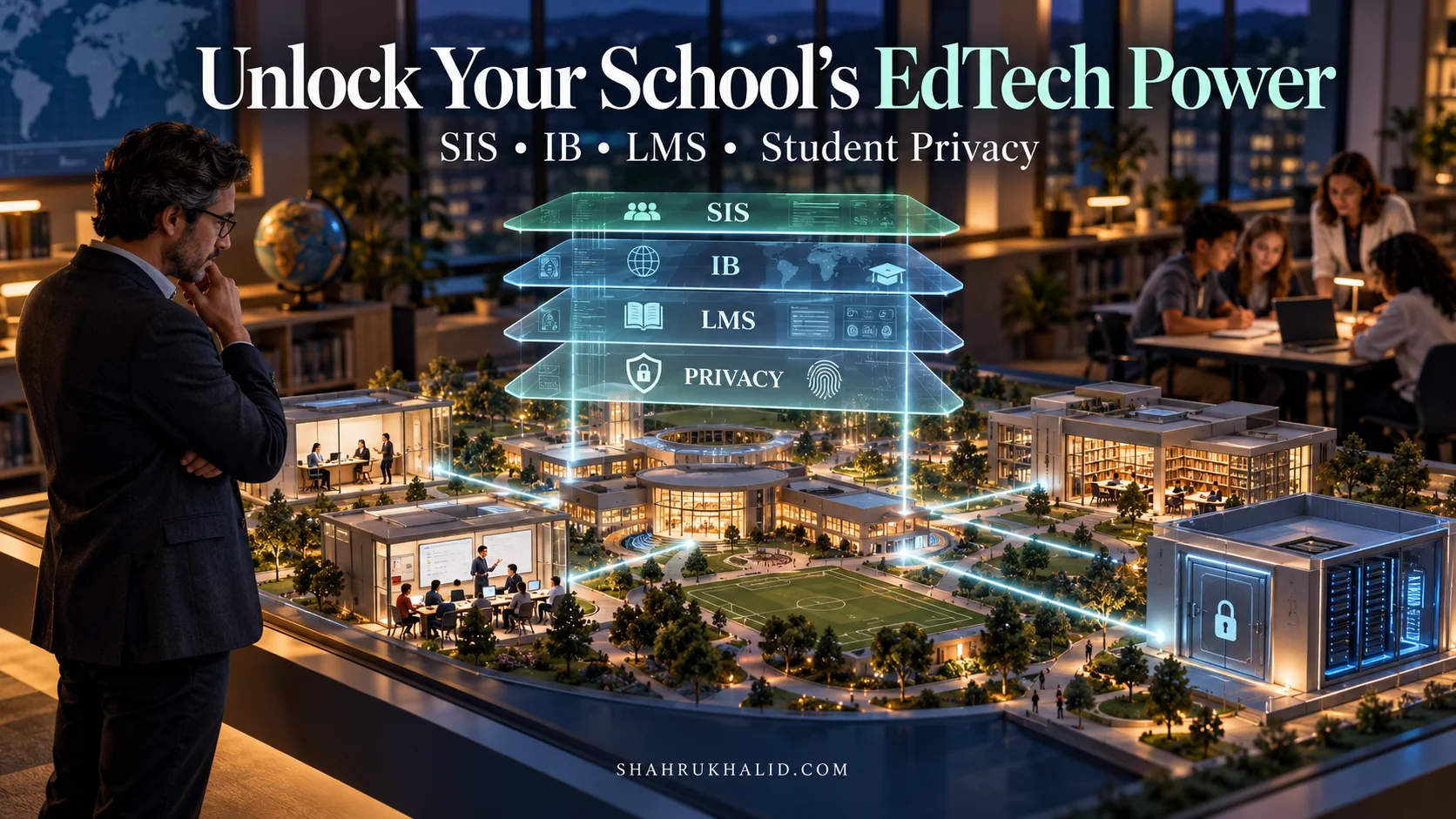
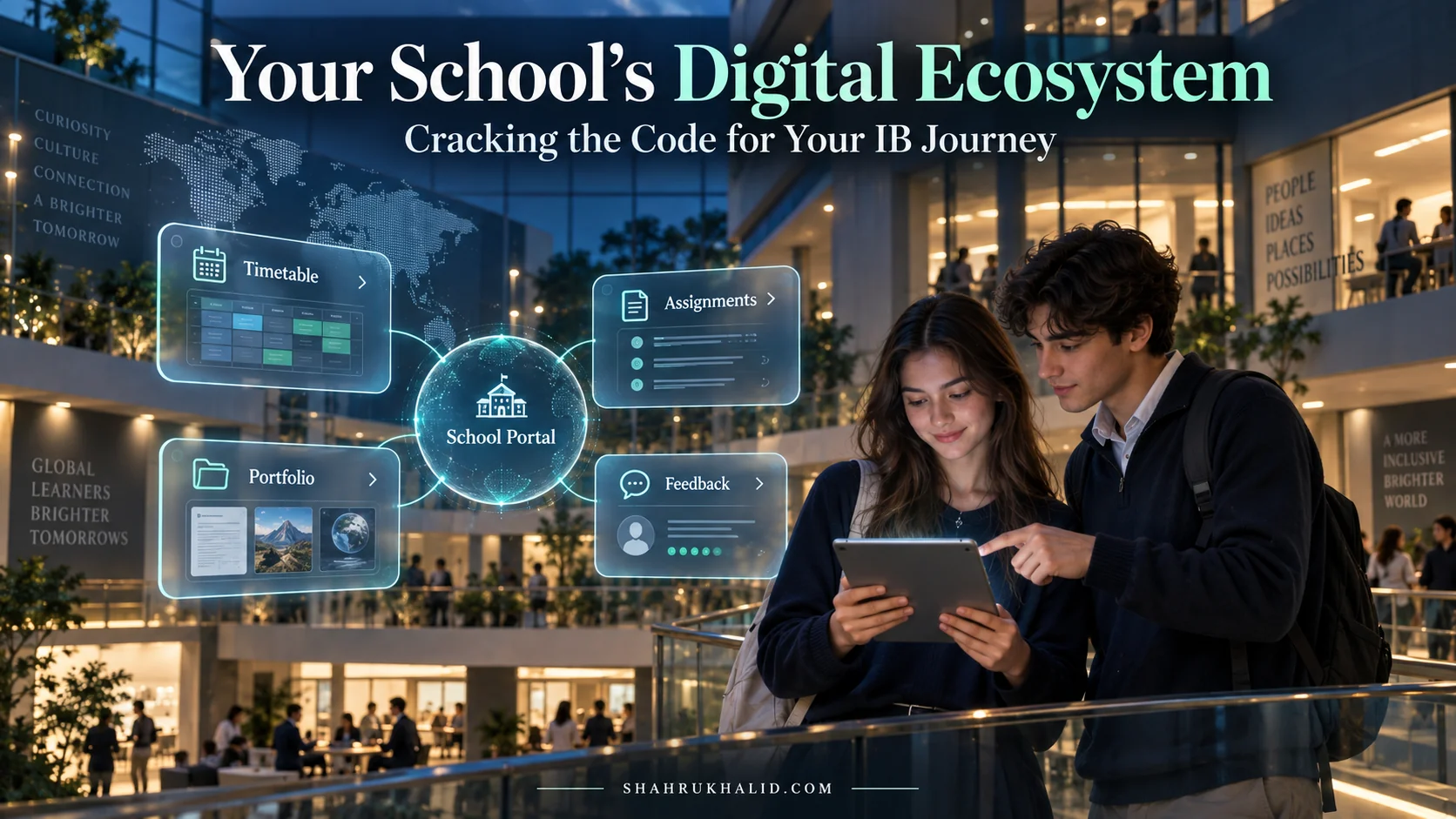
A K-12 digital ecosystem is the digital infrastructure of your school city. It’s not just one app or one website. It’s the entire collection of interconnected tools, platforms, and data streams that make your modern education possible.
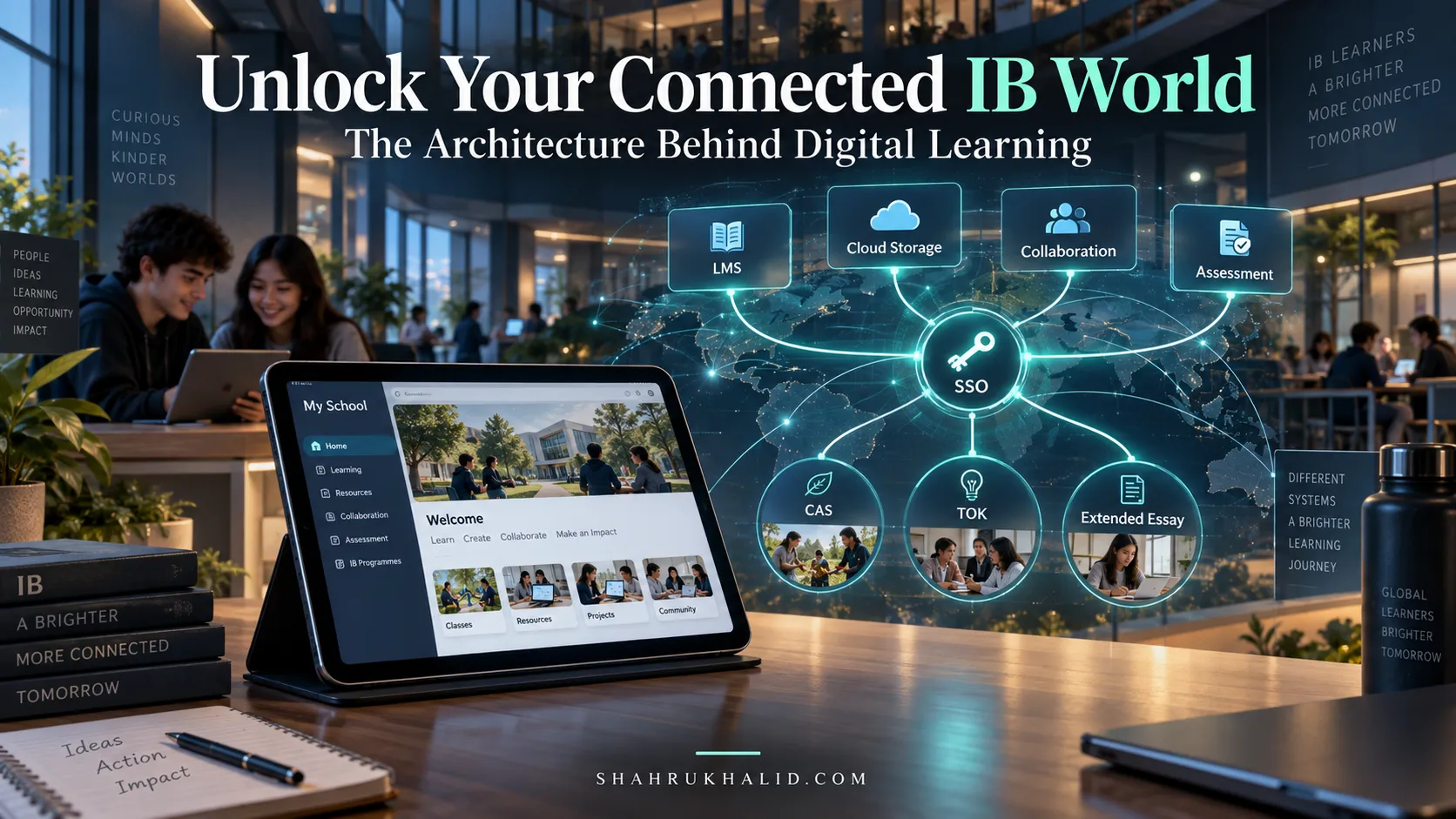
- *The Student Information System (SIS): This is City Hall. It’s the official record-keeper. Systems like Rediker’s AdminPlus, which many schools use, are the central database holding your core identity: your name, your grade level, the classes you’re enrolled in, your attendance, and your final report card grades. As noted by Rediker.com’s architecture, this is the single source of truth for administrative data. When you enroll for the next school year, that information lives in the SIS.
- The Learning Management System (LMS): This is the school building itself. It’s where the actual learning and teaching happen. Platforms like Google Classroom, Canvas, Schoology, or ManageBac are your digital classrooms. Here you find your assignments, submit your work, participate in discussions, and get feedback from your teachers.
- Communication & Collaboration Tools: These are the roads, bike paths, and public squares of your city. They are how information and ideas travel. This includes your school email (Google Workspace, Microsoft 365), chat apps (Teams, Slack), and collaborative document platforms (Google Docs, Office Online).
- *Content & Application Libraries: This is the city’s library, museum, and workshop combined. It includes the digital databases your library subscribes to (like JSTOR or EBSCO), specialized software for your art or science classes (like Adobe Creative Cloud or PhET Simulations), and even the tools you use for standardized tests.
The magic—and the headache—happens when these systems talk to each other. A seamless
digital learning ecosystem
is one where these parts work together in harmony. Your teacher posts a grade in the LMS, and it automatically appears in the SIS portal for you and your parents to see. You log in to the library database using your single school account, no extra password needed. That’s the goal. When they don’t work together, you end up feeling like Maya, juggling a dozen logins and wondering where to find anything.
The Core Principles: Your Rights in the Digital School
By 2026, your life as a student will be even more deeply embedded in this ecosystem. Understanding it isn’t just for convenience; it’s about understanding your rights and your power. This whole system rests on three core principles, and you are at the center of all of them.
- *Interoperability (Or, “Why Can’t These Apps Just Be Friends?”): This fancy word simply means that different software systems can talk to each other and share information smoothly. When your school’s tech team, like the experts at shahrukhalid.com who specialize in campus technology integration, does their job well, they build “digital bridges” between your LMS and SIS. This is what allows for a single sign-on (one password for everything) and for your data to flow logically from classroom to report card. When this is broken, you feel the pain of multiple logins and disconnected information.
- *Student Data Privacy (This is a BIG one): Every action you take in this ecosystem creates a data point. Logging in, submitting an essay, watching a video, even how long you spend on a quiz question.
Student data privacy K-12
is the collection of rules, laws, and ethical obligations your school has to protect that information. It answers questions like: Who can see my grades? Is the company that makes this math app selling my data? How is my personal information being stored and secured? We will dive deep into this, because protecting your digital self is one of the most important skills you can learn.
- Student Agency & Empowerment (Your Superpower): This is the most exciting principle. Technology in school shouldn’t be something that just happens to you. It should be a set of tools that you can wield to take control of your learning. How does technology empower students in K-12? It happens when you move from being a passive consumer (just receiving assignments) to an active architect of your education. It’s when you use these tools to organize your time, collaborate with peers across the globe, create stunning multimedia projects that show what you really know, and build a portfolio of your work that will blow away university admissions officers. The International Baccalaureate (IBO.org) champions this through its Learner Profile, encouraging students to be inquirers, communicators, and risk-takers—all traits that are amplified in a well-used digital environment.
So, why is this a “survival guide”? Because in the near future of K-12 education, students who understand this ecosystem will have a massive advantage. They’ll be more organized, more efficient, and better advocates for their own privacy. They will be empowered creators, not just passive students. You are about to become one of them.
Prerequisites & Complete Environment Setup
Before a chef can create a masterpiece, they must first organize their kitchen. They arrange their knives, prepare their ingredients, and clear their workspace. This process, called mise en place, ensures that when the cooking starts, everything is efficient, clean, and ready.
This module is your mise en place. We’re not installing servers or coding. We are intentionally and thoughtfully setting up your personal digital environment. This is about transforming your laptop and accounts from a chaotic jumble into a streamlined, powerful “Command Center” for your academic life. This setup is the foundation for everything else we’ll do.
Step 1: Forge Your Master Key – The Password Manager
Let’s be honest. You have too many passwords. `SchoolLMS_2025!`, `LibraryPortal?`, `StudentEmail123`. It’s a nightmare. You either use the same weak password everywhere (a huge security risk) or you’re constantly clicking “Forgot Password.” There is a better way, and it is non-negotiable for digital survival.
What it is: A password manager is a highly secure, encrypted digital vault that creates, stores, and fills in unique, complex passwords for every single site you use. You only have to remember one single, strong “master password” to unlock the vault.
Why it’s essential for you:
- *Ironclad Security:It allows you to have a completely different, unguessable password like
k9#B&z@p8*Vq7$L!for every school service. If one service gets breached, the rest of your accounts are safe. - Supreme Convenience: No more typing passwords. The manager will autofill them for you on your laptop and phone. It saves you dozens of clicks and headaches every single day.
- *Digital Adulthood: This is a life skill. You will use this for banking, work, and everything else for the rest of your life. Start now.
Your Practical Exercise: Setting Up Your Vault
- Choose Your Tool: There are many excellent options. Bitwarden offers a fantastic free version. 1Password and Dashlane are popular premium choices that often have student discounts. Talk to your parents and pick one.
- Create a STRONG Master Password: This is the one password you must remember. Make it a long phrase that is unique and memorable to you, adding in numbers and symbols. Something like `My!Favorite-Dog-Was-A-Golden-Retriever-Named-Sunny19` is far better than `P@ssword1`. Write it down and store it in a physically secure location (not on a sticky note on your monitor!) while you are memorizing it.
- Install the Browser Extension and App: Install the manager’s extension for your web browser (Chrome, Firefox, Safari) and the app on your phone.
- The Great Password Migration: Now, go through your key school sites one by one:
- Go to your LMS login page.
- Instead of typing your old password, use the password manager’s generator to create a new, long, random password.
- Go to the site’s “Change Password” or “Account Settings” page.
- Update your password to the new one your manager created.
- Let the manager save this new login.
- *Verification: Log out and log back in. The password manager should prompt you to autofill the new, complex password. Success! Repeat this for your school email, the SIS portal, the library, and any other school-related accounts. It might take an hour, but it’s the single best investment you can make in your digital sanity and security.
Step 2: Architect Your Digital Filing Cabinet – Cloud Storage Structure
“I can’t find the file.” “Which version is the final one?” “I did it on my home computer, but it’s not on my school laptop.” These are the cries of a student without a system. Your cloud storage (Google Drive, OneDrive, Dropbox) is your digital backpack, locker, and filing cabinet all in one. Let’s organize it.
The Goal: A consistent, predictable folder structure that you can navigate with your eyes closed. It should be the same everywhere—on your computer, in the cloud, everywhere.
Your Practical Exercise: Building the Blueprint
- Open Your Cloud Drive: Go to Google Drive or OneDrive.
- Create the Master `School` Folder: Create one top-level folder. Name it `School` or `Academics`. All school-related work lives here. No exceptions.
- Create Folders by Academic Year: Inside `School`, create a folder for the current year, e.g., `2025-2026 (Grade 11)`. This keeps your work from different years cleanly separated.
- Create Folders by Subject: Inside the year folder, create a folder for each of your classes: `IB History HL`, `Physics SL`, `English A Lit`, `ToK`.
- (Optional) Create Unit Folders: For complex subjects, you might go one level deeper. Inside `IB History HL`, you could have folders like `Unit 1 – The Move to Global War` and `Unit 2 – Authoritarian States`.
- *The Golden Rule: When you start a new document, create it or save it in the correct folder immediately. Don’t save it to your Desktop or Downloads folder “for later.” Later never comes.
Example Directory Layout:
└── 📁 School/
└── 📁 2025-2026 (Grade 11)/
├── 📁 English A Lit/
│ ├── 📄 Hamlet Essay Draft 1.gdoc
│ └── 📄 Poetry Analysis Notes.gdoc
├── 📁 IB History HL/
│ ├── 📁 Unit 1 – The Move to Global War/
│ │ ├── 📄 Reading Notes – Japan.gdoc
│ │ └── 🖼️ Manchuria Invasion Map.jpg
│ └── 📁 Unit 2 – Authoritarian States/
└── 📁 ToK/
└── 📄 Presentation Outline.gdoc
This simple habit will save you countless hours of frantic searching and prevent you from ever losing a file again.
Step 3: Tune Your Cockpit – Browser & Notification Sanity
Your web browser is your primary window into the K-12 digital ecosystem. But by default, it’s a noisy, distracting place. We’re going to tune it for focus and efficiency.
Your Practical Exercise: Taming the Browser
- Create a “School” Profile: Most browsers (like Chrome and Edge) let you create user profiles. Create a dedicated profile just for school. This keeps your school bookmarks, history, and logins separate from your personal browsing. When you’re in your “School” profile, you’re in work mode.
- Bookmark the Essentials: In your School profile, create a bookmarks bar. Add one-click links to your most critical sites:
- LMS Dashboard
- SIS Grade Portal
- School Email
- Library Homepage
- School Calendar
- Install Power-Up Extensions: Add a few key browser extensions to supercharge your workflow.
- Your Password Manager: (You did this in Step 1!)
- A Citation Manager: Zotero Connector, MyBib, or NoodleTools. These let you grab a source from a webpage and add it to your bibliography with one click. This is a game-changer for research projects like the IB Extended Essay.
- A Distraction Blocker: An extension like Freedom or LeechBlock can temporarily block sites like YouTube or Reddit during study sessions. Use your power wisely.
- The Notification Audit: Your phone and laptop are constantly screaming for your attention. It’s time to silence the noise.
- Go into your phone’s settings (`Settings > Notifications`).
- Go through the list of apps one by one. Be ruthless.
- Does the LMS app need to send you a push notification for every forum post? Probably not. Maybe just for new assignments and grades. Adjust the settings within the app or in your phone’s OS.
- Does your school email need to buzz your phone for every single message? Or can you just check it a few times a day?
- The goal is to only be alerted for things that are truly urgent and important. Everything else can wait. This single act will reclaim hours of your focus.
By completing this mise en place, you’ve built a personal system that is secure, organized, and optimized for deep work. You’ve taken control. Now, let’s look at how the school’s side of this architecture works.
Core Implementation Architecture & Workflow Blueprint
Alright, you’ve organized your personal digital world. Now, let’s zoom out and look at the “city plan” of your school’s K-12 digital ecosystem. How does information actually flow from your teacher’s keyboard to your report card? Understanding this architecture isn’t about being a tech expert; it’s about being an informed citizen of your digital school. When you know how the roads are laid out, you can navigate them more effectively.
We’ll trace the journey of the two most important things in your school life: an assignment and your own data. I’ll use a “visual card” structure to break down each step of the journey.
Blueprint 1: The Lifecycle of a Single Assignment
Imagine your history teacher, Mr. Davies, wants you to write an essay on the causes of World War I. This simple task triggers a complex and fascinating chain reaction across the school’s digital infrastructure.
[VISUAL CARD GRID]
—
Card 1: Creation in the LMS
- Who: Mr. Davies
- Where: The Learning Management System (LMS), e.g., Canvas or Google Classroom.
- *What Happens: He creates a new assignment titled “WWI Essay.” He attaches the prompt (a PDF), a link to a primary source from the school library’s database, and sets a due date. This assignment is linked to a specific grading standard, maybe from the IBO.org curriculum guide for History. The LMS knows this is for his “Period 3, Grade 11 History” class because it gets that class roster information from the SIS.
—
Card 2: Notification & Access
- Who: You
- Where: Your phone, your email, your LMS dashboard.
- *What Happens: The LMS automatically sends you a notification (which you’ve now carefully curated, thanks to Module 2!). You click the link. Because of a good international school technology strategy that focuses on Single Sign-On (SSO), you don’t have to log in again. You’re taken directly to the assignment page. You can see the prompt and click the library link, which also logs you in automatically to access the source.
—
Card 3: The Work Begins
- Who: You
- Where: Your organized cloud drive (e.g., Google Drive).
- *What Happens: Following your file structure from Module 2, you navigate to `School/Grade 11/History/` and create a new Google Doc named `WWI Essay Draft`. You start writing. You use your Zotero extension to add citations as you find more sources.
—
Card 4: Submission
- Who: You
- Where: The LMS.
- *What Happens: When you’re finished, you go back to the assignment page in the LMS. You click “Submit” and choose the file directly from your Google Drive. The LMS and Google Drive are integrated, so it’s a seamless hand-off. The LMS “time-stamps” your submission, creating a permanent record that you turned it in on time.
—
Card 5: Grading & Feedback
- Who: Mr. Davies
- Where: The LMS’s grading interface (e.g., SpeedGrader in Canvas).
- *What Happens: Mr. Davies sees your submission in his queue. He can open your Google Doc directly within the LMS. He uses a rubric to score it against the IB criteria, leaves comments in the margins, and records a final score: 85/100. He clicks “Post Grade.”
—
Card 6: The Sync to the SIS
- Who: The System (This is the magic part!)
- Where: The digital bridge between the LMS and the SIS.
- *What Happens: This is a critical piece of classroom technology integration. A process runs, often overnight, that syncs grades from the LMS to the Student Information System. The bridge, likely designed by a campus tech integrator following principles seen on shahrukhalid.com, matches your name, the class, and the assignment. It pushes the “85” from the LMS into the official SIS gradebook. The LMS is for the day-to-day classroom; the SIS is the permanent, official record.
—
Card 7: The Final Record
- Who: You and Your Parents
- *Where: The SIS Parent/Student Portal (e.g., Rediker’s ParentPlus/StudentPlus Portals).
- What Happens: The next morning, you log into the SIS portal. You see your overall grade for History has been updated. You can click to see the breakdown, and you’ll find “WWI Essay” listed with a score of 85. This is the official grade that will appear on your report card. You can still go back to the LMS to see Mr. Davies’s detailed comments and feedback.
—
This workflow, when it runs smoothly, is a beautiful thing. It connects the pedagogical work of the classroom (feedback, learning) with the administrative needs of the school (grades, records). When you understand this flow, you know that the LMS is the place for feedback and process, while the SIS is the place for the final, official score.
Blueprint 2: The Data Trail of a Single School Day
Now let’s look at a different kind of blueprint. This isn’t about a task; it’s about you. Every interaction you have with the school’s digital systems leaves a trace. Understanding this “data trail” is the first step to becoming a responsible steward of your own digital identity and a fierce advocate for your student data privacy K-12.
Let’s follow a student, “Leo,” through his day.
[DATA TRAIL VISUAL GRID]
—
7:45 AM: Arrival on Campus
- Action: Leo swipes his student ID card to enter the school building.
- Data Point Created:
- System: Physical Access Control System
- Data: `Leo (ID# 1138), Entry_Gate_A, 2026-03-15 07:45:12`
- *What it means: The school’s security system now has a record of when and where Leo entered campus. This is primarily for safety and attendance.
—
8:30 AM: First Period – Biology
- Action: Leo logs into a school Chromebook and opens the LMS to access a simulation for cell division.
- Data Points Created:
- System: Google Workspace for Education Admin Console
- Data: `leo@school.edu logged into Chromebook #CB142, 2026-03-15 08:31:05`
- System: LMS (e.g., Canvas)
- Data: `User leo@school.edu accessed page ‘Cell Division Sim’, spent 14 minutes on page.`
- What it means: The school’s
Building Resilient and Scalable Cloud Architectures for the 2026 K-12 Digital Landscape
As international schools navigate the complexities of the 2026 K-12 digital ecosystem, the underlying cloud infrastructure becomes paramount. Moving beyond simple SaaS consumption, IT leaders must architect resilient, scalable, and cost-effective solutions. A multi-cloud strategy, leveraging providers like AWS, Azure, and GCP, offers enhanced resilience against regional outages and mitigates vendor lock-in, crucial for diverse educational toolsets. Data orchestration layers, often powered by event-streaming platforms like Apache Kafka, become indispensable for integrating disparate learning management systems (LMS), student information systems (SIS), and assessment platforms, ensuring seamless data flow and real-time analytics.
Serverless computing is emerging as a cornerstone for agility and operational efficiency. Functions-as-a-Service (FaaS) can power event-driven microservices, such as automated assignment grading triggers, real-time student feedback processors, or dynamic content delivery based on student progress. This approach reduces server management overhead and scales automatically with demand, optimizing costs. Infrastructure as Code (IaC) tools like Terraform or AWS CloudFormation are vital for managing these complex cloud environments, enabling version-controlled, repeatable deployments and disaster recovery capabilities. Consider this simplified Terraform example for deploying a serverless function that processes student feedback:
resource "aws_lambda_function" "student_feedback_processor" {
  function_name = "studentFeedbackProcessor"
  handler       = "index.handler"
  runtime       = "nodejs18.x"
  role          = aws_iam_role.lambda_exec.arn
  filename      = "feedback_processor.zip"
  source_code_hash = filebase64sha256("feedback_processor.zip")

  environment {
    variables = {
      DB_TABLE = "student_feedback_records"
    }
  }
}

resource "aws_iam_role" "lambda_exec" {
  name = "lambda_exec_role"
  assume_role_policy = jsonencode({
    Version = "2012-10-17"
    Statement = [{
      Action = "sts:AssumeRole"
      Effect = "Allow"
      Principal = {
        Service = "lambda.amazonaws.com"
      }
    }]
  })
}
This IaC approach ensures that every component of the digital ecosystem, from compute to networking and security, is defined programmatically, fostering consistency and reducing manual error. For the 2026 K-12 digital landscape, robust cloud architecture isn’t just about hosting; it’s about enabling innovation and ensuring uninterrupted learning.
Shahrukh Khalid
Fortifying the 2026 K-12 Digital Ecosystem: Advanced Privacy and Zero-Trust Security
Beyond baseline compliance with regulations like FERPA, GDPR, and COPPA, the 2026 K-12 digital environment demands a proactive and sophisticated approach to data privacy and cybersecurity. A fundamental shift towards a Zero-Trust Architecture (ZTA) is critical. ZTA operates on the principle of “never trust, always verify,” meaning no user, device, or application is inherently trusted, regardless of its location (inside or outside the network perimeter). This model is particularly vital in educational settings where diverse devices (BYOD), varying access levels, and sensitive student data are ubiquitous. Key tenets include micro-segmentation, multi-factor authentication (MFA) for all access, least-privilege access controls, and continuous monitoring of all network traffic.
Here’s a comparison highlighting the paradigm shift from traditional security to ZTA:
| Security Principle | Traditional Perimeter Security | Zero Trust Architecture (ZTA) |
|---|---|---|
| Trust Model | Implicit trust for internal users/devices | Explicit verification for every access request |
| Access Control | Network-based, broad access within perimeter | Identity & context-based, granular access |
| Segmentation | Broad network segments (LAN, DMZ) | Micro-segmentation down to individual workloads |
| Monitoring | Perimeter-focused, reactive to breaches | Continuous, pervasive monitoring, proactive threat hunting |
Furthermore, emerging cryptographic techniques like Homomorphic Encryption (HE) hold immense promise for privacy-preserving analytics within the 2026 K-12 digital ecosystem. HE allows computations to be performed on encrypted data without decrypting it, meaning student performance trends or personalized learning paths can be analyzed by third-party AI models without exposing raw sensitive information. While computationally intensive today, advancements in hardware acceleration and algorithms are making HE increasingly viable for specific use cases. Implementing Security Orchestration, Automation, and Response (SOAR) platforms will also be crucial to automate threat detection, incident response, and vulnerability management across the increasingly complex digital footprint of international schools, ensuring rapid containment and remediation of threats.
Shahrukh Khalid