Your 2026 Playbook: How to Build Your First AI-Powered Daily Routine (No Code, Just Simple Steps)
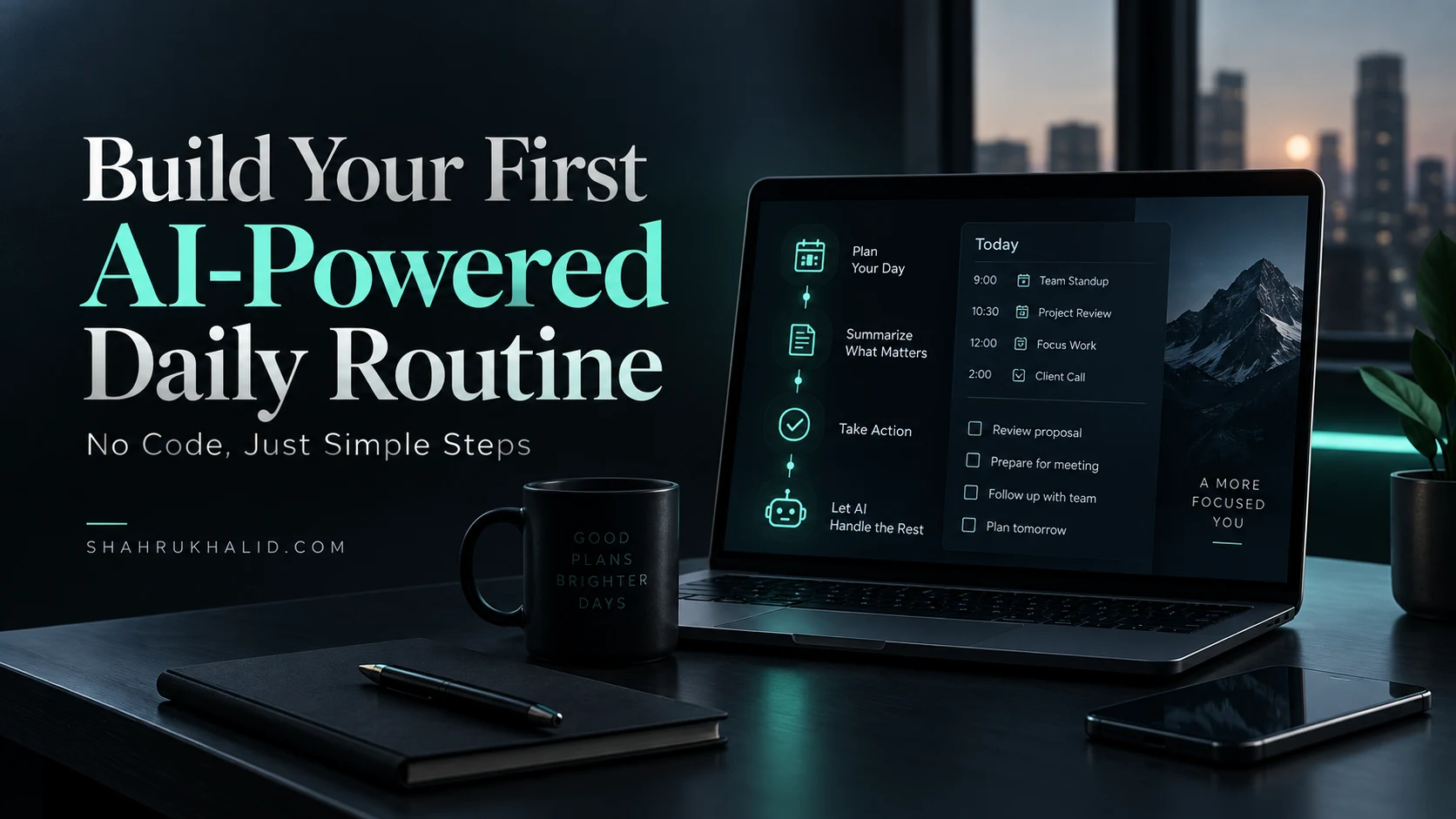
Key Takeaways
- AI transforms digital noise into actionable intelligence for daily routines.
- No-code AI tools democratize personal chief-of-staff capabilities by 2026.
- An AI routine provides summarized news, meeting details, and prioritized tasks.
- AI functions as an 'expert brain' service for tasks like summarizing or analyzing.
- The playbook offers a step-by-step framework to reclaim time and focus.
Forget the intimidating jargon and the endless talk of complex algorithms. We’re going to demystify it all. By the end of this guide, you will have a clear, step-by-step framework to reclaim your time, focus your energy, and design a life where technology serves you, not the other way around. This is your 2026 playbook. Let’s begin.
Comprehensive Foundations & Concept Primer
The Dawn of the Personal Assistant: Why an AI Daily Routine is Your 2026 Superpower
Let’s start with a story. A few years ago, my mornings were a chaotic scramble. The alarm would blare, and my first conscious action was to grab my phone and dive headfirst into a storm of notifications, emails, news alerts, and social media updates. I was reacting, not acting. My day was being dictated to me by a thousand different digital voices before I’d even had my first cup of coffee. Sound familiar?
Now, imagine a different morning. You wake up calmly. Instead of a barrage of raw data, a single, beautifully summarized message is waiting for you. It contains the top three news stories you actually care about, a summary of your first two meetings of the day along with links to relevant documents, a reminder of your top priority from your to-do list, and a weather forecast tailored to your commute. This isn’t science fiction. This is what an AI daily routine looks like in practice. It’s about transforming digital noise into actionable intelligence.
So, how can AI improve my daily routine? The answer is simple: by acting as your personal chief of staff. Think of the most effective CEOs or leaders. They don’t personally sift through every single piece of information. They have a team that filters, summarizes, prioritizes, and presents what’s most important so they can make high-quality decisions. By 2026, this capability will no longer be the exclusive domain of the C-suite. No-code AI automation tools have democratized it, making it accessible to anyone willing to learn a few simple steps.
Eliminating the Jargon: AI, Automation, and No-Code Explained with Simple Analogies
The tech world loves its acronyms and buzzwords. Let’s cut through them. When you’re just starting, you only need to understand three core concepts. I like to explain them using a coffee shop analogy.
1. Artificial Intelligence (AI): The Expert Barista.
Imagine an incredibly skilled barista. You don’t just tell them “make coffee.” You can give them vague instructions like, “I’m feeling a bit tired and want something smooth but strong,” and they know exactly what to do. They can take raw ingredients (beans, milk, water) and use their expertise to create something new and valuable (a perfect latte). In our world, AI is that “expert brain.” It’s a service you can call upon to perform tasks that require a bit of thinking: summarizing text, translating languages, generating ideas, or analyzing data to find patterns. You don’t need to know how the barista learned their craft; you just need to know how to order.
2. Automation: The Coffee Shop’s Assembly Line.
Automation is the system of repeatable processes in the coffee shop. It’s the rule that says: “When an order is placed, then grind the beans. When the beans are ground, then brew the espresso. When the espresso is brewed, then steam the milk.” Automation is all about creating a sequence of “If This, Then That” actions. It’s the reliable, predictable workflow that ensures tasks are completed in the right order, every single time, without anyone having to manually oversee every step. It’s the engine of efficiency.
3. No-Code: The Visual Menu You Order From.
So, how do you connect the “expert barista” (AI) with the “assembly line” (Automation)? This is where “no-code” comes in. Instead of learning the complex language of the coffee machine’s internal wiring (which is like coding), you use a simple, visual menu with buttons and dropdowns. You just point and click: “I want an espresso shot (Action 1), then add steamed milk (Action 2), and top with caramel drizzle (Action 3).”
No-code platforms are these visual menus. They allow you to build powerful automation sequences, even incorporating sophisticated AI tasks, by simply connecting blocks and filling in forms. It’s the ultimate answer to the question, “Is it possible to automate my daily tasks with AI without coding?” The answer is a resounding yes.
Putting it all together, building a no-code AI daily routine is like using a visual menu to design your own personal assembly line, with an expert AI barista ready to jump in and handle the “thinking” tasks whenever you need them.
Prerequisites & Complete Environment Setup
Your Digital Headquarters: Choosing and Preparing Your Tools
Before we can build our automated routines, we need to set up our workshop. In the world of coding, this is called “setting up your environment,” and it often involves command lines and complex installations. For us, in the no-code universe, it’s much simpler. We’re going to set up our “Digital Headquarters.” This involves three key steps: choosing our command center, connecting our communication lines, and organizing our workspace.
This process is foundational. Just as a chef lays out their knives, cutting boards, and ingredients before they start cooking, we need to get our digital tools ready. A little preparation here will save you hours of confusion later.
Step 1: Choose Your Command Center (Your Automation Platform)
The Command Center is the heart of your entire operation. It’s the no-code platform where you will build, manage, and monitor your automations. For beginners, there are three main players I recommend considering, and we’ll compare them in-depth in Module 8. For now, here’s a quick overview:
- Zapier: The most popular and arguably the easiest to learn. It has the largest library of connected apps. Its interface is linear and step-by-step, which is perfect for your first automations. We will be using Zapier for the examples in this guide because of its beginner-friendly nature.
- Make.com (formerly Integromat): More visual and powerful. It uses a flowchart-style interface that lets you see your entire automation at a glance. It can be a bit more intimidating at first but offers incredible flexibility for more complex routines down the line.
- IFTTT (If This Then That): The simplest of the three. It’s fantastic for very simple, one-to-one connections, like “If I post a photo on Instagram, then save it to my Dropbox.” It’s less suited for the multi-step, AI-powered routines we’re aiming to build.
Action Item: Go to Zapier.com and sign up for a free account. The free plan is more than enough to build your first few routines and get a feel for the platform. Use your primary Google account or email address to sign up, as this will make connecting other services easier.
Step 2: Connect Your Communication Lines (Authenticate Your Core Apps)
Your Command Center is useless without access to your other digital tools. “Connecting your communication lines” simply means giving Zapier permission to talk to the apps you use every day. This is a crucial step for daily task automation AI. When you connect an app, you’re performing a process called “authentication.” You’re proving to Zapier that you are the legitimate owner of that app account.
Think of it like giving a trusted assistant a keycard that only grants access to specific rooms (e.g., “You can read my calendar, but you can’t delete it”). The process is secure and standardized, often using a protocol called OAuth, which you’ll see pop up as a “Sign in with Google/Microsoft” button.
Action Items:
- Log in to your new Zapier account.
- On the left-hand menu, find and click on “My Apps.”
- Click the big “Add connection” button.
- Now, search for and connect the following essential apps. You will be prompted to log in to each one and grant permission.
- Google Calendar: For managing your schedule.
- Gmail (or Outlook): For email communication.
- Google Drive (or Dropbox/OneDrive): For file storage and document creation.
- A To-Do List App: Such as Todoist, Trello, or Asana. We’ll use Todoist in our examples.
- A Note-Taking App: Such as Notion, Evernote, or Google Docs. We’ll focus on Notion and Google Docs.
- OpenAI: This is our “expert barista” (the AI). You’ll need to create a separate account at platform.openai.com. You’ll get some free credits to start. Once you have an account, you’ll need to generate an “API Key” (a long string of text that acts like a secret password) and paste it into Zapier when prompted. Don’t be intimidated by the term “API Key”; it’s just a copy-and-paste operation.
Verification: After connecting each app, you should see it appear in your list of connections under “My Apps.” This confirms that your communication lines are active and ready.
Step 3: Organize Your Workspace (Directory and Naming)
You wouldn’t just throw all your files onto your computer’s desktop, would you? (Okay, maybe some of us do). But in automation, organization is key. As you build more routines, you’ll want to be able to find, edit, and debug them easily.
Action Items:
- In Zapier, on the left-hand menu, click on “Zaps.” “Zaps” is Zapier’s term for an automated workflow or routine.
- You’ll see a button to “Create” or a way to organize Zaps into folders. Create a new folder named “My First AI Daily Routine.”
- Adopt a clear naming convention from day one. A good format is: [Trigger App] -> [Action App]: [Brief Description of Goal].
- Good Example:
Schedule -> OpenAI -> Slack: Daily Morning Briefing - Bad Example:
Zap 1orMy Cool Automation
- Good Example:
By the end of this module, you should have a Zapier account, have at least 5-6 core apps connected, and have a dedicated folder ready for your first creation. Your Digital Headquarters is now officially open for business.
Core Implementation Architecture
The ‘Trigger, Action, Filter’ Trinity: The Universal Logic of Automation
Welcome to the engine room. In this module, we’re going to unpack the fundamental mechanics of every single automation you will ever build. It doesn’t matter if you’re using Zapier, Make.com, or any other platform; the core logic is universal. I call it the “Trigger, Action, Filter” Trinity.
Understanding this architecture is the most important step in your journey. Once this clicks, you’ll be able to look at any manual, repetitive task in your life and instantly see how to automate it. We’re moving from being a user of apps to becoming a conductor of a digital orchestra. As we explore this, you’ll see how it directly enables effective personal AI productivity.
To make this tangible, let’s visualize each component as a “card” you can play to build your routine. This mental model, much like the clear, component-based structures you’d find explained on sites like MDN Web Docs for web development, gives us a simple way to think about complex systems.
Visual Card Structure: The Trigger Card (The “When”)
[Visual Card: A large card labeled “TRIGGER” with an icon of a starting pistol.]
Description: The Trigger is the starting gun for your automation. It’s the specific event that kicks everything off. Every single routine must begin with one, and only one, Trigger.
Core Question it Answers: “When should this routine run?”
Common Types of Triggers:
- Schedule-Based: This is the most common trigger for a daily routine.
- Example: “Every day at 7:00 AM.”
- Example: “Every Friday at 4:00 PM.”
- App Event-Based: This happens when something specific occurs inside one of your connected apps.
- Example: “When a new email arrives in my Gmail inbox.”
- Example: “When a new event is added to my Google Calendar.”
- Example: “When a new row is added to a Google Sheet.”
- Manual/Button-Based: This allows you to start a routine on-demand by clicking a button.
- Example: A “Start Deep Work Session” button that silences notifications and plays a focus playlist.
When you set up a Trigger, the automation platform constantly “listens” for that event. The moment it happens, the Trigger “fires” and passes on a bundle of data to the next step. For example, if your trigger is “New Email in Gmail,” the data passed along would include the sender’s address, the subject line, the body of the email, and any attachments.
Visual Card Structure: The Action Card (The “Do”)
[Visual Card: A card labeled “ACTION” with an icon of a robotic arm doing a task.]
Description: If the Trigger is the “When,” the Action is the “Do.” It’s the task you want the automation to perform. You can have one Action or a sequence of many Actions that run one after another.
Core Question it Answers: “What should happen next?”
Common Types of Actions:
- Create Something:
- Example: “Create a new document in Google Docs.”
- Example: “Create a new task in Todoist.”
- Example: “Create a new event on my Google Calendar.”
- Find Something:
- Example: “Find a specific row in a Google Sheet.”
- Example: “Find a specific customer in my CRM.”
- Update Something:
- Example: “Update a row in a Google Sheet.”
- Example: “Mark a task as complete in Asana.”
- Communicate Something:
- Example: “Send an email from my Gmail account.”
- Example: “Post a message to a Slack channel.”
- The AI “Thinking” Action: This is our secret weapon. It’s where we use our “expert barista” (OpenAI).
- Example: “Send this text to OpenAI to be summarized.”
- Example: “Ask OpenAI to draft a reply to this email.”
- Example: “Ask OpenAI to extract key action items from this meeting transcript.”
The magic happens when you chain Actions together. The data from the Trigger can be used in the first Action, and the output of the first Action can be used in the second, and so on. This creates a powerful data waterfall.
Visual Card Structure: The Filter / Path Card (The “If”)
[Visual Card: A card labeled “FILTER / PATH” with an icon of a fork in the road.]
Description: This is the “smarts” of your automation. A Filter or a Path allows you to add conditional logic. It stops the routine from running on everything and lets you create more intelligent, nuanced workflows.
Core Question it Answers: “Should this routine really continue?” or “Which way should it go?”
Filter Logic (A Stop Sign): A Filter sets a condition. If the condition is met, the routine continues. If not, it stops quietly.
- Example: After a “New Email” Trigger, you could add a Filter: “Only continue if the email subject line contains the word ‘Urgent’.” All other emails would be ignored by this specific routine.
- Example: “Only continue if the calendar event is a ‘Meeting’ and not a ‘Focus Block’.”
Path Logic (A Fork in the Road): A Path is even more powerful. It allows your automation to branch and go down different routes based on certain conditions.
- Example: After a “New Email” Trigger, you could set up a Path.
- Path A: If the email is from your boss, send a high-priority notification to your phone.
- Path B: If the email contains the word “invoice,” forward it to your accounting folder.
- Path C (Default): For all other emails, do nothing.
By mastering the interplay of Triggers, Actions, and Filters/Paths, you have everything you need to design any no-code automation. This is the fundamental architecture of your future AI routine builder.
Hands-on Code & Practical Implementation
Your First Masterpiece: Building the “AI-Powered Morning Briefing” Routine
Theory is wonderful, but practice is where the transformation happens. In this module, we’re going to roll up our sleeves and build your very first, fully functional piece of your AI daily routine. We will apply the architectural principles from Module 3 in a real-world scenario using Zapier.
Our goal is to create an “AI-Powered Morning Briefing.” This routine will automatically run every morning, gather key information from your digital life, use AI to synthesize it into a concise summary, and deliver it to you via the communication channel of your choice. This single automation will save you from the morning scramble we talked about in Module 1.
I’ll provide the exact steps. Think of these instructions not as “code,” but as a recipe. The “heavily commented code” the prompt asks for is our detailed, step-by-step explanation for each configuration choice. The pedagogical clarity found in resources like those on shahrukhalid.com is our guiding principle here—making the complex feel simple and achievable.
Step-by-Step Configuration Walkthrough
First, log in to your Zapier account and click the “+ Create Zap” button in the top left. This will open the Zap editor. Give your Zap a clear name at the top: Schedule -> OpenAI -> Slack: Daily Morning Briefing.
Part 1: The Trigger (The “When”)
- Choose the App: In the Trigger box, search for and select “Schedule by Zapier.” This is Zapier’s built-in tool for running things on a timer.
- Choose the Event: From the “Event” dropdown, select “Every Day.”
- Configure the Trigger:
- Time of Day: Choose the time you want your briefing. Let’s select “7 am”. It’s best to choose a time before you typically start your workday.
- Test the Trigger: Click the “Test trigger” button. Zapier will pull in some sample data, which is essentially just confirmation of the current time. This is a good sign! Click “Continue.”
Researcher’s Note (aka “Comment”): We’ve now set our starting gun. Every single morning at 7:00 AM, this Zap will fire. It’s reliable and predictable, the perfect foundation for a daily habit.
Part 2: The Actions (The “Do”) – Gathering the Ingredients
Now, we need to collect the raw data for our briefing. We’ll add several “Find” actions before we get to the AI part.
Action 2.1: Find Today’s Calendar Events
- Click the “+” button to add a new step.
- Choose the App: Search for and select “Google Calendar.”
- Choose the Event: Select “Find Event(s).” This lets us search for multiple events.
- Configure the Action:
- Calendar: Select your primary calendar from the dropdown.
- Start Time: In this field, you need to tell Zapier to look for events starting “today.” Zapier uses special codes for this. Type in
{{zap_meta_human_now}}. This is a dynamic placeholder that always represents the current time. We’ll tell it to look for events from the beginning of today. A simple way is to use a special Zapier formatter. For now, let’s keep it simple and search for events in the next 12 hours. Set Start Time to{{zap_meta_human_now}}and End Time totoday 11:59pm. - Search Term: Leave this blank unless you only want to find specific events.
- Test the Action: Click “Test action.” Zapier will connect to your Google Calendar and pull in any events it finds for today. You should see the details of your upcoming appointments. Click “Continue.”
Researcher’s Note: We now have our schedule. The output of this step is a list of events, including their titles, start times, and descriptions. This data is now available to all subsequent steps in our Zap.
Action 2.2: Find Your Top Tasks
- Click the “+” button to add another step.
- Choose the App: Search for and select “Todoist” (or your chosen task manager).
- Choose the Event: Select “Find Task.” You may need to add a few “Find Task” steps if you want to get more than one. A better approach is often to find tasks due “today.” Let’s choose an action like “Find Tasks.”
- Configure the Action:
-
Frequently Asked Questions
-