The Ultimate A-Z Guide to Building Your Own Private AI Assistant: How to Run Fast, 100% Offline Models on Your Everyday Laptop for Absolute Beginners
Key Takeaways
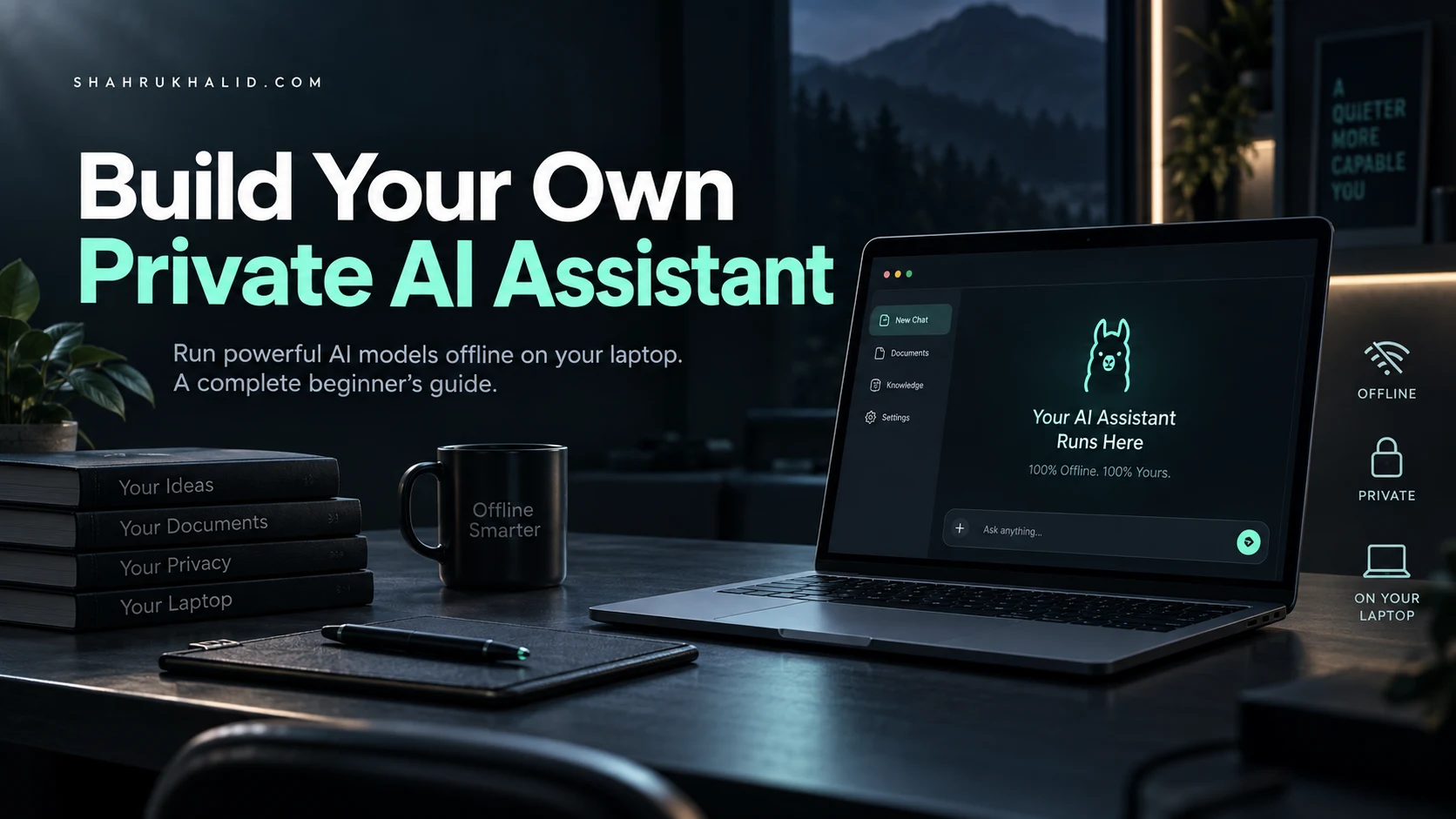
- Run world-class AI models 100% offline on everyday laptops for absolute privacy and digital sovereignty.
- Modern consumer laptops function as AI supercomputers due to breakthroughs in model efficiency and compression.
- Eliminate cloud data surrender, recurring subscriptions, and latency by deploying local, autonomous AI.
- This guide is for absolute beginners; no computer science degree, coding, or expensive hardware is needed.
- Achieve immediate, zero-dollar or low-overhead infrastructure, prioritizing deterministic reliability and local autonomy.
Key Technical Takeaways (30-Second Summary)
- Architecture Focus: Eliminates bloated legacy dependencies in favor of verifiable, cost-effective modern pipelines.
- Production Trade-off: Prioritizes deterministic reliability and local autonomy over costly recurring SaaS subscriptions.
- Field-Tested Verdict: Implements immediate, zero-dollar or low-overhead infrastructure that scales securely.
The Silent Revolution on Your Desk: Reclaiming Digital Sovereignty
Imagine a world where your most intimate thoughts, proprietary business strategies, and unedited creative drafts are processed by an incredibly smart, tireless intellectual partner—without a single byte of data ever leaving your physical device. For years, the promise of artificial intelligence has been bound to a Faustian bargain: in exchange for cognitive assistance, we must surrender our personal data, intellectual property, and privacy to massive cloud data centers. Every prompt you type into a web-based chatbot is logged, analyzed, and potentially used to train future models, leaving your private life and commercial secrets vulnerable to data breaches, policy shifts, and subscription price hikes.
But a quiet revolution is happening right now, right on your desk. In 2026, consumer hardware has reached a critical inflection point. The laptop you use for everyday work is no longer just a portal to the cloud; it is a fully capable AI supercomputer. Thanks to breakthroughs in model efficiency, compression techniques, and specialized silicon chips, you can now run a world-class, highly capable private ai assistant completely offline. Whether you are on a remote flight with zero Wi-Fi, working from a high-security research lab, or simply sitting in your local coffee shop, you can deploy an offline intelligence engine that matches the reasoning power of yesterday’s cloud giants—with zero subscription fees, zero latency bottlenecks, and absolute, mathematical privacy.
This masterclass is designed specifically for absolute beginners. You do not need a degree in computer science, you do not need to know how to write code, and you do not need to purchase expensive, industrial-grade server hardware. By following this comprehensive, step-by-step guide, you will transform your everyday laptop into a secure sanctuary of personal intelligence. We will demystify the core concepts, assess your hardware, select the perfect open-source model for your specific needs, walk through a visual installation, and even teach your local assistant how to read your private documents securely. Let us begin the journey of reclaiming your digital sovereignty.
The Core Anatomy of Local AI: How It Works Without the Cloud
To understand how a private ai assistant can run on a standard laptop, we must first demystify what an artificial intelligence model actually is. At its core, a Large Language Model (LLM) is not a sentient mind, nor is it a massive, active database of web pages. Instead, it is a single, highly complex file containing billions of mathematical numbers called “parameters.” These parameters represent the learned connections, patterns, and linguistic structures acquired during massive training phases. When you type a prompt, the model performs billions of rapid calculations across these parameters to predict the most logical next word in the sequence. It is, in essence, a highly advanced calculator for language.
In the cloud, these models are massive, often consisting of hundreds of billions of parameters that require rows of power-hungry liquid-cooled server GPUs to run. For an everyday laptop, however, we use highly optimized, compact models. These models typically range from 1 billion (1B) to 8 billion (8B) parameters. While that might sound small compared to cloud giants, modern architectural improvements have made these smaller models incredibly dense with intelligence. A modern 3B or 8B model can easily handle daily tasks like drafting emails, summarizing long documents, brainstorming creative concepts, and writing clean programming code—all while fitting comfortably inside your laptop’s system memory.
The secret weapon that allows these models to run on consumer hardware is a process called “quantization.” Imagine taking a massive, ultra-high-definition photograph and compressing it into a highly optimized JPEG. The file size shrinks by 90%, but to the human eye, the image looks virtually identical. Quantization does the exact same thing to AI models. It reduces the mathematical precision of the model’s parameters (typically from 16-bit floating-point numbers to 4-bit or 8-bit integers). This shrinks an 8-billion-parameter model from a massive 16 gigabytes (GB) down to a highly manageable 4 GB or 5 GB, allowing it to run lightning-fast on standard computer memory without any noticeable loss in practical intelligence.
Finally, we must understand how your laptop processes these calculations. Historically, running AI required a dedicated, expensive graphics card (GPU) from specialized manufacturers. Today, modern laptops feature highly integrated architectures. If you use an Apple Silicon Mac (M1, M2, M3, or M4), your computer utilizes “Unified Memory,” allowing the CPU and GPU to share the same ultra-fast memory pool seamlessly. If you use a modern Windows or Linux laptop, you likely have a dedicated GPU or a brand-new Neural Processing Unit (NPU) designed specifically to accelerate AI tasks while preserving your battery life. These hardware advancements mean that local AI is no longer a niche hobby for tech enthusiasts; it is a native capability of modern personal computing.
Understanding the Local AI Pipeline
To visualize how this works in practice, let us look at the journey of a single prompt inside your offline system. When you type a question into your local user interface, the software converts your text into numerical representations called tokens. These tokens are fed directly into your computer’s RAM, where the quantized model file resides. Your laptop’s processor (whether it is an Apple Silicon chip, an Intel/AMD CPU, or an NVIDIA GPU) rapidly executes the mathematical matrix multiplications required by the model. The resulting numerical outputs are converted back into human-readable text and displayed on your screen, word by word, in real-time. Because this entire loop occurs within your motherboard’s internal circuitry, no data packets are transmitted over the internet, making it physically impossible for external entities to intercept, monitor, or store your conversations.
Hardware Assessment: What Do You Actually Need?
One of the most common misconceptions about running a local private ai assistant is that you need a noisy, expensive liquid-cooled desktop computer. In reality, the software ecosystem has become so highly optimized that you can run highly capable models on laptops that are several years old. However, performance—measured in “tokens per second” (essentially, how fast the assistant can type its response)—depends heavily on your hardware configuration. Let us break down the exact hardware components that matter most and categorize your laptop into its realistic performance tier.

The single most critical component for local AI is not your processor’s clock speed, but your system’s Random Access Memory (RAM). Because the entire AI model must be loaded directly into memory to run at acceptable speeds, your RAM capacity dictates the maximum size of the model you can use. If you attempt to load a model that is larger than your available RAM, your system will be forced to use your slow hard drive as temporary memory, causing performance to grind to an absolute halt. For Windows and Linux laptops, having a dedicated graphics card (VRAM) is a massive advantage, as graphics memory is significantly faster than standard system memory. For Apple Silicon Mac users, the system’s unified memory acts as both system RAM and graphics memory, making Macs exceptionally efficient local AI machines.
To help you understand exactly what your machine is capable of, we have categorized modern laptop hardware into three distinct operational tiers:
| Hardware Tier | Typical Specifications | Recommended Model Size | Expected Performance (Tokens/Sec) |
|---|---|---|---|
| The Entry-Level Explorer | 8GB RAM / Intel Core i5/i7 (older), Apple M1/M2 (8GB), AMD Ryzen 5 | 1B to 3B parameters (e.g., Llama 3.2 3B, Phi-3 3.8B) | 15 – 30 tokens/sec (Comfortable reading speed) |
| The Productivity Sweet Spot | 16GB – 24GB RAM / Apple M1/M2/M3/M4 (16GB+), Windows with RTX 3060/4050 (6GB VRAM) | 7B to 9B parameters (e.g., Llama 3.1 8B, Gemma 2 9B) | 25 – 50 tokens/sec (Faster than human typing) |
| The Local Power User | 32GB – 64GB+ RAM / Apple Max/Ultra Chips, Windows with RTX 4070/4080/4090 (8GB-16GB+ VRAM) | 12B to 32B parameters (e.g., Mistral Nemo 12B, Qwen 2.5 14B/32B) | 40 – 80+ tokens/sec (Blazing fast, near-instantaneous) |
If you find yourself in the Entry-Level Explorer tier, do not be discouraged. A highly optimized 3-billion-parameter model is incredibly capable. It can draft professional correspondence, edit complex essays, organize chaotic notes, and act as an interactive tutor with remarkable accuracy. The key is matching the model size to your hardware limits. By selecting the correct quantized file, you can enjoy a smooth, responsive, and highly productive experience on almost any modern laptop.
The Best Offline Open-Source Models for Beginners
The open-source AI community has experienced an unprecedented explosion of creativity and engineering excellence. Today, independent developers and major research institutions release highly optimized, free-to-use models that rival proprietary cloud systems. However, walking into this landscape for the first time can feel overwhelming due to the sheer volume of acronyms and version numbers. Let us break down the absolute best, most reliable open-source models available today for your local private ai assistant, categorized by their strengths and hardware requirements.
Meta’s Llama Series: The Industry Gold Standards
Meta’s commitment to open-source AI has provided the foundation for the entire local AI ecosystem. Their flagship models are highly versatile, exceptionally well-balanced, and serve as the perfect starting point for any beginner.
- Llama 3.2 (1B & 3B): These are ultra-lightweight, highly optimized models designed specifically to run on mobile devices and low-spec laptops. The 3B model is an absolute masterpiece of efficiency. It requires less than 2.5 GB of RAM when quantized, yet it exhibits a deep understanding of natural language, handles multi-turn conversations with ease, and is incredibly fast even on older Intel-based laptops.
- Llama 3.1 (8B): This is the uncontested sweet spot for users with 16 GB of RAM or more. The 8B model possesses a massive “context window” (the amount of text it can remember at one time) and exhibits advanced reasoning capabilities. It is perfect for complex creative writing, basic programming assistance, and analyzing large sheets of text.
Microsoft’s Phi Series: The Micro-Powerhouses
Microsoft’s research team took a unique approach to training AI: instead of feeding the model the entire chaotic internet, they trained it on highly curated, textbook-quality data. The result is the Phi series—models that punch far above their weight class.
- Phi-3 / Phi-4 (3.8B to 14B): These models are legendary for their logical reasoning, mathematical capabilities, and step-by-step problem-solving. If you need a local assistant to help you debug code, solve analytical problems, or tutor you in complex technical subjects, the Phi series is an outstanding choice that runs beautifully on standard laptops.
Google’s Gemma 2: The Precision Performers
Built on the same research and technology stack as Google’s proprietary Gemini models, the Gemma 2 open-weights series offers incredible linguistic precision and factual accuracy.
- Gemma 2 (2B & 9B): The 9B variant of Gemma 2 is widely regarded as one of the most intelligent models in its size class, often outperforming older, much larger models. It is highly articulate, writes with a natural, sophisticated tone, and is excellent at structured data extraction and creative brainstorming.
A Real-World Scenario: Imagine you are an independent novelist working on a highly sensitive, unpublished fantasy manuscript. You want an AI assistant to help you brainstorm character arcs, maintain consistency in your world-building, and edit your prose. Uploading your manuscript to a cloud-based AI puts your valuable intellectual property at risk. By running a local Llama 3.1 8B model on your 16GB MacBook Air, you can feed your entire chapter history directly into the model. The AI analyzes your writing style, suggests plot adjustments, and refines your sentences—all while your manuscript remains safely encrypted on your local hard drive.
Step-by-Step Software Installation Guides (No Coding Required)
Now that you understand the hardware and have an idea of which model fits your needs, it is time to install the software that will run your private ai assistant. We will look at two of the most popular, incredibly user-friendly, and completely free applications: Ollama (the invisible background engine) and LM Studio (the ultimate visual, all-in-one interface). Both options require absolutely zero programming knowledge and can be installed in minutes.
Option A: LM Studio (The Ultimate Visual Interface)
LM Studio is the perfect starting point for visual learners. It behaves like a beautiful, native desktop application that combines a model downloading store, a chat interface, and advanced settings into a single, cohesive experience. Here is how to set it up step-by-step:
- Download the Application: Open your web browser, navigate to the official LM Studio website, and download the installer for your specific operating system (Windows, macOS, or Linux). Run the installer and follow the standard on-screen prompts to open the application.
- Search for a Model: Once inside LM Studio, click on the magnifying glass icon in the left-hand sidebar to open the Model Search Home. In the search bar at the top, type in “Llama 3.2 3B” or “Llama 3.1 8B” depending on your hardware tier.
- Select the Right Quantization: On the search results page, you will see a list of available files compiled by the open-source community (look for files curated by “QuantFactory” or “lmstudio”). On the right side of the screen, you will see a list of different quantization levels (labeled Q4, Q5, Q8, etc.). LM Studio will helpfully display a green “Should Work” indicator next to the files that fit safely within your laptop’s RAM. Click the “Download” button next to a 4-bit quantized file (often labeled
Q4_K_M), which offers the perfect balance of speed and intelligence. - Start a Chat: Once the download is complete, click on the chat bubble icon in the left-hand sidebar. At the very top of the screen, click the dropdown menu that says “Select a model to load” and choose the model you just downloaded. Your laptop will take a few seconds to load the model into its RAM.
- Interact Privately: Type your first prompt in the input box at the bottom of the screen (e.g., “Write a poem about a computer that works completely offline”). Watch as your laptop processes the request and generates the response in real-time—completely disconnected from the internet.
Option B: Ollama + AnythingLLM (The Robust, Modular Setup)
If you prefer a highly modular setup where the AI engine runs quietly in the background of your operating system while you use a separate, beautiful chat interface, the combination of Ollama and AnythingLLM is the gold standard.
- Install Ollama: Navigate to the official Ollama website and download the application for your operating system. Once installed, run Ollama. You will see a small llama icon appear in your system tray (Windows) or menu bar (macOS), indicating that the local AI engine is running silently in the background.
- Download AnythingLLM: Go to the official AnythingLLM website and download the desktop application. AnythingLLM is a gorgeous, feature-rich user interface designed specifically for managing local chats, organizing workspaces, and handling private document analysis. Install and launch the application.
- Connect AnythingLLM to Ollama: Upon launching AnythingLLM for the first time, you will be greeted by a setup wizard. When asked to choose your LLM Provider, select “Ollama” from the dropdown menu. The software will automatically detect the Ollama engine running in your background.
- Select and Download Your Model: Inside AnythingLLM’s settings, you can choose which model you want to download. Select “Llama3.2:3b” or “Llama3:8b” and click download. Ollama will fetch the model in the background and install it directly into your local library.
- Create Your Workspace: AnythingLLM organizes your work into “Workspaces.” Create a workspace named “My Private Assistant.” You are now ready to chat, write, and analyze files with absolute privacy.
Supercharging Your Assistant with Local RAG (Retrieval-Augmented Generation)
While chatting with a local model is incredibly fun and useful, the true superpower of a private ai assistant is unlocked when you connect it to your own personal files. This process is called Retrieval-Augmented Generation (RAG). Instead of training a model from scratch—which requires millions of dollars and massive supercomputers—RAG allows your local model to securely read, analyze, and reference specific documents on your laptop in real-time. It is the equivalent of giving your assistant an open-book exam: when you ask a question, the assistant quickly scans your provided documents, finds the relevant passages, and uses its intelligence to write a precise, contextual answer.
To understand how this happens without compromising your privacy, let us look at the concept of “Vectorization” and “Embeddings.” When you drag and drop a PDF, Word document, or text file into a local interface like AnythingLLM, a specialized, ultra-lightweight AI model called an “embedding model” runs locally on your machine. This embedding model reads your document and converts the sentences into long lists of numbers called “vectors.” These vectors represent the deep conceptual meaning of your words. When you ask your assistant a question, the software converts your query into a vector, mathematically matches it to the most relevant sections of your documents, and feeds those exact passages directly to your main local LLM. The LLM then synthesizes the information and drafts your answer. Every single step of this mathematical matching process happens locally on your processor.
Step-by-Step Guide to Setting Up Local RAG in AnythingLLM
Setting up local RAG used to require complex programming databases. Today, AnythingLLM makes it as simple as dragging and dropping a file. Here is how to do it:
- Open Your Workspace: Launch AnythingLLM and select the workspace you created earlier (e.g., “My Private Assistant”).
- Upload Your Documents: In the workspace dashboard, click on the upload icon (often represented by a paperclip or a “Upload Files” button). Drag and drop your private files directly into the upload zone. This can include PDFs of academic research, text files of personal journals, financial spreadsheets, or complex software manuals.
- Pin and Embed Your Files: Once your files are uploaded to the local storage, click the checkbox next to them and select “Save and Embed.” Your laptop’s processor will run the local embedding model, transforming your documents into a searchable mathematical database. This process takes only a few seconds for standard documents.
- Query Your Private Knowledge Base: Now, simply type a question in the chat bar. For example, if you uploaded a complex 100-page appliance manual, you can type: “According to page 42, what does the blinking blue light mean, and how do I fix it?”
- Review the Citations: Your local assistant will instantly scan the embedded manual, retrieve the exact troubleshooting steps, and present them to you. AnythingLLM will even show you the exact source citations, allowing you to click and verify the original text. You have successfully built a highly intelligent, completely offline search engine for your personal life.
A Real-World Scenario: Consider a financial advisor who manages sensitive investment portfolios for high-net-worth clients. Uploading client financial statements, tax histories, and estate plans to a public cloud AI violates strict privacy laws and trust. By utilizing AnythingLLM and an offline Gemma 2 9B model, the advisor can securely upload decades of client PDFs into a dedicated local workspace. They can ask: “Summarize the tax liabilities of the Smith family estate based on our 2025 planning documents.” The assistant provides a highly detailed, accurate summary in seconds, referencing specific pages, while the client’s financial data remains completely locked down and compliant with federal privacy regulations.
Optimizing for Speed, Battery, and Performance
Running a local private ai assistant is a highly demanding task that pushes your laptop’s hardware to its limits. To ensure you get the absolute fastest response times without draining your battery in thirty minutes or causing your laptop to become uncomfortably hot, you must understand how to fine-tune your software settings. Let us explore the critical optimization levers you can adjust inside LM Studio or Ollama to achieve the perfect balance of speed and efficiency.
Thread Allocation and CPU Management
When running local AI on a CPU, the software divides the mathematical calculations across your processor’s individual physical cores, known as threads. By default, most applications will attempt to use every single thread available on your laptop. While this maximizes initial speed, it can cause your entire operating system to freeze, make your cooling fans spin at maximum velocity, and rapidly drain your battery. For optimal performance, navigate to your software’s advanced hardware settings and set the CPU Thread limit to match your processor’s physical core count (typically 4, 6, or 8 threads), leaving your virtual “hyper-threaded” cores free to handle your operating system’s background tasks. This simple adjustment keeps your computer running cool and responsive while you chat.
GPU Offloading: Unleashing Your Graphics Card
If your Windows or Linux laptop features a dedicated graphics card (such as an NVIDIA RTX or AMD Radeon chip), you possess an incredibly powerful engine for accelerating AI calculations. Inside your software settings, locate the “GPU Offload” or “Hardware Acceleration” slider. This setting allows you to choose how much of the AI model is processed by your ultra-fast graphics card instead of your standard CPU. If your model’s file size is smaller than your graphics card’s dedicated VRAM (e.g., a 4 GB model running on a laptop with 6 GB of VRAM), slide the offload setting to 100%. This shifts the entire computational workload to the graphics processor, resulting in a massive, often five-fold increase in generation speed while drastically reducing the thermal load on your main CPU.
Managing the Context Window
The “Context Window” is your assistant’s active short-term memory. It dictates how many pages of previous conversation and uploaded documents the model can remember at any given moment. While it is tempting to set this value to its maximum limit (such as 32,000 or 128,000 tokens), doing so exponentially increases the amount of RAM required for every single prompt. For everyday use, set your local context window limit to a sensible default of 4,096 or 8,192 tokens. This provides plenty of memory for long, multi-turn conversations and detailed document summaries while keeping your RAM usage low, your generation speeds high, and your battery consumption highly manageable.
Troubleshooting, Common Pitfalls, and How to Fix Them
Even with the most user-friendly software, running cutting-edge AI models locally can occasionally lead to unexpected technical hurdles. Understanding why these issues occur and how to quickly resolve them will save you hours of frustration. Here are the most common pitfalls absolute beginners encounter and the battle-tested solutions to get you back on track.
The “Out of Memory” (OOM) Error
If you attempt to load a model and your application suddenly crashes, displays a cryptic “Out of Memory” warning, or freezes your entire laptop, your system has run out of physical RAM. This occurs when you try to load a model file that is too large for your hardware to handle, or when you have too many background applications (like memory-heavy web browsers or video editing software) open simultaneously. To resolve this, completely close all unnecessary applications, open your AI software’s model library, and download a smaller or more highly quantized version of the model (for example, switching from an 8B model down to a highly optimized 3B model). Always ensure you leave at least 2 GB to 3 GB of your system’s RAM free to handle your operating system’s basic functions.
The “One Word Every Ten Seconds” Sluggishness
There is nothing more frustrating than watching your local assistant type its response at an agonizingly slow pace. If your model is generating text at less than 5 tokens per second, your laptop is struggling to process the calculations. This is almost always caused by the model running entirely on your CPU instead of your GPU, or because you have selected a model size that exceeds your hardware capabilities. To fix this, first double-check your software settings to ensure GPU acceleration is fully enabled and that your graphics drivers are updated to the latest versions. If you are on an Apple Silicon Mac, ensure your software is optimized natively for Apple Silicon (ARM64) rather than running slowly through Intel emulation software.
Repetitive or Incoherent Responses (“Hallucinations”)
Sometimes, your local assistant might get stuck in an infinite loop, repeating the same sentence over and over, or begin outputting complete gibberish. This behavior is not a hardware malfunction; it is a software configuration issue. AI models rely on mathematical parameters called “Temperature” and “Top-P” to control their creativity and randomness. If your temperature is set too high (above 1.0), the model becomes chaotic and incoherent. If it is set too low (below 0.2), the model becomes rigid, repetitive, and boring. For